The PowerPoint® Blog

I work with PowerPoint on a daily basis and I am very honored to be a Microsoft PowerPoint MVP. We have a talented team of presentation designers at TLC Creative Services and ThePowerPointBlog is our area to highlight PowerPoint tips, tricks, examples and tutorials. Enjoy! Troy Chollar

Free Online Talk Time Calculator

Real World:
– Today I received a presentation from a client and their script (for teleprompt, so I know they are saying every word in the script). The presentation has 43 slides, with 1 video. The script has 2,854 words. There is 1 video that is 90 seconds long. The agenda shows their talk time on stage is 20 minutes. Does all this work? Can we assume the presenter can accomplish this talk within their time allotment?
– Generally we plan 45 seconds of their time for the walk up music and crowd applause.
– The video is 90 seconds.
– Using a talk time calculator, 2,854 words at a standard rate = 22 minutes.
– 45 second walk up + 22 minutes talk time + 1.5 minute video = 24.25 minutes for the presentation… high probability of not being completed within the 20 minute slot.

So, how did I calculate 2,854 words = 22 minutes? www.Speechinminutes.com
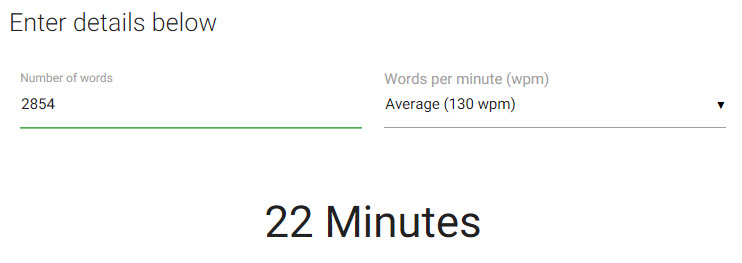
 

This is a very nice, free, online tool we use at TLC Creative Services for many projects. Hope it is helpful!

Troy @ TLC
By |2019-01-31T14:33:21-08:00October 19th, 2018|Software/Add-Ins|

2019 Presentation Summit (Location and Dates)

The Presentation Summit 2019 – Dates are reserved on my calendar!

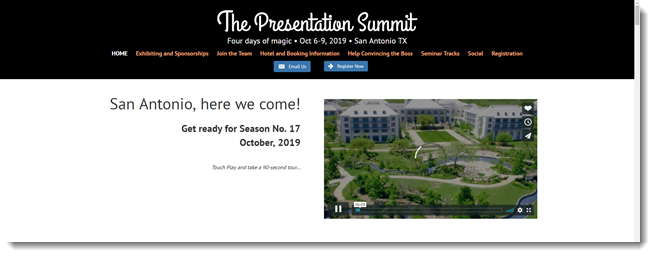
Lori and I had a fantastic time at the 2018 presentation Summit hosted in San Diego, CA. Just putting out advance notice, the 2019 Presentation Summit website officially announces the location and dates for next year. Lori and I will be attending, hopefully presenting again and would enjoy seeing you there!

Website: https://www.betterpresenting.com/summit/

Who: 200+ attendees, 20 presenters, 14 Microsoft “PowerPoint” MVPs, a number of Microsoft PowerPoint developers and PMs, and representatives from many presentation industry companies

When: October 6-9, 2019

Where: San Antonio, TX 


Troy @ TLC

By |2019-01-31T14:33:21-08:00October 17th, 2018|Resource/Misc|

The Presentation Podcast Episode #64 Released Today!

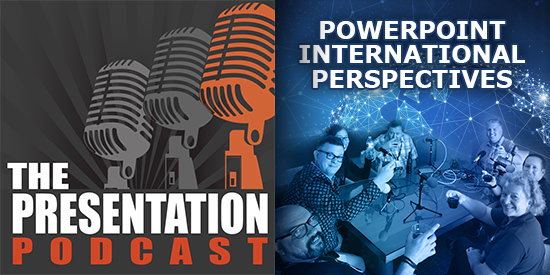
A new episode of The Presentation Podcast with a group of international presentation designers gathered together to talk about PowerPoint, what they see in presentation use and design, and lots of  random topics. Join the conversation with Troy, Nolan, Glen Millar (from Brisbane, Australia), Chantal Bosse (from Quebec, Canada), Tom Howell – Mark and Sam (from Synapsis Creative in Sydney, Australia).

Episode, #64 – PowerPoint International Perspectives


By |2018-10-16T06:30:25-07:00October 16th, 2018|Resource/Misc|

Slide Background Color

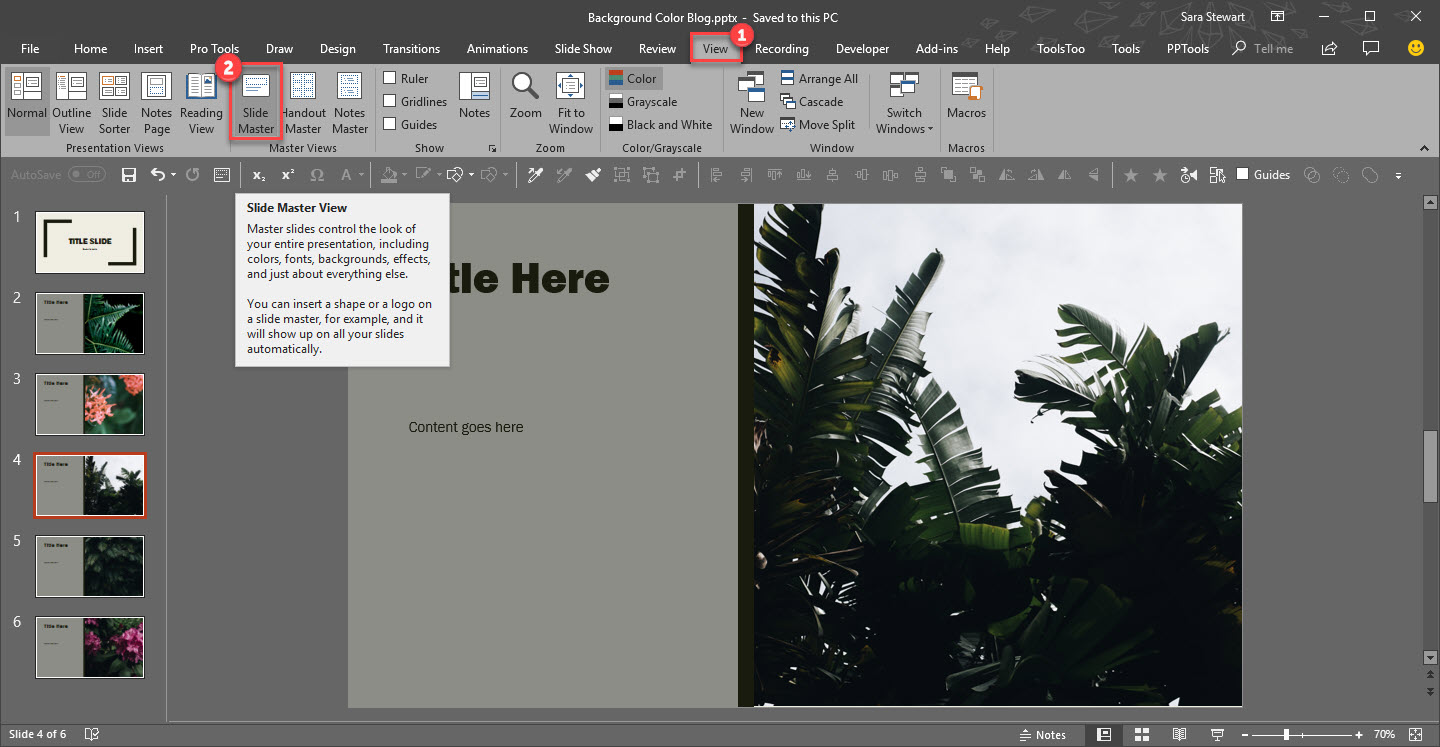
Changing a presentation’s background color is made simpler with this quick shortcut. When changing slide background color, you’ll want to make sure you change it on the master layout, that way your changes will be applied to all slides, new and old. Normally, you could achieve this by going to View>Slide Master and that would open the targeted master layout.

Slide Background Color 1

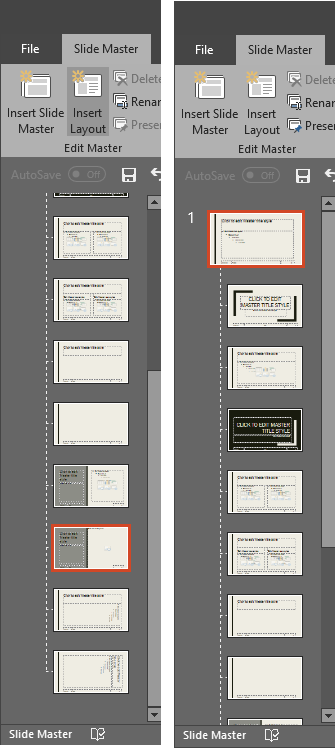
However, if you change the background on this slide, it will not apply to the template. Instead, you need update the background color on the Master slide at the top.

Slide Background Color 2

A quick and easy shortcut to achieve this is to simply hold SHIFT + DOUBLE-CLICK on the NORMAL VIEW icon in the lower right bar.

Slide Background Color 3

This is will automatically open the master to the top slide where you can quickly update all slide backgrounds.

[KGVID]https://thepowerpointblog.com/wp-content/uploads/2018/10/unnamed-file-3.mp4[/KGVID]

By |2019-12-30T09:28:13-08:00October 5th, 2018|PowerPoint|

The Presentation Podcast Episode #63 Released Today!

A new episode of The Presentation Podcast with Troy, Nolan, and Sandy is available today! Check out the latest episode, #63- Live From the 2018 Presentation Summit 

This episode is a live conversation recorded at the 2018 Presentation Summit in San Diego California. We gathered around a table and just the let conversation flow – so enjoy a fantastic everything presentation conversation among 10 presentation industry experts!

By |2018-10-01T07:34:27-07:00October 2nd, 2018|Resource/Misc|

The Presentation Podcast Episode #61 Released Today!

A new episode of The Presentation Podcast with Troy, Nolan, and Sandy is available today! Check out the latest episode, #61 – PowerPoint Shortcuts – Here’s What We Found.

Join a great conversation with Troy, Sandra and Nolan sharing “PowerPoint Shortcuts”, including keyboard shortcuts, right-click tricks, app setup, faster design, better presenting and anything else that helps us get more done quicker, better or professionally.

By |2018-09-04T13:46:52-07:00September 4th, 2018|Resource/Misc|

NXPowerLite Blog (and Troy Chollar Quote)

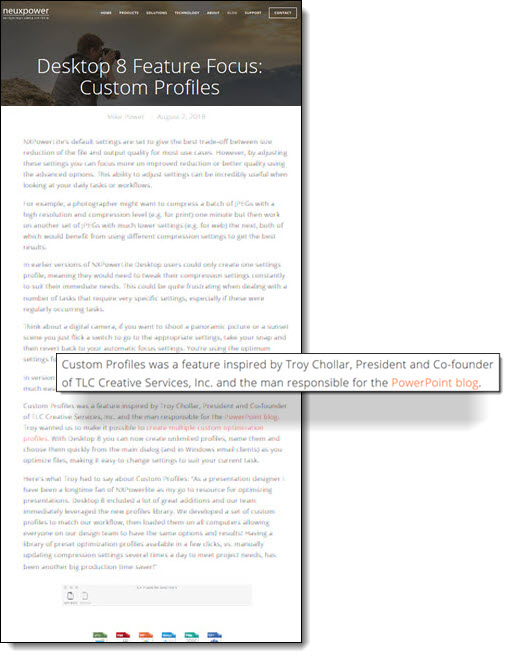
NXPowerlite is a great app that TLC Creative Services has made use of for several years. The  current version, Desktop 8, was the biggest release for new features. I was happily asked to contribute input and ideas as the Neuxpower team was busy strategizing the big release. On a recent Neuxpower blog they talked about the Custom Profiles and to my surprise, I was a part of the blog!

Check out the blog post here.

Troy @ TLC

By |2018-08-19T14:48:59-07:00September 3rd, 2018|Personal, Resource/Misc|

Windows 10 Start Menu Icons (Complaining)

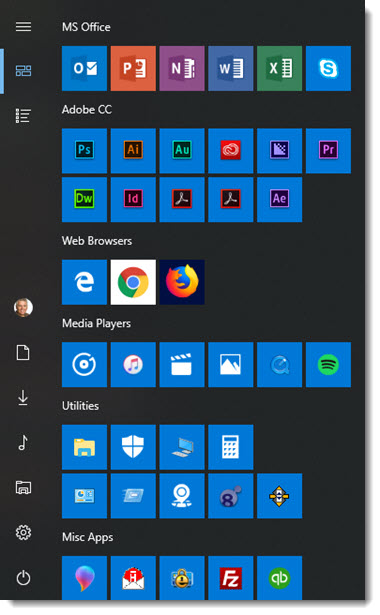
Look at the Microsoft Office Icons – they look great. Okay, I am not commenting on the icons themselves, but the color coding, size and how easy to see and identify.

Now look at the Adobe Creative Cloud icons. All are on the Windows theme color (blue), but small, and there is no difference between Acrobat Distiller and Acrobat Reader…

Other issues are Chrome on the white background, the Hightail app icon has white pixels around it, and Firefox (to me) is the most beautiful of icons I have on my Start Menu.

Troy @ TLC

By |2019-01-31T14:33:44-08:00August 31st, 2018|Software/Add-Ins|

Windows 10 Minimize Cortana to an Icon

Cortana, like or dislike, it is the search engine for your computer. But Cortana does not need to take up so much of the task bar if you do not want it there.

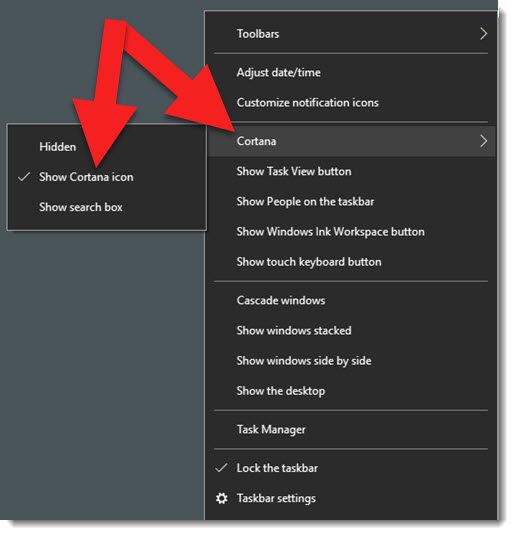
To minimize Cortana to just its icon, right-click the task bar, go to CORTANA and select SHOW CORTANA ICON

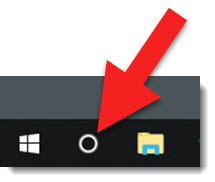
Now the task bar has a nice, simple and small, Cortana icon

Click the Cortana icon and the Start Menu opens with the Cortana search bar

Troy @ TLC

By |2019-01-31T14:33:44-08:00August 29th, 2018|Software/Add-Ins|
Go to Top