The PowerPoint® Blog

I work with PowerPoint on a daily basis and I am very honored to be a Microsoft PowerPoint MVP. We have a talented team of presentation designers at TLC Creative Services and ThePowerPointBlog is our area to highlight PowerPoint tips, tricks, examples and tutorials. Enjoy! Troy Chollar
Learn, See, Do Slide Makeover (1)

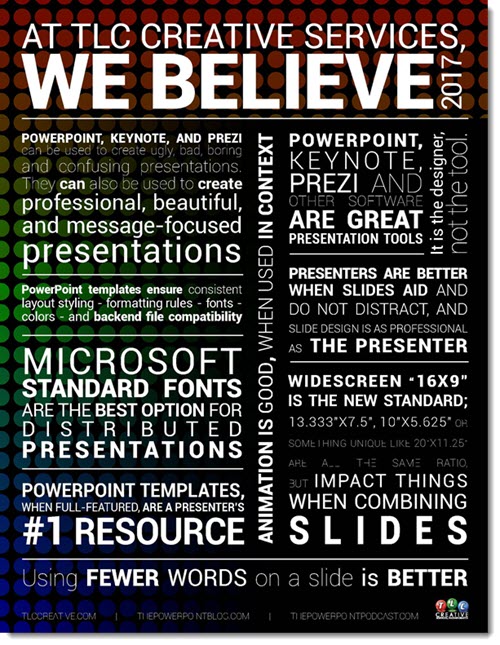
The Friday “Look Back” series post brought up a slide makeover that was given to the full TLC Creative presentation design team. Amazingly, every one of the slides we created back in 2017 could be used today – good design is timeless (and 16:9 is still the standard aspect ratio).
We pulled a recent client slide, which was a really creative idea for opening a multi-day conference. This Learn-See-Do slide was pulled from a client presentation:

Check back as we have a 5 part series showcasing how the TLC Creative design team took the above slide as a slide makeover project.
-Troy@TLC

By |2025-10-04T18:12:04-07:00October 6th, 2025|Portfolio|

A Look Back to Slide Makeovers

In 2018, the TLC Creative presentation design team had a fun internal challenge developing their version of a client slide. It was our “Month of Groundhog Days.”
Here was the client-provided slide (minus their corporate template background):

And here’s TLC Creative design team makeovers of the slide:
Larger images and more details are in the originals, which start here.

Taking inspiration from our own work, over the next 2 weeks you can expect another slide makeover series, based on another client slide!

By |2025-10-01T11:52:27-07:00October 3rd, 2025|Portfolio, PowerPoint|

PowerPoint’s Send a Frown is Missing…?

PowerPoint’s Send-a-Frown Is Not Missing – It Has Moved

Microsoft apps – like PowerPoint, Outlook, Word, and Excel – let every user send feedback directly to the dev teams. It is a one-way communication, so don’t wait for Microsoft to directly reply (feedback is received anonymously). Any time you discover that a PowerPoint function does not work, something about the user experience is not as you feel it should be, or to report a bug, you can “send a frown.” 

If you are familiar with the Microsoft “Send a Frown” function, and you’ve been looking for the frown option, you may have noticed it’s no longer above the ribbon. Don’t worry! It hasn’t disappeared. It’s just moved! If you are not familiar with the “send a frown”, and are reading The PowerPoint Blog, you should know about it. Oh, and it has been given a new name. 

Here’s how to find it now: 

1. Go to FILE in the top menu. 

2. Select the Help Improve Office icon. 

3. Click REPORT A PROBLEM.  


4. From the 2nd screen, add notes, a screenshot, and/or upload a file. Then, click SUBMIT.   

That’s it! The Microsoft product teams do receive every feedback item submitted, and it does influence what they work on, so it’s still worth sending your thoughts.

Of course, the old smiley icon on the top right of PowerPoint was easier. But if you now go to the backstage (eg., click FILE), locate the abstract person icon in the upper right, and then complete the 2-part dialog – it’s easy to send feedback directly to the PowerPoint product group at Microsoft!  

-Troy and the TLC Creative team 
By |2025-09-16T10:51:56-07:00October 1st, 2025|Resource/Misc|

PowerPoint Notes Pages Do Auto Flow when Printed

Final Tip for Using PowerPoint Notes Pages Like a Pro

Sometimes, your Presenter Notes need to be extra detailed — and that’s totally okay! But here’s a final tip for this series on PowerPoint Presenter Notes, specific to when it comes to managing a slide with a lot of presenter notes. 

In Presenter View

If you’re running your presentation using Presenter View, PowerPoint handles long notes by allowing you to scroll through them. You’ll see a scroll bar appear automatically. And while it may take a moment to scroll through, all the notes are still there. 

When Printing Notes Pages

When you go to print notes, PowerPoint automatically creates overflow pages if the presenter notes don’t fit the page with the slide thumbnail. The printout may be more pages than the number of slides, and you can rest assured that you won’t lose any content — even if it takes multiple pages. 

In the print preview, multiple note pages can be seen. 

Tip: A Little Customization Can Go a Long Way for Legibility

If you’re okay with breaking from perfect consistency, we often do this quick trick: 

1. Go into Notes Page View (View > Notes Page). 

2. Find each slide with overflow length presenter notes. 

3. Select the notes text box and adjust it to be wider and taller — giving the notes more space on those slides. 

4. If the content still doesn’t fit, consider reducing the font size just for that slide. A few points smaller can make a big difference!  

Summary

PowerPoint gives you flexibility to handle long presenter notes both on-screen and on print (paper or PDF). With a little tweaking in the Notes Page View, the handouts can be made clean, readable, and complete—without leaving anything out. 

-Christie and the TLC Creative Design Team 

By |2025-09-25T14:06:13-07:00September 29th, 2025|PowerPoint|

Congrats – The Presentation Guild’s 10th Anniversary!!

Once upon a time, Lori and Troy of TLC Creative were part of an amazing group that met at the Hardrock Cafe in New Orleans – that group was the official start of the Presentation Guild!
Yesterday, September 25, 2025 was an equally amazing event celebrating the Presentation Guild’s 10th anniversary! The ‘State of the Presentation Industry’ event had Glenn Gibson emceeing the event with an insightful state of the presentation industry and panel discussion.

WOW – 10 years!! If you work with PowerPoint or anywhere in the presentation industry, you really should be part of the Presentation Guild. Check it out here, at https://www.presentationguild.org/

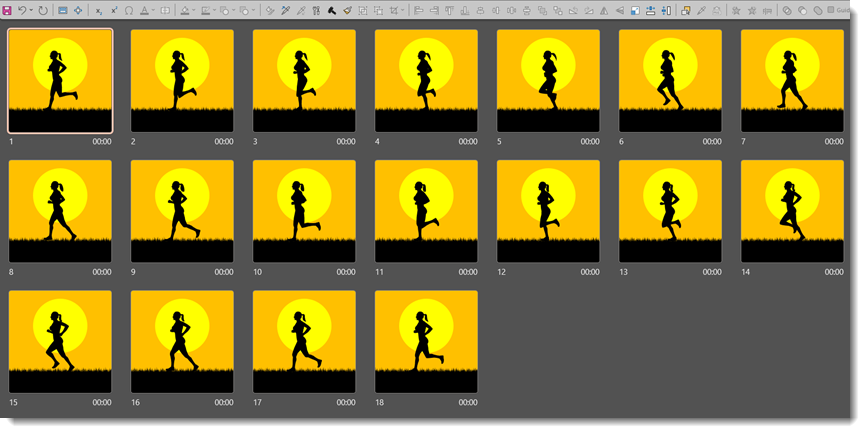
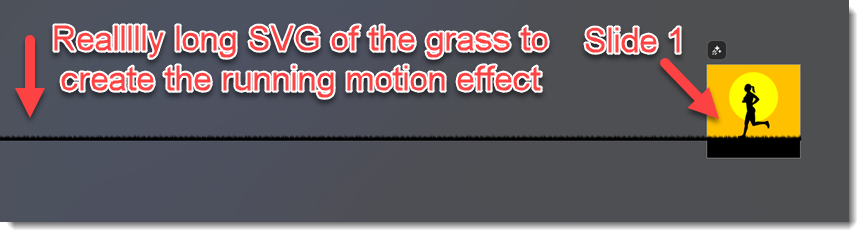
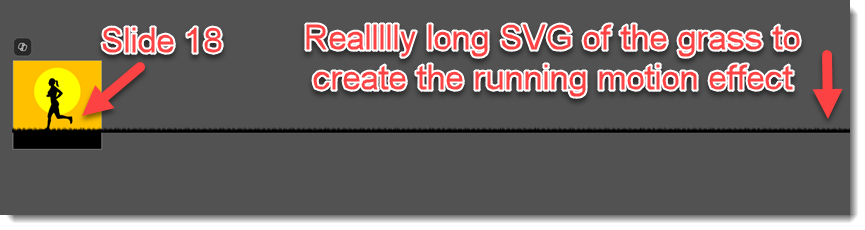
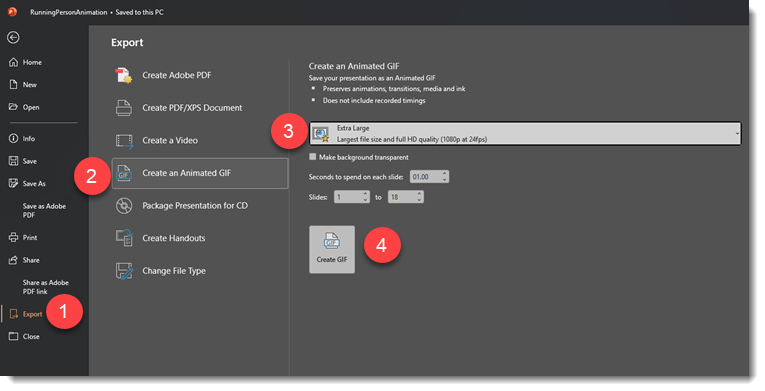
Side note: yes, I created the animated .gif in PowerPoint

-Troy @ TLC

By |2025-09-27T00:27:57-07:00September 26th, 2025|Resource/Misc|

The Origin of PowerPoint

From fellow Microsoft PowerPoint MVP, Geetesh Bajaj, read this great ‘Origin of PowerPoint’ article. This a good read! https://educationppt.com/the-origin-story-of-powerpoint

And the article conclusion is a perfect summary of where we are with PowerPoint today!

…PowerPoint is now smarter than ever. It helps you design your slides, write your speaker notes, and even rehearse your delivery.


And a big thank you Ellen Finkelstein for the reminder of this fun read in your recent email newsletter.

-Troy @ TLC

By |2025-09-24T11:48:33-07:00September 24th, 2025|PowerPoint, Resource/Misc|

Export Presenter Notes to Word Doc – The Easy Way!

Presenter Notes in PowerPoint are useful for scripts and internal documentation… but extracting them can be a hassle when you’re using available built-in PowerPoint features!

First, let’s acknowledge PowerPoint’s built-in export option “Save to Word.” Second, we won’t use this export option.

At TLC Creative, our design team uses two trusted PowerPoint add-ins for this task. These tools make exporting quick, consistent, and easy. We’ll demonstrate by using a 22-slide deck with notes on almost every slide. Here’s how to export Presenter Notes from a slide deck into a Word document in under 6 clicks.

Exporting Presenter Notes with Brightslide 

First up is leveraging Brightslide’s “Export to Word File” feature. This, of course, assumes you have the free Brightslide PowerPoint add-in installed (available for Windows or Mac PowerPoint). 

1. Click Brightslide in the menu bar 

2. Toward the right side, click “Review” to open the dropdown menu 

3. Scroll down to “Speaker Notes” 

4. Choose “Export to Word File” 

A pop-up notification will appear, letting you know that the newly exported document has opened directly in Microsoft Word. 

And done! A single continuous scroll Microsoft Word document has been created, complete with large slide numbers and slide titles along with the presenter notes! (Note: if a slide does not contain presenter notes, the slide will simply be skipped in the Word document).

TIP: Brightslide also has options to extract presenter notes to a text file (.txt), which is generally greatly appreciated by teleprompters! And there is an option to extract the presenter notes to an Excel file (.xlsx) too. 

Exporting Presenter Notes with ToolsToo 

Another option is to leverage the ToolsToo suite of PowerPoint tools (Windows PowerPoint only). It offers a similar workflow, but the output is a bit different, which may be better for certain projects. Here is the process: 

1. Click the ToolsToo tab in the menu bar 

2. Then click the “”Slide Tools” button 

3. From the dropdown box, select “Extract Notes” 

At the “Save As” dialog box, save the extracted notes. (Note: “Word doc” is selected by default, but other options are available.)

Saving will automatically open the newly created Word document. What is different with using ToolsToo is that each slide is a separate page. So, our sample 22-slide deck becomes a 22-page Word doc. 

These two different PowerPoint add-ins can make the task of extracting presenter notes from a presentation amazingly quick and easy!  

-The TLC Creative Design Team 

By |2025-07-11T01:27:58-07:00September 22nd, 2025|PowerPoint, Software/Add-Ins|

A Look Back to The Noun Project Used Directly Within PowerPoint

1,000,000+ vector icons are ready to drop straight into your slides while you are working in PowerPoint. And, honestly, what is not to love about that?! Anyone who has gone down the rabbit hole of searching for “the right icon” knows just how much time it can consume. So, being able to grab exactly what you need without leaving PowerPoint is a game-changer. 

Way back in 2018, we shared a post about The Noun Project: a ridiculously low-priced subscription that gives you access to a vast library of icons. And since our blog post, The Noun Project has added so many more icons, photos, illustrations, and other creative assets as add-ons.
The Noun Project PowerPoint add-in was the focus of the original post – how it was a treasure chest of icons you could access and add as vector art, all within PowerPoint. That post still holds today. You can check it out here: Noun Project Add-in. 

Since then, Microsoft has rolled out its own built-in icon library, accessible from PowerPoint, Word, and Excel – and it is a really solid collection of vector icons. Even with that, our team has never uninstalled the Noun Project add-in. We use it all the time. The sheer variety of its now 8M+ icons makes it worth it! Need a super specific icon? You’ll probably find it. Want a full set of icons that match each other in style? You’ll find that too. And because everything is vector, in .SVG file format, you can resize, recolor, and tweak them however you need – directly in PowerPoint! 

At the end of the day, the Noun Project add-in just makes life easier. It keeps the design process moving and cuts out all the back-and-forth of hunting for the perfect slide design assets. PowerPoint’s icons are great, but having access to millions more right in the same place? That is something we are not giving up anytime soon. 

Learn more about The Noun Project at https://thenounproject.com.

-The TLC Creative Design Team 

By |2025-08-25T14:23:54-07:00September 19th, 2025|Software/Add-Ins|

Announce TPP e230 – New Podcast Episode Available! “Behind the Scenes of the Presentation Summit: What Awaits Attendees This Year, with Rick Altman” 

New episode of The Presentation Podcast now available!

In this episode of The Presentation Podcast, our hosts are joined by Rick Altman, director of The Presentation Summit. They discuss the upcoming Summit (October 19th-22nd 2025), its array of guest speakers and engaging sessions. Rick shares behind-the-scenes insights and announces a special $75 registration discount, exclusively for The Presentation Podcast listeners. Listeners can find more details and show notes on The Presentation Podcast website!

Listen on your favorite podcast app, or at The Presentation Podcast site here.  

By |2025-09-16T10:13:26-07:00September 17th, 2025|Resource/Misc|

Play Video Across Slides No More

In October 2017, we shared a post about a great PowerPoint video playback feature, video across slides, shown in the above video. At that time it was experiencing some issues with playback of stylized videos. See the original post for more information and examples (Read the original post here).

The goal of this feature is to enable a video on one slide to continue playing seamlessly across multiple slides.

Fast forward to today. Microsoft has quietly turned off the play-across-slides feature. I searched and there was no documentation from Microsoft, this feature was just not functioning – argh! With some piecing together of information I could find, there is a reason this feature is no longer working (but still this is frustrating to discover when presenting!). The reason? The Windows OS is no longer supporting the legacy Windows Media Player engine. And the PowerPoint play-video-across-slides feature uses (used) the legacy Window Media Player engine.

Here is the quirky part. PowerPoint, as of today, has not caught up with the Windows OS change. The animation options for video playback, and play video across slides, are still available in the dialog:

We can still set a video to stop playing after 2 slides or 99, but the video won’t play across any slides, it just plays on the first slide. It gets worse, in testing, existing presentations that were built with videos setup to play across slides do not just lose the across-slides playback, the videos themselves do not play at all…instead, only the video poster frame, a static image, is seen on the first slide of the video playback series of slides.

So, while the feature was always limited (never available on Mac or the online version of PowerPoint), I believe it is now completely gone from the Windows side too. It was a useful feature for many years (I know I used it in PowerPoint 2000 presentations!). So this is not so much a look back post, it is really a farewell to a useful PowerPoint feature.

NOTE: just before this post went live, Microsoft added this info page on The “Stop Playing After N Slides” feature is not working as expected in PowerPoint for Windows. This lists ActiveX controls have been disabled in PowerPoint as the reason for the play-across-slides not working. I am uncertain if that is the same or different than what I was told about the legacy media engine – but the end result is the same, things don’t work.

-Troy @ TLC Creative

By |2025-09-14T13:20:34-07:00September 15th, 2025|PowerPoint, Resource/Misc, Tutorial|
Go to Top