PowerPoint

Happy Thanksgiving Animation

[KGVID]https://thepowerpointblog.com/wp-content/uploads/2018/11/unnamed-file.mp4[/KGVID]

Happy Thanksgiving everyone! Enjoy time with family and full of fun and food 🙂

Thanks to Christie on the TLC Creative presentation design team for creating a fun Thanksgiving themed PowerPoint animation – it only took 82 animations for the above animation!

[KGVID width=”484″]https://thepowerpointblog.com/wp-content/uploads/2018/11/unnamed-file-1.mp4[/KGVID]

Troy @ TLC

By |2019-10-28T15:40:59-07:00November 22nd, 2018|Portfolio, PowerPoint|

Quick Access to Slide Master

This is a re-post from earlier this year, originally posted on June 08, 2018.

The Master Slide is where as presentation designers we try to keep clients away from. But as a designer, this is a fantastic shortcut to accessing the master slide!

As example, we want to change the background color across all slides. Easy, just update the Master Slide. The typical way of doing this is  View > Slide Master and the Master Slide view opens with that layout selected.

Directly to the Master Slide 1

However, we need to change the background color on the Master Slide, not the Master Layout. So now we need to scroll up and select the Master slide at the top. Too many steps for a busy presentation designer!

A quick and easy shortcut to achieve going directly to the Master Slide is to hold SHIFT + DOUBLE-CLICK on the NORMAL VIEW icon in the lower right bar.

Directly to the Master Slide 3

This is will automatically open the master to the top slide where you can quickly update all slide backgrounds.

Here it is in action, 1 click (okay a double-click) access to the Slide Master.

[KGVID]https://thepowerpointblog.com/wp-content/uploads/2018/06/unnamed-file-3.mp4[/KGVID]

Troy @ TLC

By |2019-11-06T21:55:21-08:00November 9th, 2018|PowerPoint, Resource/Misc|

Slide Background Color

Changing a presentation’s background color is made simpler with this quick shortcut. When changing slide background color, you’ll want to make sure you change it on the master layout, that way your changes will be applied to all slides, new and old. Normally, you could achieve this by going to View>Slide Master and that would open the targeted master layout.

Slide Background Color 1

However, if you change the background on this slide, it will not apply to the template. Instead, you need update the background color on the Master slide at the top.

Slide Background Color 2

A quick and easy shortcut to achieve this is to simply hold SHIFT + DOUBLE-CLICK on the NORMAL VIEW icon in the lower right bar.

Slide Background Color 3

This is will automatically open the master to the top slide where you can quickly update all slide backgrounds.

[KGVID]https://thepowerpointblog.com/wp-content/uploads/2018/10/unnamed-file-3.mp4[/KGVID]

By |2019-12-30T09:28:13-08:00October 5th, 2018|PowerPoint|

Happy 4th of July, America!

Happy 4th of July from the TLC Creative design team! Christie on our design team developed this fun animated slide to share with everyone.

[KGVID]https://thepowerpointblog.com/wp-content/uploads/2018/07/unnamed-file-1.mp4[/KGVID]

This fun PowerPoint slide has a lot of layers of images, lots of animation, and a fireworks audio track!

4th of July 2

Fireworks SFX sourced from one of our go to resources, AudioBlocks

4th of July 3

Enjoy the Fireworks this evening, America! Download the editable PowerPoint slide here.


Troy @ TLC
By |2019-10-30T05:56:16-07:00July 4th, 2018|PowerPoint|

It’s A Bright Pink World Full of Animation!

Sometimes a presentation project is just all about the animation. In this case we were tasked with developing a 2+ minute motion graphics video to be used as a meeting opener, a short segment is here for preview. We developed the video all in PowerPoint, exported to video with a music track. It is not the tool that creates bad, boring and bland presentations – PowerPoint is just a canvas, and can accomplish wonderful results in the hands of professional design team.


Troy @ TLC

By |2025-01-02T13:59:38-08:00June 1st, 2018|Portfolio, PowerPoint|

User Navigation Demo Using Animation

This is a unique project: it’s not a true slide presentation, but a presentation demonstrating potential user navigation flow within a theoretical app. Because this is setup to be presented, we developed a 16×9 version of the app, used oversize icons and simplified much of the content so the audience has large, easy to track content. It was a presentation, but not a presentation of slides, but the content was revised to be the same size (aspect ratio) as slides… got it?

Here is the final motion graphic styling, all developed using PowerPoint.

[KGVID]https://thepowerpointblog.com/wp-content/uploads/2018/05/unnamed-file-3.mp4[/KGVID]

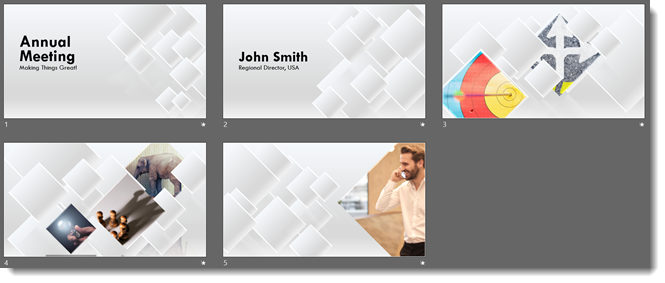
For reference, the above video is from 7 slides:

user navigation

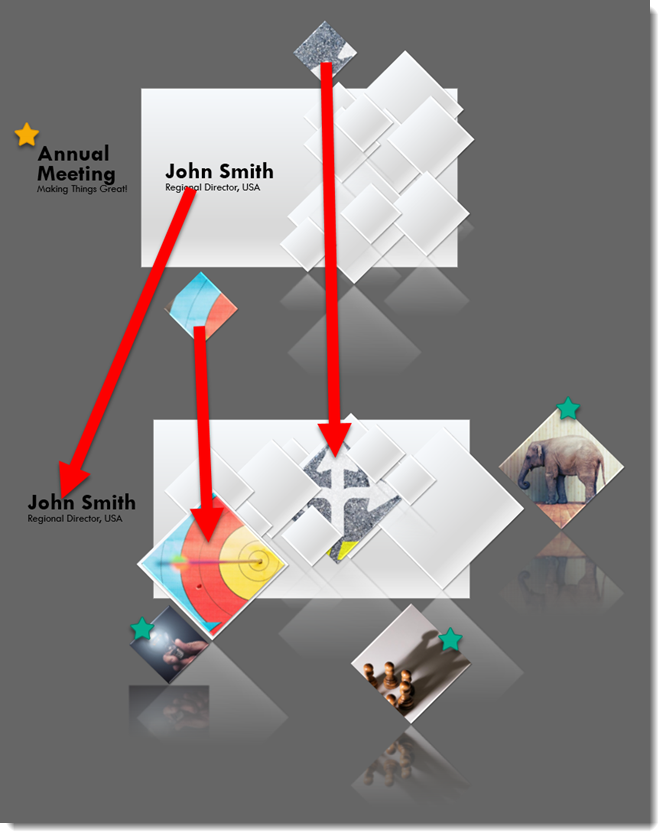
There is a combination of on-slide animation and Morph transition to achieve all motion graphic effects:

user navigation

Troy @ TLC

By |2019-10-30T05:59:17-07:00May 28th, 2018|PowerPoint|

Social Media Landscape

Sometimes animation has become too easy. For example, during a recent project, it took longer for the animation request to be explained than to develop. Two slides, move logos, crop and let morph do everything for us with these social media landscape slides.

[KGVID]https://thepowerpointblog.com/wp-content/uploads/2018/05/unnamed-file-1.mp4[/KGVID]

Troy @ TLC
 

By |2019-10-30T05:58:43-07:00May 25th, 2018|PowerPoint|

Map Pin Locations

Here is some more animation fun from another presentation project. The goal of this slide was to show national coverage (from the original 3 locations). The talking points were not specific to the locations, but on the positive corporate office growth. We knew there was time for a subtle animation of the map pin locations that filled some of the talk.

[KGVID]https://thepowerpointblog.com/wp-content/uploads/2018/05/unnamed-file-4.mp4[/KGVID]

The animation pane shows every line of text and every map marker, which were set in a 9 second animation.

map pin locations

Troy @ TLC
By |2019-10-30T05:59:55-07:00May 23rd, 2018|PowerPoint|

Nice Bar Chart

Often we create our own charts, not from the charting engine, but from shapes, text, and graphics. Of course, this is for highly visual presentations that we know are not going to rely on charts with data and can be adjusted for use in other presentations. So, this is as much about animation as slide content styling. Before the animation example, I want to show the design for the nice bar chart. Each bar is comprised of 4 graphic elements: red box with text top aligned, grey box with text bottom aligned, grey outline (no fill box), and a black line.

 nice bar chart

Here are the animated bar charts (sample video has 2 slides with visual bar charts, client content removed, and for example here only).

[KGVID]https://thepowerpointblog.com/wp-content/uploads/2018/05/unnamed-file-5.mp4[/KGVID]

Troy @ TLC
By |2019-10-30T06:00:52-07:00May 21st, 2018|PowerPoint|
Go to Top