PowerPoint Live is an amazing addition to presenting with PowerPoint. I am excited for the potential of this feature in use, especially with the sudden surge of online and remote meetings and conferences. As side note, just this week at TLC creative, a client conversation was about how to handle multiple languages for their meeting. At past, onsite events, there was translation booths at the back of the ballroom with translators providing live translation. But in the new virtual meeting world, this is a different process. I tossed out the idea that Microsoft’s new Presentation Live feature may be an option. Reading a transcription is not as powerful as translation, but PowerPoint Live is now a very easy-to-offer solution for a virtual meeting. No decision on this meeting yet, but this new feature has already made it into project conversations for me.
As great as PowerPoint Live is, there are many “gotchas” we have already discovered.

Setup and Logistics
You need to use an updated browser. Not only will Presentation Live not work, if you are the presenter, the option may not even be available. The official list of supported browsers is Microsoft Edge version 80+, Google Chrome version 72+, Mozilla Firefox version 68+, or Opera version 60+ on Windows or Mac. Currently Safari is not supported for presenters, but works fine for audience members.
The presenter must have a Microsoft 365 account, but the audience does not need a subscription, or need to be signed in to a Microsoft account to participate. But it’s not that easy.
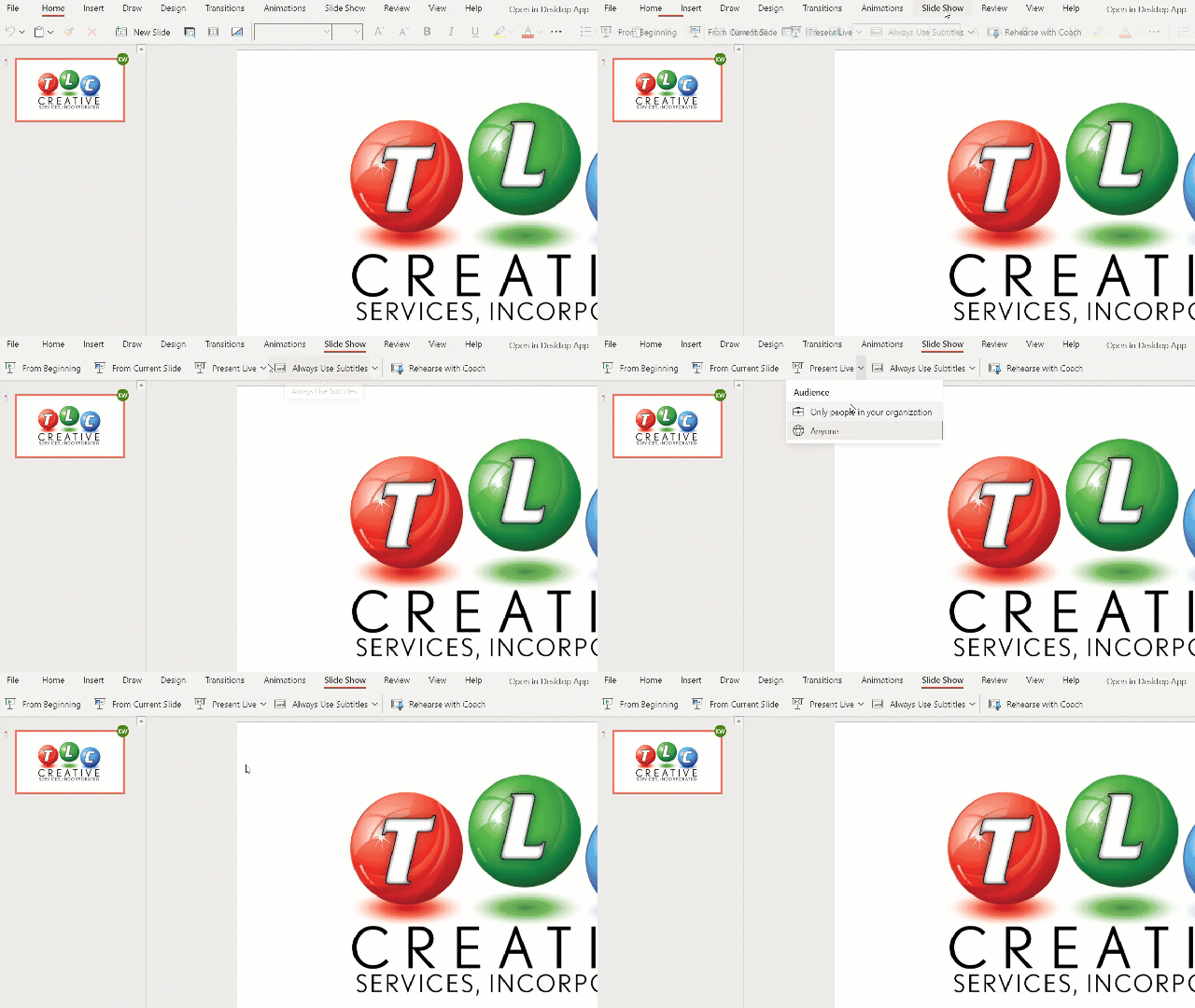
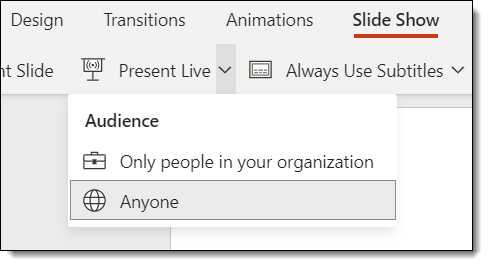
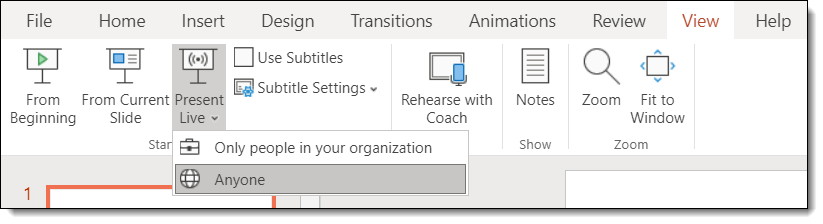
There are two “share” options, my organization and anyone. The default setting for sharing a presentation is “Only People in my Organization.” This means anyone connecting to see the presentation will need to sign into their Microsoft 365 account to prove they are in the presenter’s organization. So much for the note about the audience does not even need a Microsoft account, now they need a Microsoft 365 account, with the same domain.
To enable anyone, with or without a Microsoft account to watch the presentation, the presenter must change the audience option to “Anyone” (every time they start a presentation).
Running the Presentation
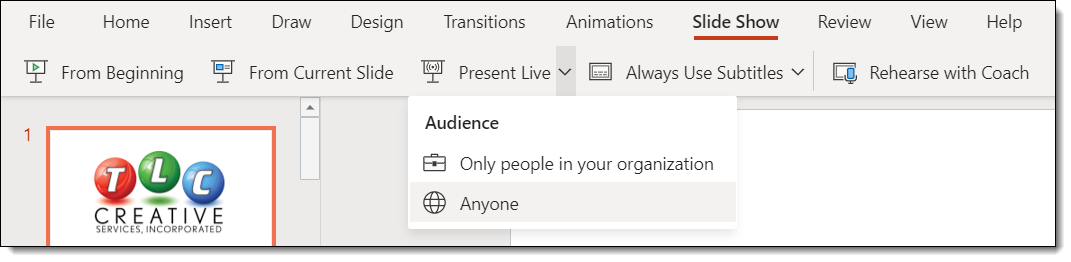
Presentations must run from PowerPoint Online. And PowerPoint Online has two options for the toolbar: Expanded Ribbon, which is more similar to the desktop app, and the Simplified Ribbon, which is a very streamlined set of options. The PRESENT LIVE button is in the SLIDE SHOW tab (which makes sense) on the Simplified Ribbon!
In the Expanded Ribbon, it’s more hidden. Go to the VIEW tab to find it.
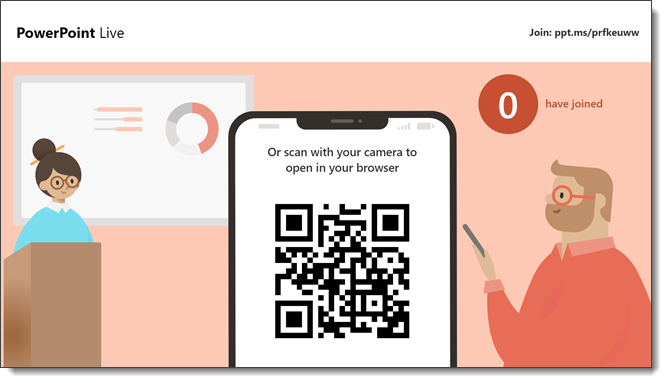
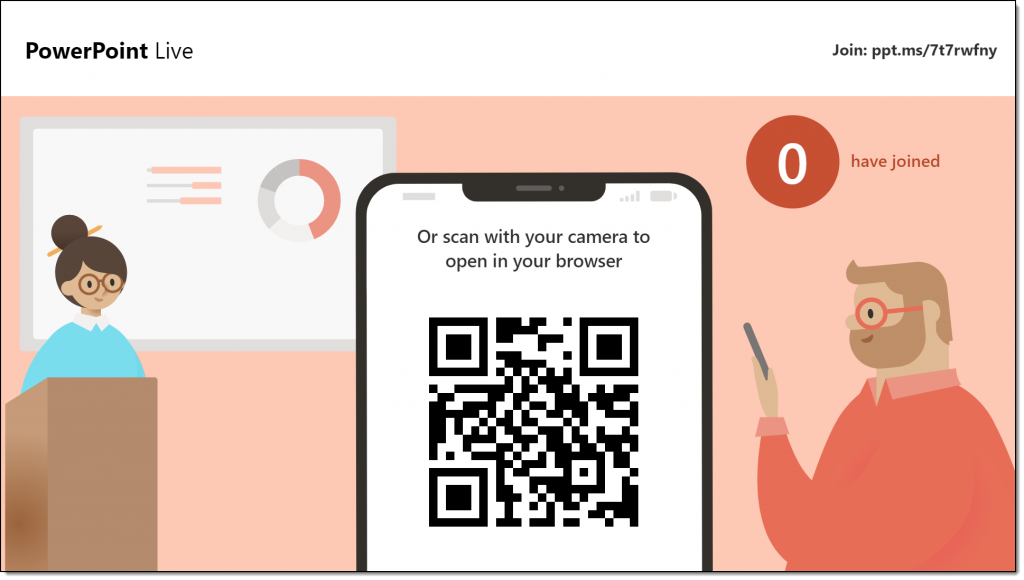
When the presentation starts, you’ll see this Welcome Screen that allows audience members to join your presentation by just pointing their phone or tablet at the QR code (the process is easy and works flawlessly – even if I am not a fan of the cartoon like styling that does not align to my clients corporate style guide).
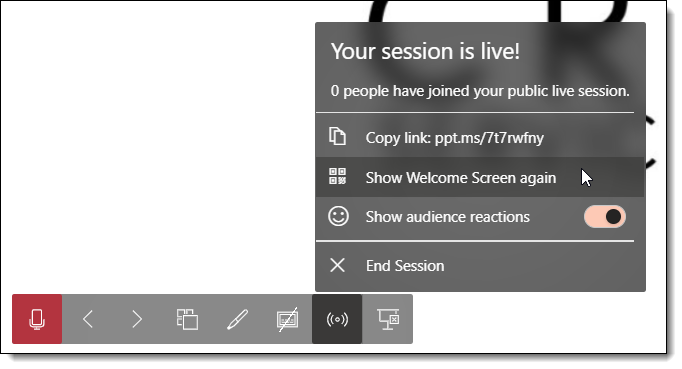
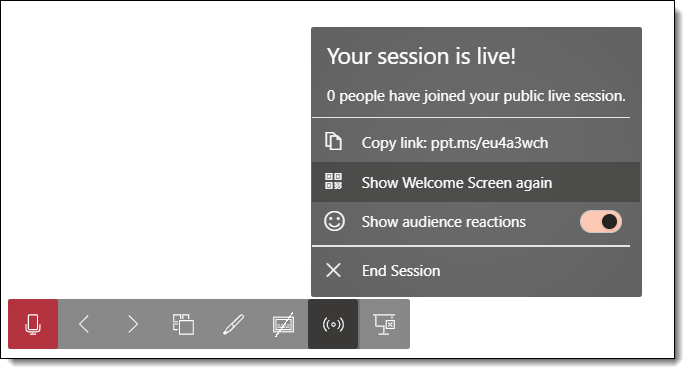
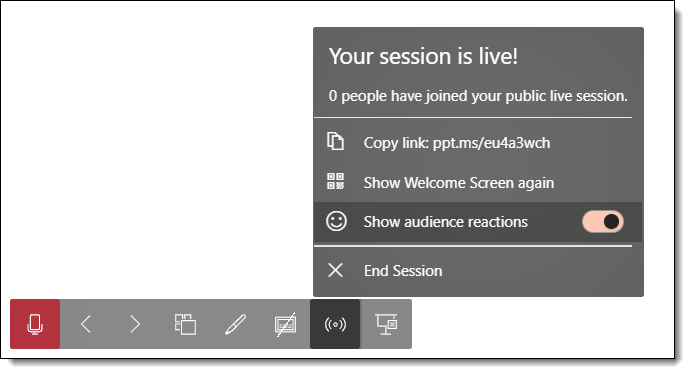
The slide show pop up tool bar has a new icon and options. Show the Welcome Screen again any time. Go to the Live Menu and select SHOW WELCOME SCREEN AGAIN.
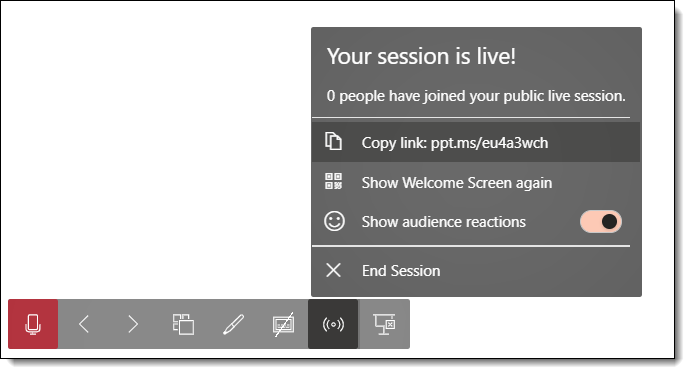
You can also copy the URL link and send as a quick email or chat.
The audience has the option to send “Reactions”in real time while you are presenting (small emojis that float up on the presenter’s screen).

These only show up on the presenter’s screen. The audience viewing on their own devices do not see them. Of course, if the presenter is at a large meeting with the presentation on the screens, or if they are screen sharing their monitor, then everyone can see what you see, which includes the floating emojis. TIP: If you find the emoji reactions distracting or just don’t like seeing them, they can be turned off in the Live Menu (note that audience members can still send them; you just won’t see them).
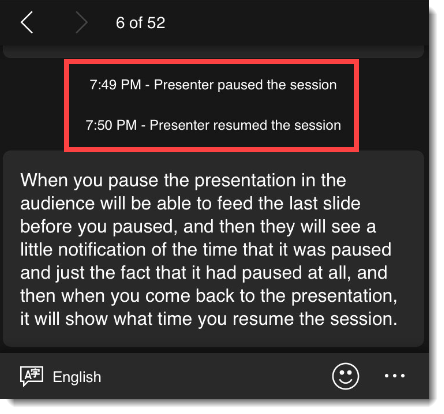
Also important to note is the difference between pausing the presentation broadcast and ending the presentation session. You can pause the presentation any time you click away from PowerPoint. Pausing stops any animation and stops the live transcription. The presenter see this yellow band below the Ribbon:

The audience will see the last slide before the presentation was paused (so make it a good one!) and a notification that the presentation is paused.
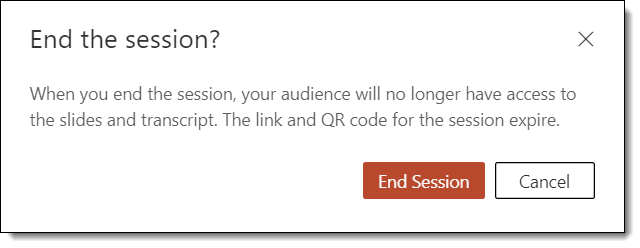
ENDING a presentation clears the screen for anyone watching and the URL/QR code is no longer valid. The presenter needs to click the END SESSION button to truly end the presentation (vs. pause it). TIP: A presentation can be paused for 30 minutes, and then its broadcast auto-expires. There is also a countdown in the yellow notification bar.
The Audience Perspective
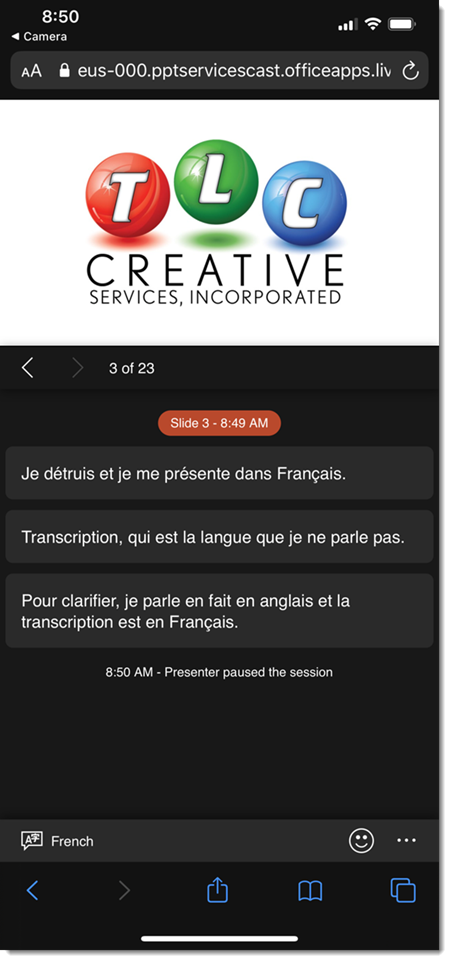
Viewing a presentation on a cell phone can be portrait (vertical) or landscape (rotated to horizontal) orientation. We found in landscape view, the transcription text seems finicky and does not always display on the screen.
One of the very exciting features is the ability for the audience to go back to a previous slide on their device, any time. Equally important is they cannot get ahead of the presenter and see upcoming slides. If the presenter goes back a few slides, everyone goes back a few slides. That slide is the ‘current slide’ no one can advance past, even if slides past it were shown earlier. When someone goes back to see an earlier slide, a CURRENT SLIDE button is active as a one click way to quickly get in sync with the presenter.
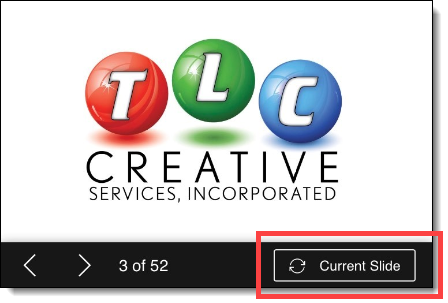
Warning: you may accidentally scare someone! Presentation Live tries to be helpful, but I feel showing the audience how many slides are in the deck may be a scare for some. As example, you have a sales deck of 400 slides, but the presentation is only using 20 of them. The audience sees the total number at 400 (and they fear a ‘death by PowerPoint’ meeting is happening)!

Also be aware, everyone will know where you are (sort of). Again, maybe this is a little too helpful. Presentation Live displays what your local time is (or is this the local time of the person viewing? – something I need to test). To me, this makes it easy for the audience to calculate how long you have been on each slide…
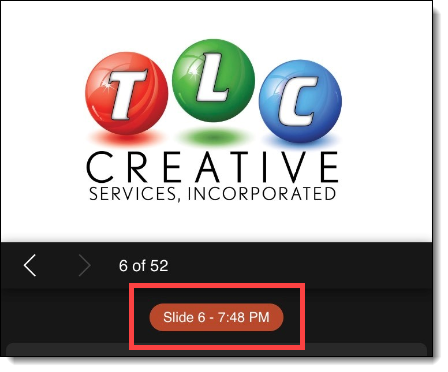
TIP: a mobile device screen is small. Good news, viewers can zoom in on the slides! Pinch to zoom is supported.
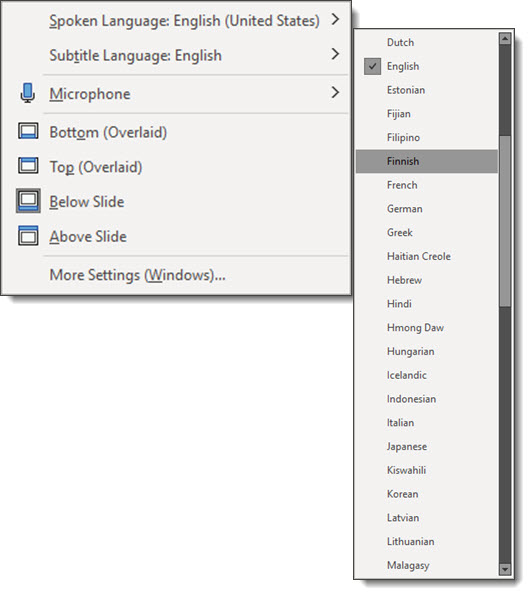
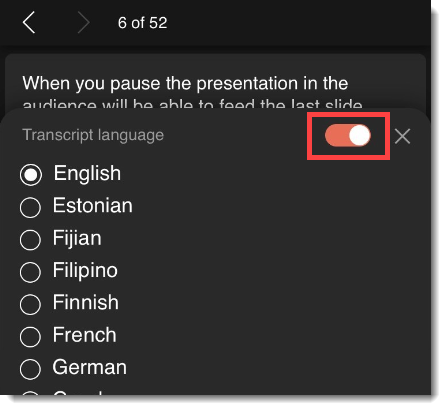
Let everyone know they can turn off the transcription feature – they are in control of that. It is in the language selection dialog, on the audience interface, and they can turn off transcription.
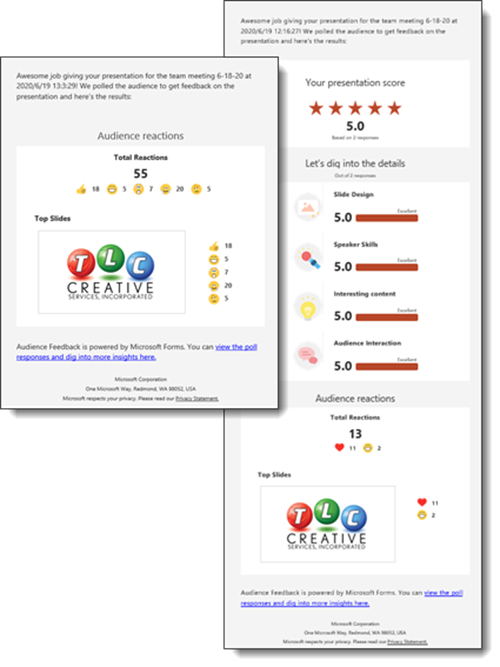
Evaluations and feedback. Yes, every audience member is shown a Microsoft feedback form (no we cannot change its content – or styling – or turn it off). Don’t worry, Microsoft is not keeping your presentation evaluations. Presenters receive an email after the presentation with the feedback (see previous posts for an example). The Microsoft Forms are not kept on Microsoft servers for long, I believe under 10 days.
Final Thoughts
Last, and perhaps the biggest question to those new to PowerPoint Live (oh wait, it’s brand new – that’s all of us!), is; what is ‘present live’? What is presentation live? What is PowerPoint Live Presentations? I feel Microsoft does an overall poor job in naming products (how many different services are called the same name; Skype, OneDrive, Office 365, Windows…). Maybe someone noticed this trend and decided to go in the opposite direction? Now we have 1 feature with three different names… For the record, the official name of the live presentation feature is PowerPoint Live Presentations, but it goes by the shorthand of PowerPoint Live. And ‘present live’ is the action you take to begin your live presentation.
Troy @ TLC