Resource/Misc

What Computer Should I Get – My opinion on specs

[text]All the way in 2006, I posted about computer specs and my recommendations (read it here). 9 years later, those specs are comical by today’s standards. Of the 20+ computers here, not one is in line with those dated specifications – none are that wimpy.[/text]

laptop

[text]Here is an updated list of specs I look for in new design computers. Note: This is all about Windows computers, Macs are a separate conversation. One thing remains the same since 2006, “Get the biggest, fastest, and most powerful.”[/text]

[text]I need to also highlight that the computer specs are only 1 part of the solution, and they are the easy part. The other part of having a full graphics computer is setup and software. We invest hours into setting up every computer and even more time into the almost continuous process of configuring new updates, drivers, software and settings.[/text]

  • Intel i7 CPU or 2.2 GHz (i5 is perfect, but the i7 configurations generally include everything else on the list, where the i5 is often the budget configuration and lacks other needed specs)
  • 16-32 GB of RAM
  • 1-4 GB of Video RAM (There is a vast in performance between in shared vs. dedicated memory GPUs. Dedicated memory and separate processing are mandatory, which is NVidia or ATI GPUs)
  • 1920×1080 local monitor resolution (minimum)
  • USB 3.0 (+ data thunderbolt is a great option)
  • DVI or mini-display port (Thunderbolt) are my preference. HDMI is lower on my preferences; but that is due to interfacing with showsite equipment, which most will not have to worry about
  • 1 GB Ethernet port (adaptors are not what you want to deal with on a work station setup
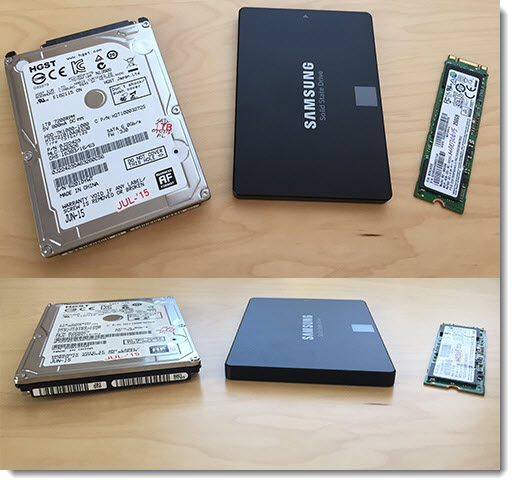
  • SSD hard drive

[text]Will this be my recommendations next year, or in 5 years? Doubtful. I am already holding off purchasing additional computers while waiting for USB-C, wider (Windows) adoption of Thunderbolt data, new generation of CPUs and more.[/text]
[br]
– Troy @ TLC

By |2016-08-10T09:02:20-07:00July 28th, 2015|Resource/Misc|

Adobe Stock Image Service

For TLC Creative Services’ design projects, we have multiple stock asset subscriptions for images, video, music, etc. I recently noticed Adobe has a new stock image option called “Adobe Stock.” Being an Adobe Creative Cloud subscriber, I was excited that this may be a new CC benefit – which it is, and is not.

adobe stock 1

Adobe Stock is a new service that offers royalty-free, high quality photos and graphics. Currently Adobe lists a library of 40 million “world-class, curated images and graphics.”  The image selection is very high quality, but many images are the same (or very close) to those found on other services (which is not necessarily bad). I was hoping to find it an included option with Creative Cloud subscription (wishful thinking), which it is not (reality). It is a separate paid service that can be added to a Creative Cloud subscription.

adobe stock 3

One interesting difference from other services is there is only one size available, BIG. File formats are .jpg or .eps. The other big differentiator from other services is images can be managed directly from Photoshop, Illustrator, and InDesign using Libraries. Watermarked preview images are saved directly to your Adobe CC account’s library as they are added to work. If you decide to purchase, it can done directly inside the app AND the watermarked images are automatically updated to the high res, non-watermark version (which is a pretty fantastic feature!).

adobe stock 4

Cost:

    • $30 monthly for 10 images. Unused images will rollover for up to 120 images. Additional images cost just $2.99 each.
    • The other plan available is $200 a month for 750 images.

Will we be adding Adobe Stock to TLC Creative Services’ options? Not immediately. The cost (for the 750 images per month) is competitive with what we are currently using. When subscription services are up for renewal, Adobe Stock will definitely be one of the options to consider.

– Troy @ TLC

By |2016-08-10T09:05:05-07:00July 10th, 2015|Resource/Misc|

PowerPoint vs. Word vs. InDesign – Which Should I Use?

Every program has strengths and weaknesses. Below is what the TLC Creative Services design team views as the strengths and weaknesses of designing for print among the 3 major applications we use. So here is how Microsoft Word, Adobe InDesign and Microsoft PowerPoint fight it out in the boxing ring:

PPT_Print_Applications

Adobe InDesign   PPT_Print_Adobe Application

– PRO: Professional desktop publishing software that has the highest level of control of layouts, print specific output, multipage control, unlimited master layouts with finite control, and no size or resolution constraints. Excellent image control and color use tools (in RGB, CMYK, Spot, etc.).

– CON: large learning curve, specialty software that costs more (and usually not provided across corporate users).

Microsoft WordPPT_Print_ Word Application

– PRO: Installed on virtually every computer (and many tablets & Smartphones). Very good control over text flow, line wraps, and text across multiple pages. Good output to print needs.  Easy and professional table and chart creation. Very good color use tools (if setup in document template correctly).

– CON: No bleed or printer crop marks, limited (or difficult to setup/use) multiple master layouts, difficult working with inserted graphics/tables/charts that do not align to column layout.

Microsoft PowerPointPPT_Print_PowerPoint Application

– PRO: Installed on virtually every computer (and many tablets & Smartphones). Great multiple master layout capabilities, great layout customization per page, excellent image control. Easy and professional table and chart creation. Very good color use tools (if setup in document template correctly).

– CON: Limited to low resolution output (it does not matter if you have a high res 300DPI image, it is output the same as lower res images). No bleed or printer crop marks (although, there are tricks to manually adding – but it is not like InDesign’s automatic features).


AND THE WINNER IS…. PPT_Print_8

There is no clear winner. Everything depends on what application you use most, what application you have installed and what the final print document is going to be used for. But for TLC Creative Services, the order is:

1. InDesign: This is the industry standard, the best option for print layout projects, and we have a professional team of designers that know this application. This is our go-to application when we are working with print-houses, publishers, etc.

2. PowerPoint: We are presentation design focused, so we know PowerPoint. PowerPoint’s multiple master layouts and flexible per page layout options are wins for us in developing custom layouts, similar to how we approach layouts in Adobe InDesign. We use PowerPoint for print-to-PDF (where a PDF document is the final “print” piece) because it allows clients the flexibility to update documents on their own.

3. Word: The few advantages Word offers (multipage text flow, image wrap, etc.), do not win over the flexible nature of PowerPoint – unless it is client request.

Up next, some examples of PowerPoint-to-Print projects.

– Troy @ TLC


By |2016-08-10T09:07:41-07:00March 4th, 2015|Resource/Misc|

PowerPoint for Print Document Design (Really!?)

PowerPoint is designed for visual presentation design and projection. I clearly remember several meetings and discussions with Microsoft as they worked on PowerPoint 2007 about improving the print capabilities of PowerPoint – the laser printer, handout, PDF capabilities. Fast forward to Office 365 and PowerPoint 2013 and I am seeing a significant number of project requests and forum questions on how to use PowerPoint to design print documents. For this full month, ThePowerPointBlog is focusing all posts on using PowerPoint for print document design.

PowerPoint for print 2

Before we dive in with showing examples of PowerPoint for Print projects TLC Creative has done or providing tutorials on how to setup PowerPoint for print, let me establish a few technical terms and perspective:

  • Quick Print and Laser Print: This is printing a document on a black/white or color laser printer, it can be sitting on your desk or a large system at a Kinkos. They all have the same traits, digital printing and not capable of printing to the edge of the paper.
  • Offset Printing: This is “real” printing. Print design files are output to separated film and each plate is applied as individual passes of ink. From the printer, the paper needs to go to finish cutting to have a ready-to-use print document. Note: Offset printing can have the print image go to the edge of the paper.
  • Resolution: Web and presentation images are 72DPI – or low resolution (and this is a big generalization for the sake of an easy conversation). Print (eg. offset press) is 300DPI – or high resolution.
  • Vector Graphics: Images, or text, that are based on geometric shapes and mathematical equations (see that high school geometry class was important after all!). Note: Vector graphics can be enlarged to any size without quality loss.
  • Raster Graphics: Images that are created from dots or pixels. Note: The image is at a set size and enlarging lowers the visual quality.
  • Bleed, Printer vs. Reader spreads, CMYK vs. RGB, and many other print industry terms need to be understood by those using PowerPoint to create print documents.


So, why am I qualified to lead a discussion on PowerPoint-for-Print? Because before digital printers had quality output, and before PowerPoint (Flash, Director, and Harvard Graphics) made it easy enough for virtually anyone to create layouts, I worked in the print industry turning design files into separated film plates for the printing press operators. I am not saying I am old, but as a youngster I was lucky enough to enter the design industry as the digital revolution was in process. I experienced the true printing process and learned the classics of visual design – all great things that carry over into the wonderful world of PowerPoint presentations.

PowerPoint for print 3

Because now, everyone has a computer – tablet – and smartphone that has PowerPoint (thanks Microsoft for making Office available everywhere!), everyone can now use PowerPoint to design more than slides. In addition, the ease of sourcing images, video, custom fonts, design accent graphics and low cost printing all have created an environment in just the past few years for PowerPoint to become the default print design application – if only it did not have so many limitations!

Next post is “PowerPoint vs. Word vs. InDesign – which should I use?

– Troy @ TLC

By |2016-08-10T09:08:03-07:00March 2nd, 2015|Personal, Resource/Misc|

Design Idea – Image Fill Text (Part 2)

As a continuation of the previous post, we are looking at some of the advanced image sizing and placement options for Image Fill Text. Thanks to TLC staff designer, Christie, for this step-by-step tutorial and examples.


We are working from the same sample text.

Image Fill Text 1

1. Select the text to add an image fill too.

2. Open the FORMAT SHAPE pane to the text options.

– How to…

3. Select TEXTURE OR PICTURE FILL.

4. Click FILE.

5. Select an image. For this example, I am using a nice flower image that has lots of vibrant colors.

Image Fill Text 0

6. The auto fill position and size do not really do much for the overall visual.

Image Fill Text 13

7. Select TILE PICTURE AS TEXTURE. This will allow access to additional formatting options.

Image Fill Text 9

8. Adjust the OFFSET (X and Y), SCALE (X and Y) and ALIGNMENT options to size and position the image for the best visual.

Image Fill Text 11

8. Now the image fill adds a lot of the pink tones and a bit of the green on the edges.

Image Fill Text 5


By |2016-08-10T09:09:17-07:00February 20th, 2015|Resource/Misc, Tutorial|

Design Idea – Image Fill Text (Part 1)

The previous post walked through how to “knock out” text from a shape. One negative to that technique is the text is no longer editable. In this post, we are adding a visual styling to text AND keeping it editable. All text can have a color fill, gradient fill, texture fill or PHOTO/IMAGE fill.

Here is my sample text slide, one a black background to help the fill options display.

Image Fill Text 1

1. Select the text to fill (*Tip: It does not have to be all of the text in a text box, select just the text you want – this can be a great solution for adding accent focus on specific text).

2. Go to FORMAT >> WORDART STYLES section >> FORMAT TEXT EFFECTS to open the FORMAT SHAPE pane to the text formatting tab.

Image Fill Text6

3a. Select PICTURE OR TEXTURE FILL.

Image Fill Text 8

3b. This defaults to filling text with the first texture in the Microsoft library.

Image Fill Text 2

4. Click FILE.

5. Select an image to use as the fill – I am using an abstract image.

Image Fill Text 12

And here is the stylized text, which is editable (change the font, size, text, etc.) and can have any PowerPoint styling options applied (drop shadow, bevel, glow, etc.).

Image Fill Text 3


– Troy @ TLC


By |2016-08-10T09:09:38-07:00February 18th, 2015|Resource/Misc, Tutorial|

Slide Design Idea – Negative Space Text

A very nice design strategy used in print design is creating callouts and bold graphics with text created from the negative space.

Negative Space Text-7

This same style is easily created within PowerPoint for slide design. The above example image was created in PowerPoint 2013 – here is how (thanks to Michelle on the TLC Creative design team for this tutorial).

By using PowerPoint Combine Shapes tools (Combine, Intersect, Fragment, Subtract), the process is pretty easy.

1. Add a shape of your choice – I am using a tall vertical bar.

Negative Space Text-1

2. Add a separate text box with the text of your choice and format as desired – I am using “TLC Creative” in a typography styled stacked layout.

Negative Space Text-2

3. Select both objects – Note: Select the RECTANGLE first.

4. With both objects selected, go to FORMAT >> Merge Shapes >> Combine

Negative Space Text-3

Negative Space Text-4

5. The text is “cut out” of the rectangle. Note: The text is no longer editable as it has been converted to a custom vector shape.

Negativce Space Text-5

6. The shape is editable, like any other shape. All shaping styling options are available: fill color, gradient fill, transparency, bevel, drop shadow and more.

To really see the effects, place an image behind the new shape. A few examples:

Negative Space Text-11Negative Space Text-9NegSpaceText-8

By |2016-08-10T09:09:57-07:00February 16th, 2015|Resource/Misc, Tutorial|

Microsoft Office 365 Video – What We Know So Far

Microsoft recently unveiled a new video sharing system that will be hosted on Office 365 accounts called “Office 365 Video.” Think of it as a business’s private YouTube for their videos. And there are some references to PowerPoint and Office App integration (which is the part that really got my attention!).


Office 365 Video


 Technical:

Office 365 Video is cloud based (ie. videos are not stored on your computer) and the streaming technology optimizes playback for each end users connection speed and viewing device. Microsoft is bringing its cloud based power with Azure’s Media Services, which was used by NBC for its Winter Olympics online video. By being a part of the Office 365 ecosystem, video content will encrypted and secure by following the established Office 365 Trust Center guidelines, something YouTube and Vimeo can’t provide such strict assurances of. The video format support covers all of the industry standard codecs; H.264, MPEG-1, MPEG-2, MPEG-4 v2, VC-1, Windows Media Video, DV and Grass Valley HQ. And more video formats than Office apps support; .3pg, .3g2, .3gp2, .asf, .mts, .m2ts, .avi, .mod, .ts, .vob, .xesc, .mp4, .mpg, .mpeg, .m2v, .ismv and .wmv. It is easy to use with drag-and-drop video uploads.

One big limitation is that Office 365 Video currently uses Adobe Flash Player. The Adobe Flash Player needs to be installed to view a video, so no Apple IOS devices are going to be able to use it at this time.

Who and When:

This new corporate video portal started its roll out in November 2014 and extends into early 2015. Currently it is only available a select Office 365 user (First Release customers) and expanding to Enterprise and Academic plans. Business plan users (which TLC Creative operates on) do not have an option yet… This is an add-on service to plans at $8 user/month with an annual commitment.

Summary:

This is just my personal opinion, based on a very limited look at Office 365 Video, and I am excited about it. The option to seamlessly integrate web-based video content into PowerPoint presentations is an exciting concept. Corporate clients are going to embrace Office 365 Video because it gives them an secure platform to roll out video content within their enterprise. Having a corporate library of video content for presentations, that is searchable and easy to add to slides is going to be a great presentation tool.

The Microsoft info page (ignore the ‘compare plans and pricing’ link, it does not include Office 365 video options as of now) is here.

– Troy @ TLC

By |2016-08-10T09:12:19-07:00December 26th, 2014|Resource/Misc|

Replace Font Dialog Update

Back on October 10, I did a post about a key feature missing in PowerPoint 2013 “Replace Font Dialog, PowerPoint 2010 vs. 2013.” Unfortunately, no solution has been added to PowerPoint 2013, the font type icons are still missing.

PowerPoint 2010 has font type icons (with no icon indicating the font is not installed on the computer):[br]
ReplaceFont-2010

PowerPoint 2013 does not have the font type icons:
ReplaceFont-2013

One area I did not include in the original post – and the reason for this post – is that the font type icons have not been completely removed from PowerPoint 2013. The font type icons can be seen in the Font drop down menu on the Home tab.[br]

Font_icon_1

That’s all. Just a clarification to the earlier post. Hopefully in the near future I can do another post on this same topic showing that the font type icons have been restored to the Replace Fonts dialog.

– Troy @ TLC

By |2016-08-10T09:14:24-07:00December 19th, 2014|Resource/Misc|
Go to Top