Resource/Misc

The 2011 Presentation Summit

The Presentation Summit is most likely the largest gathering of PowerPoint users at a dedicated presentation-specific conference. I was also at the inaugural event (then called PPTLive) several years ago and have participated in some capacity every year since.

This September, the Summit is in Austin, TX and should prove to a be another fantastic event for the 250 lucky enough to attend.

– Troy @ TLC

By |2016-08-16T10:09:19-07:00July 7th, 2011|Resource/Misc|

Office 2010 SP1 Released

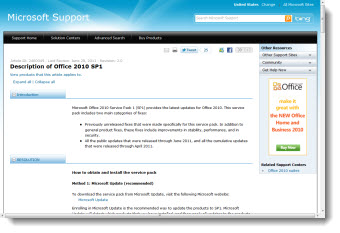
This week Microsoft released Service Pack 1 (SP1) for Office 2010.

Service Packs are major updates, same as when software companies adjust a version number (eg. version 10, becomes 10.1). This Microsoft webpage has all the details. Here is the list of PowerPoint related fixes (paraphrased by me):

– Presenter View now defaults to showing the slide show on the secondary monitor.
– Animation preview fixes.– Mouse pointer does not disappear with extended desktop (multiple monitors) and slide show being viewed on second monitor
– “PowerPoint Viewer is now included with the Package for CD option.” Note: This is only a text edit in the Package for CD dialog, no new feature/fix/or improvement (thanks Echo and Steve for letting me know about this one).
– If an Excel object has VBA) code, fixes error messages when you try to edit it (which is mainly seen with the error message “Microsoft PowerPoint can’t start the application required to open this object. An error occurred and this feature is no longer functioning properly. Would you like to repair this feature now?”).
– Coding issue fixed which gives wrong Runs.Count value is returned when a PowerPoint 2003 format presentation runs a PowerPoint 2010 object model command.
– Fixes issue with audio or video media not playing in presentation that was created on Mac and played on Windows.
– Fixes issue where .emf image displays incorrectly when you save a slide as an Enhanced Windows Medafile (EMF) file which is then printed.
– Fixes issue in which a pen cannot persist through the Slide Show mode when you use the pen as a pointer.
– Fixes issue where default language change is not used on new slides or new presentations.
– Fixes issue where a linked image is not saved when you insert the linked image in a presentation, and then save the presentation an Open Document Format (ODF) file.
– Note: updates in Excel and office wide fixes are not listed here, but also work with PowerPoint.

SP1 is part of Microsoft Updates (if turned on), or a direct download link is on this Microsoft webpage.

– Troy @ TLC

By |2016-08-16T10:11:46-07:00July 1st, 2011|PowerPoint, Resource/Misc|

The Ultimate Presentation – Hot Wheels Secret Race

This is a real building (Customs House, Sydney, Australia) with a lot of incredible projection on it that was a live event (eg. not something created with great video editing). Maybe it is a hint to future meetings with no screen, but an entire building, theater or even the moon as the “screen”!
[youtube src=”https://www.youtube.com/embed/wiSNuk3OvK8?rel=0″]

– Troy @ TLC

By |2016-08-16T10:12:37-07:00June 10th, 2011|Resource/Misc|

Microsoft SlideFest – Funniest PPT Videos!

If you have not heard, Microsoft is sponsoring a great PowerPoint Presentation competition called SlideFest! And the contest begins today (closes May 14).

If you have not seen the promo videos , stop your productive work and spend 10 minutes of inspirational fun to view these comedy bits about PowerPoint!

See them here.

– Troy @ TLC

By |2016-08-16T10:20:35-07:00April 14th, 2011|Resource/Misc|

Defining “Cloud” Computing

Every tech company has turned its attention to “cloud” computing. This includes cloud computing, cloud services, and cloud applications. And Microsoft is doing a lot with the “cloud” and the new PowerPoint, Excel, Word and OneNote Web Apps and the upcoming Office 365.

Here is one of the best definitions of “Cloud Computing” I have heard:
“Purchasing the amount of bandwidth needed vs. purchasing the full service or application.”

So TLC Creative Services is not looking to purchase servers (to store and access project files) any longer, but looking to use an online accessible server and just pay for the amount of file storage and bandwidth needed. We are also moving to more cloud services and cloud applications for presentation design and presentation.

– Troy @ TLC

By |2016-08-16T10:21:56-07:00April 6th, 2011|Resource/Misc|

Use Windows 7 Presentation Setting Before Every Presentation

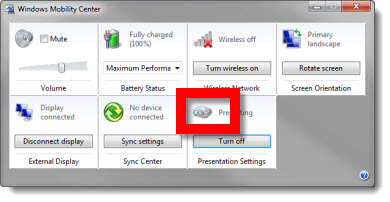
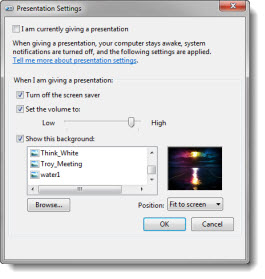
If you present with PowerPoint and use Windows 7, you need to be familiar with the PRESENTATION SETTINGS option. To access, open the MOBILITY CENTER (see 03/22/11 post) by clicking the Windows + X keys. Then click projector icon.

In the PRESENTATION SETTINGS dialog in the “WHEN I AM GIVING A PRESENTATION” section be sure:

1. The TURN OFF THE SCREEN SAVER option is active.
2. The SET VOLUME option is active (I set volume to 90%). This option overrides the mute control.
3. I size the event theme graphic to the monitor resolution and set that image as the desktop background when presenting. For that “just in case” situation, so if all fails the audience sees something related to the event (I have seen kids, puppies, girlfriends, vacation pictures, etc. show up on screen – all not good options).

Note: At the top the I AM CURRENTLY GIVING A PRESENTATION option is also turned on and off through the Mobility Center.
– Troy @ TLC

By |2016-08-16T10:23:25-07:00March 24th, 2011|Resource/Misc, Tutorial|

Use Windows 7 Mobility Center Before Every Presentation

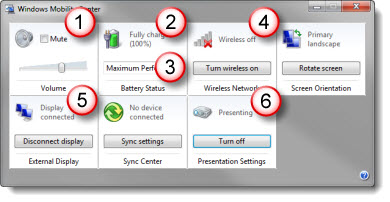
Windows 7 is great – running on virtually every computer here. There are a number of hidden features that are very important to presenters. The WINDOWS MOBILITY CENTER is one of them.

To open the Mobility Center, hold down the Windows key and the X key

I use this as a quick check for:
1. Confirm computer volume
2. Confirm plugged into to power (not on battery)
3. Confirm Maximum Performance power setting (vs. battery saving low power option)
4. Wireless network turned off
5. Computer sees an external display/projector
6. Presentation Settings are active (covered in next post)

Everything seen here can be accessed separately, but this is an easy 1-stop view of them all.

– Troy @ TLC

By |2016-08-16T10:23:46-07:00March 22nd, 2011|Resource/Misc, Tutorial|

Manage Multiple Time Zones with Windows 7

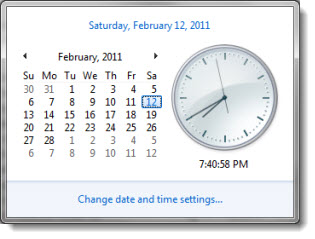
Last week, when working on the East Coast, a different time zone than home, I was asked how I managed to keep track of things in the different time zones. Windows 7 has a great little feature to add multiple time zones to the clock.

1. Click the time in the lower right on the task bar and click “CHANGE DATE AND TIME SETTINGS”

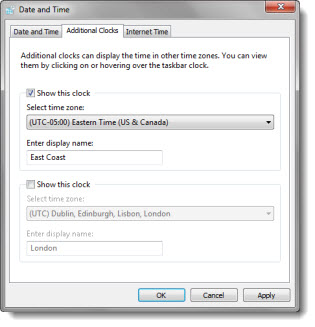
2. In the DATE AND TIME dialog, go to the ADDITIONAL CLOCKS tab and setup 1 or 2 additional time zones and name them

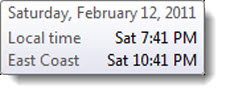
3. Now the taskbar shows both (or all three) time zones

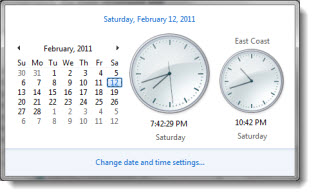
4. If you click on the time in the task bar, you now see clocks for both time zones active there as well

– Troy @ TLC

By |2016-08-16T10:26:28-07:00February 22nd, 2011|Personal, Resource/Misc|

Hmmm, SlideRocket’s latest promo seems off track to me

Last week, SlideRocket, which I like a lot, announced their “It’s ‘Say No To PowerPoint’ Week” promo. But the tagline really got me wondering how they define a presentation.

“SlideRocket is celebrating national “Say No to PowerPoint Week” by challenging people to say “yes” to stunning presentations. It’s time to say rest in peace to presentations 1.0 and embrace a new way of presenting that engages the mind and senses. To help drive a stake through the heart of “Death by PowerPoint,”…”

In the now famous Edward Tufte statement about “Death By PowerPoint,” a huge generalization was made – that all PowerPoint created presentations are bad. Definitely not a true statement, as presentations developed by applications other than PowerPoint can be bad too. The reality is, not all presentations are bad – not all presentation good. Not all presenters are bad, and not all presenters are good.

The SlideRocket promotion bothers me in that it also wants to generalize that all PowerPoint created presentations are bad (wrong) and that all SlideRocket created presentations are good (wrong).

– Troy @ TLC

By |2016-08-16T10:27:29-07:00February 20th, 2011|Personal, Resource/Misc|
Go to Top