Resource/Misc

Use Nvidia Control Panel to Set Mirrored or Extended Desktop

PowerPoint presentations given to a live audience usually involve the computer being attached to a projector. And sometimes the technical issues of getting the computer and projector to cooperate are the downfall of the presenter…

Here is what I hear a lot:
– I have a great laptop!
– I hooked up the projector (via VGA or DVI cable).
– I clicked the Function + F4 keys.
– Nothing happened, my presentation would not show up!

It happens and there are technical complexities, but I run anywhere from 1 to 12 computers outputting to projectors for any given meeting. Here is my approach to assuring the presentation shows up on the projector (note: the following tutorial is based on the Nvidia Control Panel as most of show computers currently run their graphics cards).

1. First, I do not use the Function+F4 key. This is just a shortcut to the control panel that does not show me any of the real settings.

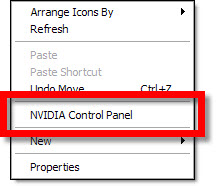
2. I open the graphic card control panel. My preferred method is to right-click the desktop and select “NVIDIA CONTROL PANEL”
3. This opens the Nvidia Control Panel. From here you can see and adjust every aspect of how images are put onto any monitor, or projector, connected to the computer/laptop.
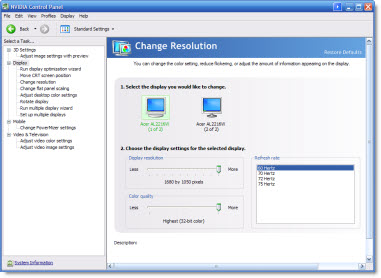
4. I first go to CHANGE RESOLUTION. I can quickly see on the right if the computer ‘sees’ the 2nd monitor/projector by the two display icons.
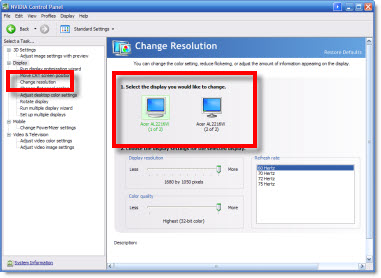
5. If 2 icons are seen I go to #6. If only 1 icon is seen (the laptop monitor) I then have a few steps:
A. Check cable is plugged into computer.
B. Check cable is plugged into projector (or switcher).
C. Verify projector is powered on and set to correct input.
D. If using a docking station for the laptop (as I do), check docking station has power by checking power supply has light, is plugged into dock and dock has power lights (video out from all docks is not passive and will not work if dock does not have active power).
E. Run the RUN MULTIPLE DISPLAY WIZARD to force the graphics cards to identify and recognize the external monitor.
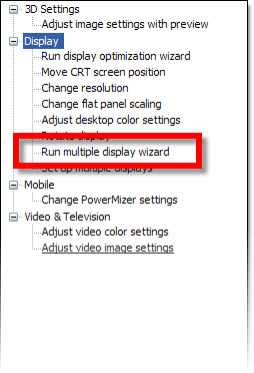
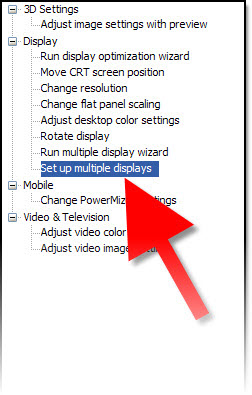
6. To setup a projector I go to the SETUP MULTIPLE DISPLAYS option.
7. On the right I can tell the computer how I want to use the projector.
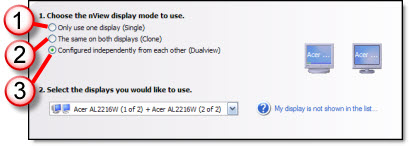
1. Do not connect to projector
2. Mirror output to projector (most common setting)
3. Extend desktop to projector

8. Click APPLY.

9. Then go back to CHANGE RESOLUTION. Now the focus is on the resolution setting on lower part of the right side. This number has to be set to match the projector’s resolution.
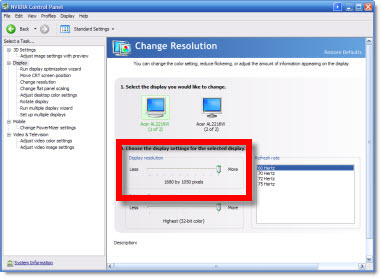
– If the resolution is set to high, the projector may be unable to use it (and will display nothing).
– If the resolution is set to a widescreen format (as many laptop monitors are) and the projector is not widescreen it will either compress the image or add black letterbox bars (neither is a good option), so the resolution will need to be set to a 4×3 aspect ratio (eg. 1024×768 is the most common).

10. Click APPLY, exit the control panel and get on with the presentation – yeah!

– Troy @ TLC
By |2016-09-16T09:45:10-07:00August 28th, 2009|Resource/Misc, Software/Add-Ins, Tutorial|

Where’s His Arm? Why is Stock Photo Doing That…

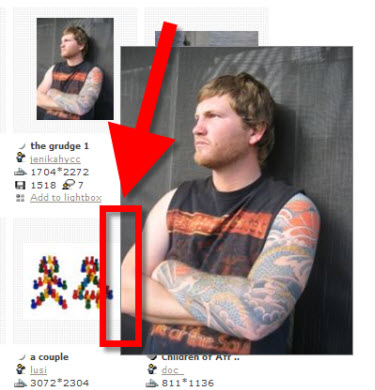
Presentations are visual communication and that means lots of images. I maintain a number of subscriptions to online stock photo sites. The one thing I see from all is the selective/artistic cropping that often makes it difficult to use an image.

As example, here is a great image, but where did the rest of his arm go…

– Troy @ TLC

By |2016-09-16T09:50:24-07:00August 20th, 2009|Resource/Misc|

PowerPoint + OfficeFX Presenter = Fox TV

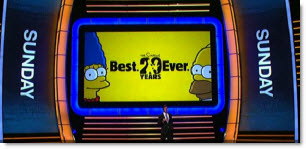
I develop PowerPoint presentations for large events that do not look like ‘standard PowerPoint’ with lots of animation, custom images, etc. I have also used the OfficeFX software for lots of events and awards shows because it takes PowerPoint to a new visual level with full motion backgrounds and custom transitions.

Recently a The Lawrence Company used the new Presenter 4 to produce a multi-screen HD show for a Fox TV event that was anything but ‘PowerPoint’ – although the whole thing was PowerPoint.

Here is link to video showing some of the great custom transitions and animations.

– Troy @ TLC

By |2016-09-16T09:57:03-07:00August 16th, 2009|PowerPoint, Resource/Misc|

Vector Images From ShutterStock.com

Just a quick note. For a specific project I have been searching many of the popular royalty free image sites for some needed vector (eg. Illustrator) art that will be used to develop a custom background. I have been really impressed with the image variety, selection and quality from ShutterStock.com.

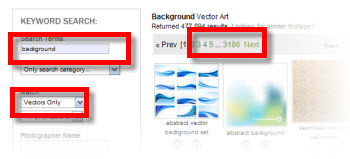
Guess in the past I have searched for photo images (eg. raster) and this was first time specifically looking at vector art. Here I searched ‘Background’ with ‘Vector Only’ and came up with 3,185 pages of 25 images each – good stuff!

– Troy @ TLC

By |2016-09-16T10:00:23-07:00August 8th, 2009|Resource/Misc|

“PowerPoint” is a Verb, Defined as “Any Presentation With ‘Slides'”

The sub-head for this article caught my attention:

The “No PowerPoint” part is what caught my attention. What if I choose to use the Open Office presentation software, Flash, or Mac’s Keynote – would I be allowed to present?

When a product takes over its category it becomes the default name for the category (eg. Scotch Tape, any type of clear tape, or Hot Wheels, any small toy car). And in our case “PowerPoint” has become a default that means any presentation that uses slides/visuals.

Just a thought of the day post.

– Troy @ TLC

By |2016-09-16T10:01:44-07:00August 2nd, 2009|Resource/Misc|

Guest Author 7-31-09!

As things evolve I am very excited to have a guest author doing the final post of July! Julie Terberg of Terberg Design and a Microsoft PowerPoint MVP will be sharing a great post this Friday – don’t miss it!

By |2016-09-16T10:03:16-07:00July 26th, 2009|Resource/Misc|

Mac Office 2008 SP2

At the beginning of this week Microsoft released Service Pack 2 (SP2) for Mac Office 2008. If you use a Mac for your presentations, this is a definite update to download and install.

It promises speed, stability, compatibility improvements, and a new tool called Document Connection for accessing SharePoint collaboration. Adds custom path animations (and play PPT Windows motion paths), default theme support and it is a 300MB download… which is download using AutoUpdate.

– Troy @ TLC

By |2016-09-16T10:03:36-07:00July 25th, 2009|Resource/Misc, Software/Add-Ins|

Sneak Peak at PPT 2010!

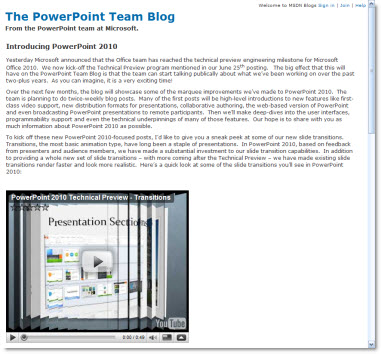
Being a Microsoft PowerPoint MVP is very cool – but it is difficult keeping things to myself, honor the many NDA’s, and simply say “I think the next version of PPT is going to be really good.” Well, the Microsoft Team Blog had a post last week with an embedded video that shows a lot more than I am currently permitted to talk about – and check back for more posts as they seem to be finally revealing to everyone some of the really really exciting things coming soon! So if you want a sneak peak head over to “The PowerPoint Team Blog” here.

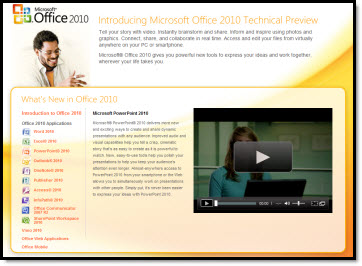
You can also see some videos of all the Office 2010 products at the Microsoft Office 2010 website (the PowerPoint video shows, or hints at, some of the really great new multimedia features). The link is here.

– Troy @ TLC

By |2016-09-16T10:03:55-07:00July 23rd, 2009|PowerPoint, Resource/Misc|

Anoto – A Pen For Presentations

At last years PPTLive conference I spent some time talking with the Anoto people about their new product and how it could be used for presenters. Well the product has launched and I look forward to talking more with them about presentation solutions.

Anoto makes an ink pen that captures the writing and wirelessly (bluetooth) can make it show up onscreen.

For presentations, think of this as the ‘ink’ features on steriods. The idea is to print out your slides, then for each slide draw any notations on your printout and they show up onscreen – all without having to have a computer in front of you. You could be sitting with the audience with only a clipboard and your pen – as long as you are within range of the receiver.

The Boston Globe recently did a story on Anoto which has more information.

– Troy @ TLC

By |2016-09-16T10:07:57-07:00July 1st, 2009|Resource/Misc|
Go to Top