Tutorial

Clear Text Styles

So you are working in PPT 2007 and enjoying the great design tools like the ability to stylize any text (because all text is WordArt now).

I start with this:

Then we stylize it to look like this:

But later we decide we want it back to standard text – like this:

How do you do that….

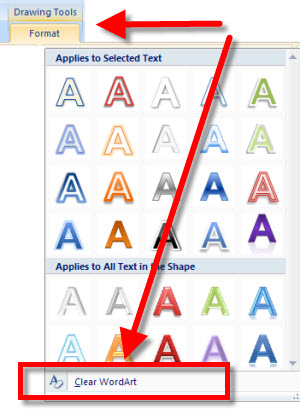
Select the text >> go to the Draw-Format tab >> click the drop down to show the full menu of the preset styles >> at the very bottom is the ‘clear wordart’ option (remember, ALL text is now wordart)

Done!

-Troy @ TLC

By |2016-09-16T10:09:41-07:00June 25th, 2009|Tutorial|

Add ‘dummy’ Text to a Slide fast

Here is a nifty programming trick that can be helpful when you are demoing PowerPoint (as I have been with a number of specialty training programs).

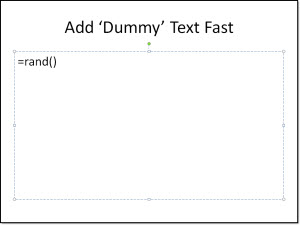
In any text box, in either PPT 2003 or 2007, type this: =rand()
Then Enter/Return.
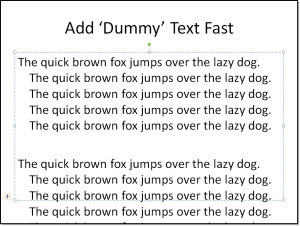
It will automatically be filled with a few paragraphs of “The quick brown fox…”!

– Troy @ TLC

By |2016-09-16T10:12:09-07:00June 11th, 2009|Tutorial|

Ungroup SmartArt!!

With Office 2007’s SP2 installed SmartArt has become a lot more usable/smarter. Now you can use the great diagram templates in SmartArt and ungroup them if needed. Why ungroup? For fine tuning, modifying to meet the slides exact needs, or animating would be a few of my top reasons.

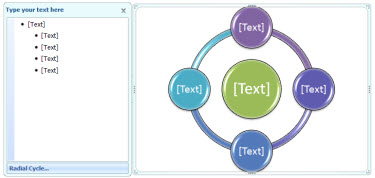
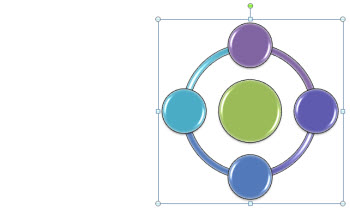
1. Insert SmartArt

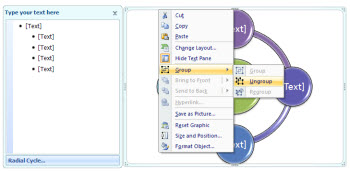
2. Ungroup

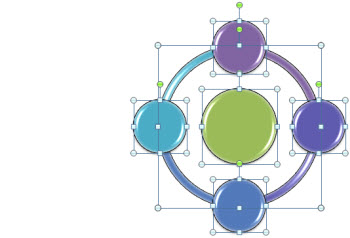
3. Result is a single box of grouped autoshapes (and the smartart programming for updating text is removed)

4. Ungroup one more time and you have all individual elements

– Troy @ TLC

By |2016-09-16T10:12:29-07:00June 9th, 2009|PowerPoint, Tutorial|

Even Easier -How Do You Know If SP2 Is Installed?

This is a follow-up to Monday’s post, which is one of the comments submitted to that post (thanks Adam!). We can eliminate 1 step and get the answer to what Service Pack is installed even faster!

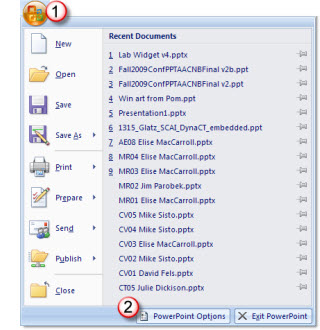
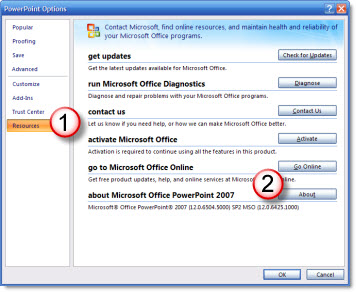
1. Office Button >> PowerPoint Options

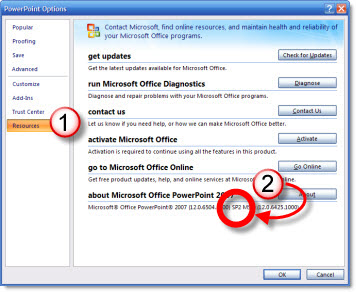
2. Resources >> About

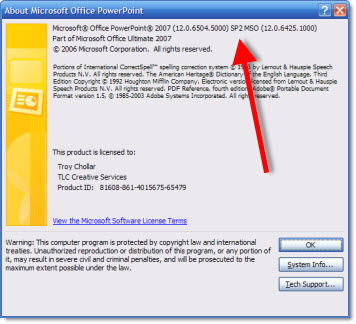
I overlooked it, but the answer is right here in the About window – even easier!

– Troy @ TLC

By |2016-09-16T10:14:30-07:00June 3rd, 2009|Tutorial|

How Do You Know If SP2 Is Installed?

Service Pack 2 (SP2) was released for MS Office just a short while ago. For PowerPoint it definitely fixes a number of design annoyances. But I am getting the question how to know if it is installed. Here is the process:

1. Office Button >> PowerPoint Options

2. Resources >> About

3. Top line, near end

– Troy @ TLC

By |2016-09-16T10:16:12-07:00June 1st, 2009|Tutorial|

Oversize Slide For Notes

Hollywood is all about ‘smoke and mirrors’ – making things appear much more than they are. With corporate events the staging, custom lighting, multiple computers and projectors all allow me to do more than the standard presentation.

This project was a very widescreen aspect ratio (2:55 to 1), which meant custom projection screens. I took advantage of this with an oversize slide with the live content letterboxed top/bottom.

I then used the extra black area at the bottom for my notes. This was important because if you look at the images above, the left screen was in French and the right Screen was in English. The notes on the bottom allowed me to quickly identify
(1) the proper language template was being used
(2) what script line was being referenced with the slide
(3) what slide I was on (this was setup with the auto page number)

– Troy @ TLC

By |2016-09-16T10:27:45-07:00May 1st, 2009|Portfolio, Tutorial|

How To Verify Audio is Embedded in PPT 2007

With PPT 2003 if you right click the speaker icon and go to EDIT SOUND OBJECT you get this dialog.

In PPT 2007, click the speaker icon and the ribbon goes to the SOUND TOOLS ribbon. It gives you a lot of information.

Of note the MAX SOUND FILE SIZE (KB) is now not a hidden dialog (be sure this is set to 50,000). But where is the embedded/contained information?

You need to click the more info button in the lower right corner to bring up the legacy dialog to see information about it your audio file is linked or embedded (contained).

– Troy @ TLC

By |2016-09-16T10:29:09-07:00April 24th, 2009|Tutorial|
Go to Top