Using Vector Images (2)
Sorry – blog post removed at request of telmetrics.

Sorry – blog post removed at request of telmetrics.
Sorry – blog post removed at request of telmetrics.
Hollywood is all about ‘smoke and mirrors’ – making things appear much more than they are. With corporate events the staging, custom lighting, multiple computers and projectors all allow me to do more than the standard presentation.
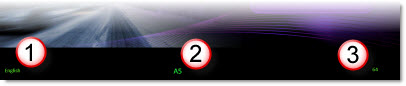
This project was a very widescreen aspect ratio (2:55 to 1), which meant custom projection screens. I took advantage of this with an oversize slide with the live content letterboxed top/bottom.


I then used the extra black area at the bottom for my notes. This was important because if you look at the images above, the left screen was in French and the right Screen was in English. The notes on the bottom allowed me to quickly identify
(1) the proper language template was being used
(2) what script line was being referenced with the slide
(3) what slide I was on (this was setup with the auto page number)
– Troy @ TLC
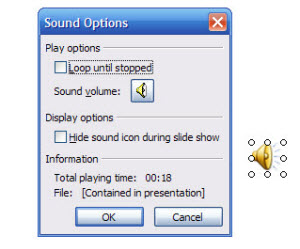
With PPT 2003 if you right click the speaker icon and go to EDIT SOUND OBJECT you get this dialog.
In PPT 2007, click the speaker icon and the ribbon goes to the SOUND TOOLS ribbon. It gives you a lot of information.
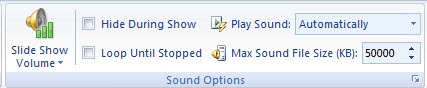
Of note the MAX SOUND FILE SIZE (KB) is now not a hidden dialog (be sure this is set to 50,000). But where is the embedded/contained information?
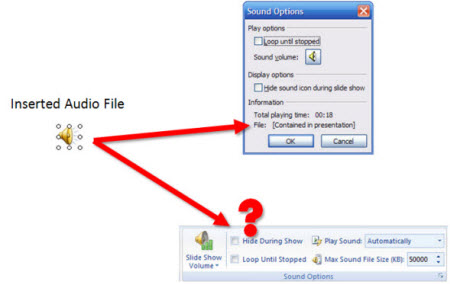
You need to click the more info button in the lower right corner to bring up the legacy dialog to see information about it your audio file is linked or embedded (contained).
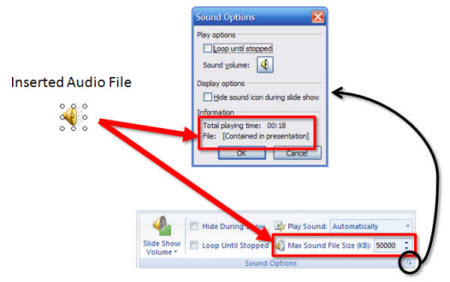
– Troy @ TLC
When adding a copyright, registration, or trademark I usually want it to be there, but be small and non-distracting. Not certain why this trick only works on the trademark, but it does.
1. Add the TM symbol by typing “(TM)”
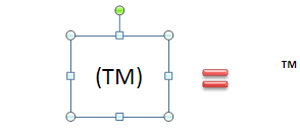
2. Highlight the symbol and click the superscipt button to make it even smaller!

– Troy @ TLC
If you need to add a copyright symbol to your text the common solution is to:
– Go to INSERT
– GO to SYMBOL
– Go to NORMAL TEXT and hunt for the registration copyright symbol
But there is a an easy and quick way that never has your fingers leave the keyboard. Just type “(C)”. Done.

– Troy @ TLC
If you need to add a registration mark to your text the common solution is to:
– Go to INSERT
– GO to SYMBOL
– Go to NORMAL TEXT and hunt for the registration mark symbol
But there is a an easy and quick way that never has your fingers leave the keyboard. Just type “(R)”. Done.

– Troy @ TLC
Sometimes I just assume that old tricks are known and used by all. Here is one that I use daily, but had to demonstrate to a client. Here is my sample slide that has 4 elements I want to group:
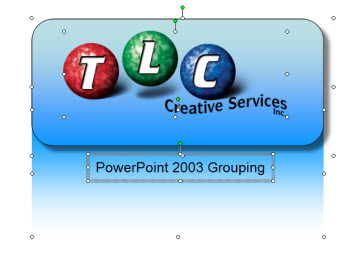
To group, select all, press CTRL + SHIFT + G. Done!
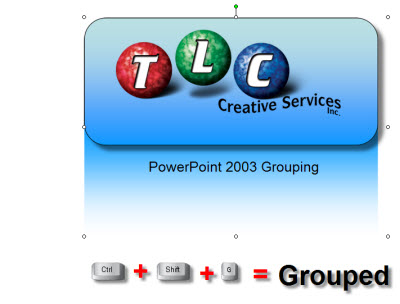
– Troy @ TLC
The ribbon interface was designed to be intuitive and make things easy to find. But there are exceptions to everything, like not having an ‘Insert Slide’ on the Insert tab and finding the file properties for the presentation.
In PPT 2003 you go to FILE >> PROPERTIES and this dialog appears:
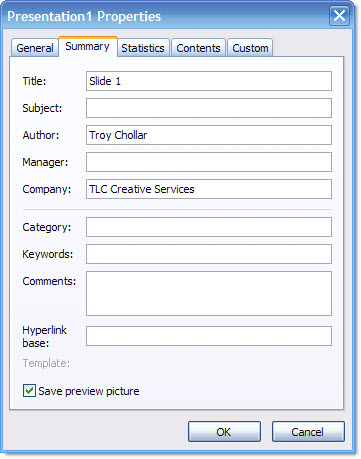
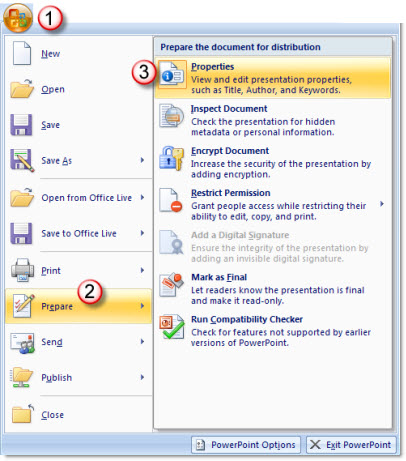
To find this information in PPT 2007 it is not as obvious, although it does have a nice layout when found. To open the file properties in PPT 2007:
1 – go to the OFFICE BUTTON
2 – go to PREPARE
3 – select PROPERTIES
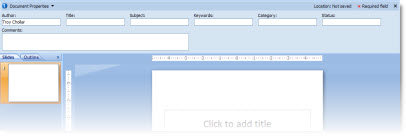
The properties information appears inline just above your slides.
– Troy @ TLC
I received an email from my friend Ute, a PowerPoint MVP from Germany who directed me to one of her video tutorials with the clue that “strg” means CTRL.
You can watch the tutorial here (it is in German).
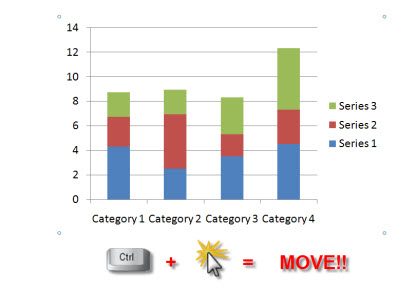
Here is my sample chart. Note the full selection line around it when clicked.
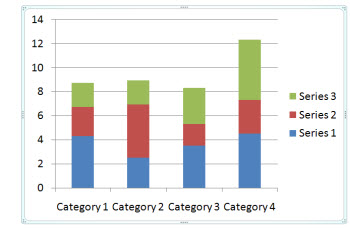
But if you CTRL CLICK on the chart you get a different selection, 4 dots.
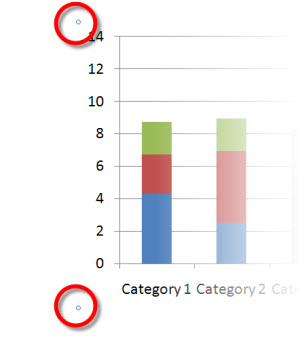
With the CTRL CLICK selection the arrow keys allow you to move the chart!
Thanks Ute!
– Troy @ TLC