Tutorial

Entrance Animation (Lens – Part 2)

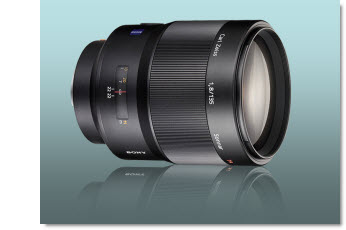
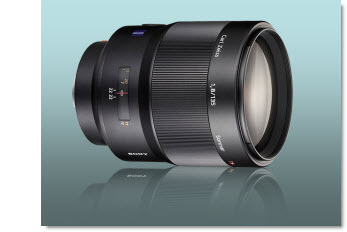
The first step is preparing the .jpg image. Because the template is not a white background, the white background around the lens needs to be removed.
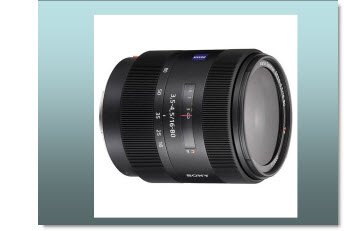
Option 1 is to use PowerPoint’s “Set Transparent Color Tool”
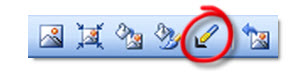
This tool will ‘work’ because the background to be removed is a solid color, not used in the actual graphic. While this is a quick solution, it has a difficult time providing the quality I like.
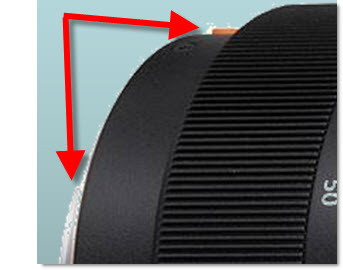
You can see the small bits of the background that where left behind.

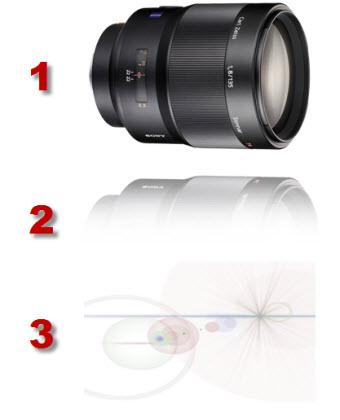
My solution has been to prepare images in Photoshop. With the lens image I dropped out the background by outlining the image with a ****, deleting the background and then saving the image in .png format with transparency. This image was then imported into PowerPoint.
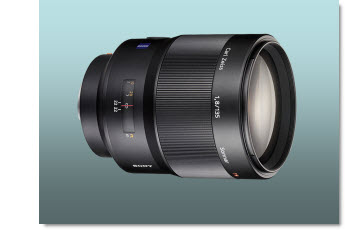
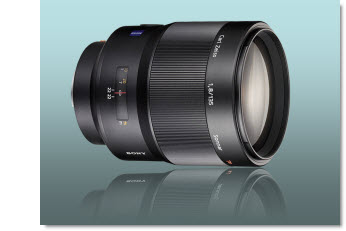
The next step, also in Photoshop, was to duplicate the image, vertically flip it, reduce the opacity to 15%, and feather out/delete 2/3 of it to create a reflection.
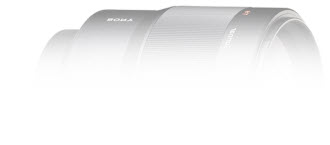
The image was saved out as a .png image and imported into PowerPoint and positioned below the lens image.
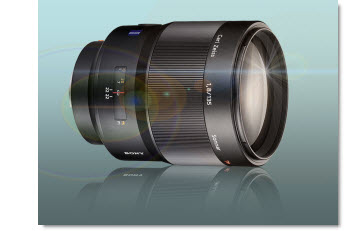
The final step, again done in Photoshop, was to create a dynamic lens flair image to add a dynamic and rich feel to the overall image.
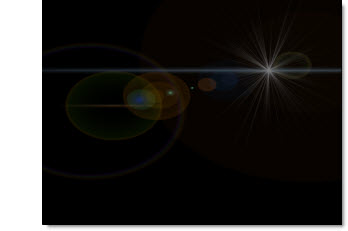
Note: this is a transparent image, but shown here on black so it can be viewed easier.

Up next – animating it all!

– Troy @ TLC

By |2016-11-17T12:27:57-08:00October 8th, 2008|Tutorial|

Entrance Animation (Lens – Part 1)

I have a multipost sample outlining how an animated entrance was created. For today, you can use this link to view a screen capture of the actual animation (really need to figure out how to embed video into the blog…).

To view click here.

– Troy @ TLC

By |2016-11-17T12:28:25-08:00October 6th, 2008|Tutorial|

.Wav .MP3 .SWF What Can Be Embedded?

This is a topic that comes up a lot, with my clients and on the PPT newsgroup.

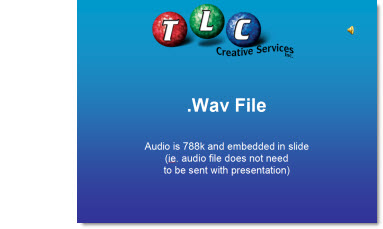
Basically, only the .wav audio format can be embedded into a PowerPoint presentation. This means the audio file goes with the presentation and nothing but the presentation needs to be distributed. All other audio formats need to be sent along with the presentation for them to work – they are linked.

There is one exception, but it has a number of other issues, and this .swf files. A .swf is a legacy Flash file and it can be embedded into a presentation. As a side note, a .swf is really a .mp3 embedded in a .swf file format.

To give a visual behind this I created a simple 3 slide presentation.

– Slide 1 = embedded .wav
– Slide 2 = linked .mp3
– slide 3 = embedded .swf

You can download it here – 1MB

– Troy @ TLC

By |2016-11-17T12:30:33-08:00September 26th, 2008|Tutorial|

Insert Slide in PPT 2007

QUESTION:
What is missing from the INSERT TAB in PowerPoint 2007?

ANSWER:
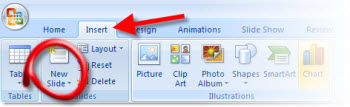
The INSERT SLIDE BUTTON.

WHERE DID IT GO?
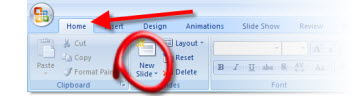
The User Interface team must have thought this was a common and valuable tool, so they placed it on the “Home”/Draw tab.

Although this works, it really does not make sense, as the insert tab is, well, to insert things.

SOLUTION:
Steve over at PPTools created a little, FREE, add-in that does this:

Now the home/draw tab AND the insert tab have the insert slide button!

You can read how to install and download the tiny add-in here.

– Troy @ TLC

By |2016-11-17T12:36:09-08:00September 19th, 2008|Tutorial|

Fonts that Ship With PowerPoint

Here is an article on Microsoft Office Online that I collaborated on:

Fonts that ship with different versions of Office” covers what fonts are installed with each version of Office (from 2000 and up). I have had a version of this information on my computer for years so I can design a presentation using fonts I know the recipient is certain to have on their computer.

To view, click here.

– Troy @ TLC

By |2016-11-17T12:37:24-08:00September 15th, 2008|Tutorial|

Open PowerPoint in Safe Mode

This is one of those – I hope you don’t need to do this – actions. But recently one of the computers here suddenly decided it did not want to have fonts work (line spacing was all messed up). So after troubleshooting everyway possible, verifying files opened fine on other computers, etc. I had the faint memory of being able to start any office application in Safe Mode.

After a quick search on the PPTFAQ (thanks Steve!) I restarted PowerPoint in Safe Mode by holding down the CTRL key.

Not sure what the solution was (not opening with AutoCorrect or Recent Documents…. ?), but the file opened and displayed text as designed. Closed PowerPoint, launched again and all was fine from there.

So when all else fails, starting PowerPoint with no extended features using Safe Mode can be your best friend.

– Troy @ TLC

By |2016-11-17T12:37:52-08:00September 12th, 2008|Tutorial|

Setup of a Template

With the background elements developed in Photoshop and saved out as .jpg images the rest of the work happens in PowerPoint. Most of the work in setting up a template happens on the Master Slides. So the first thing for me is to set the background of each slide layout with the background artwork.

The Blue Lens template has a Content slide and a Title slide.

Next is to position the text boxes to fit the background, set the font size-color-line spacing and custom bullets:

I also set default slide transitions for each slide layout (in this case both use a FADE SMOOTHLY), format the header/footer text boxes, etc.

One of the things I think a lot of people overlook is customizing the color scheme. I always include a sample chart that shows all of the default colors I have setup.

Now everything is ready to build a slide show!

– Troy @ TLC

By |2016-11-17T12:42:12-08:00September 3rd, 2008|Portfolio, Templates/Assets, Tutorial|

Template Background Design

When creating a custom PowerPoint template the first step is developing the custom artwork for backgrounds. I am going to break down a template recently designed. In PhotoShop I pull in all of the visual assets and stylize an appropriate to the theme canvas for the PowerPoint slides. Here is the content slide design for the “Blue Lens” template.

There are a lot of layers to create the desired effect. Here is the PhotoShop layers for this template (shows both the Content and Title slide background layers). Fortunately this was a fairly light template in terms of layered elements so we can show them all in one easy screenshot.


This is a pet peeve, but I really hate receiving Photoshop files with none of layers named – it’s is a huge waste of my time to go hunting for a needed layer by turning on and off layers. So, as seen, I always label all layers in PhotoShop so modifications are easy because the layers can be quickly identified.

I save out each of the backgrounds as a .jpg with a compression level of 10. From there it is all PowerPoint!

– Troy @ TLC

By |2016-11-17T12:42:56-08:00September 1st, 2008|Portfolio, Tutorial|

Two Versions Of PPT Installed? Launch ‘Wrong’ Version?

I run multiple versions of PowerPoint on my systems – namely PPT 2003 and PPT 2007 (although a few have all versions from 97 to 2007). If you run multiple versions, then the new set of security updates from Microsoft yesterday probably changed your default application.

I still have PPT 2003 set as my default version of PPT. But the latest security updates change the default application to PPT 2007. So now when I double-click on a presentation file it opens in PPT 2007.

The fix is fairly simple – just click here for a post I made all the way back in ’06.

– Troy @ TLC

By |2016-11-17T12:44:53-08:00August 15th, 2008|Tutorial|

Erase Personal Information From Presentation


“The creation date, time and author show up on the document properties of the PowerPoint presentation.” (for the curious, you can read the full story here).

Have you ever been concerned with too much information being included in your presentation? Maybe even information that is not on a slide, but buried in a link or the file properties… I have for years tried to keep my clients out of trouble by removing often removing their personal information, or sometimes the TLC Creative Services information from the file properties.

My tool for doing this – the Shyam’s Toolbox add-in.

Just go to TOOLBOX >> OBJECTS >> ERASE PERSONAL INFORMATION FROM PRESENTATION

No the file properties are clear – no time stamp, no amount record of hours worked, etc.

It is just one of the many tools in the add-in package, which runs approximately $50 – but it can be worth it as the above story points out!

– Troy @ TLC

By |2016-11-17T12:45:55-08:00August 6th, 2008|Tutorial|
Go to Top