Tutorial

Other Widescreen Page Setup Options

Depending on some variables such as client preference or AV equipment available, I go with 1 of 3 options when developing a widescreen presentation.

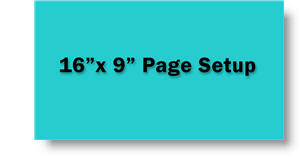
Option 1:
– Page setup = 16”x9”
– This is the easiest to work with and tends to be the least confusing for people inexperienced with widescreen shows
– Problem is all graphics should be created at full size, not upsized from an existing 4×3 presentation
Option 2:
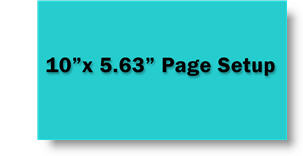
– Page setup = 10”x5.63” (or 8”x4.5”)
– Best size to use if have to use existing graphics from a 4×3 presentation and if client wants to reuse elements in their (4×3) presentations
– Problem is it really confuses people unfamiliar with widescreen shows and aspect ratios
Option 3:
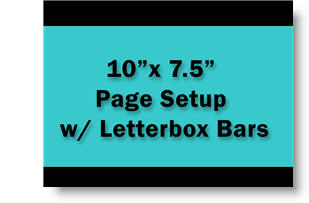
– Page setup = 10”x7.5” (standard 4×3 presentation)
– Add black letterbox bars to top and bottom leaving a 16×9 “active” area
– Again, good for using existing 4×3 presentation graphics or need to supply images for client to repurpose into their presentations
– Also good for multi-source shows as lower letterbox area can contain quick reference syncing information (eg. L1, C1, R2 (left 1, Center 1, Right 1))
– Problem is needs to have real scaler that can cut off unused portion sent to project and a good projector as not all pixels are being used
– Troy @ TLC

By |2016-11-17T15:52:46-08:00April 2nd, 2007|Tutorial|

Going Wide Screen

The era of the wide screen presentation is here. Computer monitors are wide screen, plasma and lcd TVs are wide screen, and wide screen projectors have dropped in price. So how do you create a widescreen presentation to use all of this great “realestate”?

1) Open a new presentation

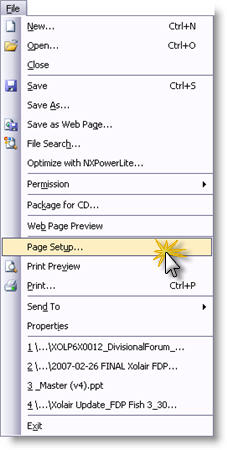
2) Go to FILE >> PAGE SETUP

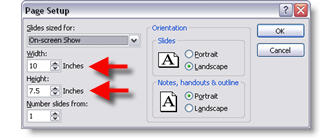
3) Here is the standard, 4×3 aspect ratio, presentation

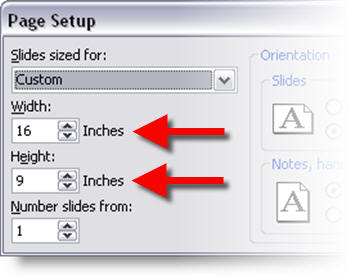
4) Change the 10″ x 7.5″ to 16″ x 9″

Now you have a wide screen presentation set to fit the industry standard 16×9 aspect ratio.

– Troy @ TLC

By |2016-11-17T15:52:25-08:00March 31st, 2007|Tutorial|

Small Can Be Better

Here is a common element that really does not get much attention. Note the “(cont)” at the end of the header.

It is the same font, same color, same size as the rest of the headline. But it really is not a part of the headline content. When I need to add this to a presentation header I do a little formatting like this

The additional item is now non-bold and several font sizes smaller. It conveys the needed information (that this is the same topic continued onto another slide), but is less obtrusive and does not compete with, or alter the header message.

– Troy @ TLC

By |2016-11-17T15:51:33-08:00March 29th, 2007|Tutorial|

Oh ,The Colors

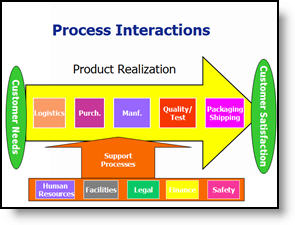
It is often beneficial to color code the data. But sometimes to much color makes things difficult to interpret and ends up looking like the circus has arrived. Here is a great diagram that provides a lot of vital information – it just gets lost in all of the colors and shapes.

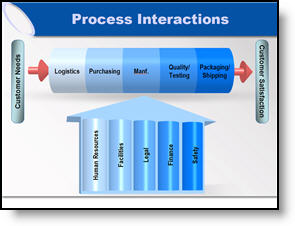
My goal was to minimize the distracting colors, make the diagram fit within the slide and emphasis the relation and process. Here is the revised diagram:

– Troy @ TLC

By |2016-11-17T15:46:07-08:00March 7th, 2007|Portfolio, Tutorial|

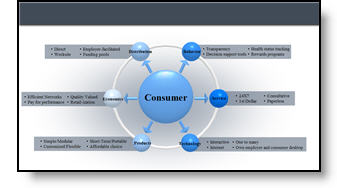
Great Graphic – For an Engineer

Here is the original graphic provided. It has all the needed information, is nicely balanced, has good contrast – and has all the factors an engineer would appreciate.

Taking the same content, basic layout, and even color scheme, here the revised version of the diagram developed for the (16×9, widescreen) presentation.

– Troy @ TLC

By |2016-11-17T15:45:31-08:00March 5th, 2007|Portfolio, Tutorial|

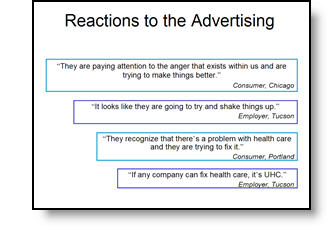
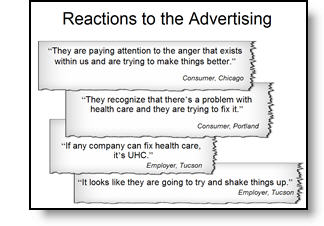
Show It A Story

Lots of presentations show quotations. Here is the original slide with a lot of quotes – each animates on with a click.

To put the quotes in a visual environment a series of ‘torn paper’ graphics where designed, font sizing and line spacing were also adjusted.

– Troy @ TLC

By |2016-11-17T15:44:00-08:00March 1st, 2007|Portfolio, Tutorial|

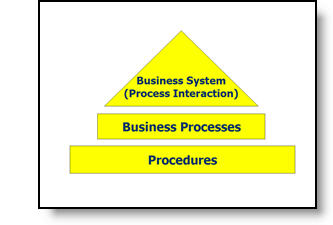
Tell the Right Story

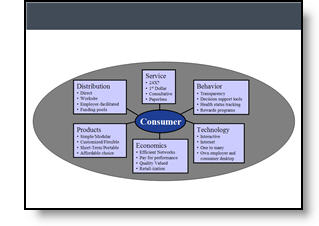
Here is the graphic from an original slide.

After discussing with the presenter, the message was not really about a hierarchy, but that all three processes where controlled by one business unit. Here is the revised graphic that was more aesthetic, cooridinated with the presentation color scheme, and showed a more accurate story.

– Troy @ TLC

By |2016-11-17T15:43:22-08:00February 27th, 2007|Portfolio, Tutorial|

PowerPoint Gets The Blame with Full Screen Videos

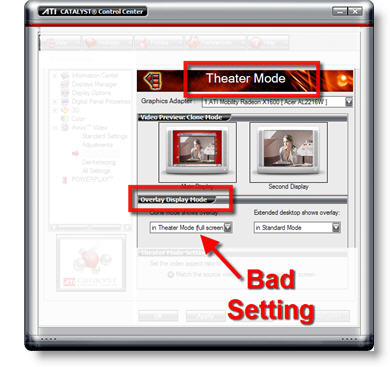
PowerPoint seems to cause the problem, but it is really video card settings that make your movie playback at full screen.

(on pre-Vista OS) go to START >> DISPLAYS >> SETTINGS tab >> ADVANCED button >> depending on graphics card find the settings for THEATER MODE (usually buried a few buttons down). If it says play movies full screen, that is what PowerPoint looks at and does… I recomend changing THEATER MODE to ‘standard’ so there are no surprises.

– Troy @ TLC

By |2016-11-17T15:39:44-08:00February 15th, 2007|Tutorial|

PowerPoint Gets The Blame with Widescreens

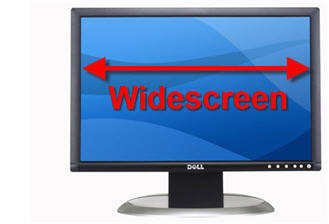
There are times when it looks like PowerPoint is to blame, but in reality it is a computer OS setting that is making PowerPoint appear to behave badly. An example of this that comes up often is running a presentation on a widescreen monitor.

Recent Post on the PowerPoint Forum:
I have a widescreen monitor powerpoint distorts graphs. The font becomes much larger and squished together. How do I stop the powerpoint from changing things?

My Response:
(on a pre-Vista OS) Go to START >> CONTROL PANEL >> DISPLAY >> SETTINGS tab >> ADVANCED button >> depending on which video card, find setting for MAINTAIN ASPECT RATIO. Now 4×3 presentations will display with black bars on the left/right so nothing is distorted on a widescreen monitor.

– Troy @ TLC

By |2016-11-17T15:38:48-08:00February 13th, 2007|Tutorial|

Video Tutorial on PowerPoint Photo Crop Tool

For a recent client I supplied the PowerPoint template and a quick video tutorial on using PowerPoint’s Crop tool to provide some tips on how best to insert a series of photos. Now for your viewing pleasure I have uploaded that tutorial to one of my servers for all to enjoy!

Note: This was unscripted and created in just a few minutes, so it is definitely lacking much of the polished professional touches that go into real projects… Click here to view.

– Troy @ TLC

By |2016-05-13T15:19:43-07:00February 11th, 2007|Portfolio, Tutorial|
Go to Top