Tutorial

You’re a Pill!

For a recent project (can we all say “pharma deck”) I needed a medication/pill icon.

  • Option 1, which i will admit is my primary option, is to open the Noun Project in PowerPoint, find the icon, copy to slide, modify as needed (because the icons are editable .svg graphics!).
  • Option 2, go to Adobe Illustrator and quickly create the needed pill icon (and shortcut the process by selecting – copying – pasting into PowerPoint – which is an editable .svg graphic!).
  • Option 3, add a PowerPoint shape, give it a color fill and add text (into the shape – not as a text box on top of the shape!) that labels that shape as a “Pill”. This is a common solution when formatting a 200+ slide deck and have a time constraint budget.

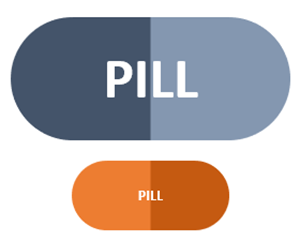
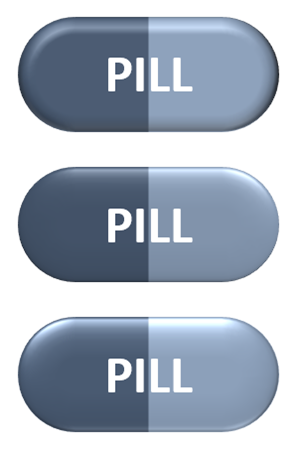
But on this recent project I created option 4, which is really spending some additional time on Option 3 and making it great! Here are a few of my full editable, resizable, recolorable, ready to use “pill” PowerPoint shapes.

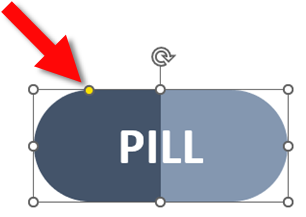
The pill shape is simply a rounded rectangle PowerPoint shape with the rounded corner adjuster moved inward to create fully rounded ends to the rectangle.

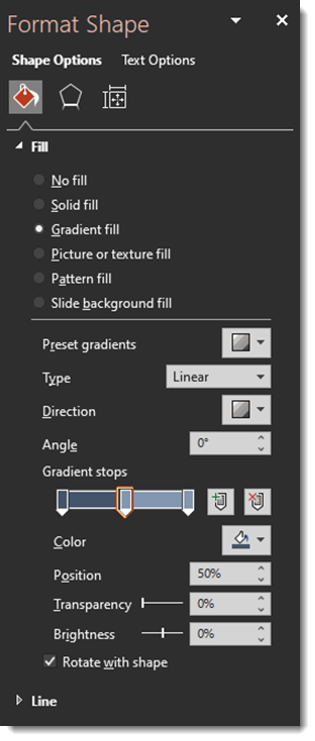
It is also a 2 color gradient, with 4 color stops.

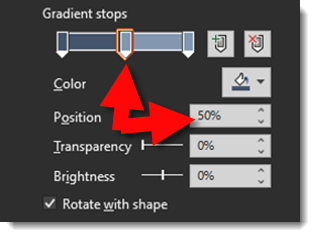
The tricky part is manually entering the middle color stop positions vs. click-and-drag. Set both to 50%, which eliminates any gradient soft edge and completes the 2 color pill icon.

For my presentation, I also moved away from a flat icon styling to a slight 3D bevel look by using PowerPoints 3D shape option.

Download the PowerPoint Pill Shape on a slide HERE

Troy @ TLC

By |2022-05-18T18:22:49-07:00May 23rd, 2022|PowerPoint, Tutorial|

Still Waiting for the Office Refresh?

I just worked with another designer that noted that their Office had not yet updated to the new “Windows Refresh” – the updated app styling. Sure enough, PowerPoint on their computer had the “rectangle” interface still.

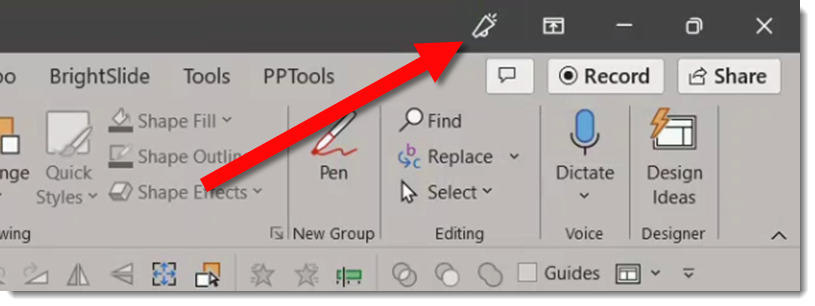
The solution, at this time because the “refresh” has rolled out to all Office 365 accounts now, is to click the “Upcoming Features” megaphone icon.

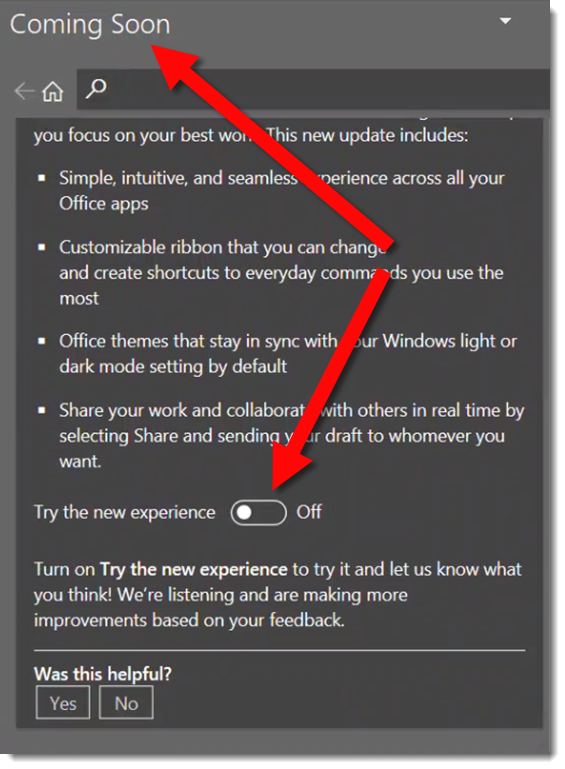
Scroll down the Coming Soon content, find the “Try the Experience” toggle, turn it on, and restart PowerPoint.

The app interface for all Microsoft Office should now be on the most recent, “rounded corner” interface 😊

Troy @ TLC

By |2022-05-18T17:52:44-07:00May 19th, 2022|PowerPoint, Tutorial|

Keyboard Shortcut – Reset Graphic Driver

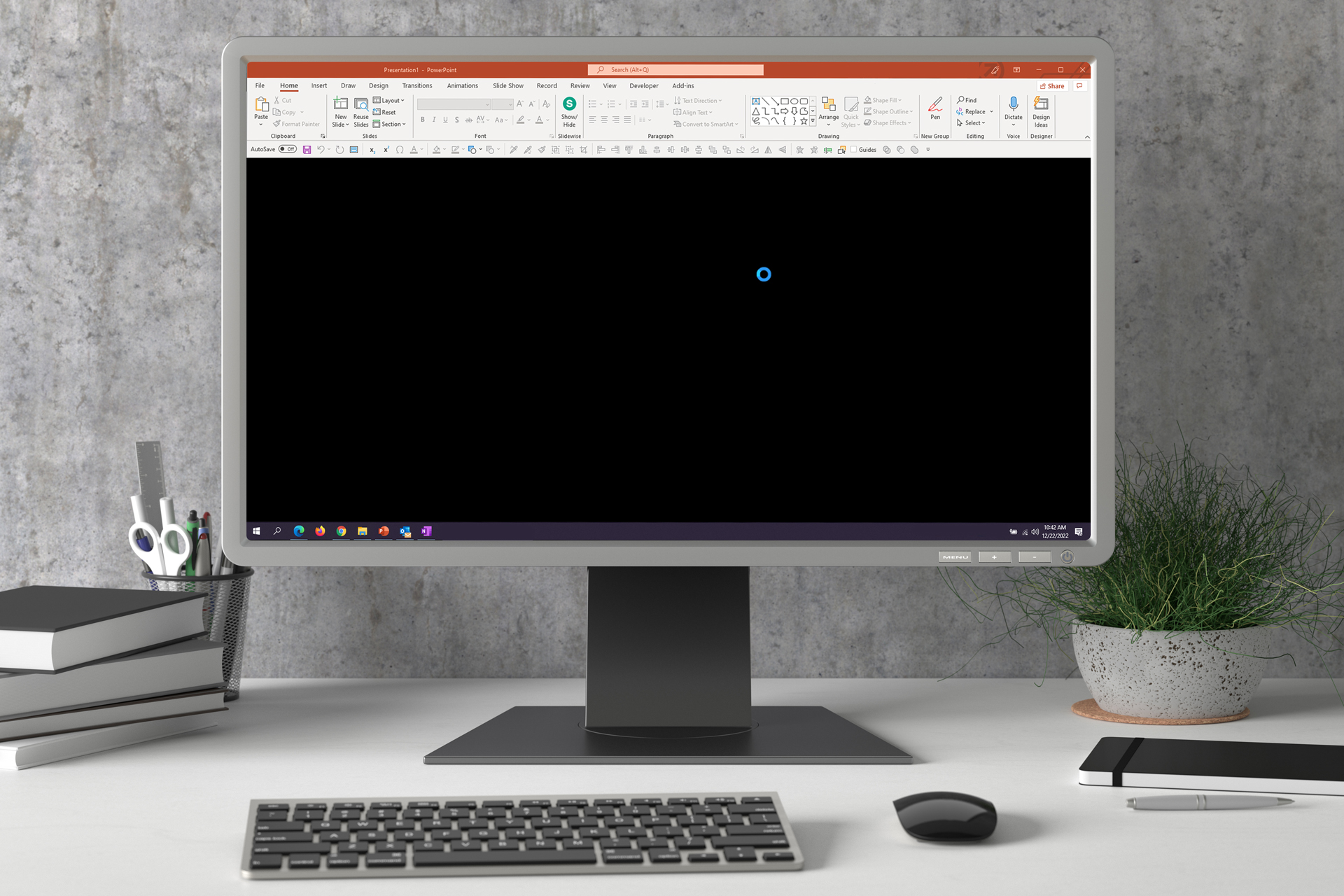
Have you ever been working on something important and all of a sudden, the screen or app window freezes up?


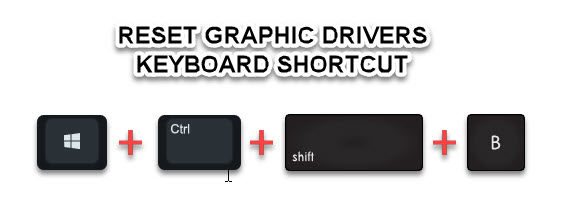
Before losing any of your work by restarting the app or full computer, try this keyboard shortcut. We are going to restart the graphics drivers – which I found is something most people did not know was an option! Click the Windows logo + CTRL + SHIFT + B keys to restart your graphic drivers.


Reset graphic drivers keyboard shortcut

The common solution is first to open the TASK MANAGER and attempt to close the application (if the Task Manager will open). The next action is generally to FORCE SHUTDOWN the computer – argh! which means losing all work since the last save!! Try this trick before shutting down the entire computer! Often the issue is the graphics driver has crashed and this handy keyboard shortcut restarts the graphics driver and hopefully restores access to your computer and the slide deck you were working on (hopeful!). Note, this is a Windows OS hack (sorry Mac people, I do not know if there is a graphic driver reset option there). And this works on Windows 8, 10 and 11.

Troy @ TLC


By |2021-12-31T01:26:29-08:00January 6th, 2022|Resource/Misc, Tutorial|

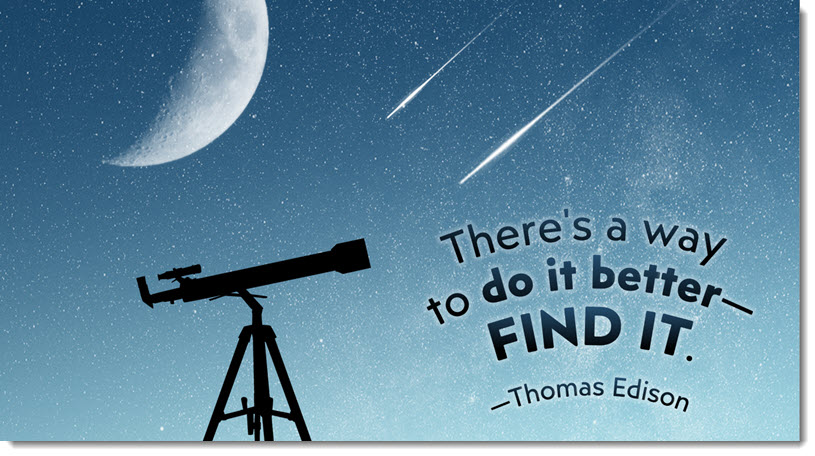
Quotes and Curved Text

Thank you to Kelli Willcoxson for the inspiration slide.

Design Process:

  • Find an image to support the quote
  • Size, position and crop the image to create a clear area for the quote text
  • Stylize and position the quote text

PowerPoint Formatting Tip:

  • This layout has a lot of custom PowerPoint formatting applied to the text. Easy to do in Adobe Illustrator, a bit harder in PowerPoint.
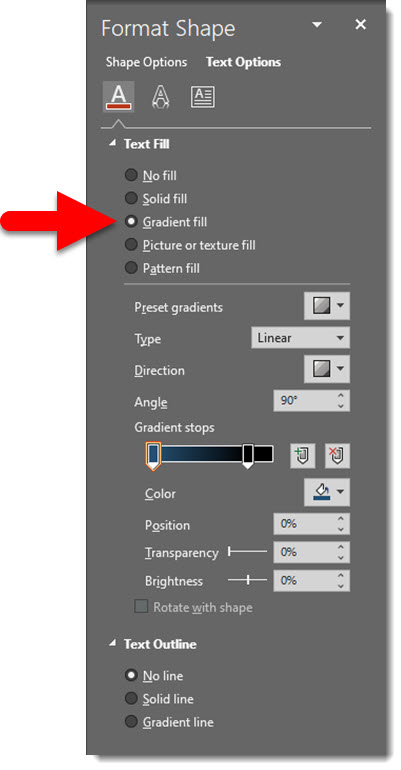
  • The text is filled with a gradient giving it a subtle blending effect with the background
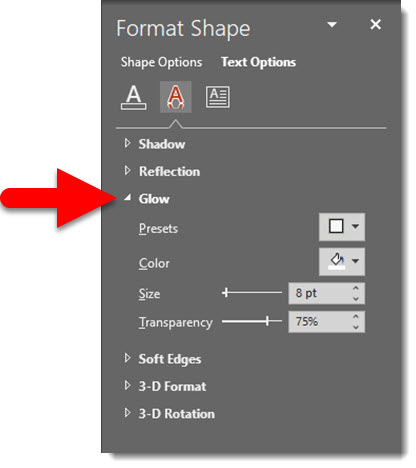
  • The text also has a subtle glow effect applied, making it seem to glow like the stars in the background
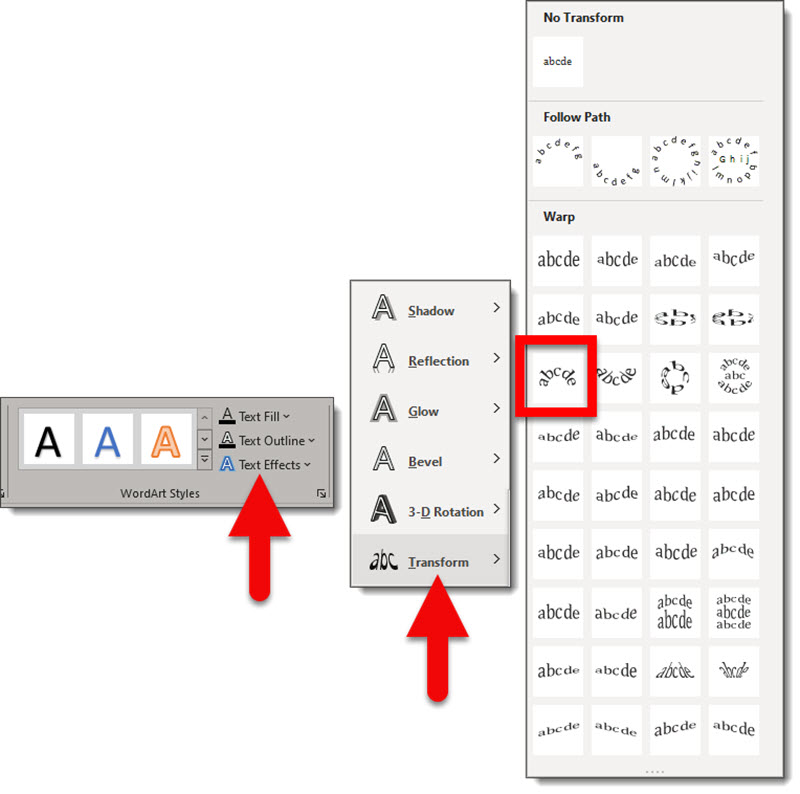
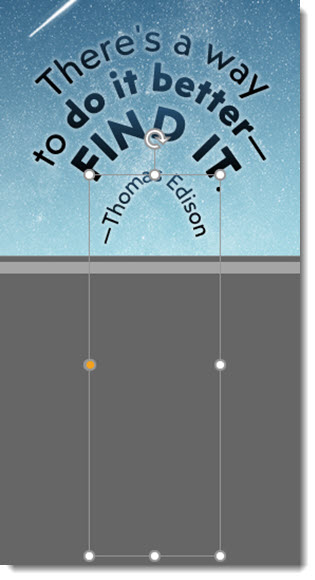
  • But most impressive, and difficult, is the text has a curved layout – using PowerPoint options, and remains 100% editable!
    – Applying the curve effect is a hidden feature in PowerPoint
    – Select the text > go the SHAPE FORMAT tab > go to the WORDART STYLES section of the ribbon > click TEXT EFFECTS > click TRANSFORM (I believe this is the only way to access the text transform feature in PowerPoint) > select a WARP effect, the curve down effect was selected for this slide layout
  • Note: the text warp effect has no interface adjustments, but it is adjustable.
    – By stretching and adjusting the text box the warp changes. As example, make the text box very tall and thin and the curve becomes more pronounced

    – All warp effects have an adjust node, the yellow dot. Sometimes the adjustment is helpful, other times… well, it is obvious we are not using Adobe Illustrator with its greater control options 🙂

Download the editable version of this slide HERE.

Troy @ TLC

By |2021-08-22T11:37:27-07:00September 1st, 2021|PowerPoint, Tutorial|

Quotes with an Overlay Block

Thanks to … for this post’s inspiration slide.

Design Process

  • Locate an image that coordinates with the quote
  • Create a color scheme for the slide (tip: download the editable version of this slide with the link below and look for the awesome image transparency trick!)
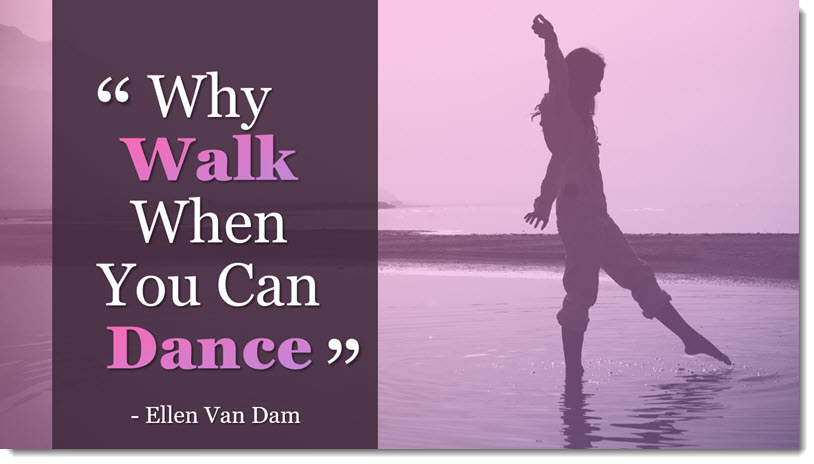
  • Create a semi-transparent PowerPoint shape for the quote text
  • Format the quote and attribution text in the PowerPoint shape (no layered text boxes to keep aligned!)
  • Add the quote marks as separate text boxes (okay, not everything can always be formatted in a single text box)

Formatting Tip

  • The text overlay block has transparency so the image can be seen through it, creating a smooth flowing layout
  • Here is the same overlay block on another background to better see its transparency
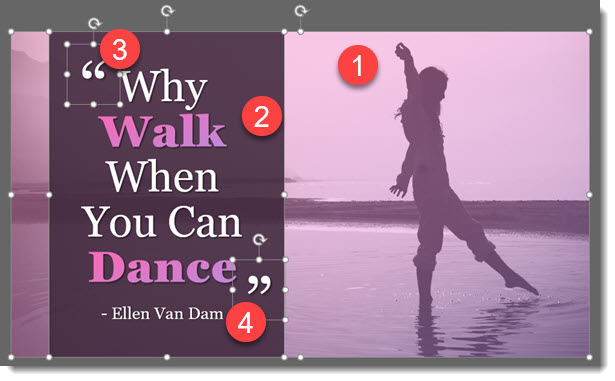
  • 1 – The image was cropped from the larger original and created the open area for the quote
    2 – The text box has a fill and set to 10% transparency, AND all text is in the single text box
    3-4 – The quote marks are editable text, but are layered on top as separate text boxes to make the unique line spacing and positioning possible

Download the editable version of this slide HERE.

Troy @ TLC

By |2021-08-22T11:13:39-07:00August 30th, 2021|PowerPoint, Tutorial|

Quotes – Rotate the Text

Thanks Kelli (who has moved to another great design job – great for Kelli, sad for TLC Creative) for today’s quote inspiration.

Design Process:

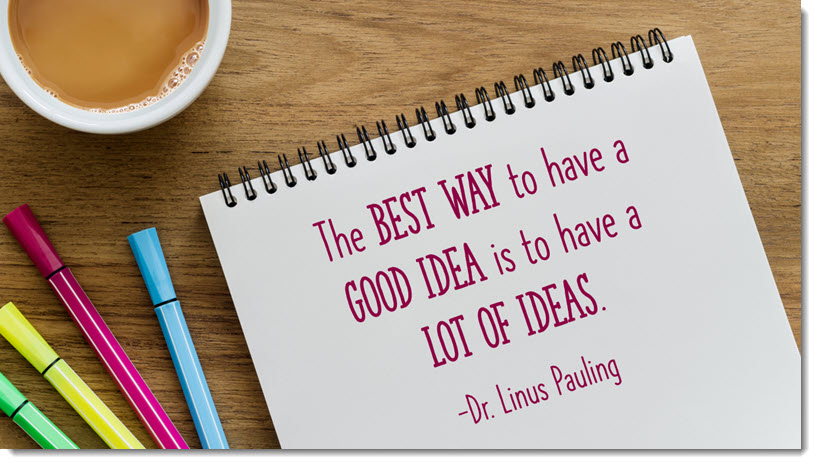
  • This slide started with finding a great image, then researching a quote to use with the image
  • The original image showed more, and it was cropped in PowerPoint to create the layout
  • Typeset the text, select the font, set the size, adjust the line spacing, set the color (pulled from the pink pen in the image)

Formatting Tip:

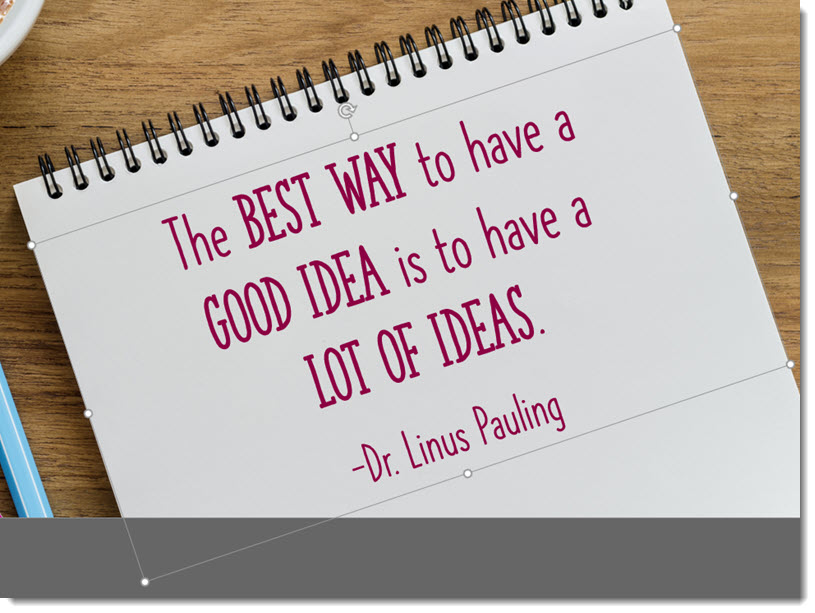
  • Use PowerPoint’s ability to rotate shapes and text boxes
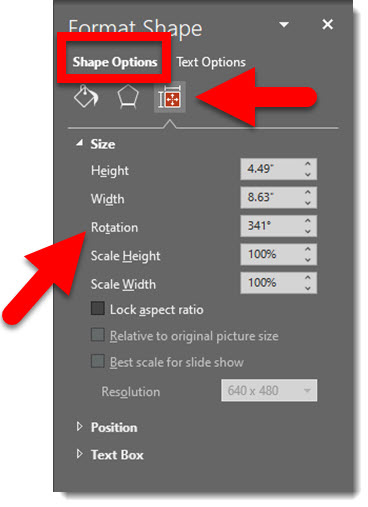
  • Adjust the angle of any text box by click-and-dragging the rotate icon at the top of the text box, or manually in the FORMAT SHAPE dialog

Troy @ TLC

By |2021-08-22T11:01:44-07:00August 27th, 2021|PowerPoint, Tutorial|

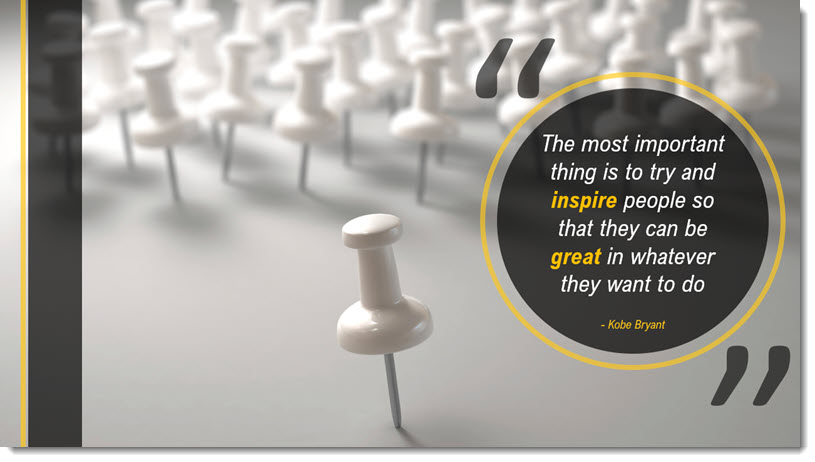
Quotes in a Circle

Thanks to Jake on our design team for today’s slide design.

Design Process:

  • Review the quote
  • Search for an image that aligns with the quote
  • Develop a slide layout that highlights the quote as the focal point, integrates the coordinating image, and use PowerPoint shapes to create accent graphics

PowerPoint Formatting Tip:

  • Text in circles is not always easy!
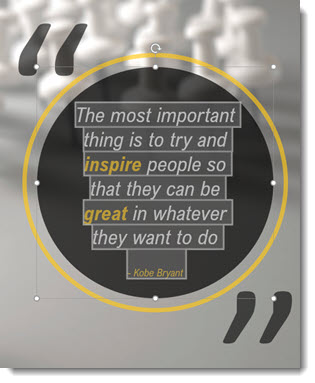
  • For the slide quote, all text is inside the circle shape (not a second text box placed on top of the circle). All text is in a single text block. So the bold text, colored text and the smaller attribution text is all formatted in the same text block.
  • Formatting text in a circle requires making some adjustments to the shape formatting properties.
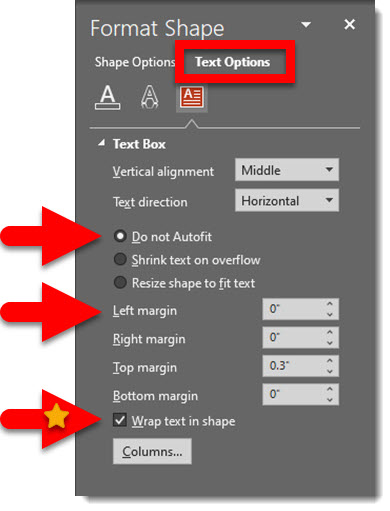
    – Right-click the circle and select FORMAT SHAPE
    – Go to the TEXT OPTIONS and TEXT BOX options
    – [Personal preference] Select “DO NOT AUTOFIT”
    – Adjust all margins to zero’s (although for this example the top margin was manually set to compensate for the smaller font size text at the bottom and keep the layout vertically centered in the circle shape)
    – WRAP TEXT IN SHAPE: this is generally turned on, so the text automatically stays inside the circle. But if the text needs to be just a bit closer the edge, maybe even slightly overlapping the edge, turn this off and use SHIFT+RETURNs to manually create the line breaks

Troy @ TLC

By |2021-08-22T10:54:21-07:00August 25th, 2021|PowerPoint, Tutorial|

Create an Animated GIF from PowerPoint – with Transparent Background!

Creating animated GIFs in PowerPoint is a newer feature, so it may be familiar. However this feature has been updated recently with the ability to export animated GIFs with transparent backgrounds.

To create an animated GIF with a transparent background, start with a new PowerPoint file. The secret for exporting an animated GIF with transparent background is to us a white background (eg. the slide background is set to white, not a white shape as the bottom layer).

An animated GIF is a “flip book” animation. Each slide is the next part of the motion. There is no animation used in this example animated GIF. Here is the first slide:

Next, the slide is duplicated and the hand graphic flipped to the opposite view using PowerPoint’s to FLIP HORIZONTAL tool and the text “HELLO” is rotated and larger.

This is a simple 2 step animation, but a 3rd step is needed for the animation effect. So slide 1 is duplicated and set as slide 3.

slide 1 transition = NONE, for a seamless transition of the animation. Set automatic slide advance after 0.00 seconds.

slide 2-3 transition = MORPH, which creates the smooth animation of the hand wave and text movement. Duration = .25 seconds. Set automatic slide advance after 0.00 seconds.

It is time to export as an animated GIF.

  1. Go to FILE and select EXPORT
  2. Select CREATE AN ANIMTED GIF
  3. Choose the size and quality of the GIF
  4. Check the box to MAKE BACKGROUND TRANSPARENT (this is the new feature!)
  5. The “seconds to spend on each slide” can be left with the default value. It will not be used as each slide has a preset automatic transition set.
  6. click CREATE GIF

And that’s it!

Jake @ TLC

By |2021-07-11T16:40:21-07:00July 16th, 2021|Tutorial|

I can do that?! BrightSlide Swap Objects

Sometimes easy, but repeatedly done, tasks are made easier with some smart coding. That is exactly what BrightSlides “Swap Objects” feature does. It makes a fairly easy formatting task, as easy as 2 clicks! As example, on my sample slide of a photo collage, swapping the top left and bottom left images is a 2 click process.

Click 1 – select the objects.

Click 2 – go to Brightslide and click SWAP OBJECTS.

Done!

Tip: hold the SHIFT key and click SWAP OBJECTS. This temporarily adds the anchor dialog to the ribbon. Choose which of the 5 anchor points to use when switching objects.

Note: this is probably obvious, but is an object is locked (PowerPoint Selection Pane and Lock Object padlock), it cannot be moved and the BrightSlide Swap Objects will not work.

BrightSlide is a FREE add-in, with both Windows and Mac versions. Get it here.

Troy @ TLC

By |2021-07-11T16:37:53-07:00July 14th, 2021|Resource/Misc, Tutorial|

Is That a Ball or an Egg?

One thing easy to do in PowerPoint is to distort images. Often it is unintentional, but it happens fairly often. As example, on this slide, the picture looks distorted.

The soccer ball looks distorted, more of an egg shape than round ball. Here is how to check: select the image > go to the FORMAT PICTURE tab > go to SIZE & PROPERTIES tab > look at SCALE HEIGHT and SCALE WIDTH.

All images should be 100% x 100% if they are using the original size. If the image has been resized to be smaller or larger, the percentage will adjust, but should remain the same value in each field. Here the height and width are different, telling us the image has been distorted and is wider than it’s height.

The simple fix is to make both fields that same value, say 100% x 100%. Then resize the picture using one of the 4 corners to maintain the aspect ratio.

By |2021-06-01T09:47:40-07:00June 18th, 2021|Tutorial|
Go to Top