
The Presentation Podcast Episode #56 Released Today!
A new episode of The Presentation Podcast with Troy, Nolan, and Sandy is available today! Check out the latest episode, #56 – PowerPoint Templates In Depth with Julie Terberg and Echo Swinford.
PowerPoint templates are a key, and fundamental, feature of PowerPoint. We have all seen “templates” that are far from a true, functional and helpful PowerPoint template. Troy, Nolan and Sandy are joined by two industry experts in PowerPoint template development who literally wrote the book on PowerPoint templates, Echo Swinford and Julie Terberg.
Turn Off Text Hyperlink Color
PowerPoint automatically creates clickable hyperlinks for any text that begins with “www.” as well as all email addresses.

For presentations that are presented on screen, a clickable link is not needed (the audience is not receiving the slides) and can be a visual distraction. Like many things in PowerPoint there are multiple ways to make the unwanted color and underline go away. Here are 3 ways to turn off text hyperlink color or remove a hyperlink:
Option 1
- Highlight the link

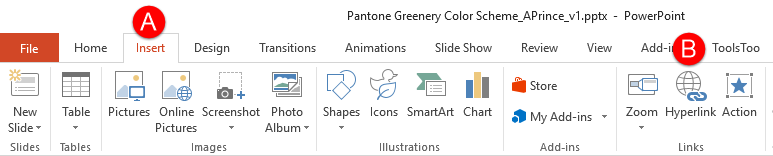
- On the ribbon, go to INSERT and in the LINKS section, choose HYPERLINK.
- Tip: CTRL+K on your keyboard is a shortcut to the Edit Hyperlink menu
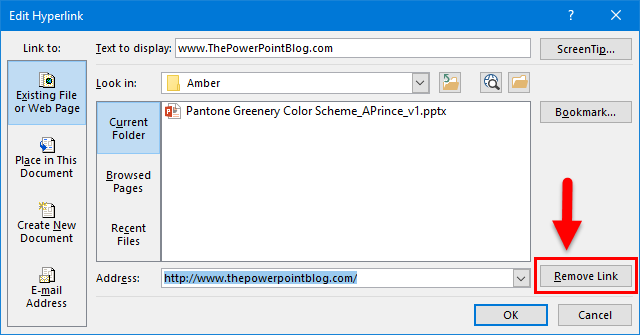
- Click the “Remove Link” button
Option 2
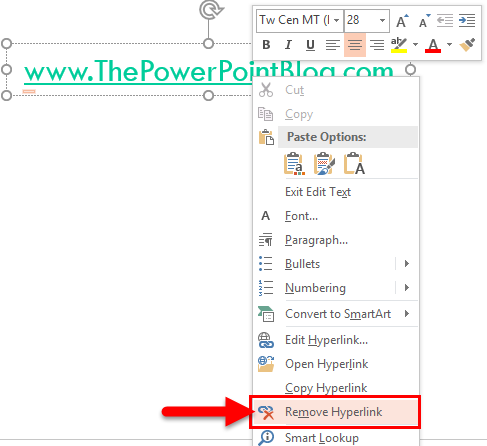
- Right click the hyperlink text and on the menu select REMOVE HYPERLINK
Option 3
-
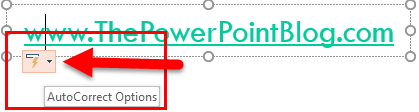
- This one is time sensitive. Immediately after the hyperlink text is entered (hyperlink text that automatically is configured as a hyperlink either starts with www. or has the email address formula with an @ symbol), the text changes to a hyperlink and there is an ‘AutoCorrect Options’ button.
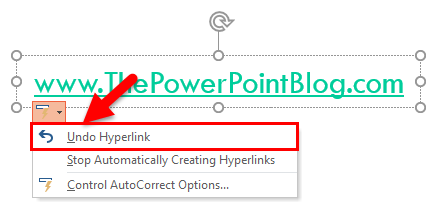
- Click the button, and select UNDO HYPERLINK
- This one is time sensitive. Immediately after the hyperlink text is entered (hyperlink text that automatically is configured as a hyperlink either starts with www. or has the email address formula with an @ symbol), the text changes to a hyperlink and there is an ‘AutoCorrect Options’ button.
There, 3 solutions to removing unwanted hyperlink coding in PowerPoint (also works in Word and Excel)!
Troy @ TLC
Select Text with Keyboard Shortcut
Microsoft has some great text selection tools. Double click and the full word is selected. Three clicks and a paragraph is selected. Click and drag and the selection automatically jumps in full word intervals. What many presentation designers do not have is the keyboard equivalents to these text selection options – they are amazing for speeding up design time!
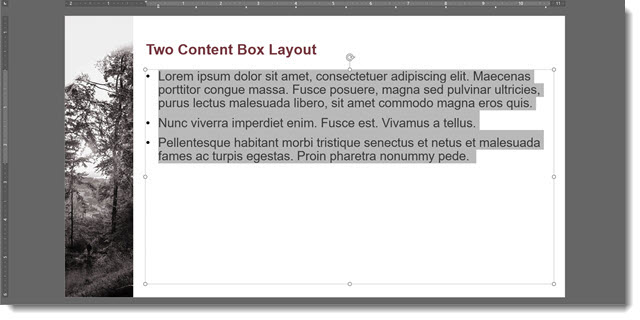
1. Select ALL text in a placeholder.
- Click inside the text box, anywhere, and CTRL + A to select all (okay, most everyone knows this one)
2. Select a paragraph
- Click inside the text box, at the beginning of the paragraph, and CTRL + Shift + Down Arrow a full paragraph is highlighted.

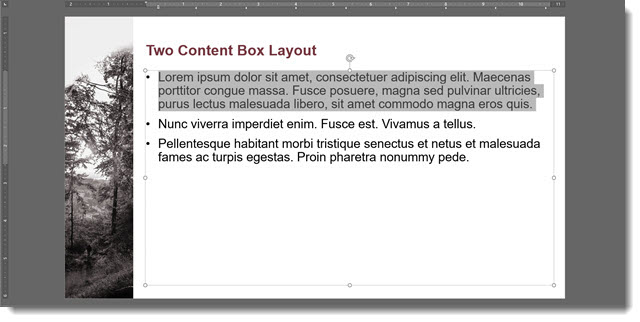
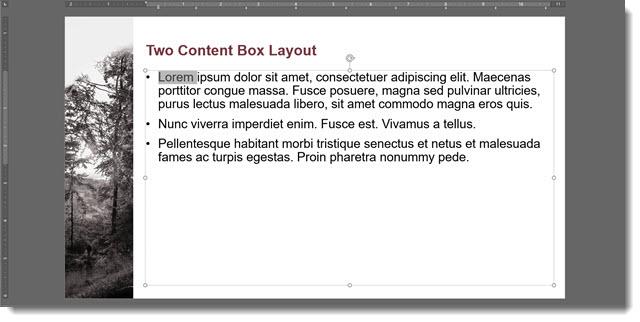
3. Select individual words
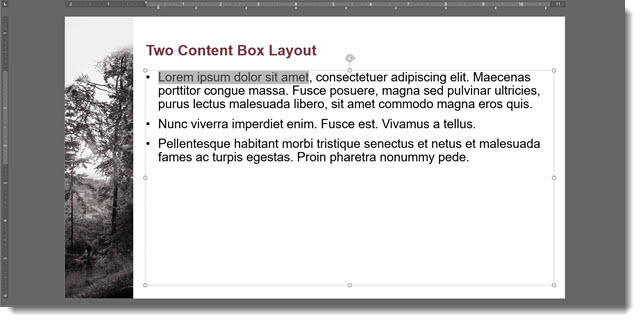
- Click inside the text box, at the beginning of word to select, and CTRL + Shift + Right Arrow to select that word.
- Click Right Arrow again to select the next word – repeat to select as many words needed


Okay, now it’s time to go edit slides more efficiently!
Troy @ TLC
PowerPoint and Illustrator – Both Have Vector Shapes
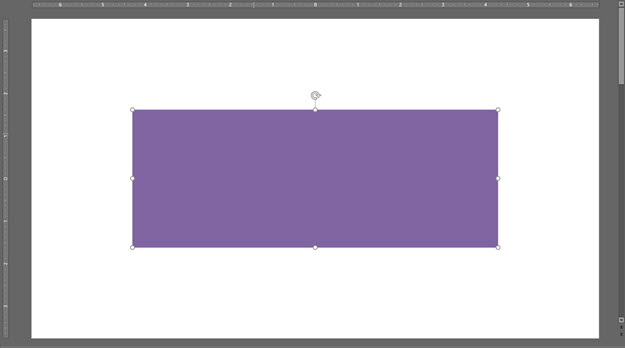
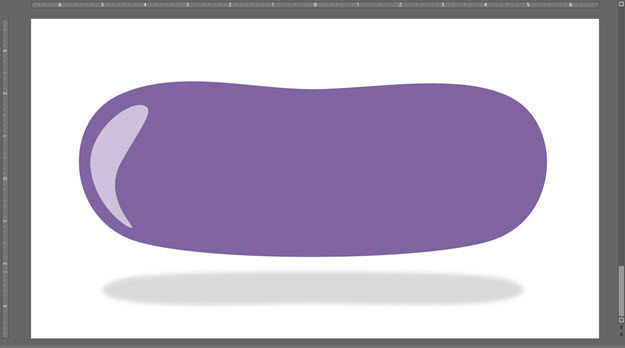
If you use Adobe Illustrator, or other vector art programs, you are familiar with Bezier curves. Vector art is scalable, without resolution loss, and is editable in both appearance and in shape. PowerPoint shapes are vector graphics and can be edited directly in PowerPoint just like editing vector art in Illustrator (but with a simplified set of options). For example, Christie on the TLC Creative design team created this example showing how a rectangle can be edited into a purple jelly bean shape – all inside PowerPoint, using native PowerPoint features.
1. Create any shape in PowerPoint, mine is a purple rectangle
2. Right click on the shape and select EDIT POINTS
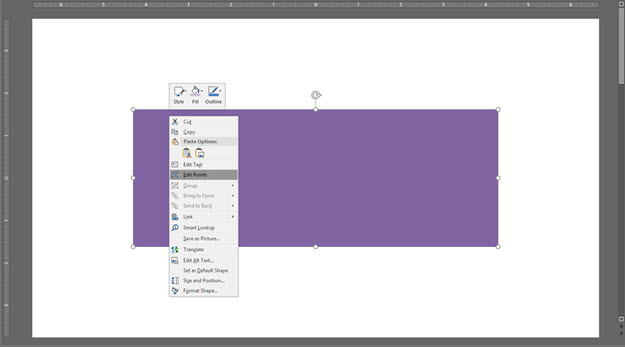
3. A rectangle is a simple vector shape with just 4 points, one for each corner. Click and select any of the points. The Bezier handles will display. Right-click the selected point and from the pop up menu we can change the type of Bezier corner.
PowerPoint points can be SMOOTH, STRAIGHT, or CORNER points. For a rectangle, with all straight edges, the points are CORNER points which keeps the Bezier handles straight and 90 degrees to each other. But to create my purple jelly bean I do not want the 90 degree corner and change its properties to SMOOTH.
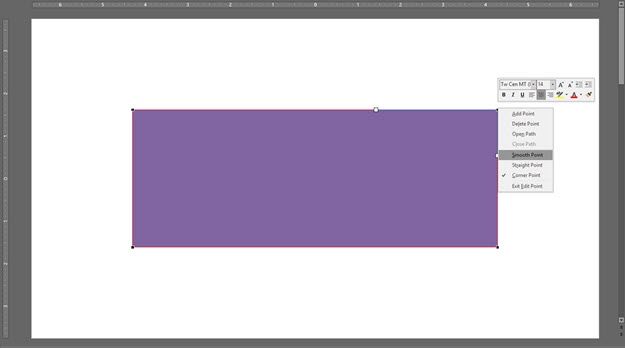
4. The Bezier handles move outside the shape and it becomes a radius corner.
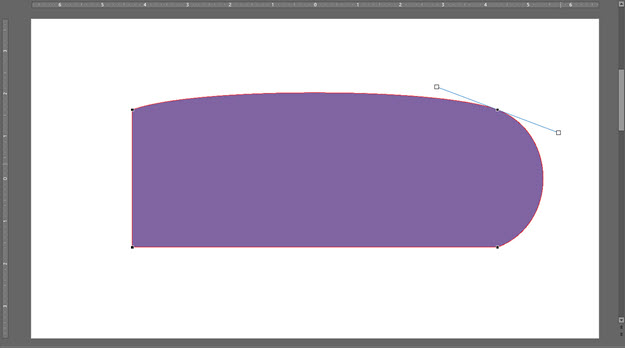
5. My purple jelly bean has no straight lines, so all 4 points are changed to SMOOTH points. The rectangle is now a “blob” with no straight edges.
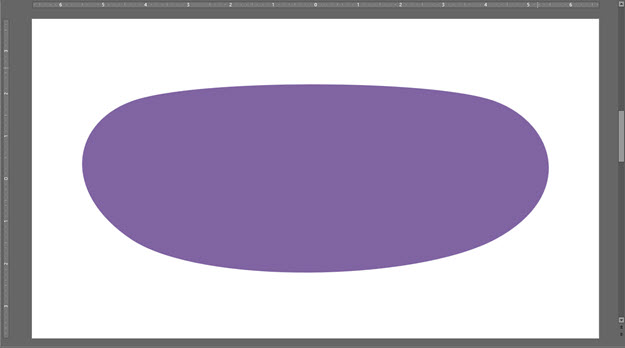
6. This next step has nothing to do with shape edit points, but I cannot leave a slide with an ugly shape, so I am adding a cast shadow.
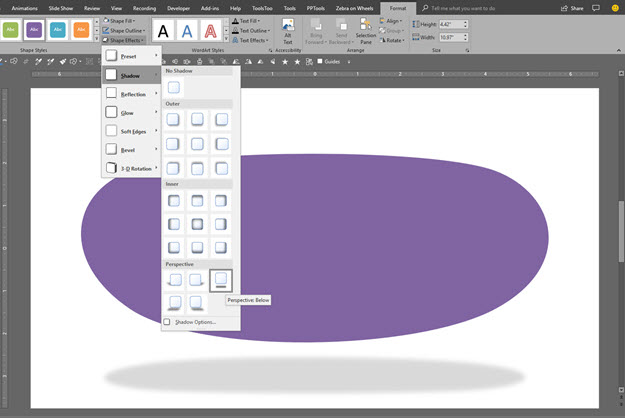
7. Back to editing shape points, and some design – duplicate the shape, change the color to a lighter shade of purple and then right-click and select EDIT POINTS.
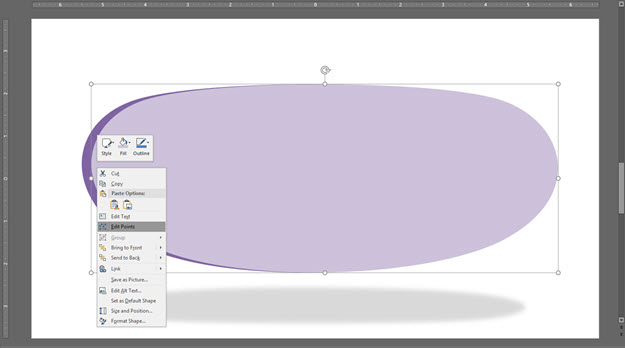
8. Through a combination of adding a few new points (also SMOOTH points) and moving the position of points and Bezier handles, it was pretty quick and easy to create a new custom shape that is now a highlight accent.
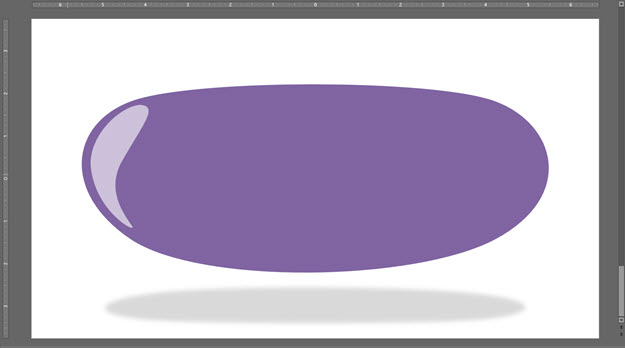
9. To make the large blob shape more like a jelly bean, right-click > edit points > add a new point in the top center (make it a SMOOTH point) and drag it down a bit.
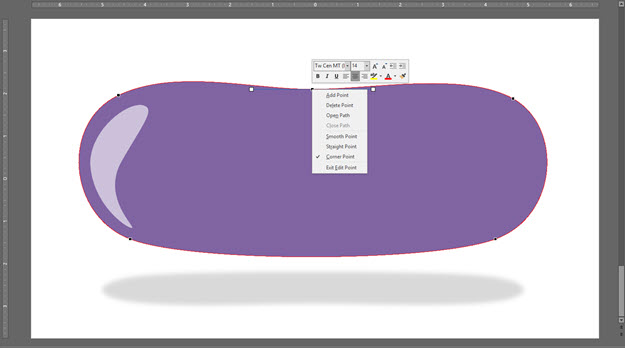
10. Done – at least enough for this tutorial, and we never left PowerPoint. Think of it as working in a legacy version of Illustrator, maybe 2.0.
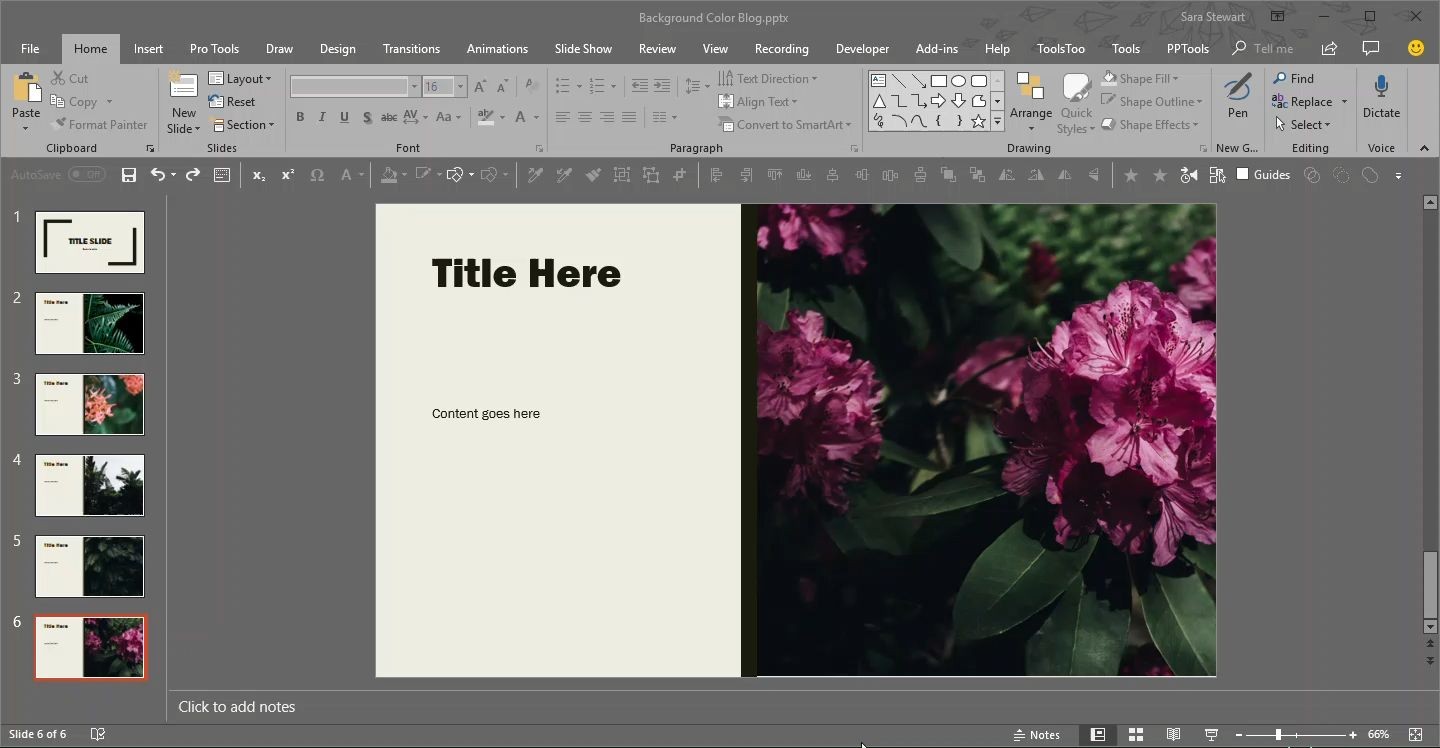
It’s Like Monopoly – Go Directly to the Master Slide!
The Master Slide is where as presentation designers we try to keep clients away from. But as a designer, this is a fantastic shortcut to accessing the master slide!
As example, we want to change the background color across all slides. Easy, just update the Master Slide. The typical way of doing this is View > Slide Master and the Master Slide view opens with that layout selected.
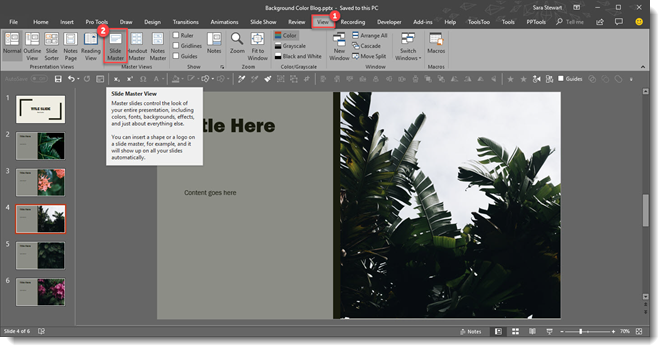
However, we need to change the background color on the Master Slide, not the Master Layout. So now we need to scroll up and select the Master slide at the top. Too many steps for a busy presentation designer!
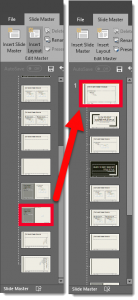
A quick and easy shortcut to achieve going directly to the Master Slide is to hold SHIFT + DOUBLE-CLICK on the NORMAL VIEW icon in the lower right bar.

This is will automatically open the master to the top slide where you can quickly update all slide backgrounds.
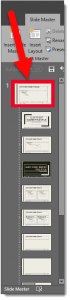
Here it is in action, 1 click (okay a double-click) access to the Slide Master.
[KGVID]https://thepowerpointblog.com/wp-content/uploads/2018/10/unnamed-file-3.mp4[/KGVID]
Troy @ TLC
Rotate Objects with Keyboard
There are many ways to do the same task in PowerPoint, and all Microsoft Office applications. Rotating objects is one that many find difficult and tedious when using the rotate anchor. Using keyboard shortcuts to rotate an object (or several objects at the same time) is an amazing shortcut to know about!
Select any shape
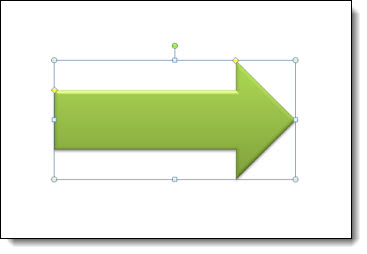
Use the keyboard to rotate the shape to the right with ALT + RIGHT ARROW. Hold the ALT key down and click the right arrow as many times as needed to get the rotation desired.

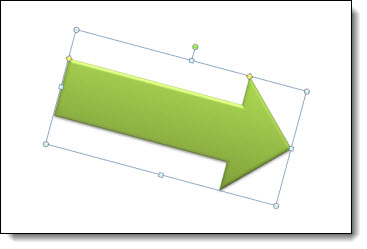
This is pretty much intuitive at this point, but ALT + LEFT ARROW will rotate the selected object(s) to the left. To go from the above rotation to the below rotation it was hold the ALT key and click the left arrow twice

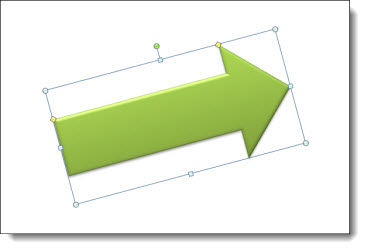
Happy rotating!
Troy @ TLC
The Presentation Podcast Episode #55 Released Today!
A new episode of The Presentation Podcast with Troy, Nolan, and Sandy is available today! Check out the latest episode, #55 – Let’s Talk PowerPoint Templates (a Virtual Discussion).
PowerPoint Templates have lots of setup, design, distribution and end-use considerations. For this episode we have a virtual conversation with a number of presentation design experts volunteering their expertise and recommendations on everything PowerPoint templates.