
Want A Perfect PowerPoint Circle, Square, Triangle?

Sometimes just knowing a hack can save a lot of time. So this is one of those tips included in our TLC Creative PowerPoint training programs where someone always exclaims “Really!!” The tip is how to immediately add a perfect shape (same on all sides), ie. a circle, square or triangle. The solution is so simple, there is nothing complex to forget. Ready,
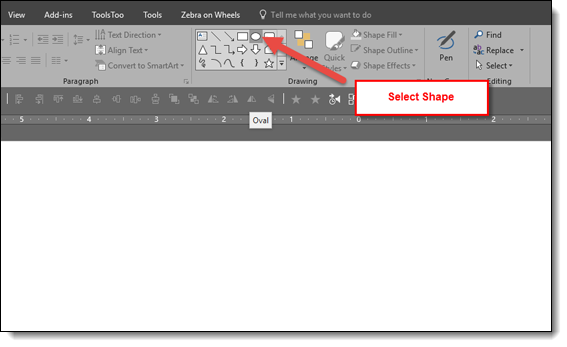
Click the desired shape in the shapes gallery
Click on the slide. Note: just a simple click, no click and drag, no modifier keys, nothing, just click on the slide.
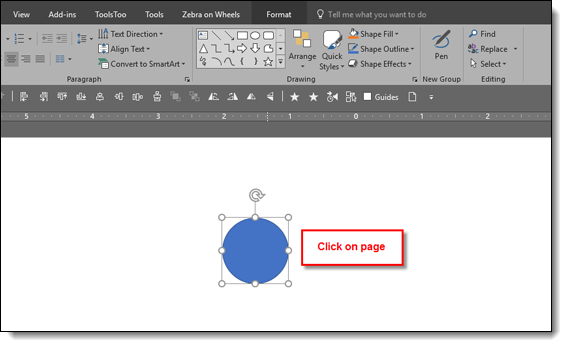
Done! A perfect, equal sided, square, circle, triangle, etc. is added to the slide
—
And the shortcut to the shortcut!
Hold down the CTRL key and click on desired shape in the shapes gallery
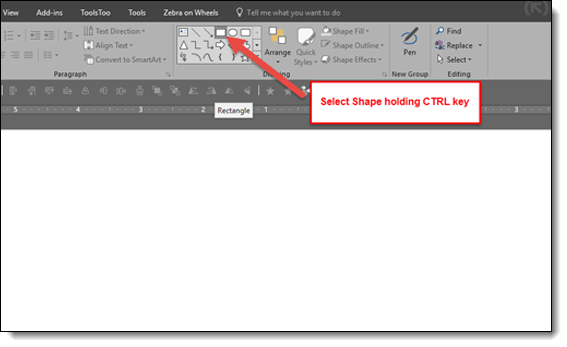
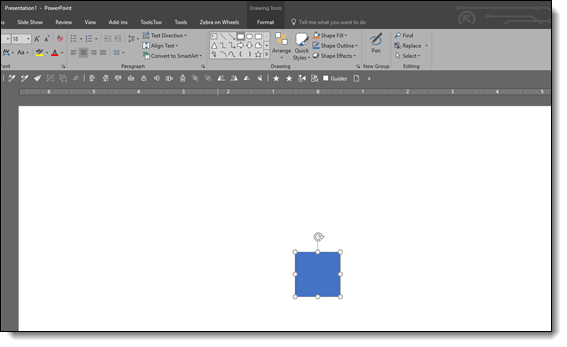
Perfect symmetrical shape is automatically added to the slide!
Troy @ TLC
The Presentation Podcast Episode #43 Released Today!
A new episode of The Presentation Podcast with Troy, Nolan, and Sandy is available today! Check out the latest episode, #43 – “O365 Features We Use.”

Office 365 is Microsoft’s subscription based software and service that goes beyond the Office apps by encompassing SharePoint, Teams, Groups, Unified Communications with Skype and much more. Troy, Sandy and Nolan talk about they each use Office 365 for their studios and the ‘secrets’ to making the most of it.
Spotify and Sleep Timer Hack!
This has nothing to do with PowerPoint or presentations, but it is an amazing tip for those that use Spotify and have noticed it is missing a sleep timer option (which I have!).

Scenario 1: You are deep into developing an amazing PowerPoint presentation and have some great inspiration music playing. You have a meeting to attend, so having the music stop would be a great reminder to save your work and leave (and much less jarring than an alarm going off).
Scenario 2: You are in noisy hotel and having music to mask the noise would be great, as long as you have a sleep timer to turn the music off in a few hours.
Unfortunately, the Spotify app does not have a sleep timer function. Luckily, this great hack leverages the built-in iOS timer to control Spotify.
[KGVID width=”272″]https://thepowerpointblog.com/wp-content/uploads/2017/11/unnamed-file-2.mp4[/KGVID]
Action Steps, on iPhone or iPad
- Search for “Timer” and open it, or, open the Clock app and go to the Timer icon at the bottom.
- Set the time for music to play.
- Change the “When Timer Ends” (and this is the secret setting!) to STOP PLAYING by scrolling to the very bottom of the list of options.*
- Click START
- Go back to Spotify, enjoy the music and let iOS turn off the music when the timer runs out!
*Note: This feature also works with Apple Music, Spotify, and all other audio enabled apps.
Happy listening!
Using PowerPoint Creatively
Some amazing results can be achieved by using PowerPoint creatively. This slide developed by the TLC Creative Services design team is a great example.
To develop this slide, we started with this mountain range image.
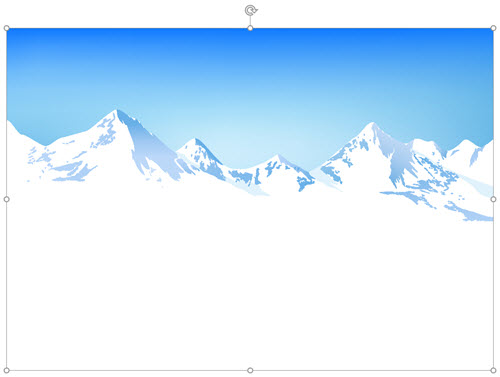
Then, we used PowerPoint’s Remove Background feature to eliminate the sky area.
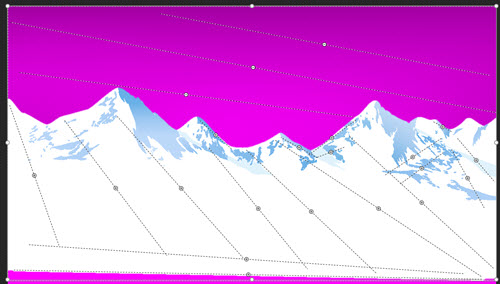
Then we searched VideoBlocks for a timelapse clouds video and selected this video.

By positioning the video behind the mountain range image, we did not worry about the green grass and horizon (they are still there in the above slide, but hidden by the mountain).

Last step was adding the stylized text. Complete!
Troy @ TLC
PowerPoint Illustration – Thanksgiving Cornucopia!
Amber, on the TLC Creative design team, loves Adobe Illustrator and PowerPoint. We challenged her to build a full vector illustration in PowerPoint. The result is an amazing Thanksgiving cornucopia!
- 478 slides
- Everything about the cornucopia (took me 3 times to get that spelled correct!) developed inside PowerPoint
- Exported as a video with no transition and .01 second timing to create the stop motion animation effect

Have a wonderful Thanksgiving with friends and family!
Troy @ TLC
The Presentation Podcast Episode #42 Released Today!
A new episode of The Presentation Podcast with Troy, Nolan, and Sandy is available today! Check out the latest episode, #42 – A Conversation With Tom Howell & Mike Parkinson.

Enjoy listening to an amazing conversation with Tom Howell of Synapsis Creative, Mike Parkinson of Billion Dollar Graphics, Nolan Haims of Nolan Haims Creative and Troy Chollar of TLC Creative Services. Recorded at the 2017 Presentation Summit, our conversation covers a range of topics from design projects to studio policies to whether our university degree applies to our career, and so much more!
Animated Timelines Using Pan and Wipe Transitions
Continuing from the last post, here is the same timeline, more traditional transitions and on-slide animations. See below for examples of animated timelines using pan and wipe transitions.
Like the previous timelines, both of these effects use the same 9 slides (with slide #1 being the info/title slide).
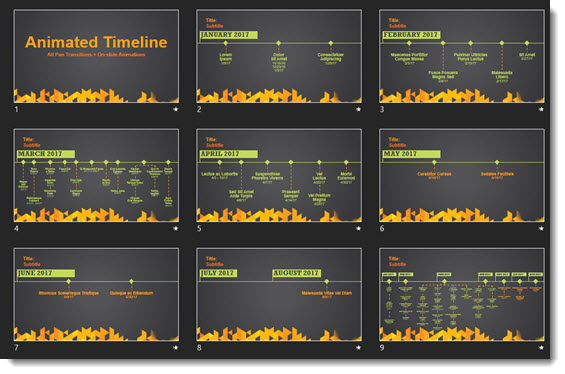
Unlike the Morph transition timelines, both of these effects have no content off slide, but do have a number of animations on each slide.
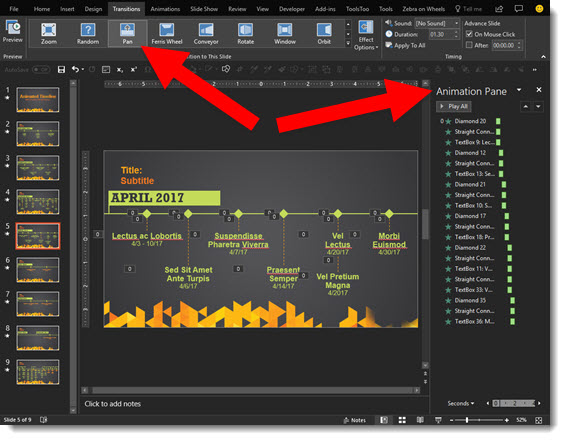
Pan From Left Transition (+ on-slide animations)
[KGVID]https://thepowerpointblog.com/wp-content/uploads/2017/11/unnamed-file-3.mp4[/KGVID]
Wipe From Left Transition (+ on-slide animations)
[KGVID]https://thepowerpointblog.com/wp-content/uploads/2017/11/unnamed-file-4.mp4[/KGVID]
Troy @ TLC