
WE BELIEVE 2017 (A PowerPoint Infographic)
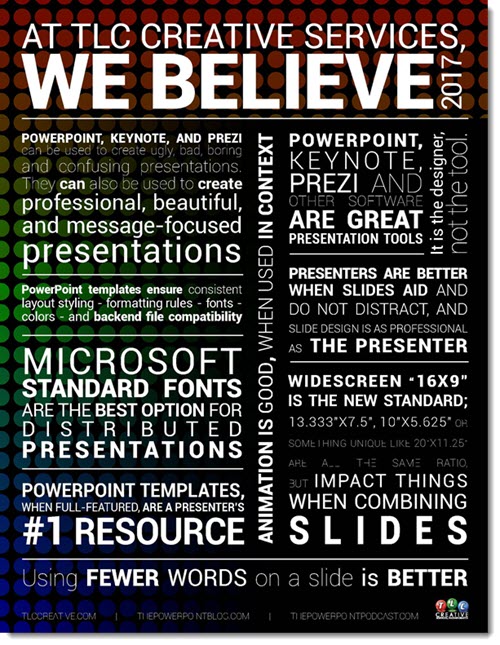
At TLC Creative Services, we are starting our year with a simple, insightful, and fun infographic style “We Believe” statement to get us focused for the new year. The PDF can be downloaded HERE.
Troy @ TLC
Making the TLC Christmas PowerPoint Animation
We have received many compliments on the Christmas animation the TLC design team created this year (Thank You!). To answer some of the questions:
- Yes, all of the animation is 100% PowerPoint, no video was used.
- Yes, several of us used the new Morph animation/transition.
- The opening and closing segment of the snowman was PowerPoint, but no animation, just very fast auto transitions to create a stop motion style effect.
- No, we did not add the music in PowerPoint. Well, the Cat Meowing Christmas Carol was part of Amber’s animation, but the full track was added after the PowerPoint animation was exported (so we did use a video editing app, but only for the music bed).
- We compiled all animation files into a single PowerPoint slide deck and exported that as a single video.
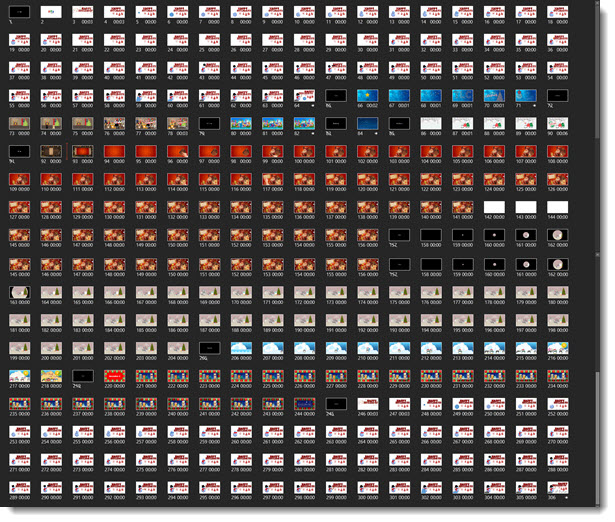
- There was a total of 306 slides in the compiled presentation.
– Troy @ TLC
The Presentation Podcast Episode #21 Released Today!
A new episode from The Presentation Podcast with Troy, Nolan, and Sandy is available today! Check out their latest discussion on “Video and PowerPoint” and add to your favorite Podcasts on iTunes, Google Play, Stitcher, SoundCloud and more at The Presentation Podcast.

11 Year Anniversary!!
11 years ago today, Troy started The PowerPoint Blog. Here is the very first post (reposted) that started it all!
—
Happy New Year! So, with the new year comes new resolutions. I figure I have thought about adding an informative and engaging blog for quite a while, so now must be the perfect time to start!
Why a PowerPoint blog? Well, I think there is a need for a good resource that focuses on the development/creation side of presentations. And because that is what I do every day, I should be able to offer up a steady stream of good (if not entertaining) information. Enjoy!

– Troy @ TLC
Happy New Year PowerPoint Animation
This is the final day in the studio for us before 2017 begins! Many thanks to Wanda on the TLC Creative design team for creating this fun Happy New Year PowerPoint animation!
[KGVID]https://thepowerpointblog.com/wp-content/uploads/2016/12/unnamed-file-1.mp4[/KGVID]
The presentation is a single slide with many layers of custom images, music and SFX embedded, and lots of PowerPoint animation.
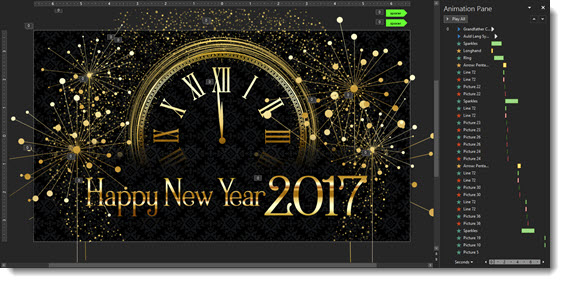
Editable PowerPoint slide can be downloaded here.
– Troy @ TLC
Green Screen Holiday Greeting (fun)
Christmas Greetings from Troy and Lori of TLC Creative Services, Inc. Many thanks to the Video Resources team for letting us jump in and make a fun Christmas greeting in their very cool green screen studio!
[KGVID]https://thepowerpointblog.com/wp-content/uploads/2017/12/unnamed-file-4.mp4[/KGVID]

– Troy @ TLC
The 2016 TLC Team PowerPoint Holiday Animation!
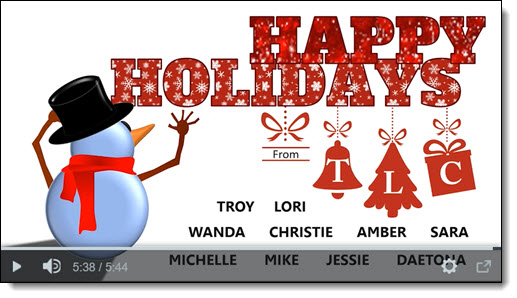
Each year, everyone on the TLC Creative Design Team has a lot of fun creating an amazing holiday animation entirely in PowerPoint. Here is our 2016 edition!
[iframe src=”https://www.screencast.com/users/TLCCreative/folders/Christmas Animations/media/431d1842-dcfd-44dc-a2bb-0e50e73df05b/embed” width=”640″ height=”360″]
[br]
You can see a number of our past year animation compilations here.
– Troy @ TLC