
Keepvid.com Tutorial
Keepvid.com allows you to download streaming videos from of a variety of websites, including YouTube, Vimeo, Metacafe, and more. The process is quick, easy and very convenient.
Note: The keepvid.com has lots of buttons to download OTHER software. I recommend ONLY clicking on the options listed in this tutorial.
To get started, you must first make sure that Java is enabled. Below the big Download and Play Now buttons, make sure that Java says On next to it. You may still be prompted to install or update Java on your computer if you do not have the most recent version installed.
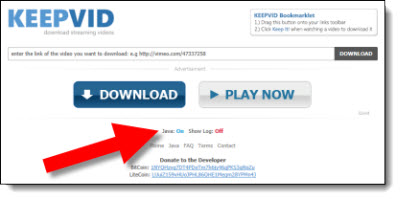
Once Java has been installed/updated and is enabled on your system, locate the video you want to download. Copy the link to your video and paste it in the field to the left of the Download button. When you click on Download, you may be asked for permission to run KeepVidDownloader. If so, click on Run.

A list of links to your video file will appear on the bottom of the page in various sizes and formats. Formats to select from include 3GP, FLV, MP4, M4A (Audio Only), WEBM, MP3 and SRT (Subtitles).
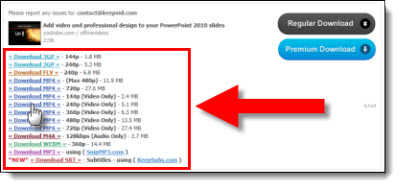
Click on the desired format to save the file to location of your choice. Note: You must click on the actual link for your specific format and size to simply save the video file. If you click on the large Download button(s) to the right you will be sent to iLivid.com and prompted to use their file management system.
You now have the video in the format of your choice downloaded onto your computer to be used as needed!
– Troy @ TLC
Set Video to Autoplay in PowerPoint
Video in presentations has been a big item for me over the years. With each new version, and update, of PowerPoint I am constantly disappointed in the default settings applied to inserted videos.

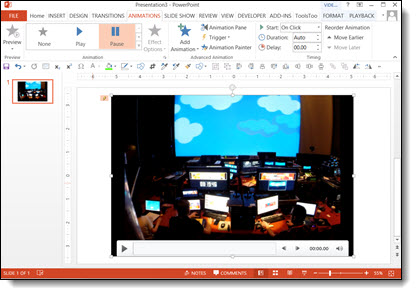
Currently, and in all legacy versions, when a video is inserted the default animation settings is a Trigger animation.
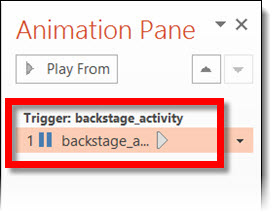
A trigger animation is ‘triggered’ one of two ways, direct interaction (ie. move mouse on screen and click on the programmed item) or secondary action from a programmed animation (ie. when one item is animated it activates the trigger animation).
So, when a video is inserted onto a slide and then present, the video will not play until you move the mouse cursor on the slide and click on the video. Obviously for majority of my meetings the goal is to hide PowerPoint (and hide any software) to create a seamless environment where things ‘just happen’. See a mouse move across a screen is a bad thing.

Up next is a quick step-by-step tutorial on changing the video animation settings to what we use at TLC for virtually all presentation videos.
– Troy @ TLC
WHY? – PowerPoint’s Default Animation Setting for Videos
Video in presentations has been something I have used for many years. PowerPoint has vastly improved its video features, but currently, and in all legacy versions, when a video is inserted, the default animation settings is a Trigger animation, which is something I am constantly disappointed by.
A trigger animation is “triggered” one of two ways, direct interaction (ie. move mouse on screen and click on the programmed item) or secondary action from a programmed animation (ie. when one item is animated, it activates the trigger animation).
So, when a video is inserted onto a slide and then present, the video will not play until you move the mouse cursor on the slide and click on the video. Obviously, for majority of my meetings, the goal is to hide PowerPoint (and hide any software) to create a seamless environment where things “just happen.” Seeing a mouse move across a screen is a bad thing.
Up next is a step-by-step tutorial on changing the video play animation settings to eliminate the need to see a cursor on the presentation screen.
– Troy @ TLC
Standby for Reboot
P L E A S E–S T A N D B Y–F O R–S Y S T E M–R E B O O T…

TLC has been going through growing pains and, even with a backlog of nearly 40 blog posts ready to go, I have been wrapped up in many great projects, organizing internal processes and family (how is it possible my oldest is graduating high school, preparing for college and has prom this weekend!). But there is light ahead. I have been slowly finding time to get through this backlog of great tutorials and PowerPoint examples. So I am being smart and keeping things quiet for one more week and starting with a fresh series of posts on May 1st.
Please set your calendars and check back as there will be a continuous stream of content starting soon!
– Troy @ TLC
SharePoint Calendars and Internet Explorer Visual Formatting Issue
TLC adopted Office 365 before it was publicly available and have only good things to say about its use in a small business environment. Recently something has gone awry with the SharePoint calendars – something we rely on daily.
Up until 2 weeks ago, they looked like the left example, but suddenly the visual formatting changed to the ugly and hard to use right example.
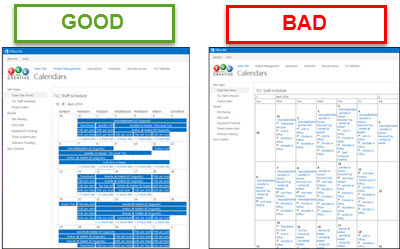
But this formatting issue is only seen when using Internet Explorer. If logged in with Firefox, Chrome or any other browser, nothing changed, all looks good. So ironically, only the Microsoft web browser seems to be rendering the Microsoft SharePoint calendars useless!
After some research and testing, here is the fix we have implemented on every computer here:
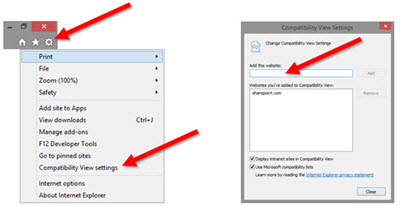
– Open Internet Explorer
– Click the TOOLS icon in the upper right
– Select COMPATABILITY VIEW SETTINGS
– In the ADD THIS WEBSITE field, enter SHAREPOINT.com
– Click ADD and CLOSE
– Now SharePoint calendars should once again display as expected
– Troy @ TLC
Backstage in New Orleans
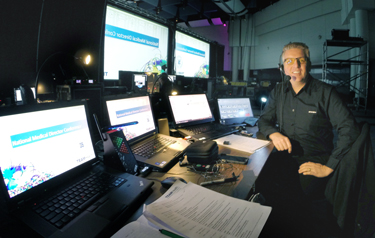
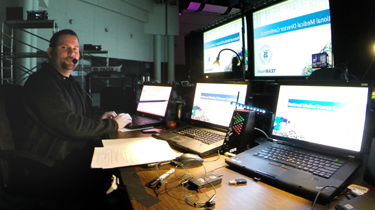
Spent a week in New Orleans with a new (end) client, coordinating presentations and AV needs. Super show, great crew, wonderful client and, of course, lots of good food! Had Josh from our office on showsite too.
– Troy @ TLC
Duarte Releases SlideDocs ‘Book’
If you have used PowerPoint to create a print document that was never intended to be projected as a slide show, fear not, you are not alone. TLC Creative Services has been creating lots of projects over the past few years that we internally refer to as “PowerPoint Documents.” Nancy Duarte has release a new “book” all about using PowerPoint for non-slide show documents called “SlideDocs.”
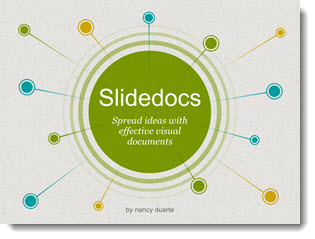
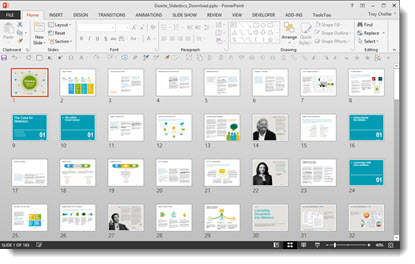
The downloaded book is a giant example of how PowerPoint is used for document design, because it is a PowerPoint file.
The core message of SlideDocs, which I agree with, is there are a range of documents. On the left are formal print design documents. On the right are slide show presentations. In the middle are print documents that are designed in PowerPoint.

I recommend everyone, especially clients, read SlideDocs if nothing else for the overview of graphic design and layout principles in the middle section. Get more info and download the free SlideDocs book and templates here.
– Troy @ TLC