
Typography and PowerPoint
Typography:
– From the Greek words ôýðïò and ãñáöÞ
– ôýðïò (typos) = form
– ãñáöÞ (graphe) = writing
Typography is the art and technique of arranging type in order to make language visible.

The arrangement of type involves the selection of typefaces, point size, line length, leading, adjusting the spaces between groups of letters and adjusting the space between pairs of letters. In modern times, typography has been put into motion—in film, television and online broadcasts—to add emotion to mass communication.
For example, here are some typography layouts we like:
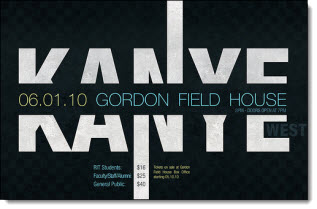
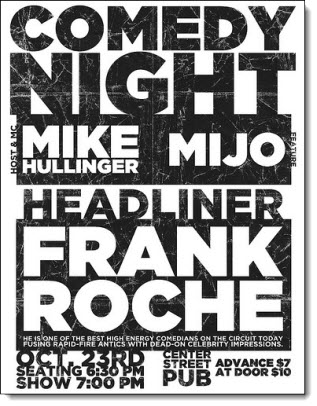
The same theory can be used for PowerPoint – typography should be visually engaging for the audience. You’re communicating a message, so use your type to enhance your message. Not only does it make your presentation more interesting, engaging typography helps communicate the message to the viewer.
Note: Bullet lists are not styling.
Here are some examples of presentation slides where TLC Creative Services took “traditional” slides and applied typography styling (nothing too “designer” but enough to enhance the layout and create an easy to read message for the audience):
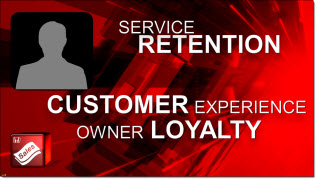

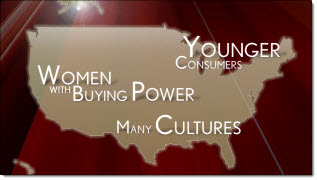
– Troy @ TLC
Downloading YouTube Videos For A Presentation
PowerPoint has a feature to run videos direct from YouTube. The feature works well, but it requires an internet connection, enough bandwidth, having the presentation computer online, and a number of other potential issues.

To minmize potential issues, running all videos direct from the computer and as embedded elements is a good best practice. YouTube Downloader HD is a free tool to download videos from YouTube and save to your computer. It enables you to download high quality, high definition, and full HD videos from YouTube. The software is available with an installer or as a standalone exe file.

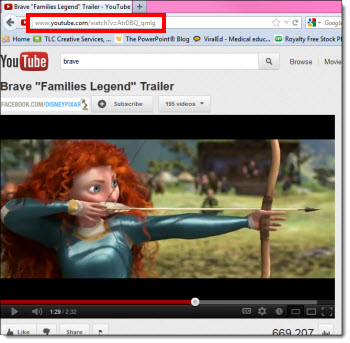
Downloading is easy. Go to the video you wish to download on YouTube. Copy the address of the video.
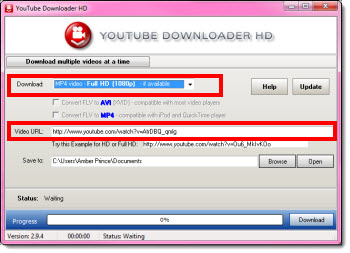
Open the YouTube Downloader HD software, and paste the video’s address into the Video URL field. In the Download dropdown menu, select the type and quality of the video.
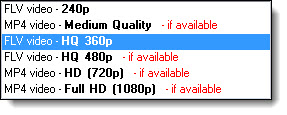
Then select the best format and size for the presentation. TLC Creative Services opts for .mp4 and the largest size (1080p or 720p).
Then click download.

– Troy @ TLC
Microsoft Office as Disc or Subscription
Microsoft released Office 365 roughly a year ago. TLC Creative Services has been using it since it released, primarily for the web-based Outlook Exchange and SharePoint.

Office 365 has different plan levels. All plans include Email (Exchange Online – with 25GB mail boxes), SharePoint and Lync. “Higher” level plans include a subscription to Microsoft Office. And interestingly, not all plans include Microsoft’s free Web Apps, which are online versions of PowerPoint, Word and Excel (it is a collection of free apps, so I cannot see a reason they are not offered with all plans…). Microsoft has recently integrated Skype calling minutes into Office365 subscriptions, and promise more web services in the future.
The advantage of using the subscription service over the disc/serial number is that you will always be using the latest version. Offers the Office 2010 programs. It also includes online storage, sharing and syncing to web-based “cloud” access. The cloud services make it easy to save and access all of your documents from any device. And Office is available on multiple devices and platforms: PCs and Macs, phones-tablets-computers.
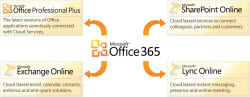
So, which Microsoft Office install option is better for you – subscription or disc? If you have a lot of users to manage, the subscription plans make it much easier from an IT perspective to assure everyone has a working version of Office. If you have an MSDN account, keep the same install for multiple years, or very few computers to manage, purchasing a serial number/disc may be the better option.
But with either option, I definitely recommend Office 365 for its Outlook, SharePoint and Lync options.
– Troy @ TLC
Adobe – Which is Better, Subscription or Disc?
The Adobe Creative Suite is the industry standard for design applications: PhotoShop, Illustrator, InDesign, Acrobat, etc. Adobe now provides two purchases options, and determining which is best is based on your needs.
Option 1: Purchase Disc
– The traditional purchase is a serial number, either software download or install disc. This provides a fixed set of applications (depending on which suite is selected). It is OS specific (Windows or Mac) and can be installed on multipled computers (generally two).
TLC Creative has historically purchased the Design Premium suite for its design and show computers. This suite includes:
• Photoshop Extended, Illustrator, InDesign, Dreamweaver, Flash, Fireworks, Acrobat Pro, Bridge, Media Encoder


Option 2: Subscription
Recently, Adobe has starting offering a new subscription option, called Adobe Creative Cloud. It is based on CS6, the newest version of all Adobe apps. It also has the advantage of being turned on and off. So if you need Adobe software for a short time, it can be paid for in monthly increments. It also has the advantage of getting additional tool features added with the automatic web-based updates (so the subscription install of Adobe CS6 Illustrator has a number of additional tools that the disc install does not).
The subscription option is like purchasing the most robust (ie. costly) creative suite, the Master Collectoin. When looking at the year long subscription rate, the subscription is considerably lower cost than purchasing the Master Collection. But not that far from purchasing one of the other CS options. Currently, the Creative Suite includes:
• Photoshop Extended
• Illustrator
• InDesign
• Dreamweaver
• Flash
• Fireworks
• Acrobat X Pro
• Acrobat XI Pro (Not included in any CS)
• Bridge
• Media Encoder
• Lightroom (Not included in any CS)
• Adobe Muse (Not included in any CS)
• Flash Builder
• Edge Tools & Services (Not included in any CS)
• Premiere Pro
• After Effects
• Audition
• SpeedGrade
• Prelude
• Encore
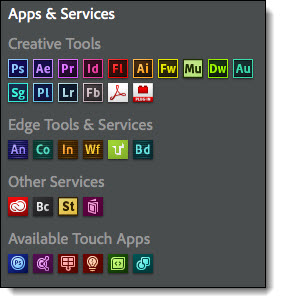
It also includes these services: (Not included with any CS)
• Device and PC Sync
• Cloud Storage
• Business Catalyst
• PhoneGap Build
• TypeKit
• Story Plus
• Digital Publishing Suite
For TLC Creative Services, a major advantage of the disc install version is our show computers can inherit the previous version. So all show computers are very capable computers, just not loaded with the “cutting edge” edition. With the subscription, there is no “old” software available for use on other computers. The subscription is more economical over the course of the year than a direct purchase and allows us to have access to many applications that have not been a part of our standard design process. So for us, it is a combination of Disc and Subscription.
– Troy @ TLC
It Takes A Lot to Develop A “Real” PowerPoint Template – This Is The Best Resource Available To Know How To Do It!
“Building PowerPoint Templates – step by step with the experts” is one of the best resources available for anyone that creates PowerPoint templates (based on PPT 2007/2010). Outside of a small group of professional designers, and some of the developers at Microsoft, it would be difficult to find this information condensed into a single place. The authors are good friends, Microsoft MVPs for PowerPoint and two designers that I trust to know the real how-to’s, and why, of developing PowerPoint templates.
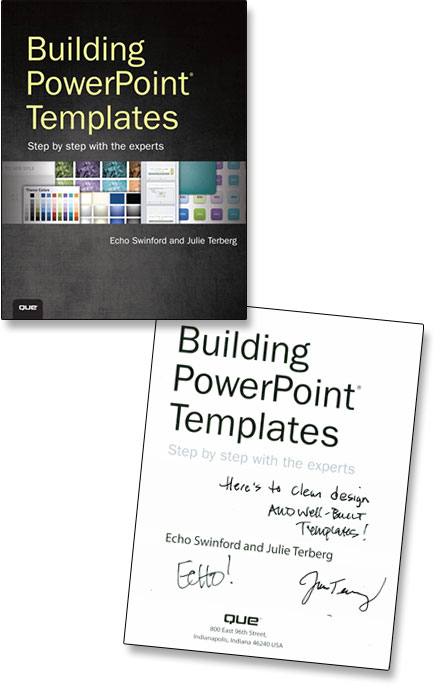
It can be found here at Amazon.com.
– Troy @ TLC
What I Learned from “Present It So They Get It” – Book Review
I ended the year with some reading and “Present It So They Get It” is on my recommendation list! I was happy to spend some time with the author, Dave Paradi, earlier in the year at The Presentation Summit where he was also a presenter. I learned we have a lot of similar presentation design goals, but Dave is the first to admit he is not a presentation designer. What he brings is the audience perspective, the executive/presenter understanding, and works on crafting the message, both spoken and visual, into a professional package.
The books subtitle, “Create and Deliver Effective PowerPoint Presentations Your Audience Will Understand” reinforces all of this perfectly. Topics cover everything from explaining that PowerPoint (or any presentation software) is not the problem with boring presentations (chapter 1) to detailing what charts and graphs should contain to carry a message to the audience (chapter 14) and lots more.
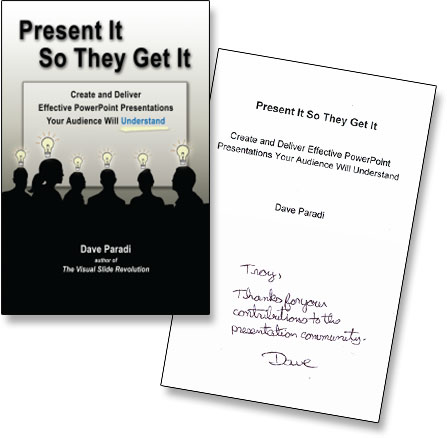
Read more about it, and Dave Paradi, at his site here.
The book is also available at Amazon.com here.
– Troy @ TLC
Happy New Year from Everyone at TLC Creative Services!

Developed in PPT 2010 and can be downloaded here.
I hope you are looking forward to a great year!
– Troy @ TLC