
PPT 15 – WOW!!!
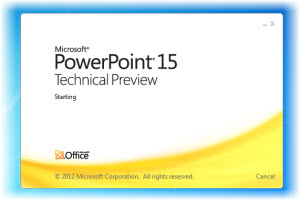
That is the real program, although a buggy beta version. But it is real, it is installed on one of my test computers and I have a lot of great news, tutorials and examples to share — when it is publicly available and I am clear of my NDA obligations – sorry.
– Troy @ TLC
2012 Microsoft MVP Summit
Flying in from Italy to Seattle is a definite time zone change. But being with the other PowerPoint MVPs affords little time for sleep! Microsoft hosted their MVP Summit at the end of February and it was a great event!
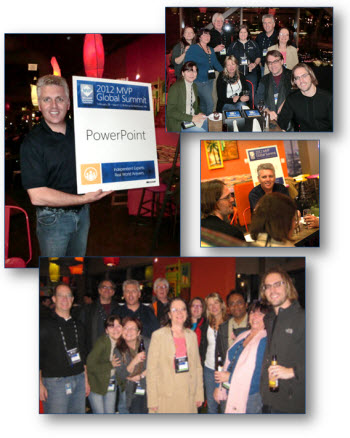
There are over 2,500 MVPs worldwide and approximately 1,500 converged onto Microsoft’s Redmond, Washington campus. There are just under 30 PowerPoint MVPs worldwide and 12 of us were at the summit. I spent the week in sessions with the PowerPoint development team where we previewed new features, talked about upcoming releases and were able to point out the needs of real people (not that the Microsoft developers are not real – they are very real, but do live in a bubble of statistics and theoretical concepts). And of course, each evening was a great time too!
Everything covered is under NDA, which means I am excited to share lots of great things the moment it is made public!
– Troy @ TLC
Where Have You Been…
There has been a lack of activity here at ThePowerPointBlog, but I assure you it is not because I have been inactive! In the past 6 weeks, I have been in 7 cities, 4 states and 3 countries – every one PPT related.
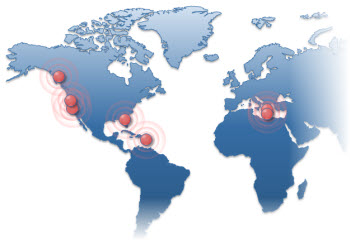
Palos Verdes, CA
San Juan, Puerto Rico
Miami, FL
Rome, Italy
St. Julians, Malta
Seattle, WA
Los Angeles, CA
The schedule is still blessed to be busy and the whole design office is working on projects, and the blog posts are set for the month!
– Troy @ TLC
Big and (Mega) HD
This meeting was really great from a presentation standpoint: 84′ wide screen (3 project blend = 5700px wide x 1080px tall) with a 30″ x 7″ PPT. Then 16×9 PIPs for the presenter presentations (each a 1080p HD projection field). This is the general session look. For the awards, I was able to design the presentation to use the entire (Mega) wide screen (no PIPs).
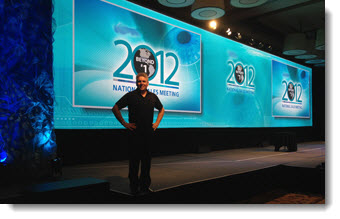
(Yes, that is me)
– Troy @ TLC
3 Blend Projection
Here is an awards show from a recent meeting. The screen was over 80′ wide and was run from a single PPT computer (with a backup computer inline as well).
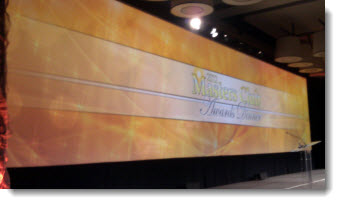
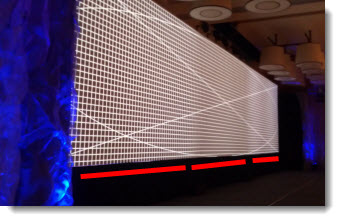
To do this and keep really high quality display, the screen uses three slightly overlapped projectors – 3 blend projection. There is a lot of specialty equipment between the PPT computer and the projector. But getting there creates a smooth, single image. If you look at this image, you can see the three projector fields (this is before the projectionist adjusted the levels to make all uniform).
– Troy @ TLC
Showsite “Office”
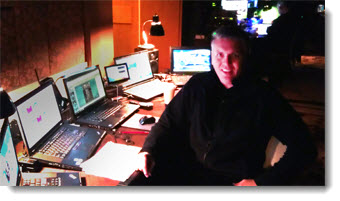
Backstage in Palos Verdes, CA (the Terranea Resort is a great property). Note the small 7″ USB monitor in the center of my show computers (not the 14″ version in the previous post).
– Troy @ TLC
Showsite/Travel Monitor
I work in a lot of locations that are not my office – where I have dual 23″ monitors, my favorite keyboard, mouse, track pad and really great speakers. What do I miss the most when I setup a temporary work station at a show? The extra monitor.
On the second monitor, for PPT, I run the slide show and edit the slides on primary monitor or if editing a highly animated section, I have a very large animation pane on it. I also use it for email, Windows Explorer windows and Lync.
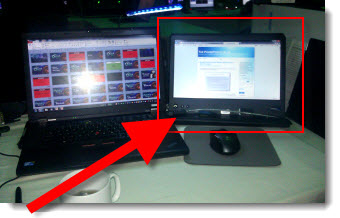
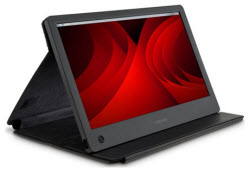
For a few years, I have traveled with a small 7″ USB monitor, which was nice, but not really fully functional. Enter my newest “toy” – the Toshiba PA3923U-2LC3, a 14″ USB monitor that is automatically recognized by Windows 7 and Mac OS Lion. And it’s more portable than the smaller monitor by folding into a thin portfolio case.
Here is my production computer at my temporary, backstage “office” on showsite this week in Puerto Rico.
– Troy @ TLC