
PPT Halloween Pumpkin
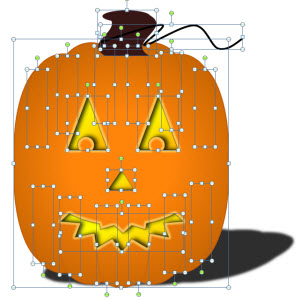
Using the Shape Combine/Subtract/Union tools TLC Creative designer, Jennifer, developed this great pumpkin entirely from standard PPT shapes.
[youtube src=”https://www.youtube.com/embed/yiD1hSN3cdM?rel=0″]
The development was basically 30 steps, which we captured as individual slides to create the video directly from PPT.
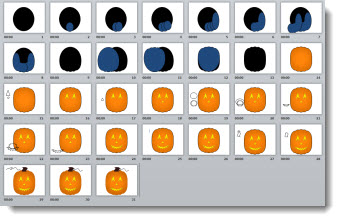
Here is what the slide looks like, which you can download here (47K) .
– Troy @ TLC
Halloween Themed PowerPoint Template
Wanda, one of our talented TLC Creative designers, developed this great Halloween themed template we are sharing with everyone.
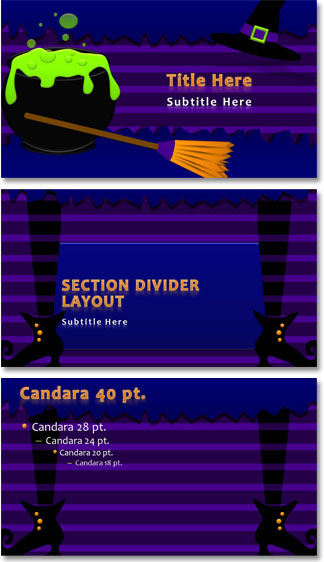
The template is native to PPT 2010, 16×9 aspect ratio and features several layouts including a great animated title slide (Note: All elements on the title slide from the background to the cauldron and hat were created in PowerPoint).
[youtube src=”https://www.youtube.com/embed/pcN6Gtf4UuM?rel=0″]
Download the full template here:
– Troy @ TLC
Change Font Size with Keyboard Combinations
There is a lot of mouse movement when designing slides in PowerPoint (and while I really like the ribbon layout, I feel there is more mouse movement now than in the legacy toolbar interface). Adjusting font size is a common design need and can easily be done with keyboard commands.
To increase a font size:


To decrease a font size:


– Troy @ TLC
10lb Hamburger!
While on a show in Miami this month (great show with fantastic presentation design requests – more about this next month), the crew dinner was at “Burgers and Beer Joint.” The food was great in a very crowded place and the menu featured the hamburger made with 10lbs of ground beef (plus another 10lbs of bun and condiments). Now that was a presentation!
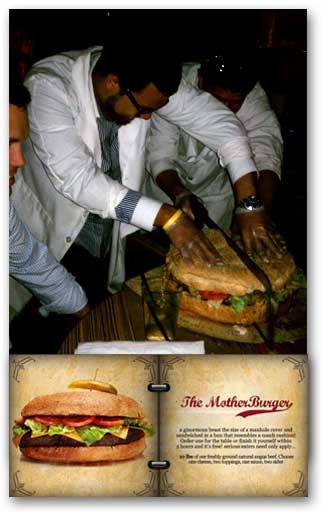
Note: That is an impressive and huge hack saw being used to cut “The Mother Burger” into servings.
– Troy @ TLC
Use VBA to Set Really-Really Long Animations
As a follow up to the previous post, Steve Rindsberg of PPTools has some how-to info for those that are willing to delve into VBA coding.
Sub VertTheDominantParaLegal()
With ActivePresentation.Slides(1).Timeline
With .MainSequence.Item(1)
.Timing.Duration = 108000
End with
End with
End Sub
Note 1: Steve’s info was specific to PPT 2007, so not certain how it works in PPT 2003 or 2010.
Note 2: I do zero VBA coding, so I am no help with how to use this code or trouble shooting it (I leave that to the code pro’s like Steve).
– Troy @ TLC
How Long Can An Animation Be?
So how long of an animation can be added to something in PowerPoint? Not what is practical, but what is possible.
The answer is 59 minutes, 59 seconds and 99 thousands of a second. But how you set this up depends on the version of PowerPoint you are using.
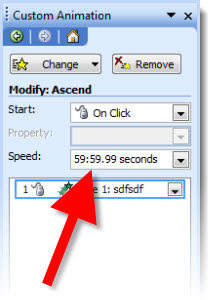
PPT 2003 and 2007:
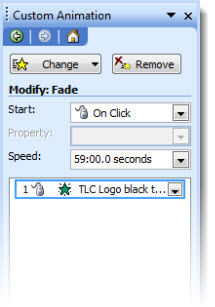
1. Add any animation (Entrance, Exit, Emphasis, Motion Path) to element.
2. Open the animation settings dialog and input 59.
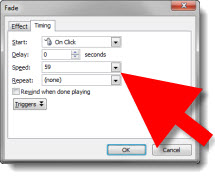
3. “59” defaults to 59 seconds.
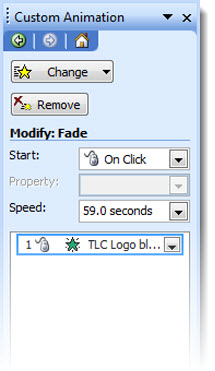
4. Open the animation settings dialog and input 59:00.
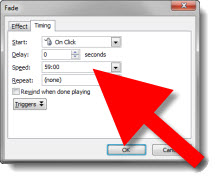
5. Now the animation will occur over the next 59 minutes.
PPT 2010:
With PPT 2010 there were many tweaks to the animation UI, not all for the better…
1. Add any animation (Entrance, Exit, Emphasis, Motion Path) to element.
2. Open the animation settings dialog and input 59.
3. “59” defaults to 59 seconds.
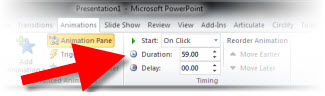
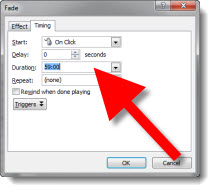
4. Open the animation settings dialog and input 59:00. Click “Okay” and the time is highlighted waiting for a valid value to be entered (no hint that 59:00 is not valid or what is valid, you just get no action when you click the Okay button).
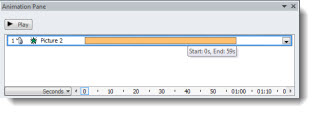
5. Open the animation pane and select the same element. It is a bit tedious, but click and drag the timeline as long as you want the animation to occur. Note: You can drag the timeline as far past 1 hour as desired.
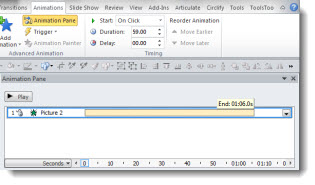
6. Even though you extended the timeline to 1 hour, 1 minute or 5 hours, it will snap back to its maximum 59:59:99.
– Troy @ TLC
Showsite “One Man Office”
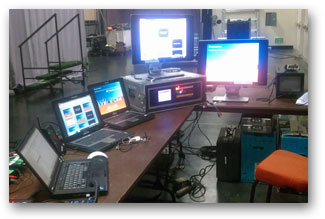
A few weeks ago, I was the lone tech backstage (producer, audio, etc. all front of house). So I handled the graphics computers, video playback and switching (Don’t worry I gave myself “Go” commands to assure everyone stayed in sync).
– Troy @ TLC