
Use Windows 7 Mobility Center Before Every Presentation
Windows 7 is great – running on virtually every computer here. There are a number of hidden features that are very important to presenters. The WINDOWS MOBILITY CENTER is one of them.

To open the Mobility Center, hold down the Windows key and the X key
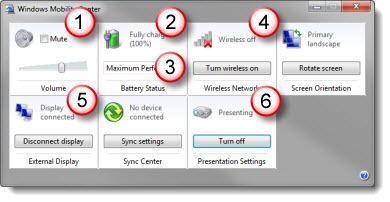
I use this as a quick check for:
1. Confirm computer volume
2. Confirm plugged into to power (not on battery)
3. Confirm Maximum Performance power setting (vs. battery saving low power option)
4. Wireless network turned off
5. Computer sees an external display/projector
6. Presentation Settings are active (covered in next post)
Everything seen here can be accessed separately, but this is an easy 1-stop view of them all.
– Troy @ TLC
Open PhotoShop File as Flat Composite
Unfortunately, in general, Microsoft does not work well with layered Photoshop (.psd) files. This includes Windows Explorer previewing them or PowerPoint being able to insert them. I do a lot of work in Photoshop, so I have a lot of Photoshop files for each presentation project. Sometimes, it is a time trap waiting for Photoshop to open the files just to identify if it is a needed file for the presentation. This is especially true when I receive 1-2-30GB files from a graphic department. It takes even a fast computer some time to process a 30GB file with upwards of 50 layers.
Here is a quick way to open, view and identify what those large files are.
1. In Photoshop, go to FILE>>OPEN and select the .psd file
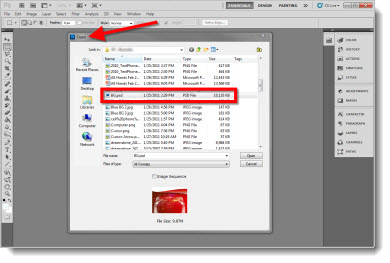
2. If the OPEN button is clicked, the full file opens, including all of the layers
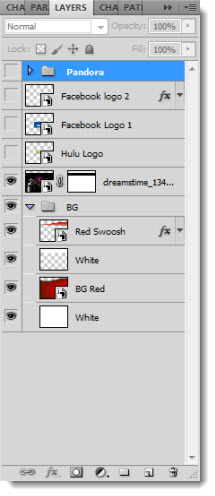
3. But if the SHIFT and ALT keys are held down, then the OPEN button the file opens as a flattened composite image

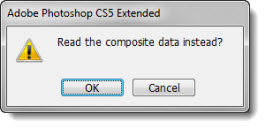
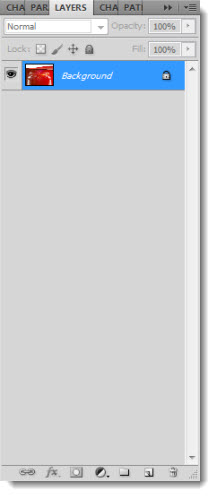
The advantage is the file, any size, opens instantly. The disadvantage is if layers are turned off they are not visible. I generally create a small .jpg with the same file name for easy reference in Windows explorer.
– Troy @ TLC
Microsoft MVP Summit
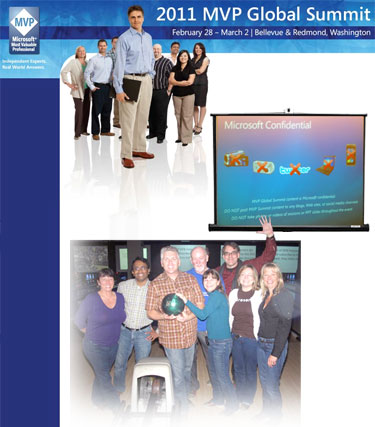
I arrived in (rainy) Seattle over the weekend and have been having a great week at the Microsoft 2011 MVP Summit and spending lots of time with the MS PowerPoint development team.
– Troy @ TLC
Return of the Cabbage Patch Kids
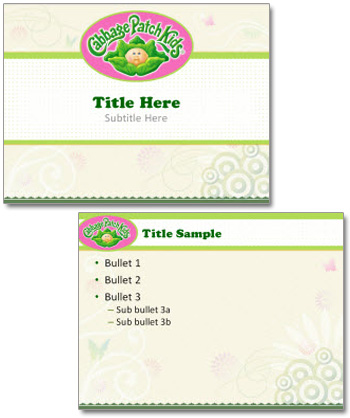
This was a fun project that brought back memories of my sister from years ago. Relaunched Cabbage Patch Kids had the marketing team in need of a template for their “marketing stuff.”
– Troy @ TLC
Hanging Out with the Green Lantern
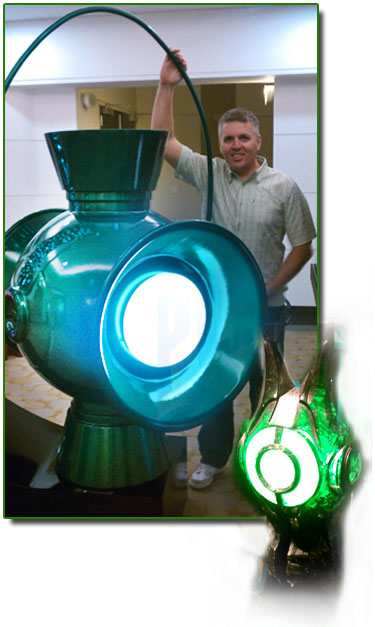
This June is the release of The Green Lantern movie. For a recent meeting, I did have the opportunity to hang out with real Green Lantern – the lantern used in the movie, not the actor. Still very cool. (The small one, not the super-sized promo version).
– Troy @ TLC
Developing the Perfect Template
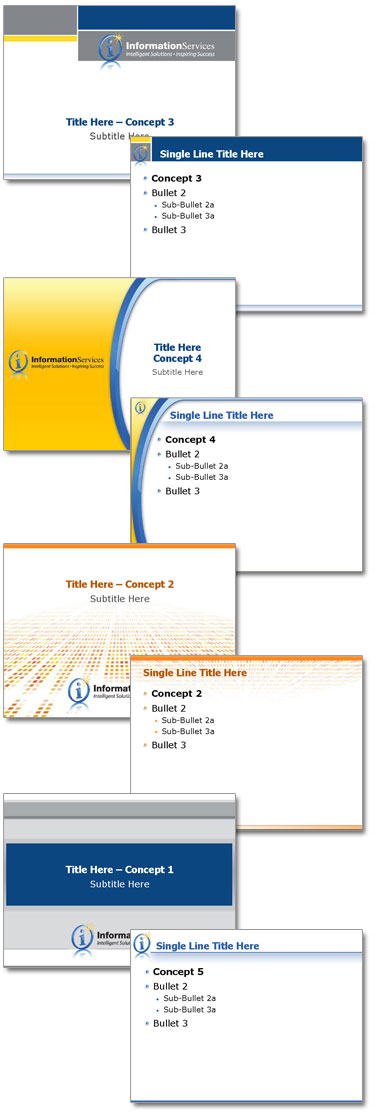
On this template project, we worked out the technical needs (PPT 2007, color scheme, logo, etc.) but there was no input on design direction. So the project evolved with an initial design blitz of layout and design styles. Based on continuous input, the design was narrowed and refined to the perfect set and then finalized with all PowerPoint presets and delivered as a distribution ready .potx.
– Troy @ TLC
Manage Multiple Time Zones with Windows 7
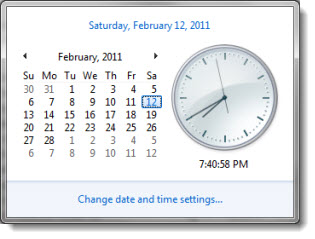
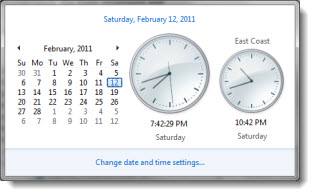
Last week, when working on the East Coast, a different time zone than home, I was asked how I managed to keep track of things in the different time zones. Windows 7 has a great little feature to add multiple time zones to the clock.
1. Click the time in the lower right on the task bar and click “CHANGE DATE AND TIME SETTINGS”
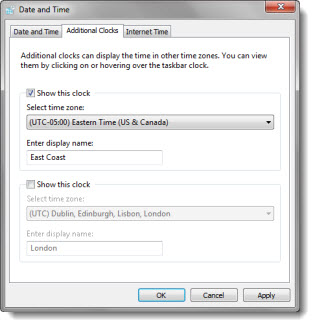
2. In the DATE AND TIME dialog, go to the ADDITIONAL CLOCKS tab and setup 1 or 2 additional time zones and name them
3. Now the taskbar shows both (or all three) time zones
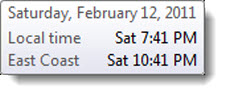
4. If you click on the time in the task bar, you now see clocks for both time zones active there as well
– Troy @ TLC