
Need to Access a Mac Hard Drive ?
We live in a cross platform work environment with Windows computers and Mac computers. But they do not necessarily work together 100%.

Mac sytems do not like Windows NTFS hard drive format. They can read, but cannot write to them.
Windows systems do not like the Mac ‘macdrive’ format. It cannot read or write to them… And this is a problem when someone hands you a USB drive and says “My presentation is on this.“
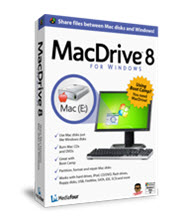
MacDrive by MediaFour is a Windows computer best friend in this situation. It seamlessly recognizes macdrive formatted hard drives and they work just as any other drive, all accessed from Windows Explorer.
Just one of those software items needed to be ready for everything.
– Troy @ TLC
Superscript with Keyboard Command
If using PPT 2007, you may have found the super and subscript buttons missing from the ribbon. My first solution is to make use of the QAT (Quick Access Toolbar) and add these valuable tools to it.
But you can also make any text superscripted with a keyboard command.

This works in PPT 2007, 2003, XP, and 2000 (cannot remember if works in PPT 2000, so this is just a guess).
A few notes about using the keyboard options from my use and observations:
1. PPT 2003 CTR+SHIFT+(plus) superscripts. Do it again and it returns to
standard text.
2. PPT 2007 CTR+SHIFT+(plus) superscripts. Do it again and nothing happens
(eg. no way to return to standard text from keyboard commands).
3. I have never been able to use keyboard command in either version to sub-script text (although others have said it works).
Who is BUSTER WELLS?
This is Buster Wells in December:

This is Buster Wells today:

And this is Chris Wells, Buster’s owner – who I work with at corporate meetings.

I learned the story of Buster’s bad winter experience while working with Chris last week in (warm) Phoenix, AZ (it was a great show). Apparently Buster had a bad grooming appointment. He went in small and fluffy, but came out small and completely shaved. Oh, and Buster lives in Boston where it is very cold!
CALL TO ACTION:
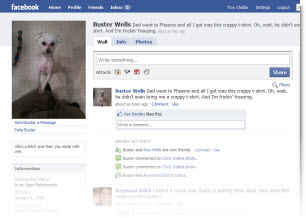
Turns out an unnamed mischieveous person (not me) decided Buster needed a Facebook account to share his nakedness with the world. I think Buster needs 1,000+ Facebook friends so he can hold his small, furless head high and bask in the glory of being more popular than his owner.Search “Buster Wells” on Facebook and befriend him today!
– Troy @ TLC
Animated Timer
On a recent show I was asked (minutes before needed onscreen) to display a timer for some group interaction. Of course the answer was ‘no problem’… and I got to work. Here is the result:
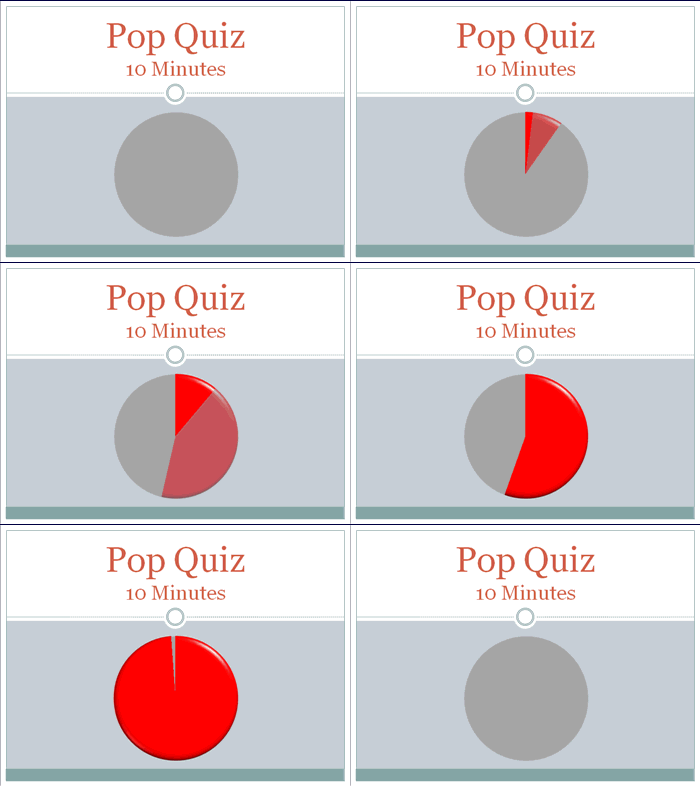
Making this visual timer is easy.
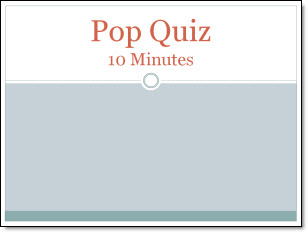
1. Here is my sample slide, using PPT 2007’s Civic template.
2. Next I created 2 cirlces of identical size. For the “timer” cirlce I made it red and applied some Shape Styling.

3. Using the alignment tools both circles are set to stack and then positioned on slide.
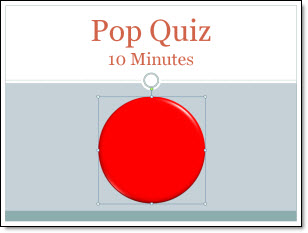
4. Apply an entrance animation to the top/red circle:
– Wheel
– 1 Spoke
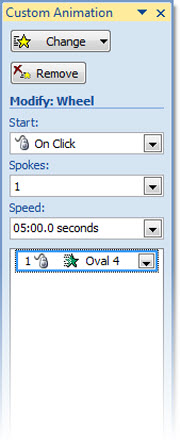
5. Customize the time (of the entrance animation) to anything up to 99 minutes.
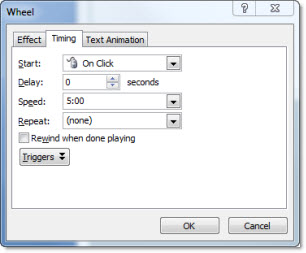
6. Run the show!
– Troy @ TLC
PowerPoint 2010 Pricing
It is still a few months out, but here is the pricing I found:

– Office Professional
– $499 boxed / $349 Product Key Card
– Office Home and Student
– $149 boxed / $119 Product Key Card
– Office Professional Academic (students and teachers)
– $99 boxed
The Product Key Card is an electronic distribution (eg. no packaging or disc). Basically it is full function trialware, either pre-loaded on new computers or downloaded, that is unlocked and purchased with the Product Key Card.
– Troy @ TLC
Real Presentations From Your SmartPhone
RIM (Research In Motion / Blackberry cell phones) announced at CES their new “Blackberry Presenter”. This small standalone box connects to the projector via VGA or TV via s-video and your Blackberry connects to it by Blue Tooth.
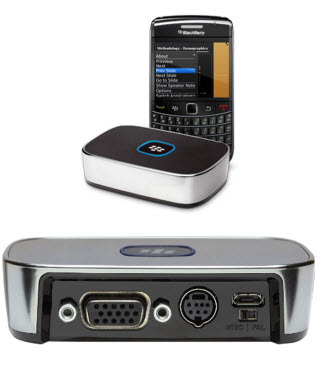
So this is not a mini projector, but a graphics card to connect to a real projector for real meetings.
– Supports PPT 2003 and PPT 2007
– Supports almost all animations and transitions (no multimedia)
– 1024×768 resolution (no High Def shows yet)
– AND is open to third party developers to work with other phones
– Troy @ TLC
Working on Maui
Winter season is here, so the corporate meetings head to warmer climates. In the past 30 days I have been in Utah, Colorado, Nevada, Florida, Hawaii and Arizona. To pick a favorite skiing with my girls in Colorado was #1, but working in Maui with the Oakley (ie. sunglasses) group was a lot of fun!
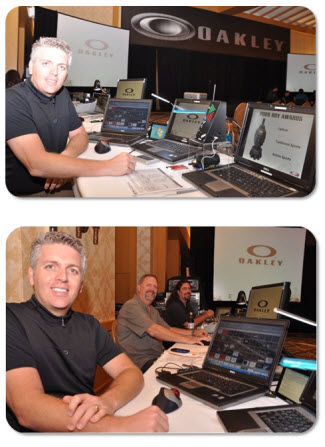
That is Paul Chrisope (show producer and video playback) and Gary Meeker (audio, VOG and music mix-master).
– Troy @ TLC