
My QAT is All Words! Give Me Back My Icons!
Part of the New Office look are some improvements to the QAT. But in the excitement to showcase what is new, Microsoft steps on our customized settings and alters the QAT for those users that rely on it. Aside from the initial shock of my QAT becoming virtually useless, there are good improvements.
So here is my standard QAT; 37 curated action icons set in specific groupings and order that enable the TLC design team to work faster and more efficient in PowerPoint. The QAT on all TLC design computers is positioned below the ribbon.

After the New Office Look update, my QAT looked like this. 12 icons + the word description of those action items. This rendering my QAT, and my workflow virtually useless.

It took some looking. Here is the action item you want to know and do. Find an open space on the QAT between the left most icon and the right most icon. Right click to bring up the QAT right-click options menu (it will most likely take several attempts). I am sure this menu is accessible in another location, but I have not found it yet.
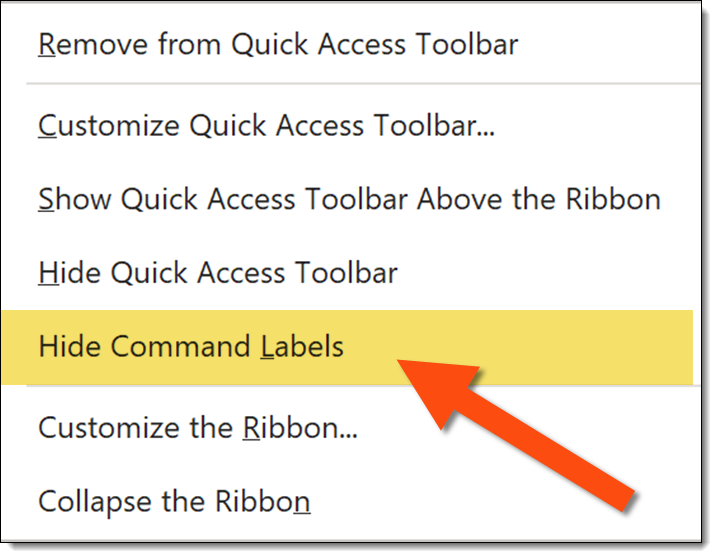
The important new addition is the HIDE COMMAND LABELS option. Click it and your QAT will return to the efficient icon layout and presentation work can return to normal.
Troy @ TLC
Microsoft Office Apps have a “New” Look
Microsoft has started rolling out the “new Office look”. On my test computer, running the Office Insider, Beta Channel build the “new” Office look was updated last week. So, all builds of Office 365 should see this in their updates within the next few weeks.
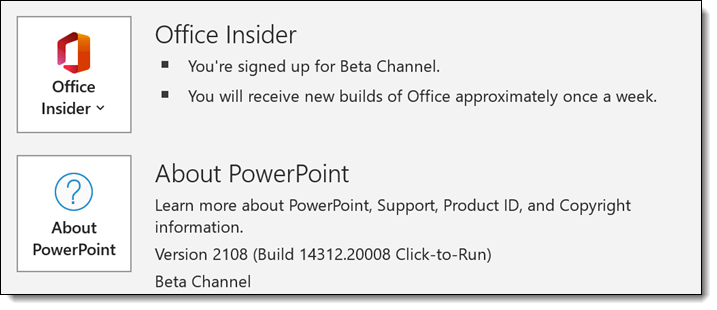
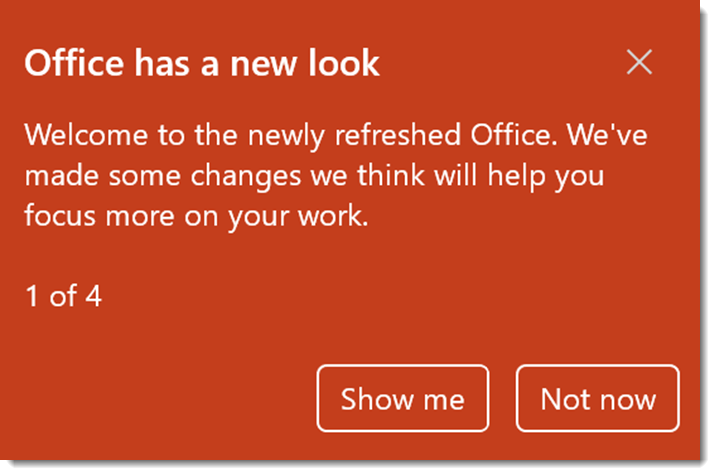
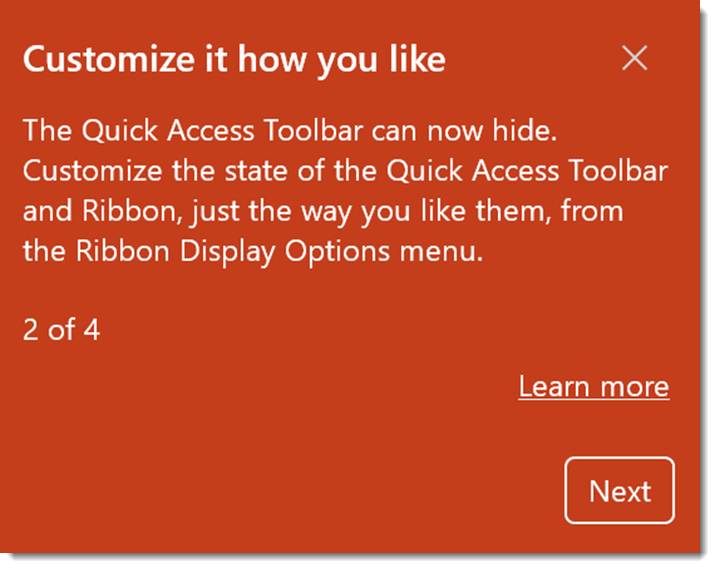
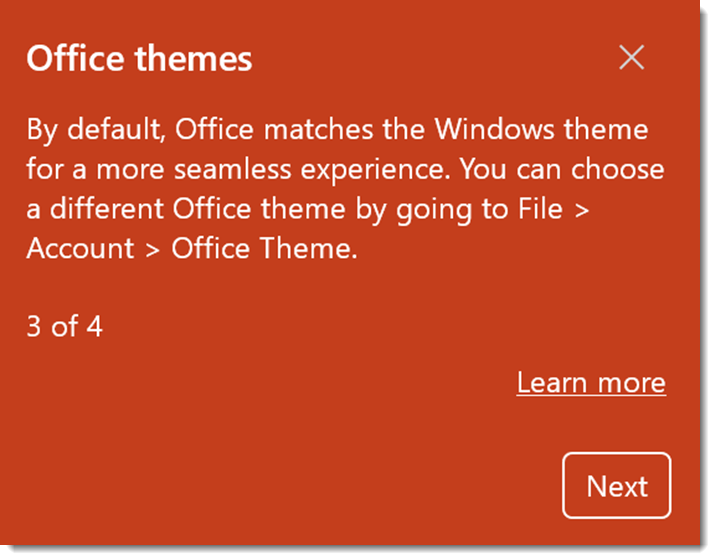
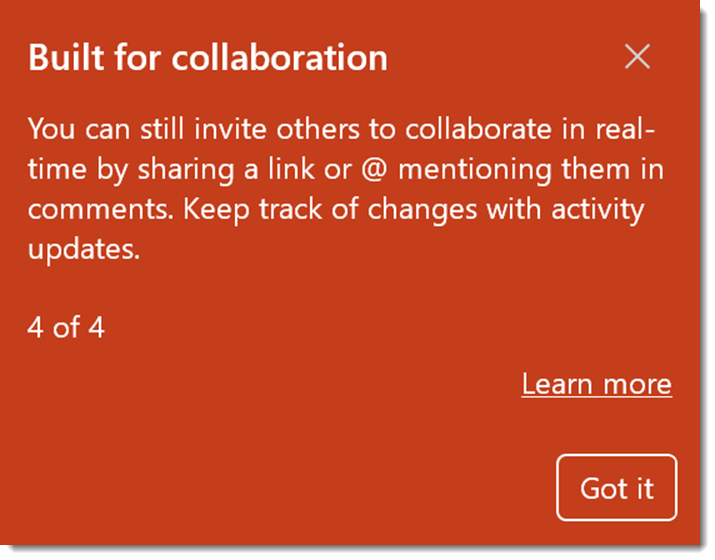
If you clicked the “not now” message to the mini info tour of what the new Office look is all about, here are the 4 information screens – when clicking “Show Me”.
Troy @ TLC
What is the Salary of a Presentation Designer?
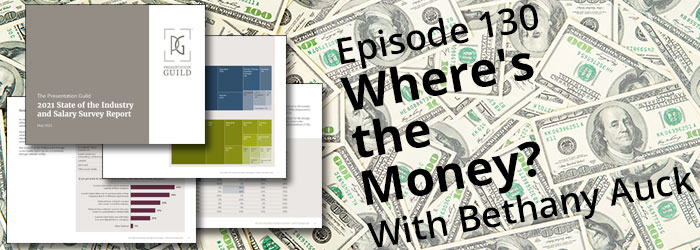
This episode on The Presentation Podcast Troy, Nolan and Sandy to talk money. They are joined by Bethany Auck, President of the Presentation Guild, to talk about the “2021 State of the Industry and Salary Survey Report.” The report is full of great data collected specifically about compensation of presentation professionals and we will tell you how to get a copy of it for free!
Listen to episdode 130 through you favorite podcast app or on The Presentation Podcast website here.
Make Slides “Vimeo” Safe
Many have heard the term “video safe” or “Title Safe” when creating graphics for video production. It is the idea that some of the outer edge of the graphic may be cut off, blocked, or not visible, so do not put any “real” content all the way to the outer edge. I always like to know about the environment where the presentation will be shown. Are there any physical obstructions blocking any part of the screen? Is there any other content on the screen? How low is the bottom of the screen (will the front row of people obstruct the rest of the audience from seeing content)?

The questions have shifted over the past year and an overwhelming large number of presentations have been given over virtual platforms. TLC Creative has done plenty of Zoom meetings. And for higher production value events we have embraced the Vimeo live streaming services (not the actual platform, we host events on our virtual meeting platform, VXP Meetings, and embed the Vimeo live stream players for each meeting room on it).
If you know a presentation will be viewed using Vimeo, this post is for you. The Vimeo player, both on-demand video and live stream video, have some interface overlays that need to be accounted for in the presentation design – or graphics that will be used in video production. Below is a download link to an overlay graphic we created that visually shows where the Vimeo interface elements are, and if your content is going to be obscured (if the viewer moves their mouse over the video player and activates the Vimeo interface).
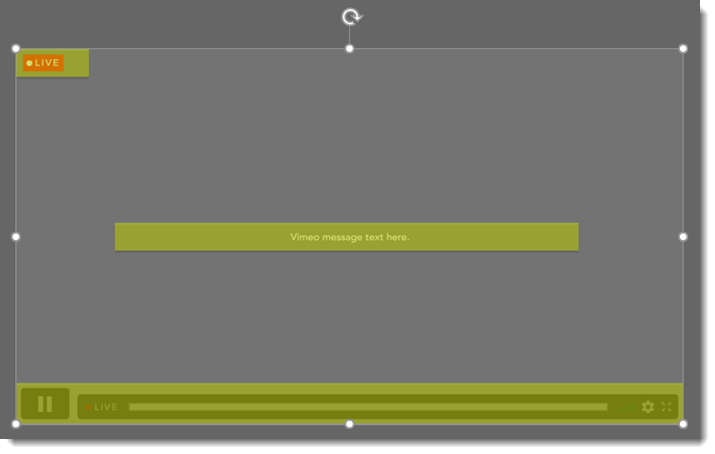
Download the 16×9, 1920×1080 .png overlay image HERE.
Troy @ TLC
Create an Animated GIF from PowerPoint – with Transparent Background!
Creating animated GIFs in PowerPoint is a newer feature, so it may be familiar. However this feature has been updated recently with the ability to export animated GIFs with transparent backgrounds.

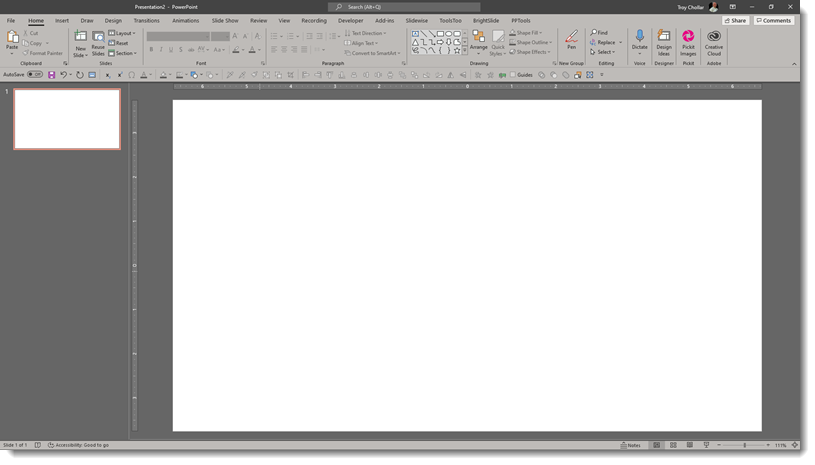
To create an animated GIF with a transparent background, start with a new PowerPoint file. The secret for exporting an animated GIF with transparent background is to us a white background (eg. the slide background is set to white, not a white shape as the bottom layer).
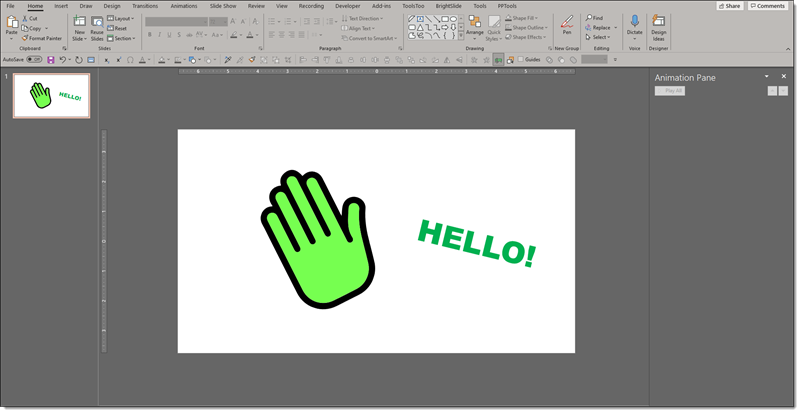
An animated GIF is a “flip book” animation. Each slide is the next part of the motion. There is no animation used in this example animated GIF. Here is the first slide:
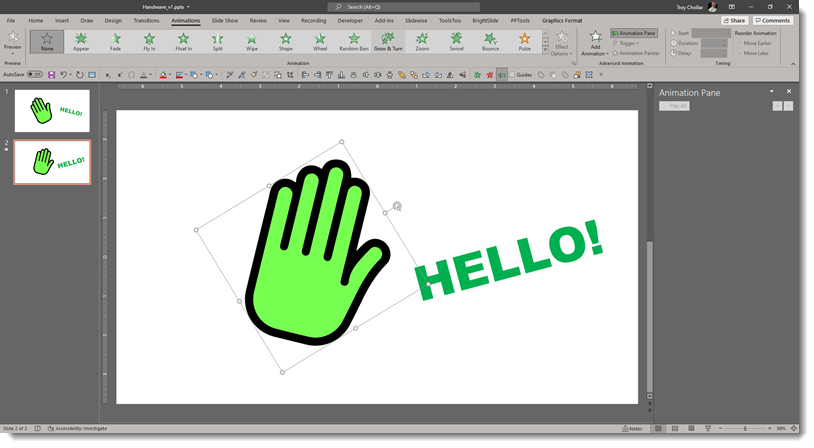
Next, the slide is duplicated and the hand graphic flipped to the opposite view using PowerPoint’s to FLIP HORIZONTAL tool and the text “HELLO” is rotated and larger.
This is a simple 2 step animation, but a 3rd step is needed for the animation effect. So slide 1 is duplicated and set as slide 3.
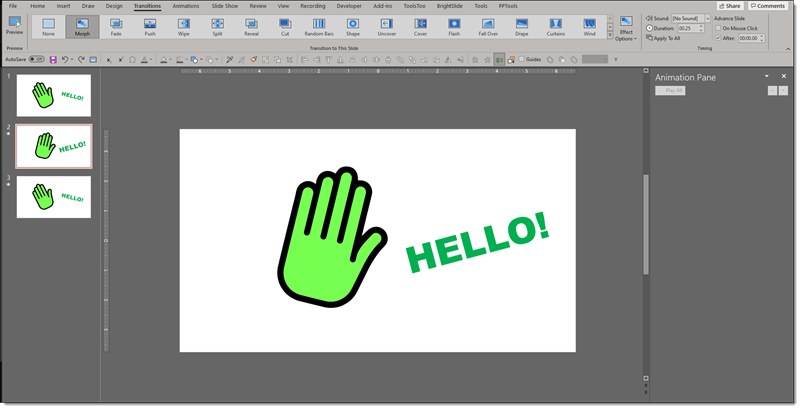
slide 1 transition = NONE, for a seamless transition of the animation. Set automatic slide advance after 0.00 seconds.
slide 2-3 transition = MORPH, which creates the smooth animation of the hand wave and text movement. Duration = .25 seconds. Set automatic slide advance after 0.00 seconds.
It is time to export as an animated GIF.
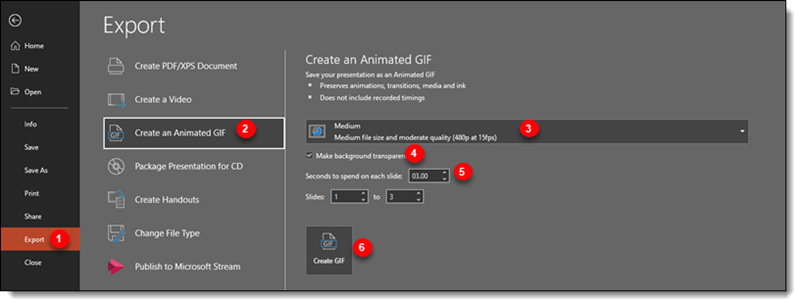
- Go to FILE and select EXPORT
- Select CREATE AN ANIMTED GIF
- Choose the size and quality of the GIF
- Check the box to MAKE BACKGROUND TRANSPARENT (this is the new feature!)
- The “seconds to spend on each slide” can be left with the default value. It will not be used as each slide has a preset automatic transition set.
- click CREATE GIF
And that’s it!

Jake @ TLC
I can do that?! BrightSlide Swap Objects
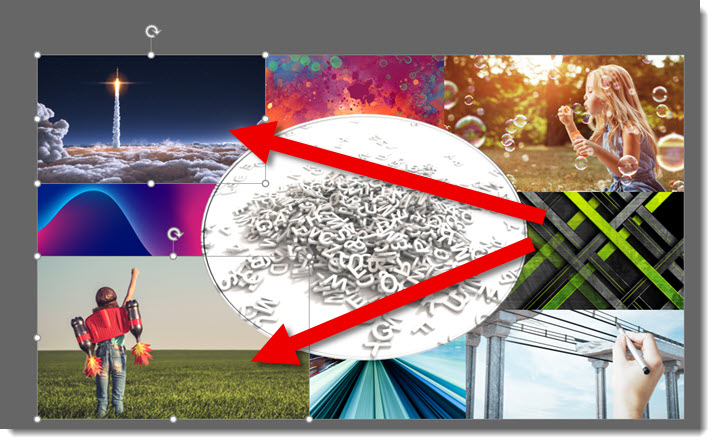
Sometimes easy, but repeatedly done, tasks are made easier with some smart coding. That is exactly what BrightSlides “Swap Objects” feature does. It makes a fairly easy formatting task, as easy as 2 clicks! As example, on my sample slide of a photo collage, swapping the top left and bottom left images is a 2 click process.
Click 1 – select the objects.
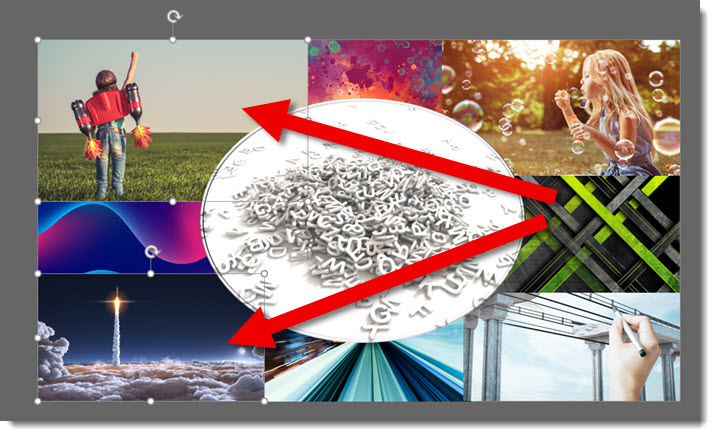
Click 2 – go to Brightslide and click SWAP OBJECTS.

Done!
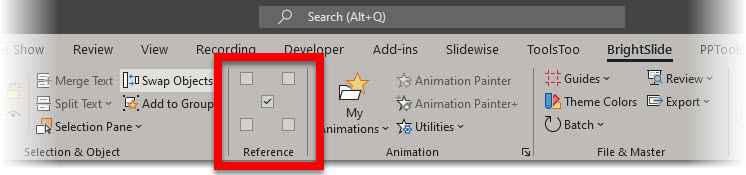
Tip: hold the SHIFT key and click SWAP OBJECTS. This temporarily adds the anchor dialog to the ribbon. Choose which of the 5 anchor points to use when switching objects.
Note: this is probably obvious, but is an object is locked (PowerPoint Selection Pane and Lock Object padlock), it cannot be moved and the BrightSlide Swap Objects will not work.
BrightSlide is a FREE add-in, with both Windows and Mac versions. Get it here.
Troy @ TLC
.TTF vs .TTC Fonts and PowerPoint for the Web
Our design team recently noted a problem with a template project we were developing. Having a problem with PowerPoint is unfortunately part of the design process, it is part of “working within the limitations of PowerPoint.” But this problem was not making sense. After lots of internal troubleshooting, I started an email conversation with Microsoft Dev and Product Managers about it. This led to discovering something new. Unfortunately, the discovery did not fix the problem, and it led to discovering what Microsoft shows as working, does not – ugh!
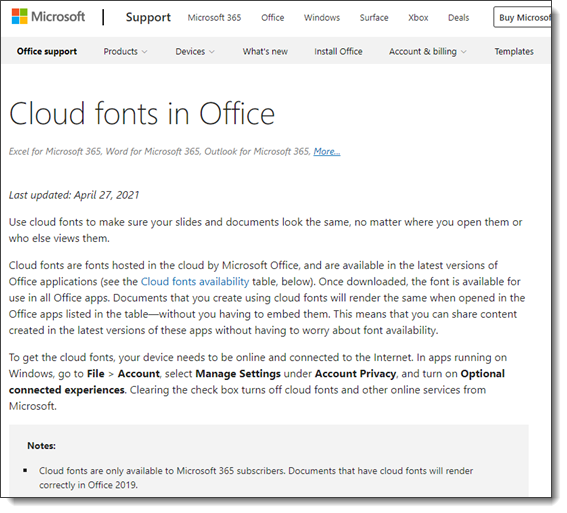
So, here’s the deal, PowerPoint is really, really bad at helping users with font management. One glimmer of positive news is Microsoft’s investment in Cloud Fonts. These are fonts that Microsoft owns (or owns usage rights to), that Microsoft applications recognize, and if a font is not installed on your computer, it is automatically downloaded, installed and the document updates to display the correct font. We call these “Microsoft Safe Fonts” and encourage clients to stay within this set of fonts so everyone knows everyone will see the same thing.
I am going to avoid going into all the ways MS Office fails to manage, help or inform users if a non-standard font is not available when a presentation is opened – or this will become a very long, very negative rant. I am going to stick to Microsoft Cloud Fonts, because these are the good thing, but also the bad. Microsoft has a webpage, Clouds Fonts in Office, with information about what Cloud Fonts are and a list of every cloud font available (go to the page here). It is also fairly up to date showing as of this post, it was last revised just a few months ago on April 27, 2021.
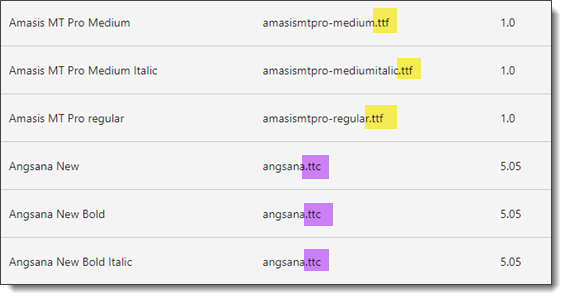
Expand the “Cloud Fonts List” and it is (now) important to note there are two file formats for the fonts. They are either .TTF or .TTC. On the technical side, .TTF is “true type font” which is a mainstay in the font file format options. .TTC is “True Type Collection” and less used. But it should be used more because it is on the technology side of things, a great option. The “collection” part of the True Type Collection format means it can have several variations of a font in a single file vs. needing to manage multiple files, one for each variation. On the image below, left is the font name, middle the file name with file type extension, and right is the version number of that file.
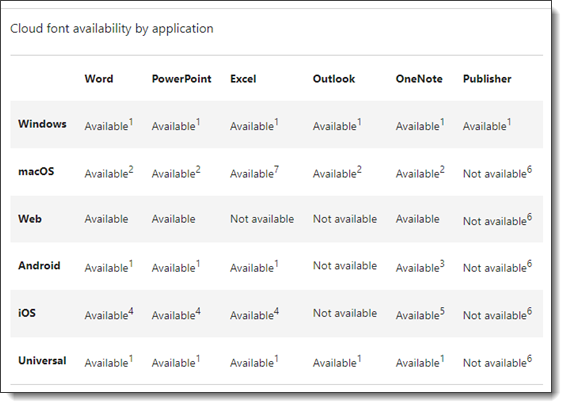
Expand the “Cloud Font Availability by Application” section and there is a nice, organized cross reference of what devices and versions of PowerPoint will work with what (note: it is wrong, we will get to that shortly).
For TLC Creative Services we have studied this information in detail, and I have had the opportunity to interact directly with the Microsoft developers asking clarifying questions. I feel I have a particularly good understanding of fonts on the technical side (hey, years of print design and production makes you obsess over fonts), and a very good understanding of how Microsoft applications, especially PowerPoint, are setup to work with fonts – including where they do not work (that list is much longer than what does work). So when one of our design team emails me saying there is a font display problem, I am prepared to address it and find a work around.
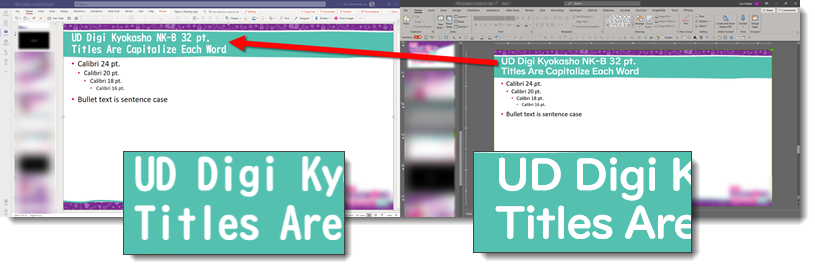
This is same PowerPoint template open in two different versions of PowerPoint. The slide title font is clearly not displaying the same. The immediate questions are; is this a custom font that is not installed on one device? Are we sure this is a Microsoft safe font (eg. font listed on the Microsoft Cloud Fonts in Office web page)? What are the devices? Are both connected to the internet (a cloud font cannot download and install if there is no internet available)? And many other questions to go down the list of potential problems.
This is the same presentation template file open on the same computer, each on a separate monitor, each in a different PowerPoint application. The left image is the file open in Microsoft Teams (aka PowerPoint for the Web). The right part of the image is the file open in the Windows Desktop version of PowerPoint. So, the availability of the cloud font is the same for both because they are the same file being viewed on the same computer – WHAT IS HAPPENING HERE $#@%!?
Here is where things went even further down, in regard to trust. We now know, because of this accidental discovery, there a HUGE MISSING COMMUNICATION piece from Microsoft. Before I rant any further, one of the internal Microsoft managers did promise that a fix for this is in process. No timeline given to this issue we have all been living with for the past 2-3 (?) years of using Microsoft Cloud Fonts, but I am hopeful this blog post will be outdated and just a timestamp of an old problem soon.
The .TTC file format for fonts is very cool. It allows a single file to hold all of variations of a font. As example, the font being used for slide title text is UD Digi Kyolasho. It has 6 styles, or variations, as it extended font family. With a .TTC, a single file is all that is needed, because it has all 6 variations within it.
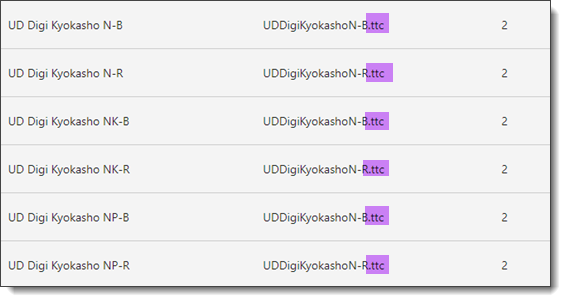
Well, it turns out that the .TTC format is to cool for PowerPoint, specifically PowerPoint for the Web (without testing to confirm, I am expanding this to include PowerPoint for Android, IOS and any other version that is not a desktop version). PowerPoint for the Web is unfortunately not able to use those multiple versions of the font in the .TTC file. PowerPoint for the Web can only use the first version of the font family. We would all be okay with this limitation – if we knew about it. The cross reference compatibility chart above makes no mention of .TTC fonts not being supported by PowerPoint for the web and implies they are supported (big oops!).
From our template project, the UD Digi Kyolasho font is a Microsoft Cloud Font. Why the left image (PowerPoint through Microsoft Teams) displayed the N-B variation, which is the correct font family, but wrong version, and the right image (PowerPoint through Desktop PowerPoint) displayed the correct NK-B variation has been a painful journey. We had to explain to the client that the template design will not display the slide title text as expected when viewed in Microsoft Teams or anything other than the desktop PowerPoint app. This is a corporation that has adopted Microsoft Teams and file collaboration as a workflow (Microsoft should be ecstatic!). This is a large corporate client (I am guessing a Microsoft customer with 5000+ seats to Microsoft Office) that trusts us to provide guidance on how best to work with PowerPoint, and they are not excited about Microsoft right now…
I mentioned above that Microsoft said they have a fix in process. This is not a Microsoft only problem. PowerPoint for the Web and other web-based applications cannot fully use .TTC fonts. We can live with another limitation; I just wish Microsoft would have informed everyone of the limitation. The solution that is in process is converting all .TTC fonts to individual .TTF files. When rolled out, the above template will work on all PowerPoint end points, because there will be 6 separate font .TTF files, one for each variation of the UD Digi Kyolasho font. Until I see the font list updated to .TTF files, we are removing .TTC fonts from our “safe fonts” list… ugh!
Troy @ TLC