
Quotes – Rotate the Text
Thanks Kelli (who has moved to another great design job – great for Kelli, sad for TLC Creative) for today’s quote inspiration.
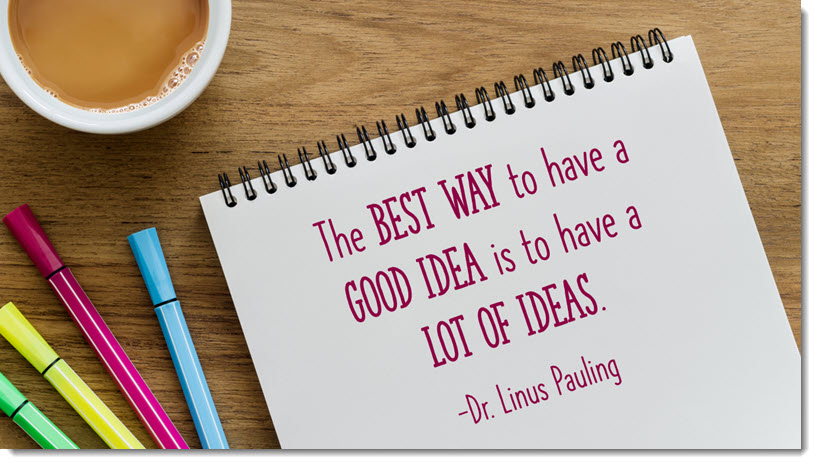
Design Process:
- This slide started with finding a great image, then researching a quote to use with the image
- The original image showed more, and it was cropped in PowerPoint to create the layout
- Typeset the text, select the font, set the size, adjust the line spacing, set the color (pulled from the pink pen in the image)
Formatting Tip:
- Use PowerPoint’s ability to rotate shapes and text boxes
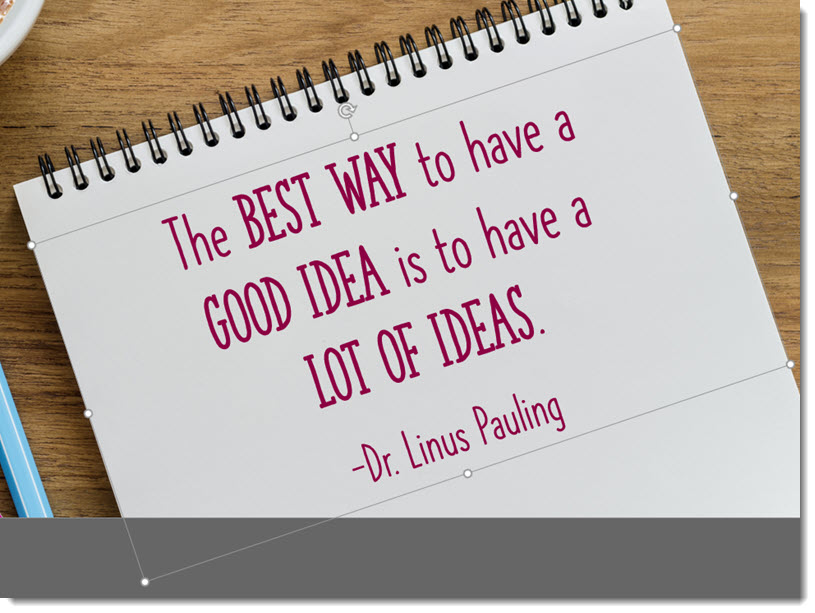
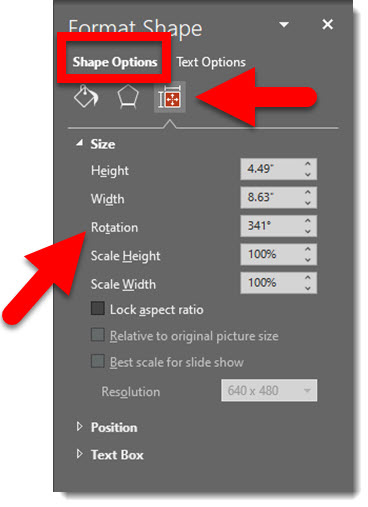
- Adjust the angle of any text box by click-and-dragging the rotate icon at the top of the text box, or manually in the FORMAT SHAPE dialog
Troy @ TLC
Quotes in a Circle
Thanks to Jake on our design team for today’s slide design.
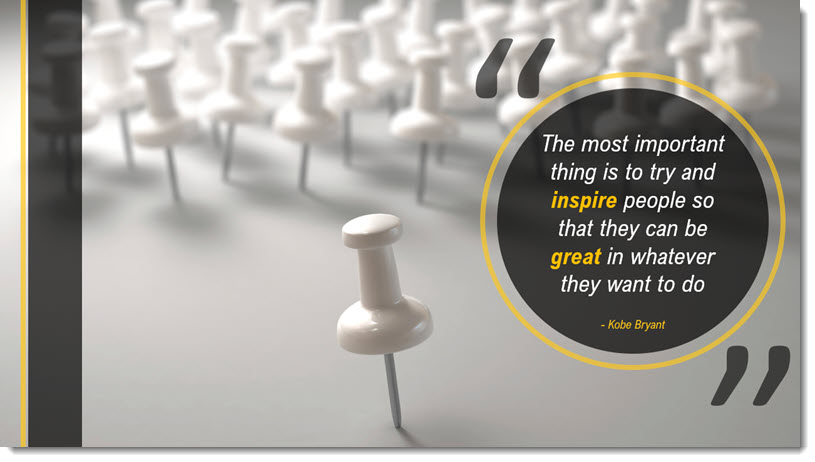
Design Process:
- Review the quote
- Search for an image that aligns with the quote
- Develop a slide layout that highlights the quote as the focal point, integrates the coordinating image, and use PowerPoint shapes to create accent graphics
PowerPoint Formatting Tip:
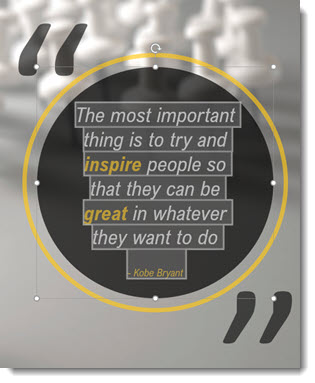
- Text in circles is not always easy!
- For the slide quote, all text is inside the circle shape (not a second text box placed on top of the circle). All text is in a single text block. So the bold text, colored text and the smaller attribution text is all formatted in the same text block.
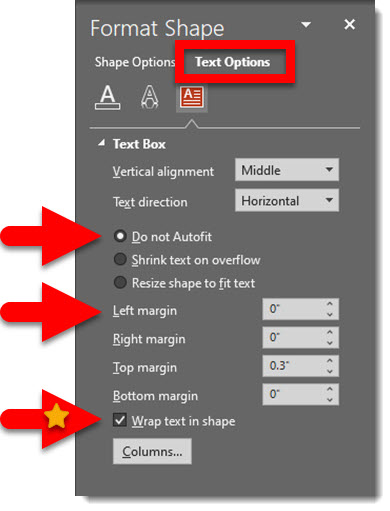
- Formatting text in a circle requires making some adjustments to the shape formatting properties.
– Right-click the circle and select FORMAT SHAPE
– Go to the TEXT OPTIONS and TEXT BOX options
– [Personal preference] Select “DO NOT AUTOFIT”
– Adjust all margins to zero’s (although for this example the top margin was manually set to compensate for the smaller font size text at the bottom and keep the layout vertically centered in the circle shape)
– WRAP TEXT IN SHAPE: this is generally turned on, so the text automatically stays inside the circle. But if the text needs to be just a bit closer the edge, maybe even slightly overlapping the edge, turn this off and use SHIFT+RETURNs to manually create the line breaks
Troy @ TLC
Let’s Talk About Quotes
The TLC Creative Services presentation design team created a series of inspiration slides using quotes. The results were great, and we are sharing some of the team’s slides over the next few weeks in a series that will hopefully provide inspiration for slide design and provide PowerPoint layout and text formatting tips. So, as my intro image (composited in PowerPoint and exported as a image) says, “Let’s talk about quotes …in PowerPoint design”.
Troy @ TLC
New Presentation Podcast Episode!
If you know about the Presentation Summit, an annual presentation focused conference, this is a great podcast episode to listen to! Rick Altman, founder and director of the Presentation Podcast, now in its 19th year (!) talks with Troy, Nolan and Sandy about the hybrid attendee plans for this year and gives some insights into the excitement coming to this years event (and a special discount promo code!).
Listen to the podcast episode 132 here.
Color Blindness InDepth
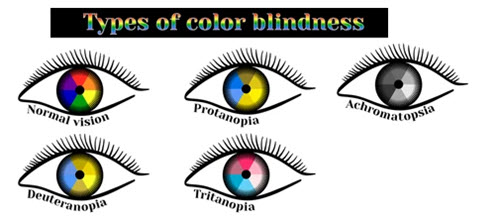
For presentations there is a lot of talk about designing with color blindness in mind. But how much do we know, and understand, color blindness?
[videopack id=”15216″]https://thepowerpointblog.com/wp-content/uploads/2021/08/Rotating-Color-Dots.mp4[/videopack]
I found a nice overview article of color blindness that explains what it is, the types of color blindness (there are 5) and more – all in simple language making it a quick read that I found easy to understand. So, sharing an online resource I found that should be of interest to anyone looking at their slides through the color-blind view.
Article is here.
Troy @ TLC
New Podcast – Everyday Business Storytelling with Janine Kurnoff
New episode and presentation conversation available today!Once upon a time, finding a book on presentation design was almost non-existent. On this episode we get to spend some time with the co-author of “Everyday Business Storytelling”, one of the latest entries into the presentation space. All three of us; Nolan, Sandy and Troy, read the book, found it full a great information and examples and are excited to have a conversation with Janine Kurnoff about it!
“Rounded” is the New Look
With the Microsoft new office look, there is a generous use of rounded corners, which Microsoft labels “Soft Corners.” But is this good for presentation design?
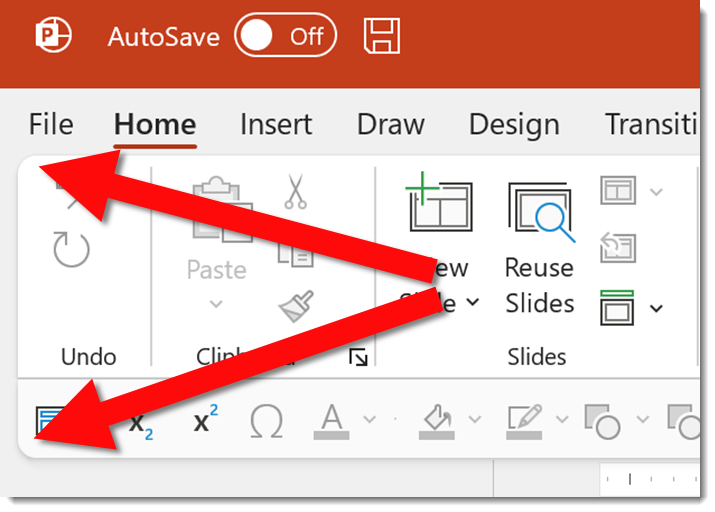
As example, all four corners of the Ribbon, and in my setup the top of the Ribbon and bottom of my QAT because it is positioned below the ribbon, have a subtle rounded corner styling.
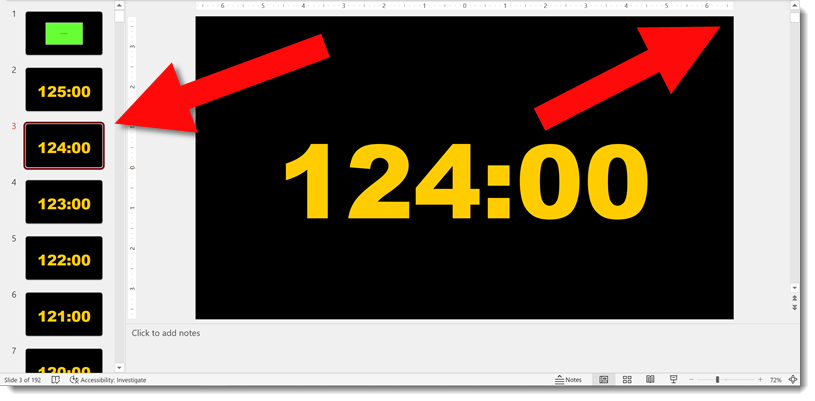
In edit view, the left film strip slide sorter has been changed so all slides have a subtle rounded corner design. Very mobile app and social media inspired. The actual work slide area maintains the full rectangle shape.
New is not always better. Are rounded corners on the slide sorter better? While I appreciate the creativity the Dev team has implemented, I am voting that this update can impact visual reference of the slide design. As example, this presentation in the full slide sorter view – which also has the rounded corner styling applied.
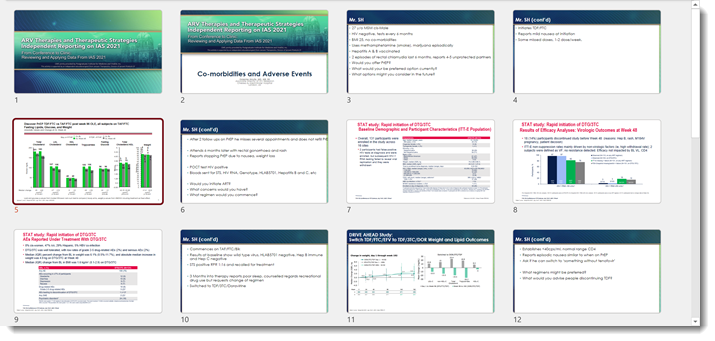
The template, developed here by the TLC Creative design team, has a very linear styling. These newly introduced rounded corners to the slide preview add to, alter, and impact the viewer interpretation of that design. In addition to cutting out (small) portions of the content at each corner. For reference, here is the Title slide layout in full (rectangle) view. I feel the above slide sorter view of the slides and this full slide have very different design aesthetics, even though they are the same slides.

That’s it, just an observation. As an end user we cannot turn off this new view, it is what PowerPoint gives us. The Microsoft PowerPoint team has already received lots of feedback on this aspect of the new Office look and I am hopeful that this specific update revert to the more practical slide shape is what is represented everywhere.
Troy @ TLC