
COVID Design Challenge #4
With this challenge, not only did our design team have to put together some amazing design, but they had to do it all working in Microsoft Teams! So part of this design challenge was our design team all being forced into the world of Microsoft Teams for file management (we have been using Teams for calls, meetings and presenting, but now transitioning to incorporating it file management, editing and communication).

For our design challenge #4 a master slide deck was uploaded to the Teams project “channel”. Slide 1 was the base boring bullet list of black text on a white background. Each designer had an assigned slide, with zero design applied.
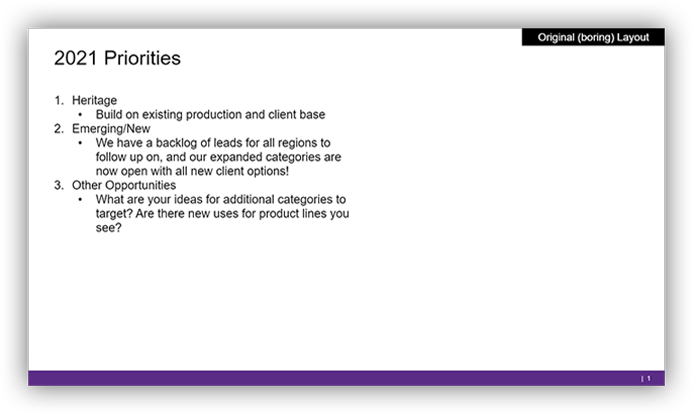
Each designer was challenged to develop their own slide with the same base content, but any layout and visuals they envisioned. Again, based on a Microsoft Teams workflow, the catch was all design had to be done from the shared presentation. No downloading, and not keeping the file connected to the Teams version!
Work from the master slide deck on Microsoft Teams. Slide 1 is the content, and everyone has a slide for design assigned. Develop your version of an original (boring) slide with images, graphics, and visual layout. Use any color scheme and font options, but no animation needed. You cannot download the PowerPoint file to your computer, you can work directly in Teams version of PowerPoint, PowerPoint online or PowerPoint on your computer – but it must always be worked on as a shared file.
Check back later this week to see what each design did to turn the boring slide content to a WOW slide!
Designing with PowerPoint
This is not designing a slide, it is using PowerPoint as the design tool to create a custom image. In this case the lead image from the April 13th blog post – “Design Challenge #2 Results!“.
Troy @ TLC
“40 Lines” Animations!

The TLC Creative design team Challenge #3 entries are in! All layouts and animation done entirely in PowerPoint, enjoy!
Troy @ TLC
Our COVID Design Challenge #3

I am very proud of the creativity on our design team. Our internal COVID-19 design challenge put that creativity to the test. The design team was presented with a few design parameters, a simple and very vague slide animation request, and given 2 hours to create amazing. See you Monday with the results!
Here is COVID Design Challenge #3, “40 Lines”. The full name should be “40 lines and 5 slides”. Creating a dynamic animation with 40 lines across the 5 slides. The lines can be any color, any length, any position, any arrangement, any width. Additional content or accent graphics can be added to the slides, but the 40 lines need to be the star.
New PowerPoint Feature – YEAR!
You are probably wondering what the title of this blog post means… Well PowerPoint has a new feature, something that has been requested for year. And it makes me very happy to finally have it!
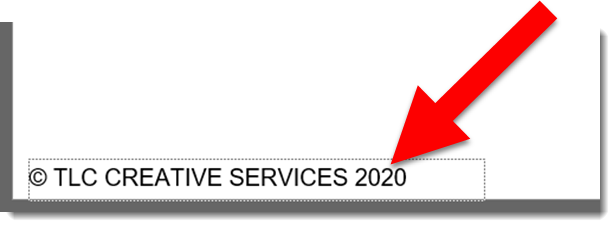
PowerPoint has added to the date footer list a new option. The ability to just list the year.
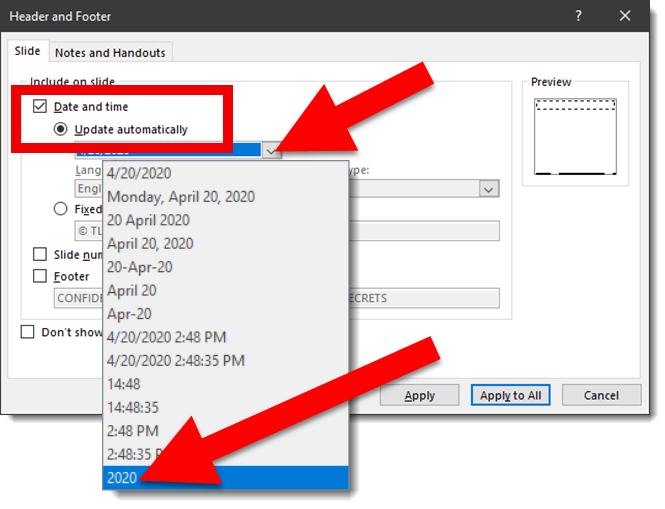
Where I see this simple addition being invaluable is for corporate PowerPoint templates (also Word and Excel templates). Every year the template automatically updates to display the current year! If you are not cheering, I am guessing your company template does not include a copyright statement – that needs to be manually updated each year (or updates automatically because your company paid for a very cool, but not cheap, add-in).
Here is a quick example of adding a copyright statement preset on the bottom of all slides in a corporate template. The year automatically updates so the copyright information is always current. For this example I am manually adding text in front of the year “(C) TLC Creative Services”. TIP: text can be added any of the footer placeholders and variable part, in this instance the date, remains coded to update. Works for source and page number footers.
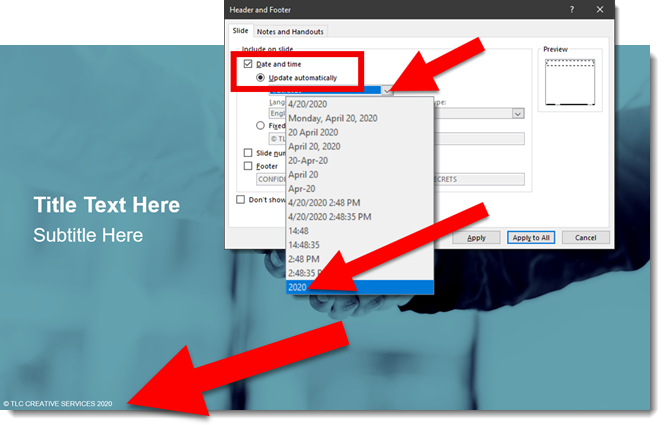
Additional information:
- This is a four digit year (e.g. “2020”)
- It was release with Win32 build 16.0.12527+ and Mac build 16.35.2002+
- It will display on all endpoints (Win32, Mac, mobile, web), including legacy builds (yay!).
- It may not display on legacy builds that are localized to other languages, and in those instances it defaults to display the first datetime field type (eg. 4/20/2020 would display in the above example)
Troy @ TLC
100th Episode of The Presentation Podcast!
A new episode of The Presentation Podcast is available today – and it is the 100th episode! Troy, Nolan and Sandy recount 100 of their favorite tips and moments from the first 100 episodes of The Presentation Podcast. Yes, this is the 100th episode – amazing!! Listen on Apple Podcasts, Stitcher, Google Play, Spotify and Soundcloud – just search for The Presentation Podcast for “100 from 100” or go direct to the episode page here: https://thepresentationpodcast.com/podcast/100
[KGVID]https://thepowerpointblog.com/wp-content/uploads/2020/04/unnamed-file.mp4[/KGVID]
Image Transparency in PowerPoint
From a recent conversation about how a slide design was created, I realize that it is difficult to keep up with the number of new features being added to PowerPoint. If you have a familiar workflow, you might not be looking for a new workflow. This blog post is about a new, but not really that new, feature in PowerPoint – setting the transparency level of an image.

Here is a slide design scenario (inspired by the conversation noted above) and how to use PowerPoint’s image transparency. Starting with this example slide and inserting an image onto it.
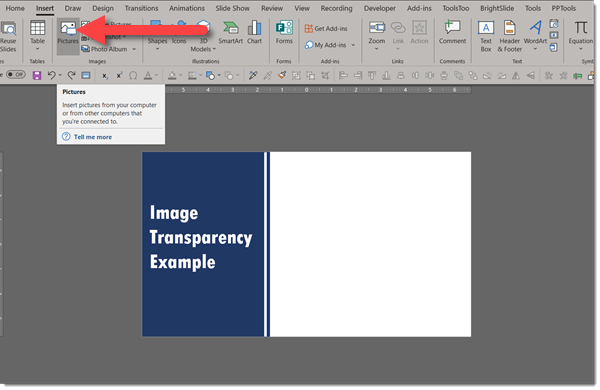
Here is the image, positioned and cropped to fit the open right side of the slide.
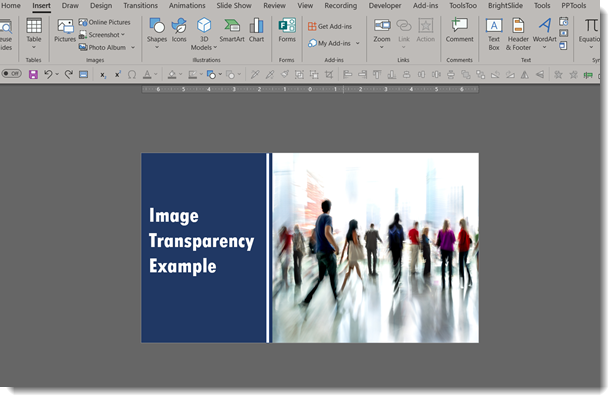
The goal is to make the right side have a stylized background element (this photo) with content on top. Open the “Format Picture” pane on the right side.
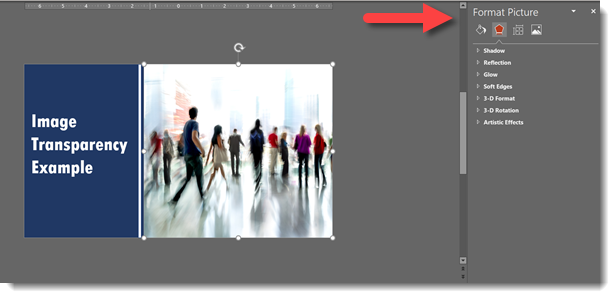
Go to the PICTURE section and expand the PICTURE TRANSPARENCY options.
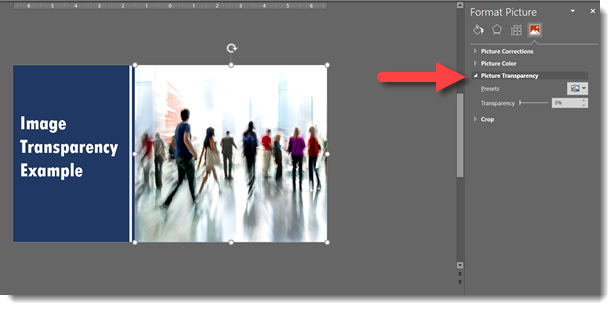
Use the presets to quickly change the opacity/transparency of the image.
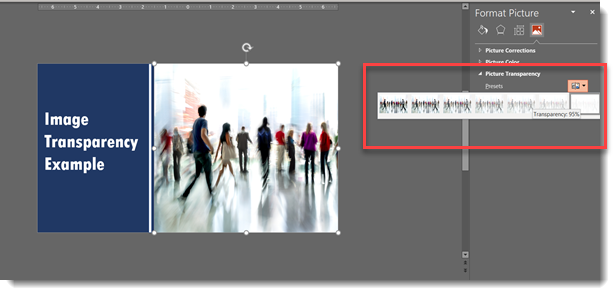
Or use the Transparency slider, or select the number field and enter an exact percentage. The image on this slide was set to 90%.
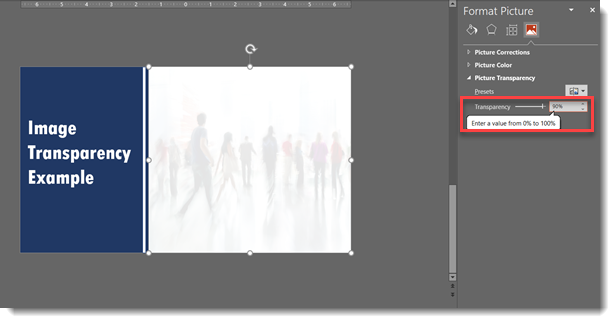
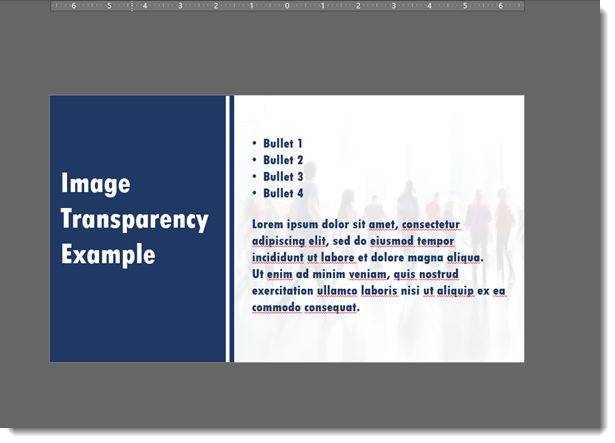
All within PowerPoint we have placed an image. Sized, positioned and cropped an image. And adjusted the image transparency – no Photoshop needed. This faint image over the white background can now be the stylized background for the slide content.
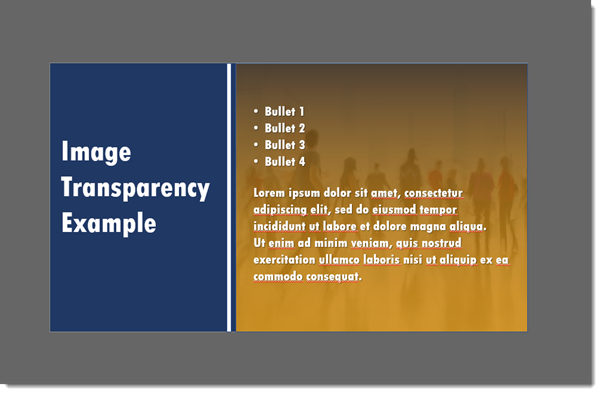
Going one styling further, a golden gradient image was placed under the image, making this slide layout quick to update to any color accent (and the content text was updated to white to provide adequate contrast for legibility).
Troy @ TLC