powerpoint

#4 – Slide Transitions

Transitions also benefit from #1 – Performance. In my pre-beta version there are a number of new transitions that are really exciting!
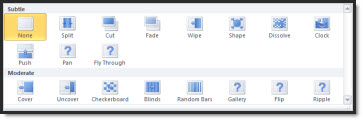
– Pan (my new animation favorite!)
– Gallery
– Flip
– Ripple
– And the full application will have more new transitions than just these!
New Transitions Sample Video is converted to low-res .gif “movie”. Note on the PAN transitions the background stays in place while the content moves/transitions!

Plus the legacy transitions also get some fantastic updating. As example the WIPE, CLOCK, RANDOM BARS, transitions leads with a soft gradient edge. The DISSOLVE and CHECKERBOARD transitions are screens full of soft edged squares (that I might use again after ignoring since 2004).

The interface has been updated too. First, Transtions now have their own tab (no longer shared with Animations).

Almost all of the adjustments are controlled directly in the Ribbon (vs. opening a separate dialog):
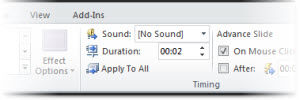
We now have precise control over animation duration, ranging from a full minute:
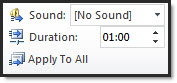
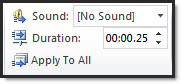
To a very quick 1/25th of a second:
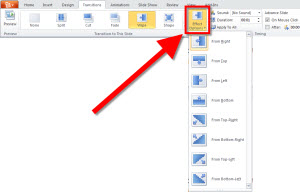
The updated interface also limits the list of transitions by adding any transition options in the new EFFECT OPTIONS menu. Here I have WIPE selected and I can choose the direction from the drop down menu.
Just another GREAT feature that adds new features and improves the existing.

– Troy @ TLC
By |2016-09-16T09:22:30-07:00November 10th, 2009|PowerPoint, Tutorial|

#3 – Insert and EMBED Virtually ANY Audio File

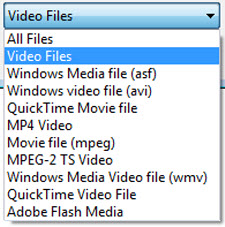
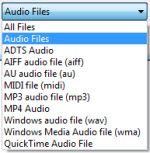
Just like the videos, PPT 2010 supports a whole host of audio formats and embeds them all! Take a look at the audio formats supported (Yes, all flavors of quicktime, .mp3 and more are supported!):

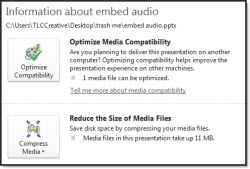
PowerPoints backoffice also recognizes when audio files have been inserted and offers conversion and optimization options.

– Optimize Media Compatability: converts audio files to Microsoft’s preferred/native format, .wma.
– Reduce The Size of Media Files: will convert (same as above) and also offer a range of compression levels.
In this sample I inserted a 7.5MB .m4a and converted to a .wma at the highest quality (presentation) to have a 100k audio file embedded – without any noticeable quality difference.

– Troy @ TLC

By |2016-09-16T09:22:50-07:00November 8th, 2009|PowerPoint, Tutorial|

#2 – Insert ANY Movie Type and EMBED

PPT 2007 brought the new .pptx file format. PPT 2010 starts taking full advantage of the new file format with the ability to truly embed video files!

Just look at the INSERT >> VIDEO >> VIDEO FROM FILE options listed (Yes, that is Quicktime, .mp4, and mpeg2!).

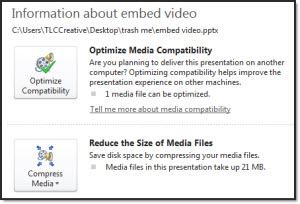
In the presentation info section is details about the EMBEDDED video.

– Optimize Compatability: I inserted a quicktime video (which plays no problem). But Microsoft really wants its own format (.wmv) and this feature will convert all embedded videos to .wmv (which it does very well, maintaining quality and producing small file sizes).
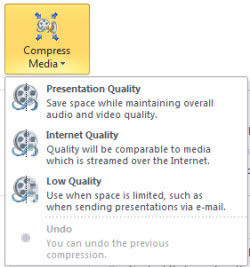
– Reduce The Size of Media Files: .wmv files can be compressed in 3 quality levels, choose the level needed here (note: you can go directly to this feature, skipping “optimize compatability”). It also has an ‘undo’ option. I have been optimizing videos, reviewing in slideshow and deciding if the quality was maintained, if not I just ‘undo’. For this sample I inserted a 21MB .mov and it was compressed to a 1.5MB .wmv with no visible quality difference.

The embed video functionality (and the video options detailed later) will revolutionize the use of video in presentations. Microsoft has eliminated linking issues, forgotten files (Yes, Mr. Client you need to have both the presentation and the video files on your computer – in the same folder) and format issues (no, Mr. Client, I am sorry but Microsoft and Apple do not play together when it comes to using Quicktime videos in a presntation).

– Troy @ TLC

By |2016-09-16T09:23:27-07:00November 6th, 2009|PowerPoint, Tutorial|

PowerPoint 2010 – #1 PERFORMANCE!

My top request, hope, begging was for slideshow performance. Bobby at Microsoft reassured me for more than a year all my animations would run great – and they do!

PPT 2010 Slideshow Performance
(This is a sample presentation I created that uses very fast transitions, complex animations and a non-stop pace for 5 minutes. Runs perfect every time! Blog sample is a low res .gif movie)

So my #1 feature of PowerPoint 2010 is a bit intangible, but easily seen and that is the slideshow performance is great. Transitions occur when you click the advance button. Animations run instantly and without stuttering. And all of this is while running the pre-beta version on a very small laptop with a 64MB graphics card, 1.5 GB of ram and a 1.8 Ghz Pentium 4 CPU.

– Troy @ TLC

By |2016-09-16T09:23:49-07:00November 4th, 2009|PowerPoint|

Slideshow vs. Reader Views

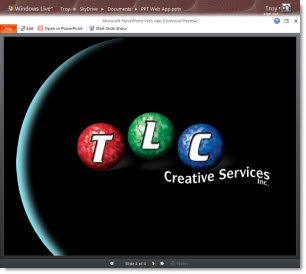
In yesterday’s post I captured my sample online slideshow in PowerPoint’s new “Reader View” – which is somewhere between the traditional edit view and a full slide show. My reason was simple, it made it clear the presentation was running on the web.

There are 3 view options with the PPT Web App.

1. Edit

2. Slideshow

3. Reader

The “Reader” view is in all the MS Webb Apps and in the upcoming Office 2010. Click “view” presentation and this is the default view. To see as a full screen slideshow click the “slideshow” button from this view.

The reader view default shows animations, slide notes, the web browser window is resizable and relies on SilverLight for best performance.

The control bar at the bottom the reader view is used to advance through slides and animations. Unlike the preview animation feature in PowerPoint, the reader view maintains animation timings and pauses for each on-click animation – just like running the slideshow.

– Troy @ TLC

By |2016-09-16T09:25:36-07:00October 30th, 2009|Tutorial|

PPT Web vs. Desktop Slideshow

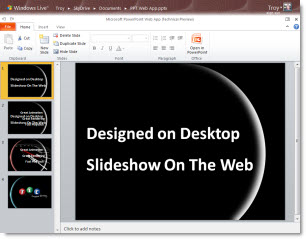
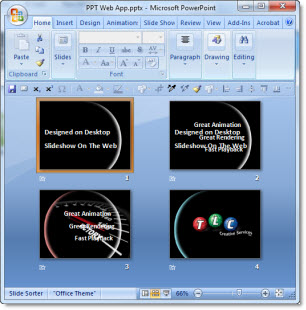
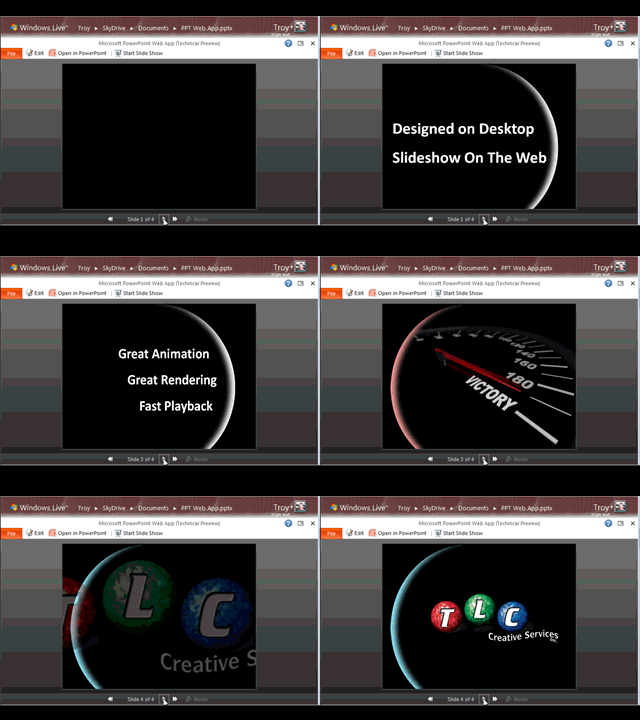
I have been using the Office Web Apps beta and created this presentation to test how things look and animate when run as a slideshow on my desktop and then uploaded and run through the online PPT Web App.

– 4 slides
– Fade transition on each
– Inserted graphics (arch and speedometer)
– PPT text
– All elements animated

Slideshow on desktop:
PPT Slideshow From Desktop

Slideshow on web:
PPT Slideshow From Web
*Note last animation changed from Faded Zoom to Zoom In

– Troy @ TLC

By |2016-09-16T09:25:58-07:00October 29th, 2009|Portfolio|

PowerPoint Web App – Use It Today!

Everyone is eagerly awaiting the release of Office 2010 and the new PowerPoint (or they should be – it is the best release/improvement since PowerPoint XP!). With the new version Microsoft offers a new set of tools with its Office Web Applications for PowerPoint, Excel, Word, and OneNote. For a limited time anyone can start using the public beta (up to the first 50k or so users).

– You need a Microsoft email account (hotmail, live.com, etc.)

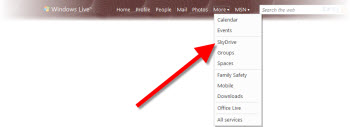
– If you have not setup a Sky Drive (virtual hard drive) you will need to do so

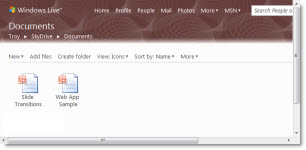
– Go to your Sky Drive documents folder and drag a .pptx file there

* The first one uploaded will be recognized as a Microsoft document and then offer you the opportunity to participate in the Office Web Apps public beta – accept and you are all set!

I have a few more posts set to review the use and features, but here is my personal opinion of the PowerPoint Web App as of today. Microsoft has pulled together a major amount of code development in a short amount of time. The functionality is very limited.

But I can clearly see how it will rapidly improve and become a mainstay in presentation use. It lives in the ‘cloud’ and updates do not have to wait for the standard upgrade time of services pack or new versions. I think the web apps will have the quickest development within Microsoft over the next several years – one we will directly benefit from.

I view the PowerPoint Web Apps as 2 sided:
1. Sharing a presentation online (which is very easy and very well done). Microsoft has this use incredibly far down the developement cycle. It works.

2. Creating or editing a presentation online. This is definitely a 1.0 release and the feature set is limited, a bit frustrating, and will definitely get better and more usable.

– Troy @ TLC

By |2016-09-16T09:26:17-07:00October 27th, 2009|Tutorial|

Everything Is Jumping (Again) – Fix Selecting Objects

This same problem seems to pop up for many reasons. It is definitely a Windows Vista, and potentially Windows 7, issue. But it effects all versions of PowerPoint. It recently came up again on some of my computers after some Microsoft updates.

The problem is clicking on any object (text box, shape, image, chart, etc) and it jumps slightly. Very annoying.

The solution is (re)setting one of the application options.
1. Locate the actual PowerPoint .exe file. For Vista/Windows 7 it will be here:
c: >> Program Files >> Microsoft Office >> Office12

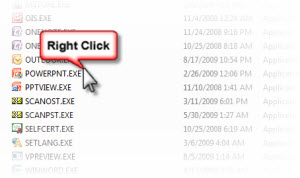
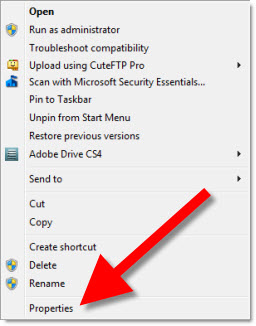
2. Right-click and open the PROPERTIES

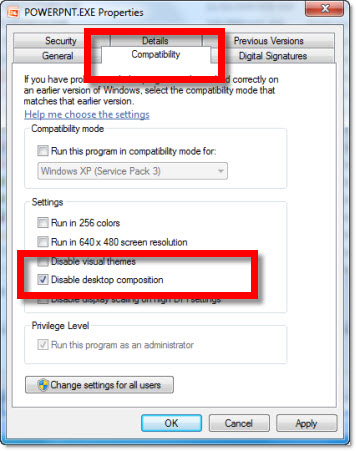
3. Go the the COMPATIBILITY TAB and be sure the DISABLE DESKTOP COMPOSITION is checked.

Run PowerPoint and all should be resolved!

– Troy @ TLC

By |2016-09-16T09:28:46-07:00October 23rd, 2009|Tutorial|

PPTLive in Atlanta – Text Effect

I am very happy to have made it to PPT Live this year with the crazy project schedule and it being on the other side of the country I feared I would miss out on this great event. But I am in Atlanta and looking forward to the next few days!

Just for fun I quickly created this slide using the great, but often overlooked, feature of picture fills for text.

The visuals are great, easy to do, and fast. The word “Atlanta” is made of a skyline shot of downtown Atlanta (at night). Even better is this is just one text box with different style treatments applied to text selectively!

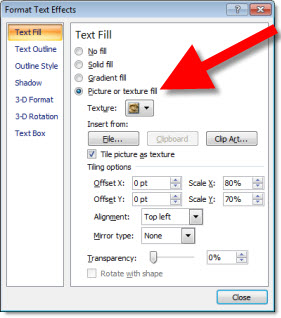
To fill text with an image, SELECT text >> FORMAT >> open FORMAT TEXT EFFECTS dialog >> TEXT FILL tab >> select PICTURE OR TEXTURE FILL >> FILE and select image.

– Troy @ TLC

By |2016-09-16T09:32:58-07:00October 11th, 2009|PowerPoint|

Blast Off! An Animated Slide

For a recent project a slide needed show the sales team activity was “Blasting Off” (as in super productive). This is the animation Lori developed, minus some corporate logos and text. We tend to stay away from “clip art” but in this case it worked with the message, the presentation visuals and the speaker’s style. Download the slide here.

Clip Art Animated Rocket Ship

– Troy @ TLC

By |2016-09-16T09:34:19-07:00October 8th, 2009|Portfolio|
Go to Top