
ToolsToo for PowerPoint 2026 Review
ToolsToo for PowerPoint, an amazing productivity suite of tools (in my opinion), recently released a significant upgrade to v12 – and then quickly released v12.1
My initial goal was to write a post about the new features added in v12. But as I reviewed the ToolsToo ribbon, the release notes, and reflected on where I use ToolsToo features, I was struck not by how great the new features are (and they are great!), I was struck by realizing the number of ToolsToo features that have become a part of my daily presentation design and formatting workflow. So, let me start with a summary of what is new in v12:
New in v12
- Make Same Shape
- Swap Formatting
- Extract Comments
- New chain tools; select body and select title
- Split Text to Two Columns
- Auto check for update
- Option to set the layout name to be used by the Agenda Generation tool
- Horizontal and Vertical Direction can have the direction specified (eg. Left to Right, or Right to Left)
Changes in v12
- Distribute Horizontally and Vertically. Now, use the Direction setting vs the text direction of the Reference Shape
- Renamed some tools
- Make Same Width, Make Same Height, Make Same Size. Now, set the perpendicular dimension(s) when the target shape is rotated 90 or 270 degrees
- The Reference Shape now works, even if the selected shape is a text selection
- Several bug-fixes listed (see the ToolsToo website for details, but I can say that none of the listed fixes were anything that impacted my use, or created problems with PowerPoint)
TROY, WHAT DO YOU USE?
I use so many of the ToolsToo functions daily – often hourly! So, needless to say, this is an honest review from someone who truly leverages the tool. Let’s shift a bit and focus on what ToolsToo features I use often and can’t function as a presentation designer without. To start, ToolsToo is a very full ribbon, complete with dozens of additional tools hidden in the many dropdown menu options.

NOT ALL ARE CUSTOM
- One of the unique things about ToolsToo is the entire right selection of features in the ToolsToo ribbon (when set to the Intermediate or Expert modes) is three sections of PowerPoint tools added. The theory is that these are so commonly used that it saves clicks to have them on the active ribbon
- For me, these are never used, but obviously, others find them helpful

CLEANUP TOOLS
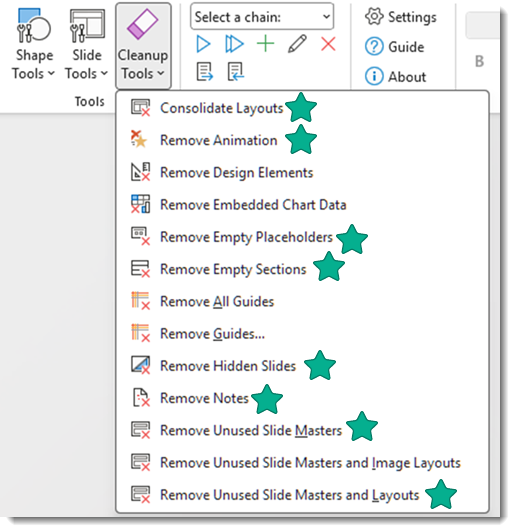
- This is one of the v12 updates, and I like it. This set of tools has been put into its own menu, the Cleanup Tools dropdown
- Previously, all of these were found in the Side Tools menu – making it a very long, scrolling menu
- Of note, the green stars are ToolsToo features I use routinely. These are either a faster, 1-click to accomplish a native PowerPoint option that requires far more clicks to accomplish
REFERENCE SHAPE
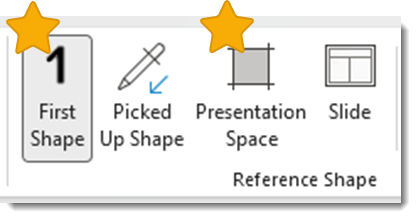
- It is nice that this selection is easy to locate and use by not being buried in a sub-menu
- While I have the FIRST SHAPE selected nearly all the time, the PRESENTATION SPACE is an amazing feature (and highlighted in one of the upcoming posts in this series on ToolsToo), and while not used often, it is my 2nd Reference Shape option
ALIGN
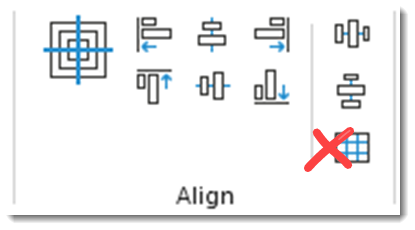
- These features are special in that they take over the native PowerPoint alignment tools, making them far more useful
- For example, with the First Shape selected as the Reference Shape, when selecting a 3-4-5 image on a slide, the Align Left option will not move all images to the furthest left; instead, all images will align to the left edge of the first selected image
- All of the options in the ALIGN section, except the Replicate (grid icon), are on my QAT and used daily, no hourly!
MAKE SAME
- On the far left is the SAME section

- I use so many of the functions in the MAKE SAME menu!
- The yellow stars are tools I value so much that they are on my QAT
- The green star tools are ones I find myself going to the ToolsToo ribbon for often
- Basically, everything in this menu is of value for presentation design, either saving clicks to accomplish things, or doing things that are not available in native PowerPoint (but should be!)

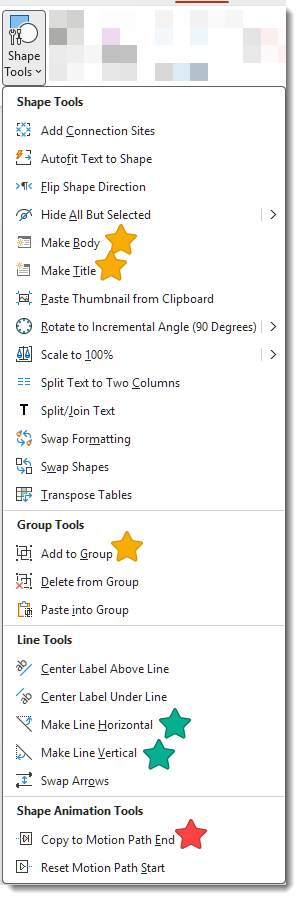
SHAPE TOOLS
- This button hides literally dozens of great formatting features
- The yellow stars are functions I find so useful that they have been added to my QAT
- The green stars are functions I routinely go to the ToolsToo ribbon for
- And the Red star is one that I not only routinely am in the ToolsToo ribbon for, but it has become my replacement for a tool Shyam Pillar, a former Microsoft MVP for PowerPoint, had coded and released almost a decade ago (which is sadly no longer available – but now there is a replacement)
WHY?
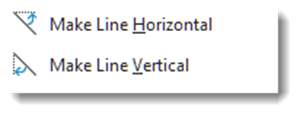
A common reason many PowerPoint add-ins exist is to provide functions that are not available in PowerPoint For example, why are these not available in PowerPoint?
- You know when a line is just not quite level or perfectly vertical, and we spend too much time manually working to make it straight – well, these accomplish it in 1-click!
ToolsToo for PowerPoint is a wonderous suite of functional improvements to PowerPoint design and formatting. Of note, ToolsToo is Windows only. It is under $25, and everyone on the TLC Creative presentation design team has ToolsToo installed on their computer and used as part of our daily workflow.
Get more info and details at the ToolsToo website: https://toolstoo.com
Troy @ TLC