I work with PowerPoint on a daily basis and I am very honored to be a Microsoft PowerPoint MVP. We have a talented team of presentation designers at TLC Creative Services and ThePowerPointBlog is our area to highlight PowerPoint tips, tricks, examples and tutorials. Enjoy! Troy Chollar
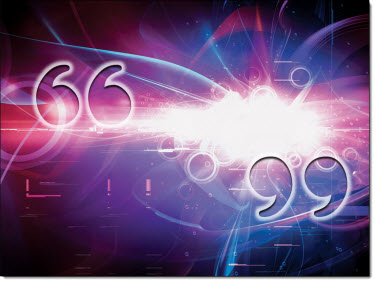
Creating Quote Mark Graphics in PowerPoint 2013
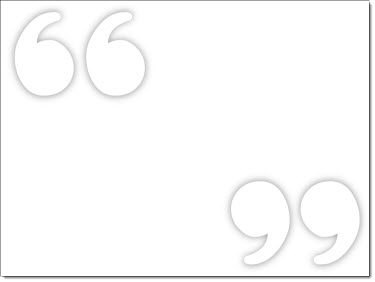
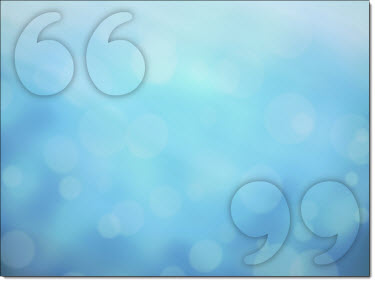
PowerPoint 2010 introduced the very great “Merge Shape” tools (see this post for details). With this toolset, editable vector shapes can be can be created directly in PowerPoint – something I refer to as “Illustrator 2.0.” With PowerPoint 2013, it includes the ability to convert text to vector, which is what we will use to create the stylized quote mark graphics for a complete PowerPoint workflow.

1. Add text in PowerPoint.
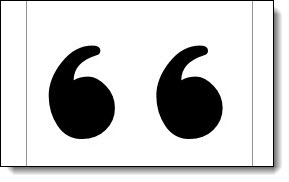
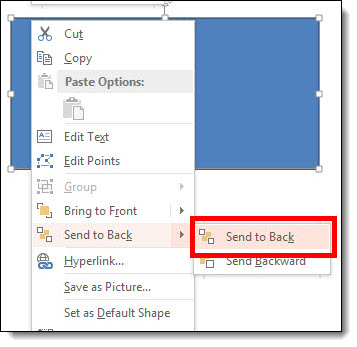
2. Add PPT shape, and send to back behind text.
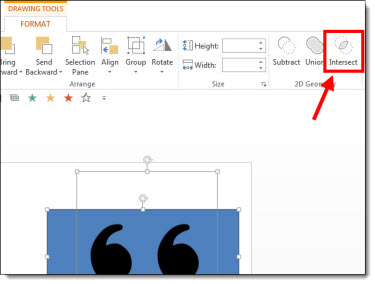
3. Select text and shape. On FORMAT ribbon >> MERGE SHAPES >> INTERSECT
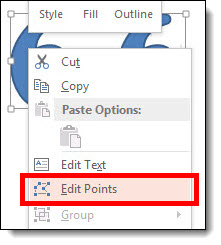
4. The text is no longer editable, as it is now shapes. Right click and select EDIT POINTS just like any shape in PPT.
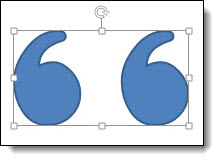
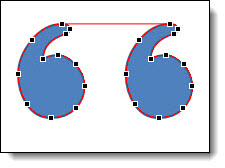
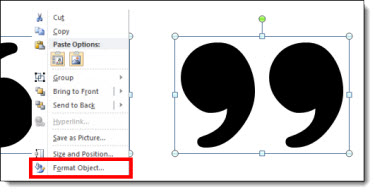
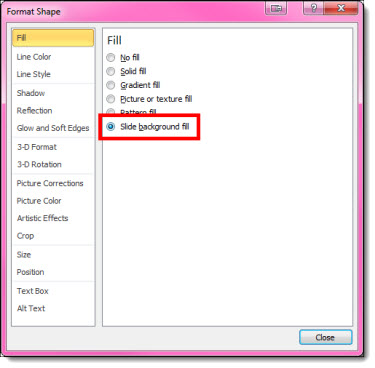
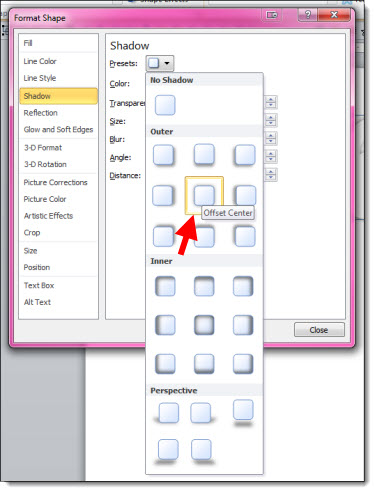
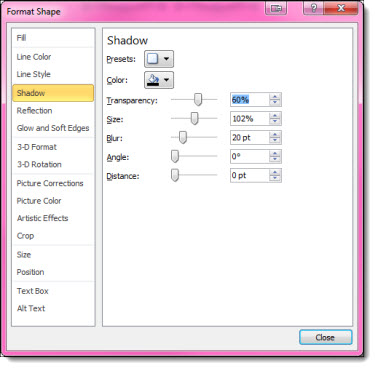
5. Stylize with no fill, light grey outline, drop shadow effect described in this post.
– Troy @ TLC