I work with PowerPoint on a daily basis and I am very honored to be a Microsoft PowerPoint MVP. We have a talented team of presentation designers at TLC Creative Services and ThePowerPointBlog is our area to highlight PowerPoint tips, tricks, examples and tutorials. Enjoy! Troy Chollar
Turn Off Text Hyperlink Color
PowerPoint automatically creates clickable hyperlinks for any text that begins with “www.” as well as all email addresses.

For presentations that are presented on screen, a clickable link is not needed (the audience is not receiving the slides) and can be a visual distraction. Like many things in PowerPoint there are multiple ways to make the unwanted color and underline go away. Here are 3 ways to turn off text hyperlink color or remove a hyperlink:
Option 1
- Highlight the link

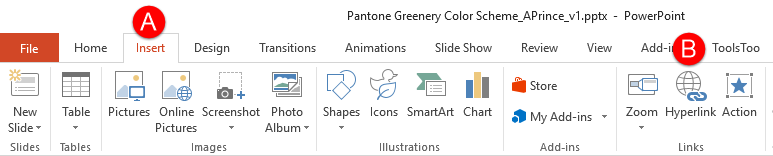
- On the ribbon, go to INSERT and in the LINKS section, choose HYPERLINK.
- Tip: CTRL+K on your keyboard is a shortcut to the Edit Hyperlink menu
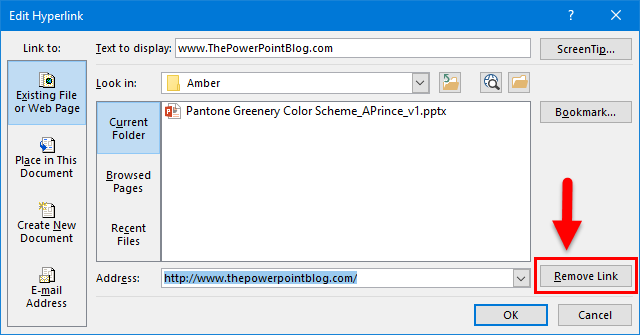
- Click the “Remove Link” button
Option 2
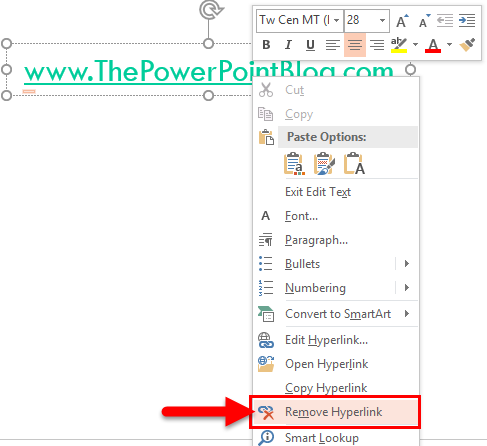
- Right click the hyperlink text and on the menu select REMOVE HYPERLINK
Option 3
-
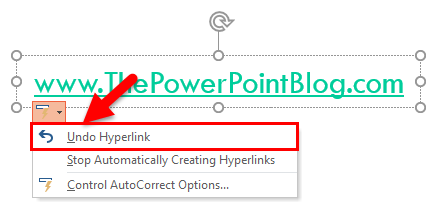
- This one is time sensitive. Immediately after the hyperlink text is entered (hyperlink text that automatically is configured as a hyperlink either starts with www. or has the email address formula with an @ symbol), the text changes to a hyperlink and there is an ‘AutoCorrect Options’ button.
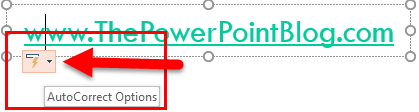
- Click the button, and select UNDO HYPERLINK
- This one is time sensitive. Immediately after the hyperlink text is entered (hyperlink text that automatically is configured as a hyperlink either starts with www. or has the email address formula with an @ symbol), the text changes to a hyperlink and there is an ‘AutoCorrect Options’ button.
There, 3 solutions to removing unwanted hyperlink coding in PowerPoint (also works in Word and Excel)!
Troy @ TLC