The PowerPoint® Blog

I work with PowerPoint on a daily basis and I am very honored to be a Microsoft PowerPoint MVP. We have a talented team of presentation designers at TLC Creative Services and ThePowerPointBlog is our area to highlight PowerPoint tips, tricks, examples and tutorials. Enjoy! Troy Chollar

Start a New Email Quickly

Windows 10 (this may work on other OS versions, I just don’t know as I only use Windows 10 now) I have added Outlook to the task bar. To start a new email I do not switch Outlook, go to the Home tab, find and click the New Email button. I right-click the ever present Outlook icon on the task bar and select NEW EMAIL MESSAGE – done (okay, new blank email ready to be written).

Troy @ TLC

By |2019-01-31T14:34:06-08:00August 20th, 2018|Software/Add-Ins|

Windows 10 Notification Pane- Use It

The Windows 10 Notification Pane is often overlooked – and depending on the computer settings, the number of notifications it creates can be annoying and definitely lend to it being ignored (for reference, TLC Creative computers have the majority of notifications turned off!). Click the notifications icon in the lower right of the task bar to view.

The Notification Pane opens (thankfully I have no actual notifications) AND shortcuts to several Windows 10 features. So the real use of the Notification Pane is to easily turn on/off features or open their options.

These are the most common used options (by me)

Airplane mode is just like on your phone, WiFi – Bluetooth – and other features are all turned on or off with a single click. We run Airplane mode note only when flying, but often on our show computers where we do not want anything interfering with that computer displaying presentation graphics to the world.

Project is just another way to open the video output selection pane, it is the same as Windows + P (for Projection).

Mobile hotspot is one of the best features of Windows 10. Easily share that computers internet with other devices – and the internet connection can be wired or wireless that it shares!

Focus Assist is new, and it has some great features for presenters. Stay tuned, this feature has its own blog post this month.

Bluetooth is used a lot, mostly to turn it back on after clicking the Airplane mode button and wanting my Bluetooth mouse back!


Troy @ TLC

By |2019-01-31T14:34:06-08:00August 17th, 2018|Software/Add-Ins|

Windows 10 Improved Start Menu (Left Icon Column)

The Start Menu is one of the most noticeable changes with Windows 10 vs previous versions. It took a few versions – mostly merging Windows 7 and Windows 8 into a working start menu! Another recent small improvement is good know about as it adds some detailed information that went missing (a common comment I have about the Mac OS is that all makes sense if you know how a Mac works, but starting fresh a number of icons and settings make no sense).

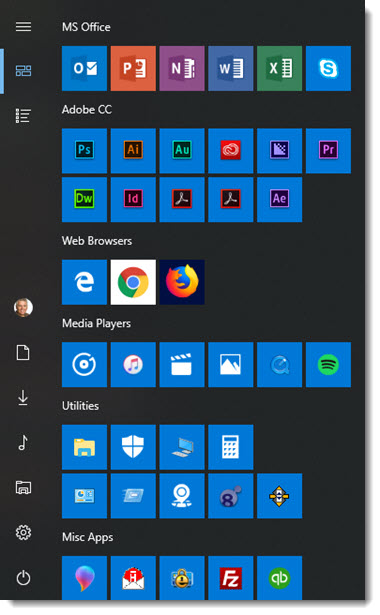
One the start menu, note the far left column is just icons. These are great for keeping the features handy  while minimizing space. 

If you are not certain what the icons represent, click the 3-line icon at the top. The left strip expands to show the full names of each feature (see the April 5, 2018 post on customizing what features are in the left strip).

Troy @ TLC

By |2019-01-31T14:34:06-08:00August 15th, 2018|Software/Add-Ins|

Windows 10 Audio Improvements

Setting up and confirming audio from a show computer can be tedious and confusing. But a fairly recent improvement in Windows 10 makes this important setup much easier!

Click the speaker icon in the task bar and in addition to the familiar volume slider it now lists what audio output the computer is set to – without diving into the control panel. Here I can see my computer is set to use a USB audio port for sound.

A common issue when setting up a computer is the HDMI cable used for the video out also high-jacks the audio feed, even if the audio was set to use something else. By clicking the speaker icon we can easily see what the computer is set to use for audio output. By clicking the expand icon it shows every audio output option currently connected to the computer. Just scroll and select the one needed – easy (now)!

Troy @ TLC

By |2018-08-13T09:12:57-07:00August 13th, 2018|Software/Add-Ins|

August is Windows 10 Month!

August is here (amazing)! I lost a week while travelling, but have the balance of August planned out for the blog.

Microsoft has done a lot since the release of Windows 10, which has become my favorite version they have released (and I started my computing journey prior to Windows 95!). Some of the recent fine tuning improvements can directly relate to our presentation world, or being more efficient and saving us time for more presentation design. So if you work on the Windows OS, hopefully a few of these will be new and helpful tips.


Troy @ TLC

By |2018-08-13T09:01:26-07:00August 11th, 2018|Personal|

The Presentation Podcast Episode #59 Released Today!

A new episode of The Presentation Podcast with Troy, Nolan, and Sandy is available today! Check out the latest episode, #59 – What is Round-Tripping Video?

Video round-tripping in PowerPoint is like the movie inception, where we figure out everything is a dream, inside of a dream, that is possibly inside of another dream… this is creating content in PowerPoint, that is exported to video, and then that video become part of the PowerPoint content, or a slide with a video of PowerPoint content with other PowerPoint content. It is crazy stuff you can do with PowerPoint, and Troy, Sandy and Nolan have a great design studio conversation all about it!

By |2018-08-06T19:10:33-07:00August 7th, 2018|Resource/Misc|

New Old Stock

New Old Stock 1

New Old Stock aggregates and displays images from Flickr with most (if not all) images being under the Creative Commons License (author assumes). Author also creates photo packs that are for sale. The images are amazing, and sometimes exactly what is needed for a presentation! The downside is the search options, whicr are very limited (and frustrating).

You can download the image by clicking on it, and it will open the image in a lightbox the image can be saved with a right-click. Tip: the title of the image on the main page is a link to the original Flickr library where the image was posted.

New Old Stock 2

There is a search option in the upper left which is helpful since there are no categories or any other organization. It’s not clear on how often a new image is posted.

Here is a sample of some of the images available:

New Old Stock 3


By |2018-07-20T08:53:46-07:00July 30th, 2018|Resource/Misc|

Pexels

Pexels 1

Pexels features free, high quality images, all licensed under Creative Commons Zero (CC0). They say 3,000+ new images are added each month, and the image library exceeds 40,000. Images are sourced from their community of photographers and other sources such as Pixabay, Gratisography, Little Visuals and more.

Pexels 2

Browse collection by what’s trending, or search something specific. Click on an image you wish to download, and Pexels will give you a variety of size options to choose from. You can resize directly within the site as well!

Pexels 3

There is a lot of great content and the site credits all photographers, even providing an option to donate to photographers you use and like so they can continue to make content. Here is a sample of some of the images available:

Pexels 4

By |2018-07-20T08:49:38-07:00July 27th, 2018|Resource/Misc|

StockSnap

StockSnap

StockSnap (originally reviewed March 23, 2018) is a royalty free stock photography site that is worth bookmarking for presentation design. All images on the website are FREE and do not require attribution, both great things for presentation designers to hear! Photographers choose to share their work with StockSnap and release them under Creative Commons, so they can be used for personal and commercial use. There is a variety of imagery, with categories from business to nature.

 StockSnap

Select an image and all the vital information regarding the photo is available; photographer, dimensions, size and relevant tags.

StockSnap

When searching images, the site will advertise some images with watermarks. These, and “sponsored images,” are from outside websites that are not included in the free StockSnap library. If your project needs a good, free, image resource, this is a perfect option to have available.

Here is a sample of some of the images available:

StockSnap

Troy @ TLC

By |2018-07-20T08:46:55-07:00July 25th, 2018|Resource/Misc|

Unsplash

unsplash 1

What makes unsplash (originally reviewed June 21, 2017) different from other image sites is that it does not actually own the images, but it does host the images for download. Unsplash is a community with photographers submitting images, all of which must meet the Unsplash criteria (quality, licensing, file size, free). It was founded in 2013 and is based in Montreal, Canada.

On the quality side, one of the requirements is that photos are at least 3MB and 2048 by 1536 pixels in size – which is great for presentation use! The licensing is near perfect. This is just the first paragraph of the Unsplash License: “All photos published on Unsplash can be used for free. You can use them for commercial and noncommercial purposes. You do not need to ask permission from or provide credit to the photographer or Unsplash, although it is appreciated when possible.”

I will not be giving up our subscription to Adobe Stock or Getty, but we have added Unsplash to our list of resources. Tip: After selecting a collection or doing a search, click the small grid layout icon to see images in a more friendly grid layout.

unsplash 2

To download:

  • Search for an image
    unsplash 3
  • Click on the image
    unsplash 4
  • Use the save options in the upper right (or save to collection if you have signed up with a free membership) or the download icon if viewing as a thumbnail grid
    unsplash 5
  • Use image in project!

Here is a sample of some of the images available:

Troy @ TLC

By |2018-07-20T08:45:22-07:00July 23rd, 2018|Resource/Misc|
Go to Top