Resource/Misc

100th Episode of The Presentation Podcast!

A new episode of The Presentation Podcast is available today – and it is the 100th episode! Troy, Nolan and Sandy recount 100 of their favorite tips and moments from the first 100 episodes of The Presentation Podcast. Yes, this is the 100th episode – amazing!! Listen on Apple Podcasts, Stitcher, Google Play, Spotify and Soundcloud – just search for The Presentation Podcast for “100 from 100” or go direct to the episode page here: https://thepresentationpodcast.com/podcast/100

[KGVID]https://thepowerpointblog.com/wp-content/uploads/2020/04/unnamed-file.mp4[/KGVID]

By |2020-04-20T12:37:55-07:00April 21st, 2020|Resource/Misc|

New INSERT Image Options!

There is something new* in your PowerPoint, but it may not have been discovered yet. The Insert Picture button has expanded to offer more options, and NEW images.

Here is before the update. Insert PICTURES was just a button with no options.

It opened this standard, go-find-the-image-on-your-computer dialog

But now (*as of today this applies to Windows Monthly Targeted and Office Insider builds, I have not tested on standard release, Mac or online versions) the PICTURES button is a split button with more options!

Let me show what each option offers. Click the THIS DEVICE option and we get the same go-find-the-image-on-your-computer dialog

I am going to jump to the third option, ONLINE PICTURES, and save the new stuff for last. Online Pictures is an image search via Bing Images. Nothing new here.

Click the STOCK IMAGES option and we are treated to a new library of high quality photo images. These are all Royalty Free for use in Microsoft app products (eg. my understanding is they can be used in a PowerPoint, Word, Publisher, Excel document and there is no legal issues. But if they are extracted and added to an Illustrator or InDesign document or provided as a stand alone image, the royalty free status may not be enforce). I found the images very nice, great quality and good to use and look unique right now (after 18 months I feel everyone will have seen these images so many times, they will feel “old”).


The CUTOUT PEOPLE tab are all .png images of people with transparent background. These are going to get a lot of use and it is a great first release package.

The ICONS tab is also what the INSERT > ICONS button opens. It has a new layout to the icons and expanded set of icons (yay!). PRO TIP: 1 click access vs. 2 clicks. It is 2 clicks to open this dialog if we go to PICTURES and click for the drop down menu and a second click to open the dialog to STOCK IMAGES. But it is 1 click to click the ICONS button to bring up this dialog (opened to the icons tab).

The STICKERS option is new. I know some people are going to love these, and others (like me) cannot see a need for them… These are not animated .gifs, just static fun, full color “cartoons”.

Behind the scenes, Microsoft has done a lot of work on the search. This includes metatags for all images in the library, AI assisted recognition of entries, and a more streamlined process.

Something new for everyone to check out, experiment with and possibly use in your next presentation!

Troy @ TLC

By |2020-04-15T11:40:43-07:00April 15th, 2020|Resource/Misc, Software/Add-Ins|

The (PowerPoint) Telephone Game

Remember back as a kid and the teacher had all the kids sit in a circle, whispered a sentence to the student sitting next them, then that student whispered the sentence to the next kid and the next, next, next. Finally the teacher announced what they had said, and the heard and the last student announced what they heard – which was very different. It was “The Telephone Game”!

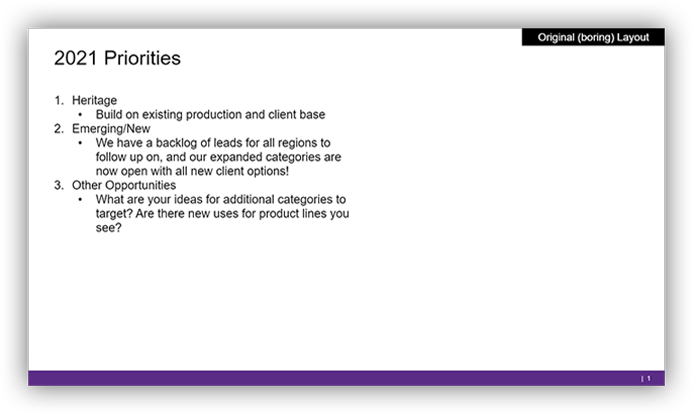
For the TLC Creative presentation design we created the PowerPoint version of The Telephone Game. Everyone is designing this quote, starting with this very boring bullet list slide:

We then drew names for a random order. The first designer was able to create any slide design they wanted. The next designer created their own version of the slide BUT had to incorporate at least 1 element from the previous designers version! The results are amazing and show that there is no limit to creativity!

See you Monday when the TLC Creative COVID-19 Design Challenge #2 results are revealed!

Troy @ TLC 


By |2020-04-10T08:22:40-07:00April 10th, 2020|Resource/Misc|

New Episode of The Presentation Podcast – Being a Remote Presenter

A new episode of The Presentation Podcast is available today! Troy, Nolan, and Sandy are joined by Ken Molay of Webinar Success. They talk about how to create and deliver remote presentations, hardware and software platforms, and tips, tips and more tips!

Listen on Apple Podcasts, Stitcher, Google Play, Spotify and Soundcloud – just search for The Presentation Podcast for “Being a Remote Presenter (with Ken Molay)” or go direct to the episode page here: https://thepresentationpodcast.com/podcast/99

By |2020-04-05T22:41:03-07:00April 7th, 2020|Resource/Misc|

Design Challenge #1

The TLC Creative Services Presentation Design Team was given this simple/vague/be creative challenge: 

Design a slide, or set of slides (up to 3 max), that integrates an amazing animation based on 6 circles. A “circle” is open to you to decide what that is. They can be small to large, any thickness, format, colors and styling effects. Your slide can be colorful, dark, monochrome – again, your design choice. Create an fantastic visual design, with even better animation.

See you tomorrow with the results!

By |2020-05-05T14:46:14-07:00April 1st, 2020|Resource/Misc|

Our Internal COVID-19 Design Challenge!

Like the rest of the world, the TLC Creative Services studio has transitioned. 3 weeks ago it was a lively design studio with everyone together. Today, we have everyone working remote from their homes. Because we have had a number of design projects cancel, or postpone to the Fall, we have started our own internal presentation design challenges to keep us all from going stir crazy! So, welcome to the TLC Creative Services COVID-19 Design Challenge!

Check back tomorrow for details on Challenge #1!


By |2020-05-05T14:46:20-07:00March 31st, 2020|Resource/Misc|

PowerPoint Adds HEX Colors

Note: as of today, I see this new feature on the Office Insider build (early beta), but not yet on the Monthly Targeted build (enterprise beta) or Standard build (stable, no beta). So you may not have this available in your install just yet.

In the most recent Microsoft 365 Office update there is a new option in the color dialog – HEX colors (yay!). 

Select a shape, outline or text and choose MORE FILL COLORS

In the COLORS dialog, under the RGB values is a new option for HEX values.

Is HEX colors important? Yes and no. Anything expands the use of PowerPoint is good (in my opinion). Hex color values are primarily thought of in web design. For me, the addition of adding a Hex color directly in PowerPoint is time saver, because my biggest use is gathering colors from a corporate style guide where the colors are listed in PMS and HEX values.

My summary of RGB vs. Hex:

  • RGB sets each color as a value or Red-Green-Blue mixed, set as a number range of 0-255 for each. So a color can be a 3 digit to 9 digit value.
  • Hex is a set 6 digit value that based on a grid of 16 million colors. The 6 digit value is made up of both numbers and alpha letters.


Example of a Hex color chart:

Close up of a section of a Hex color chart, showing each color has a 6 digit value


Last note: the Hex color value was just added to PowerPoint desktop this week, but it has been in the PowerPoint for Web app for several months. The web app has a different color dialog (which I like). It prioritized the Hex value and does not include the HSL color option.

Troy @ TLC

By |2020-03-16T12:07:10-07:00March 19th, 2020|PowerPoint, Resource/Misc|

New Episode of The Presentation Podcast – Microsoft Office Secrets; All About PowerPoint

A new episode of The Presentation Podcast is available today! Troy, Sandy and Lori of TLC Creative Services, Inc. start a new series “Microsoft Office Secrets”. Today is all about PowerPoint and 30+ hidden or unknown slide design tools and features!

Listen on Apple Podcasts, Stitcher, Google Play, Spotify and Soundcloud – just search for The Presentation Podcast or “Microsoft Office Secrets of PowerPoint, Part 1” or go direct to the episode page here: https://thepresentationpodcast.com/podcast/98

By |2020-03-16T10:16:52-07:00March 17th, 2020|Resource/Misc|

Webinar on Designing with Google Slides

Everyone should mark this date: April 1, 2020

The Presentation Guild has an upcoming webinar that promises to be fantastic for presentation designers. Vincent Thompson from BrightCarbon is spending a full hour giving tons of design examples and how-to’s when it comes to working within Google Slides.

Get details and register here.

Note: this is a Presentation Guild member-only event (and free for members!). If you work with PowerPoint, Keynote, Google Slides, etc. – the Presentation Guild membership is highly endorsed by me.

Troy @ TLC


By |2020-03-16T09:47:53-07:00March 16th, 2020|Resource/Misc|

Animated .GIF of the TLC Creative Logo – Created in PowerPoint

I wanted to compare the image quality of an exported animated .gif and an exported .mp4 video. Jake, on the TLC Creative design team, created this simple and effective seamless loop animation of the TLC Creative Services logo. No PowerPoint animation or slide transition, just 6 slides of the logo elements in different positions and drop shadows in corresponding sizes.

Animated .GIF

.MP4 Video

[videopack id=”13819″]https://thepowerpointblog.com/wp-content/uploads/2020/03/unnamed-file-1.mp4[/videopack]

Troy @ TLC

By |2021-05-20T13:29:17-07:00March 5th, 2020|PowerPoint, Resource/Misc|
Go to Top