Software/Add-Ins

PPT 2003 to 2007 Commands

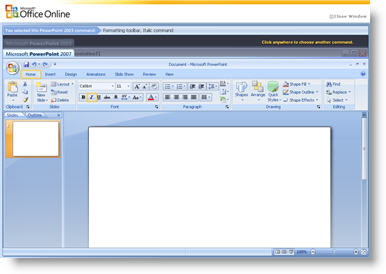
If you have installed PowerPoint 2007, you know the User Interface with its new Ribbon layout is very different! Keep this Microsoft website handy as you begin to relearn how to do everything.

This interactive Flash page allows you to click and choose almost any feature in a PPT 2003 simulation and then it shows where to find the same command in PPT 2007. Click here to try it.

– Troy @ TLC

By |2016-11-17T15:56:05-08:00April 12th, 2007|Software/Add-Ins, Tutorial|

Vista and PowerPoint Add-Ins

I am grappling with Vista and its new file structure and security ‘features.’ One thing I have discovered, and this affects several add-ins for PowerPoint, PhotoShop and Dreamweaver so far is the permissions settings for the PROGRAM FILES folder. It looks like Vista has made these default to read only, or non-accessible for many add-ins. Of course this is only a problem is the add-in installs itself in the Program Files folder (which almost all do).

I can offer two recommendations:
1. Give all users full permissions on the Program Files folder (Note: this may lead to other security issues as Microsoft has seen fit to change this globally)
2. Change where the add-in is installed. Create your own folder like C:Add-Ins (Note: the application will need to know to look for add-ins here)

Ah the joys of new technology… Maybe I will be able to get back to designing presentations soon.

– Troy @ TLC

By |2016-11-17T15:50:46-08:00March 26th, 2007|Software/Add-Ins|

Side-by-Side Comparison of Streaming Movie Formats

This may not appeal to everyone, but with all of the PowerPoint-to-Webcast and streaming video projects this website really got my attention!

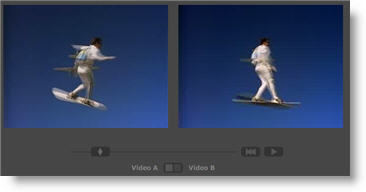
Select a movie clip, then select any of the main Flash streaming formats and see a side-by-side comparison of the quality. A really good example is On 2 Flix Flash 7 (first real streaming encoding software I used) with the newer On 2 Flix Flash 8 (which I use extensively and Camtasia Studio uses as its encoding engine).

A bit geeky, but very interesting! Click here to go to the Flash Video FAQ.

– Troy @ TLC

By |2016-11-17T15:40:59-08:00February 19th, 2007|Software/Add-Ins|

Pictures of Earth, or your house, in Presentations

I have seen a huge increase in the use of aerial photography in presentations. Of course this is from the availability of services such as Google Earth, Microsoft VE and others.

Here is a great website that lets you find a spot on earth and then move between a number of online mapping systems to see how each looks. Check out Flash Earth by clicking here.

– Troy @ TLC

By |2016-11-17T15:40:08-08:00February 17th, 2007|Software/Add-Ins|

The Online Presentations Are Coming!

There is a growing demand for online presentations. I have been very busy over the past year converting PowerPoint presentations to Flash and streaming movie formats for online use. This is great stuff, but definitely not the solution for the average user. Well here is a hint that the average user may be getting some tools to make their own online presentations in the near future. Click here to read about it.

– Troy @ TLC

By |2016-11-17T15:38:06-08:00February 9th, 2007|Software/Add-Ins|

Do You Use PPTs Native Org Chart Tools?

I know a lot of presentations need organization charts. I know a lot of people design their org charts with PowerPoints native org charting tools. I also know a lot of people that are very frustrated while editing these org charts!

Thanks to “Mary” who replied to a post on the MS PowerPoint Forum and provided a link to a great tutorial on ways to modify PPT developed org charts. Click here to open the “Add a second top-level box to an org chart in PowerPoint” tutorial on the Microsoft website.

– Troy @ TLC

By |2016-11-17T15:37:41-08:00February 7th, 2007|Software/Add-Ins|

Add Align Tools to a Toolbar

I use the Align and Distribute tools constantly. But accessing them by going to the DRAW button and then into the ALIGN OR DISTRIBUTE tab was just to much work. I added these important tools to my Draw toolbar, which now has a number of addtional buttons – all to make my work faster and easier.

– Troy @ TLC

By |2016-11-17T15:32:04-08:00January 22nd, 2007|Software/Add-Ins, Tutorial|

MS PowerPoint Homepage

Everyone here uses PowerPoint, but how many have explored the PowerPoint section of the Microsoft website?

Amongst the advertising, hype and standard Microsoft info is a lot of good information, tips, and files. Click here to go straight to the PowerPoint homepage.

– Troy @ TLC

By |2016-11-17T15:31:18-08:00January 18th, 2007|Software/Add-Ins|

Looking for the (Lorum Ipsum) Words To Say?

When developing a presentaion the real text is often not available for the first proof. So what do you do? I add “greeking” or lorum ipsum text.

Should you need some professional greeking text all you need to do is head over to www.lipsum.com and use the quick wizard to create the amount of text needed. Then just copy and paste into the presentation. And as a bonus you can also read the history of Lorum Ipsum text!

– Troy @ TLC

By |2016-11-17T15:29:15-08:00January 6th, 2007|Resource/Misc, Software/Add-Ins|

Pick the Exact Color – Fast and Easy

A perfect compliment to any version of PowerPoint is PPTXtreme’s Color Picker. The great thing about this sample slide is the text and box fills are the exact same color and colors pulled from the logo. No guessing, just point and click to select the exact color!

When one of the Color Picker tools is selected a small information window opens and wherever your cursor is, the color is displayed. Click on anything on your monitor and that color is selected.

Color Picker can select the color for Text:

For Autoshape Fills:

For Lines:

It also works with selecting dropshadows. At $20 this is an invaluable tool to add to PowerPoint.

– Troy @ TLC

By |2016-11-17T14:57:33-08:00November 15th, 2006|Software/Add-Ins|
Go to Top