Tutorial

PPT Brightness & Contrast Buttons

PowerPoint has very, very basic image editing capabilities. But some great effects and adjusts can be created quickly using the Brightness and Contrast toolset. Here is my original image of a chess board added to the slide.
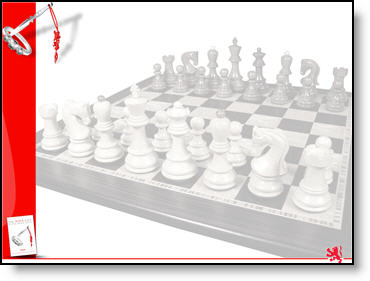
But it is to dark and too much contrast to effectively overlay text on.

Here is my adjusted image:
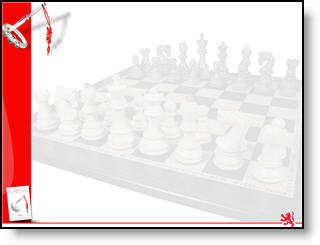
Instead of opening the image in Photoshop again – adjusting the brightness and contrast – saving out – re-inserting into presentation, I did all of the needed adjustments directly in PowerPoint.

I selected the image, increased the brightness around 8 clicks and decreased the contrast around 10 clicks and now the image is ready for the text box to be added to the slide. Took less than 10 seconds!

– Troy @ TLC
By |2016-11-17T15:30:18-08:00January 12th, 2007|Portfolio, Tutorial|

Embed Large .Wav Audio Files

I have covered this before, but it keeps coming up. This week I created this quick tutorial for a client, so here it is in a bit more detail.

1. The only audio format that can be embedded into a PowerPoint presentation is a .wav

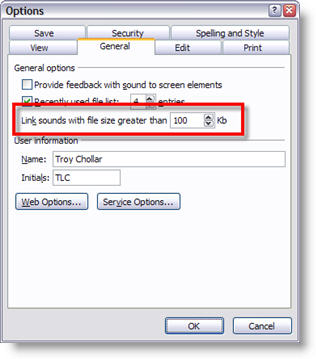
2. By default PowerPoint will only embedd a .wav file if it is under 100k (very small – generally less than 10 seconds)

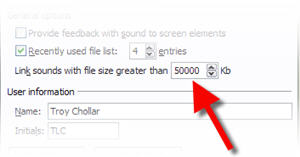
3. You can raise the embeddable file size to 50 MB!

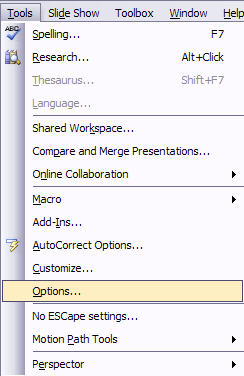
4. Go to TOOLS >> OPTIONS

5. Go to the GENERAL tab

6. Change the 100 to 50000 (do not add a comma)

7. Done!

– Troy @ TLC

By |2016-11-17T15:29:56-08:00January 10th, 2007|Tutorial|

Hardware Acceleration and The PowerPoint Viewer

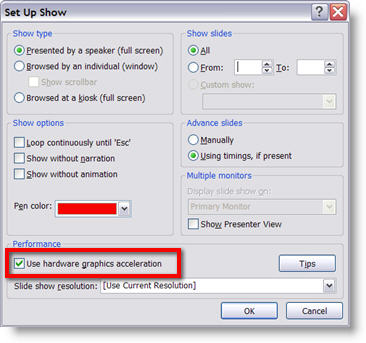
The super-useful PowerPoint Viewer application does have one flaw – it does not have the ability to take advantage of a computers graphics card power with the “Use Hardware Acceleration” feature. So if you have a presentation that is going to be distributed and viewed with the PowerPoint Viewer I would recomend turning off the Hardware Acceleration and viewing the slideshow to get a better idea of what others will see.

– Troy @ TLC

By |2016-11-17T15:07:47-08:00November 29th, 2006|Tutorial|

Should I use Hardware Acceleration?

If your computer has dedicated graphics memory – yes.
If the computer has a shared memory graphics processor – no.

To check what you have, go to:
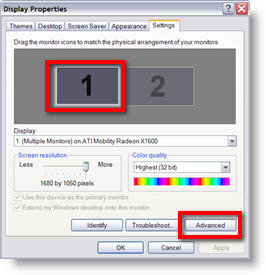
(1) START >> CONTROL PANEL >> DISPLAY >> SETTINGS tab
(2) Select “Monitor 1”
(3) Click the ADVANCED button

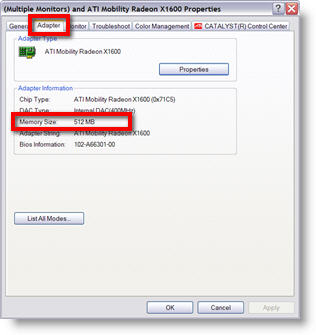
(4) Go to the ADAPTOR tab. Here you can see the manufacturer, model and amount of memory of the graphics card.

TIP: if the computer uses an Intel graphics processor, it is shared memory. ATI and NVidia manufacture both shared memory and dedicated memory cards.

– Troy @ TLC

By |2016-11-17T15:05:58-08:00November 27th, 2006|Tutorial|

Smoother Animation with Hardware Acceleration

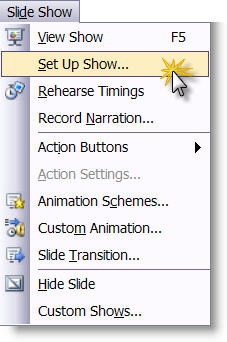
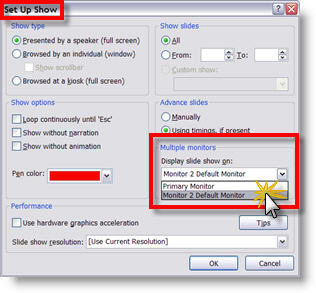
If you notice some of your animations are not playing smooth, check to assure you are using all of your graphic processor’s power. Go to SLIDE SHOW >> SETUP SHOW >> check the USE COMPUTER HARDWARE ACCELERATION.

Now run the presentation and things should be running much smoother.

– Troy @ TLC

By |2016-11-17T15:05:01-08:00November 25th, 2006|Tutorial|

Create a Glow with PPTXtreme SoftShadow

With creative use of PPTXtreme’s SoftShadow add-in instanst “Soft-Glows” can be created. If you have not checked out this very useful add-in go here.

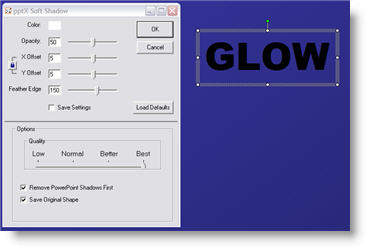
(1) Select text, autoshape or image. Here are my setting for adding a white drop-shadow.

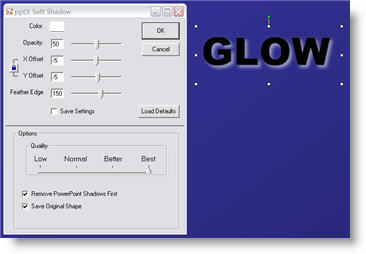
(2) Select the object again and apply a second softshadow. Note the negative (-5 and -5) X and Y positions, so the 2nd softshadow is positioned in the upper left. Here are my settings for this second softshadow.

(3) The result is a photoshop quality glow.

– Troy @ TLC

By |2016-11-17T14:47:06-08:00November 7th, 2006|Software/Add-Ins, Tutorial|

Extended And Smoother Animations

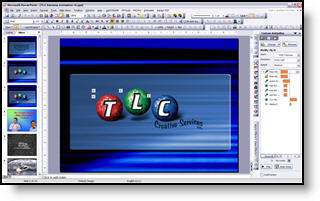
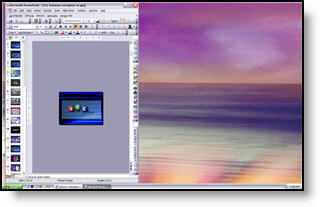
I personally do not use the Presenter View, but I do run many presentations in a similiar format – with slideshow on the secondary monitor/projector and PowerPoint in edit mode on the primary monitor.

Just like Presenter View, animations can be problematic. Each slide redraws in the edit mode and while it is updates processing power for animations is reduced. But there are some steps to take to minimize the animation lag.

There is a lot of processing power used with each slide transition if you have:
– Slide preview at 100%
– Both left and right action panes open
– PowerPoint running full frame

I have found better results when PowerPoint runs like this:
– Close the right action pane
– Reduce size of thumbnails in left action pane, or close all together
– Make slide preview 25% (active slide in center)
– Reduce the actual application window to run in a small vertical area

– Troy @ TLC

By |2016-11-17T14:26:01-08:00October 9th, 2006|Tutorial|

Word of Caution About Presenter View

If you opt to use PowerPoints Presenter View and the presentation contains lots of animation, test your output.

Because the presenter view redraws the slide display it can interfer with animation playback, making it visibly stutter or look choppy.

No easy cure, just something to be aware of.

– Troy @ TLC

By |2016-11-17T14:25:41-08:00October 7th, 2006|Tutorial|

Send Presentation to Second Monitor/Projector

With the computer set for Extended Desktop mode (see October 1 post), next is to setup PowerPoint to make use of the second monitor.

In PowerPoint go to: SLIDE SHOW >> SETUP SHOW

In the Multiple Monitors section click the drop down menu and select “Monitor 2 Default Monitor.”

Now the slide show will be on the second monitor (usually a projector) and your monitor will remain in Slide Design Mode.

– Troy @ TLC

By |2016-11-17T14:25:04-08:00October 3rd, 2006|Tutorial|
Go to Top