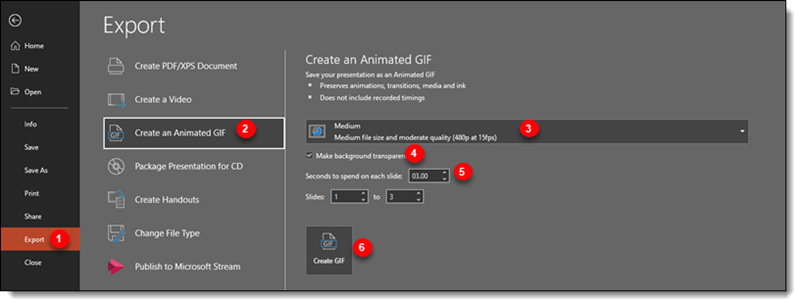
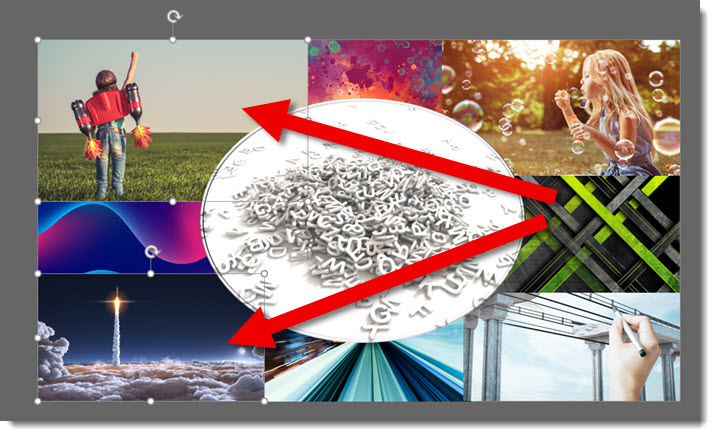
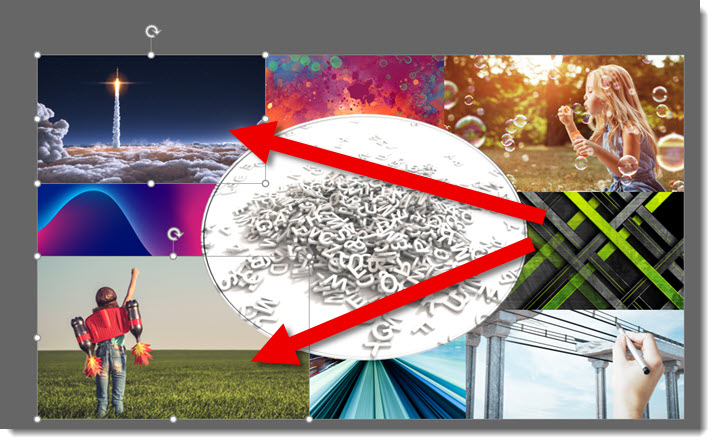
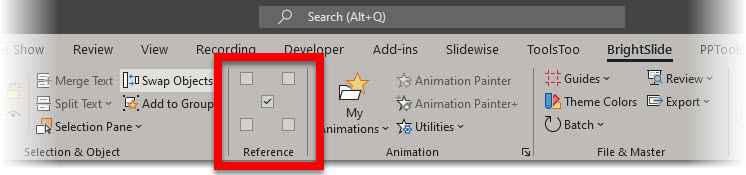
Tutorial

This image is Blurry, How Big is it?

Continuing looking at images in presentations, this time we are literally looking at an image on a slide and noting it appears “blurry”. The question is why? The #1 reason is the image has a small resolution and has been enlarged on the slide. Here is how to check and confirm.

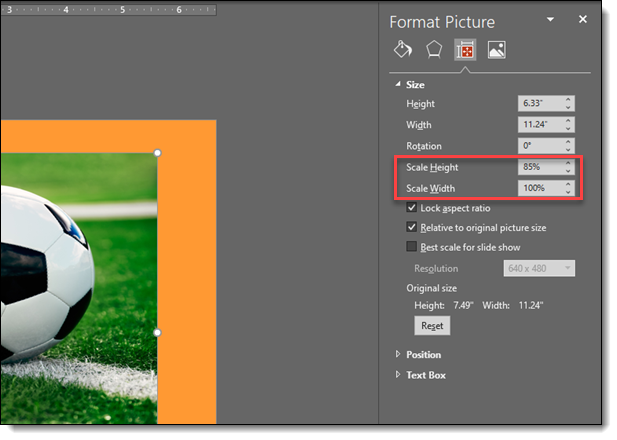
The image here is not full slide, but it is noticeably blurry.

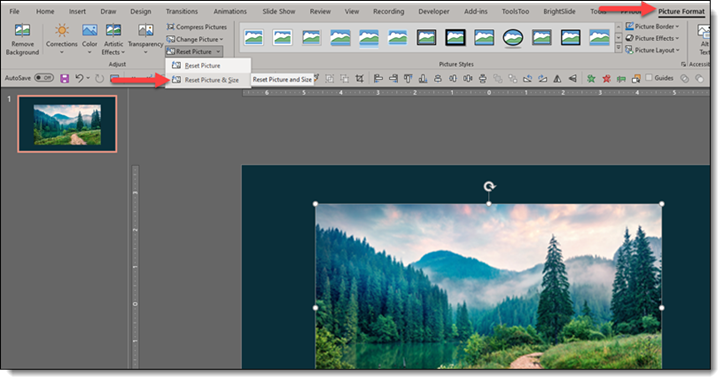
Select the image > go to the PICTURE FORMAT tab > click the RESET PICTURE dropdown menu > click RESET PICTURE AND SIZE.

The image will reset to its original/real size. In this example, the guess that the image was small and had been enlarged on the slide is correct. After resetting the image to the original size, it is MUCH smaller, hence the blurry resolution when it was enlarged.

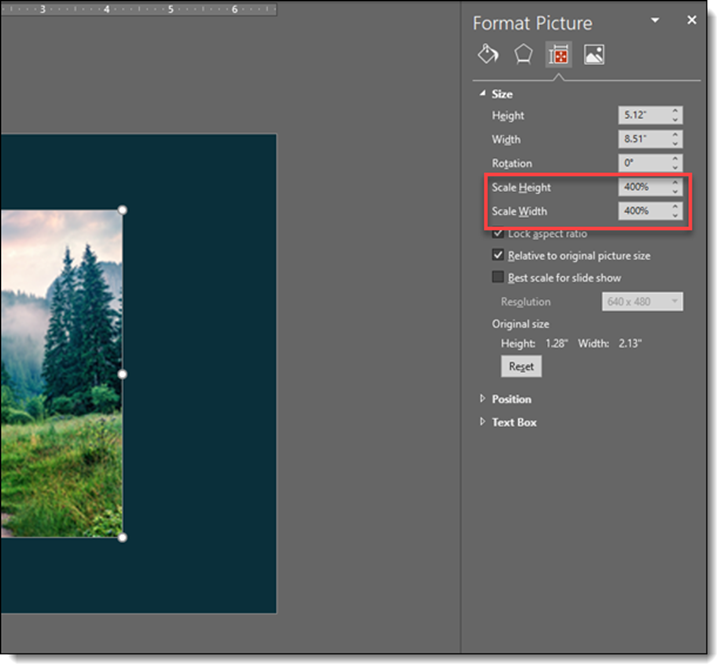
Another option, also describe in the previous post, is to select the image > open the FORMAT PICTURE pane > go to the SIZE AND PROPERITES tab > review the SCALE HEIGHT and SCALE WIDTH settings. This image has been enlarged to 400% from the original (4X its original size). Just from the numbers, we know it is not going to be a crisp image display…

By |2021-05-31T14:44:03-07:00June 16th, 2021|Tutorial|

Create a Custom Puzzle Image for Your Presentation

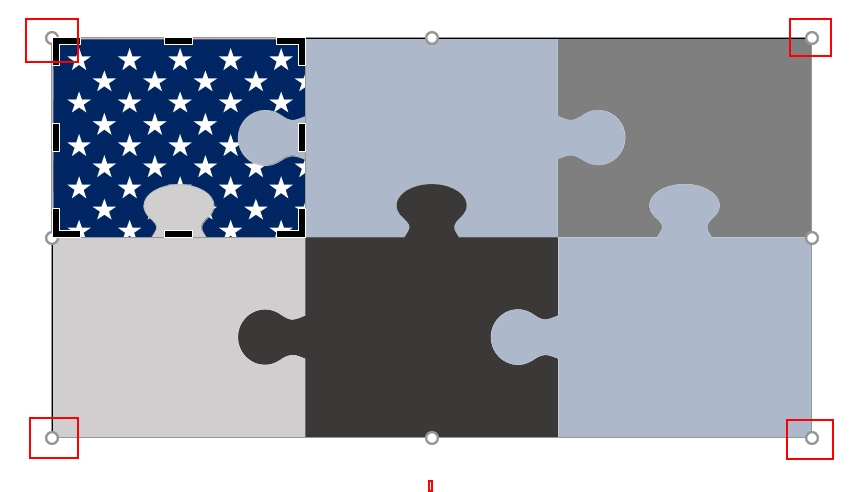
Puzzles are a great visual metaphor for presentations. We are sharing our process for creating a custom image for a presentation, with a puzzle piece theme. We do not want a single, flat image as that limits our presentation design options. But rather than create dozens of custom puzzle piece images in Illustrator or Photoshop, we prep a few images in these programs and let PowerPoint do most of the work.


1. Using Adobe Illustrator we created a image of 5 connecting puzzle piece shapes. These were exported as .SVG (vector) images.


2. Next we created a library of flag images that would be used in the puzzle pieces. These could be PNG or SVG format. We like the scalable nature of vector .svg images, and flags work well in this format. Here is an example of one flag image:

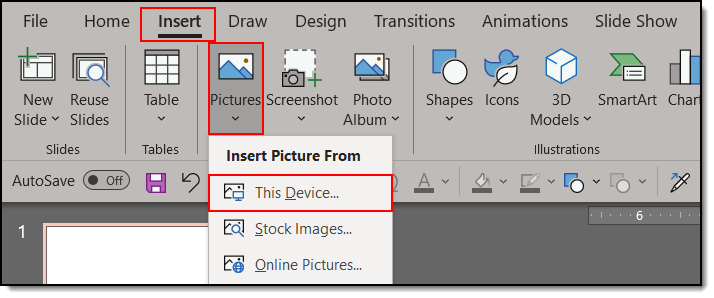
3. Insert the puzzle piece INSERT tab >> PICTURES tab >> FROM THIS DEVICE. From the dialog find the puzzle piece file.

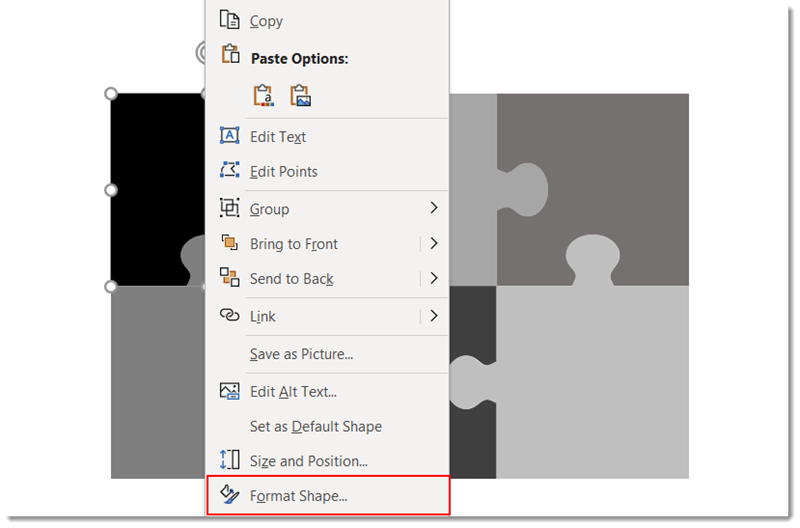
4. Right click the puzzle piece and select FORMAT PICTURE.

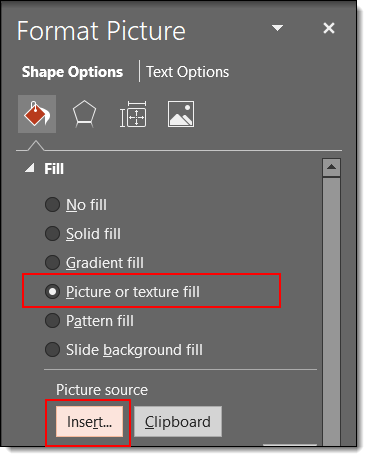
5. On the left pane select FILL. In the right pane select PICTURE OR TEXTURE FILL.

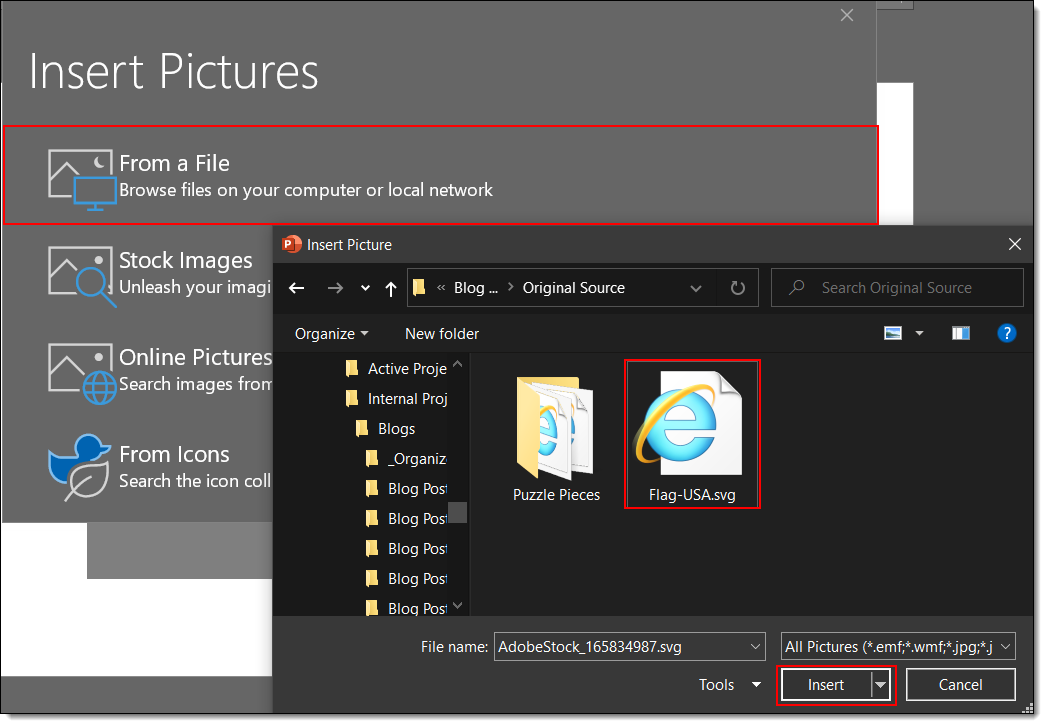
6. Click FILE and from the dialog find the American Flag image.

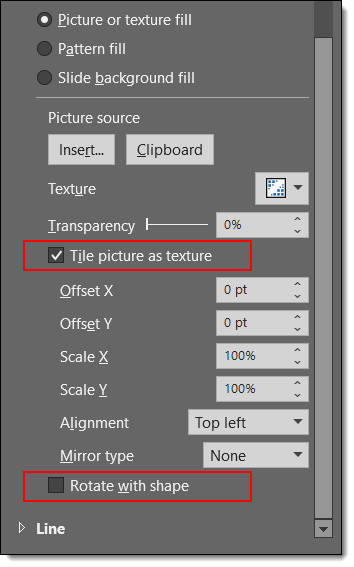
7. Check the box to TILE the picture as texture and UNCHECK the box at the bottom “ROTATE WITH SHAPE”.

9. However, if you uncheck the TILE picture as texture box, select CROP and then use the outer dots (not crop bars) to adjust the flag image size and position.

10. Have fun with formatting your shape! All PowerPoint style effects are available: bevel, drop shadow, reflection, etc. Because the ROTATE WITH SHAPE option is turned off the puzzle piece shape rotates, but the flag stays in the same orientation!

Download the PowerPoint slide of the puzzle piece American flag HERE.

Sara @ TLC

By |2021-05-24T11:49:09-07:00May 31st, 2021|Tutorial|

Paragraph Spacing for the Reader

Now that we’ve improved our text with selective bolding (previous post), now is the time to look at the huge impact line spacing can have on overall legibility.

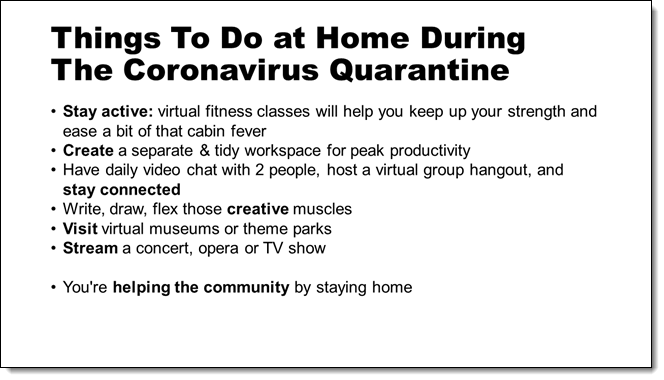
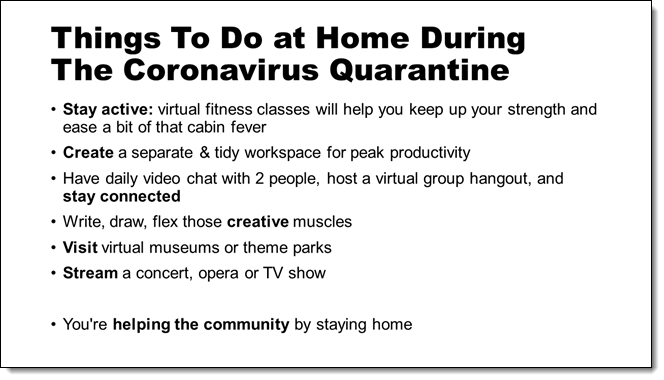
Here is our sample slide with the default 1.0 line spacing applied to every line. Everything is uniform, including the spacing between paragraphs (hard returns) and line wraps (soft returns). The only line of text that really stands out is the final bullet, which is separated by an extra return (not a best practice!)

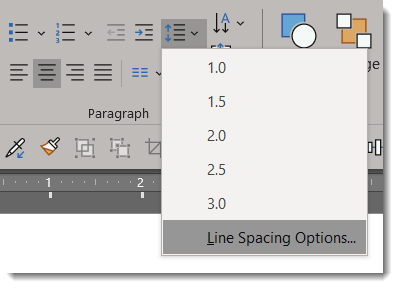
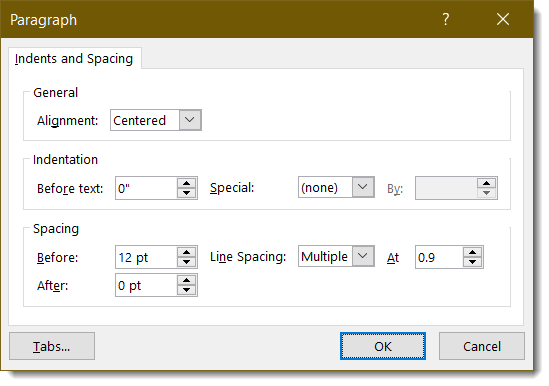
Select the bullet list text and set the line spacing to be a bit tighter at 0.9, and set the paragraph spacing to 12pt.

Now the lines of text are clustered better for the reader. The goal is to divide each bullet, keep paragraphs together as a unit and make it easier for the reader to digest the slide content.

Troy @ TLC
By |2020-06-18T13:30:39-07:00August 10th, 2020|Resource/Misc, Tutorial|

When Everything is Bold – Nothing is Bold

Are you designing a presentation with a lot of text? Not sure how to make your points stand-out? Typography is one of the most important aspects of a slide, and how well its done will determine how well you can communicate your message.

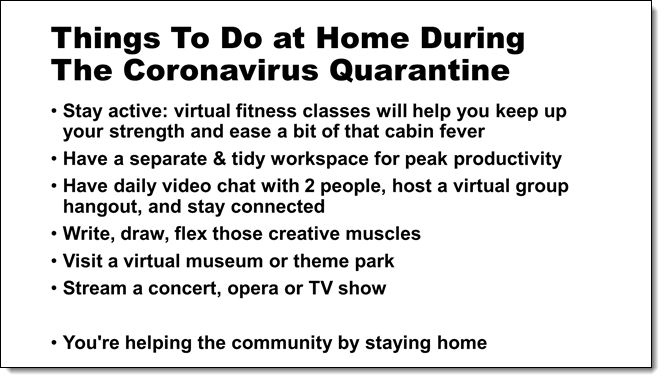
One way to grab your viewer’s attention is to utilize a bold font, which is heavier and darker than the regular type. Bold fonts are used for emphasis, but too much bolding can have the exact opposite effect, because when everything is bold – nothing is bold.

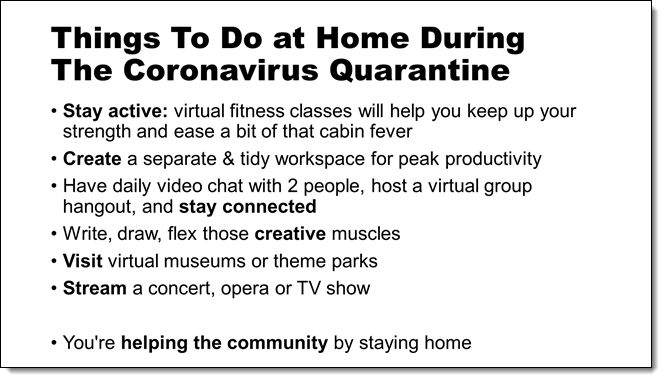
Selective bolding is a design process we use often. Be choosing key words to be bold and standout the viewer can quickly see, and read, what is important.

Happy bolding!

By |2020-06-18T13:23:38-07:00August 7th, 2020|Tutorial|

PPT Photo Album + Brightslide Match Size

I hinted at this great design trick in the previous post. Let me walk through process in more detail. The goal is to quickly (within minutes of receiving a folder of images) build a slideshow of full frame images, that are cropped and centered, can run as a photo loop.

Step 1: Use a native PowerPoint add-in (that has been hidden in the app for literally years and years). Go to INSERT > PHOTO ALBUM drop down > NEW PHOTO ALBUM

Step 2: Select FILE/DISK > navigate to folder of images > select your images > CREATE

This will create a NEW document with a title page as page 1. Delete page 1.

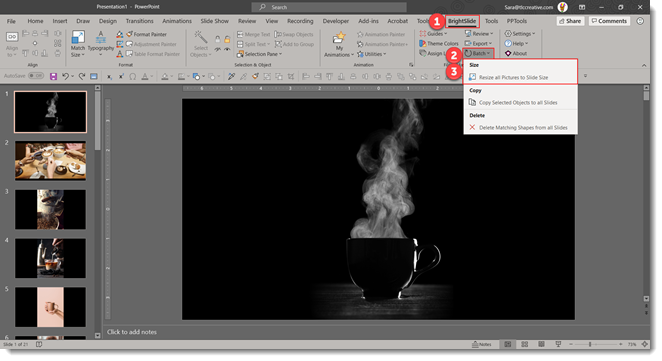
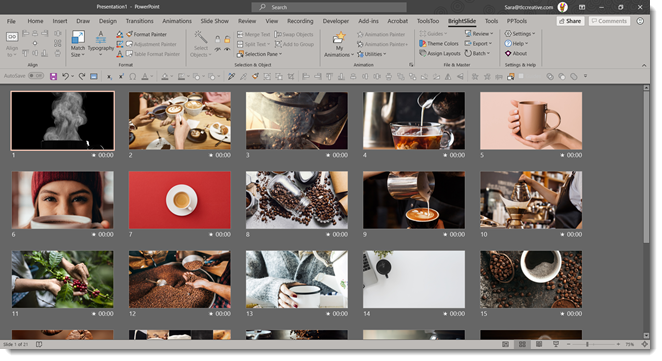
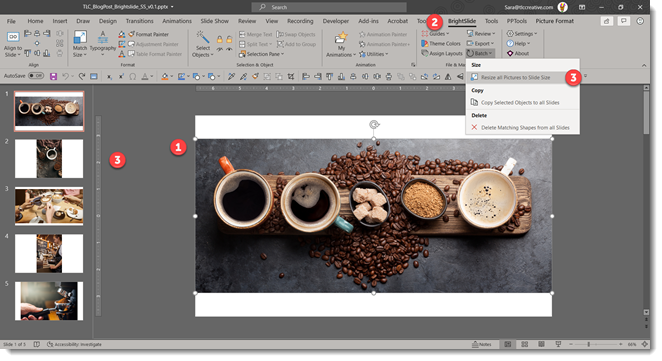
Then go to the BrightSlide tab > BATCH > and resize all images. 

Step 3: Select all slide > apply a slide transition of your choice (FADE is a safe and professional default option) > set slides to auto advance after 8 seconds (or speed your feel is best for your meeting)

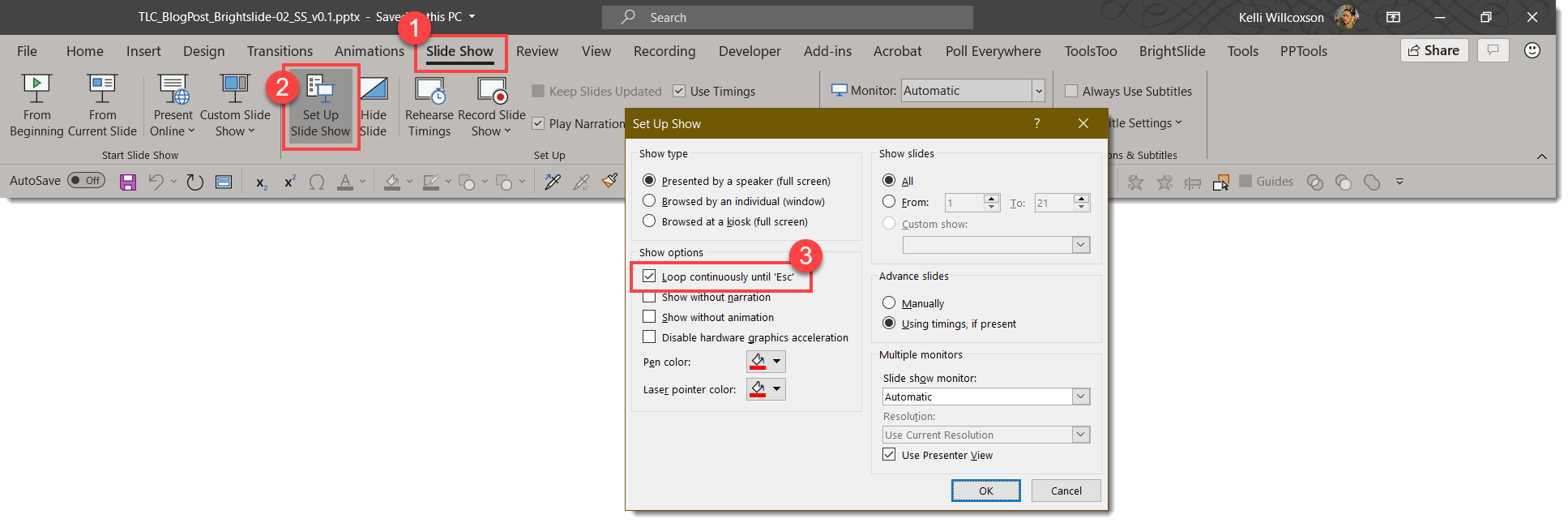
Step 4: Go to SLIDE SHOW > SET UP SLIDE SHOW > select LOOP UNTIL ESCAPE. 

Done! A looping photo slide show built in just a few minutes!

A few more details on the BrightSlide resize image feature. First, it is wonderful! Second, it was added into Brightslide within days of detailing what I thought would be a great add-in tool for many presentation designers (thank you Jamie Garroch and BrightCarbon development team!). What this add-in is doing is scaling each image to fill the slide, adding a crop so the image remains the size of the slide, and centering the image within the crop.

As a final step, which is optional, I run NXPowerlite to resave the images to their crop at an optimized 1920×1080 for an easy to manage file size (because generally I am receiving the images from a professional photographer, and while the images look great, they are huge file sizes!). 

The BrightSlide add-in for PowerPoint can be downloaded for free at: https://www.brightcarbon.com/brightslide/

Troy @ TLC
By |2020-06-30T22:24:20-07:00July 8th, 2020|Tutorial|

BrightSlide Image To Fit Slide

The BrightSlide PowerPoint add-in has so many great features it is impossible to say what the “favorite” feature it. But I will list this as one of my top 3! BrightSlide’s ‘Match Size’ tool is brilliant.

Through a series of emails with the BrightSlide lead developer I detailed the process I would go through on virtually every large presentation event to create a custom photo loop for the meeting walk-in, generally being given a folder of images with minutes until doors open! The result was an addition to the Match Size options (thank you BrightSlide!).

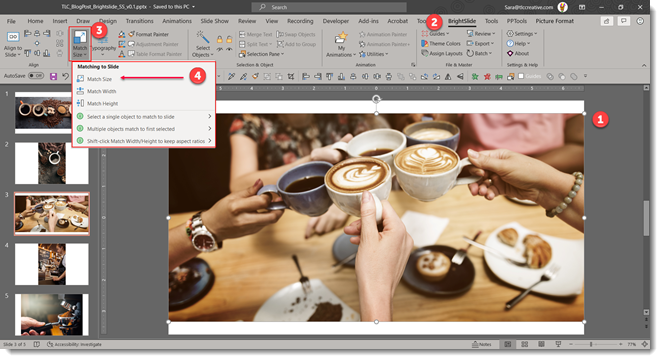
The scenario is, an image does not scale to fill the full slide. The fastest solution is now to select the image, go to the BrightSlide tab, and click the Match Size button. There are actually 3 options in the drop-down: Match Size, Match Width, Match Height. But the top level, Match size, button is all that is needed. 

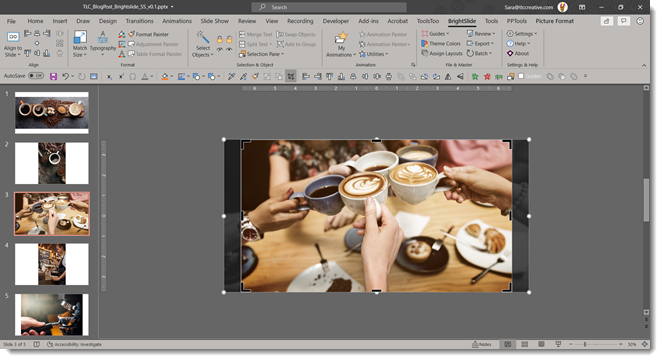
Select the image, click Match Size and the image is not distorted or stretched, but it is cropped to fill the slide. AND it is centered within the crop! Position within the crop can be adjusted by selecting the image and the crop tool to adjust what is the live/visible image.

If resizing all photos in a slide deck, such receiving a folder of images, importing them into a slide deck using PowerPoint Photo Album feature, then use BrightSlides BATCH tool to apply the resize and crop to every image in the deck instantly! 

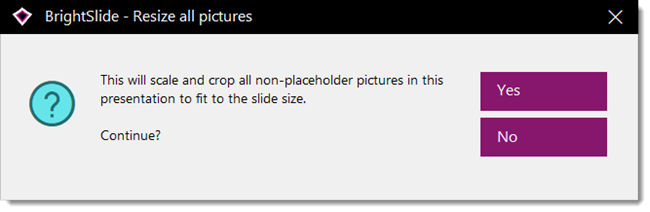
Using the Batch tool brings up this dialogue, where you want to select yes.

The end result is nearly instantly created beautiful full bleed images that fit the slidet!

The BrightSlide add-in for PowerPoint can be downloaded for free at: https://www.brightcarbon.com/brightslide/

Troy @ TLC
By |2020-06-18T13:17:32-07:00July 6th, 2020|Software/Add-Ins, Tutorial|

PowerPoint Synchronize – a new and exciting presentation feature!

Microsoft has just added a new feature to PowerPoint! This feature allows you to make changes to slides while presenting – and it is amazing!! The important thing is the presentation must be accessed from OneDrive or SharePoint. If you are a Microsoft Teams user, when you add a file to the FILES section, you are set, and I am going to use Teams for my example.  

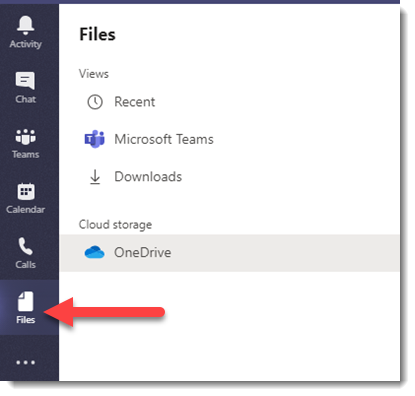
In Microsoft Teams, and on the side menu bar, navigate to the “Files” button  

Click Files and on the next menu, click upload and go through process of moving the presentation from your computer to OneDrive (it is seamless and easy when done through Microsoft Teams) 

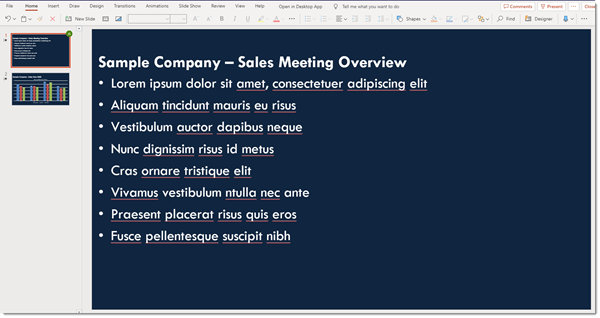
Here is the sample 2 slide presentation  

To demonstrate, here is the file opened from Microsoft Teams. 

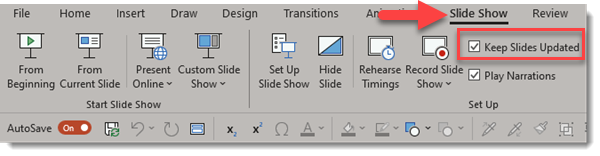
In the SLIDE SHOW tab is a new option, KEEP SLIDES UPDATED. Keep Slides Updated, or PowerPoint Synchronize, is where teamwork comes into play. While presenting a slide show, another person can make edits from a separate computer, and those edits will be in the active slide show! Remember, for this to work the file needs to run from a OneDrive location, be shared with at least one other person, and the “Keep Slides Updated” option enabled.

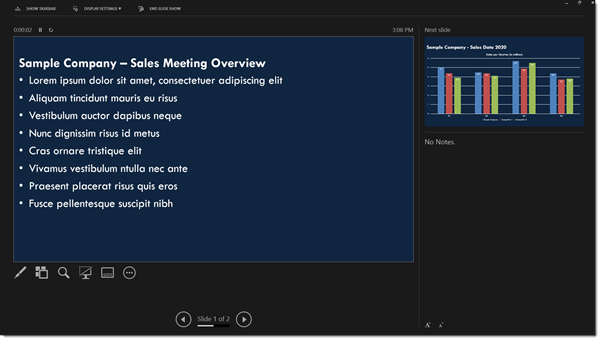
Here I am presenting the first slide.  

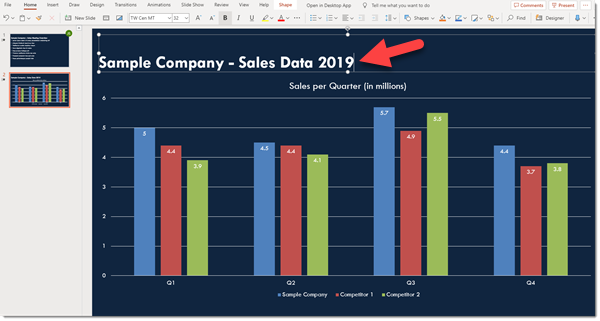
There is an error on the next slide with the chart listed as 2019, but it really is 2020 (no one experiences wrong info in their slides!). But the deck is shared with our colleague and they have got us covered. 

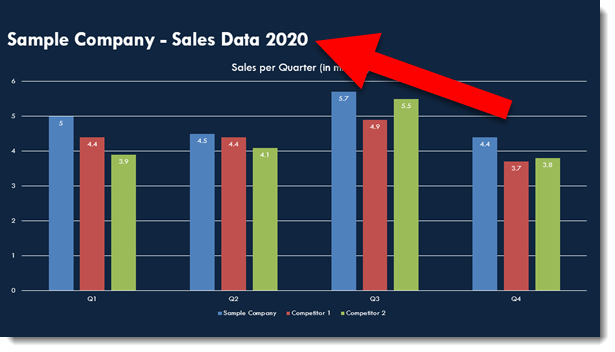
While we talk about slide 1, my colleague updates slide 2 on their computer so when I go to slide 2 it has the correct year – all while I was in slide show and presenting!  

Troy @ TLC
By |2020-06-03T19:24:32-07:00June 3rd, 2020|PowerPoint, Tutorial|

How to Make Excel Use a PowerPoint Custom Color Scheme

Microsoft Office; PowerPoint, Excel, Work, etc. have many shared components. PowerPoint tends to be the most visual design app of the suite and a common request we receive is how to add the colors from a PowerPoint we developed into Excel. You will need to add the custom color scheme to your computer, see the previous post. The process is fairly easy, here is an example and the action steps:

1. In Excel, our example chart uses the standard Office color scheme (boring!)

2. In excel go to PAGE LAYOUT > COLORS

3. In the CUSTOM section, select the custom color scheme we saved from PowerPoint to the computer Office options. We are selecting the COLOR SCHEME NAME custom colors.

4. Now the excel file instantly updates charts to match the PowerPoint file!

Troy @ TLC
 

By |2020-05-20T11:46:50-07:00May 15th, 2020|Tutorial|

How to Apply a Saved Color Scheme to an Existing PowerPoint

Any PowerPoint slide deck can have any preset color scheme applied to it – and everything in that presentation that uses the color scheme for their colors will automatically update! This includes text, shapes, charts, tables and more. It is amazing when the slide content is setup to use color scheme colors – and frustrating when it does not…

Here is our example presentation, that uses a green color scheme – and the template was developed using the color scheme.

We want to update this presentation to the “blue” division. We can easily update the presentation to the “blue” color scheme (see previous blog post for how to add color schemes to PowerPoints CUSTOM list). To update the presentation to the needed color scheme, go to DESIGN > COLORS > select the desired color scheme.

As you rollover the different schemes, the color schemes preview. Ultimately we have selected the “blue” color scheme for this presentation.

[videopack id=”14012″]https://thepowerpointblog.com/wp-content/uploads/2020/05/PPT_Colors_PT_2_screencapture.mp4[/videopack]

Troy @ TLC


By |2021-05-17T13:02:57-07:00May 13th, 2020|Tutorial|

How to Save and Name a Custom Color Theme in PowerPoint

Any presentation can have any custom color scheme applied to it. This tutorial is how to save a custom color scheme from one presentation, or template, to your computer and then apply it to any other presentation.

1. Custom color schemes, for example from a custom PowerPoint template, is displayed in DESIGN > COLORS > CUSTOM. Note, custom color schemes that have been saved to your computer show up in this list.


3. To save the color scheme from any file/template, click CUSTOMIZE COLORS at the bottom of the list.

4. The CREATE NEW THEME COLORS dialog opens and displays all of the assigned colors. The only action you need is to give the color scheme a name (see previous post for tip on seeing the assigned name). 

5. Replace “Custom 1” with a descriptive name. For this tutorials we will use “Custom Color Scheme Name” and click SAVE

6. Now you will have access to the “Color Scheme Name” custom colors on your computer and can apply them to any presentation or template. 


Troy @ TLC

By |2020-04-24T10:44:16-07:00May 11th, 2020|Tutorial|
Go to Top