
Slide Background Color
Changing a presentation’s background color is made simpler with this quick shortcut. When changing slide background color, you’ll want to make sure you change it on the master layout, that way your changes will be applied to all slides, new and old. Normally, you could achieve this by going to View>Slide Master and that would open the targeted master layout.
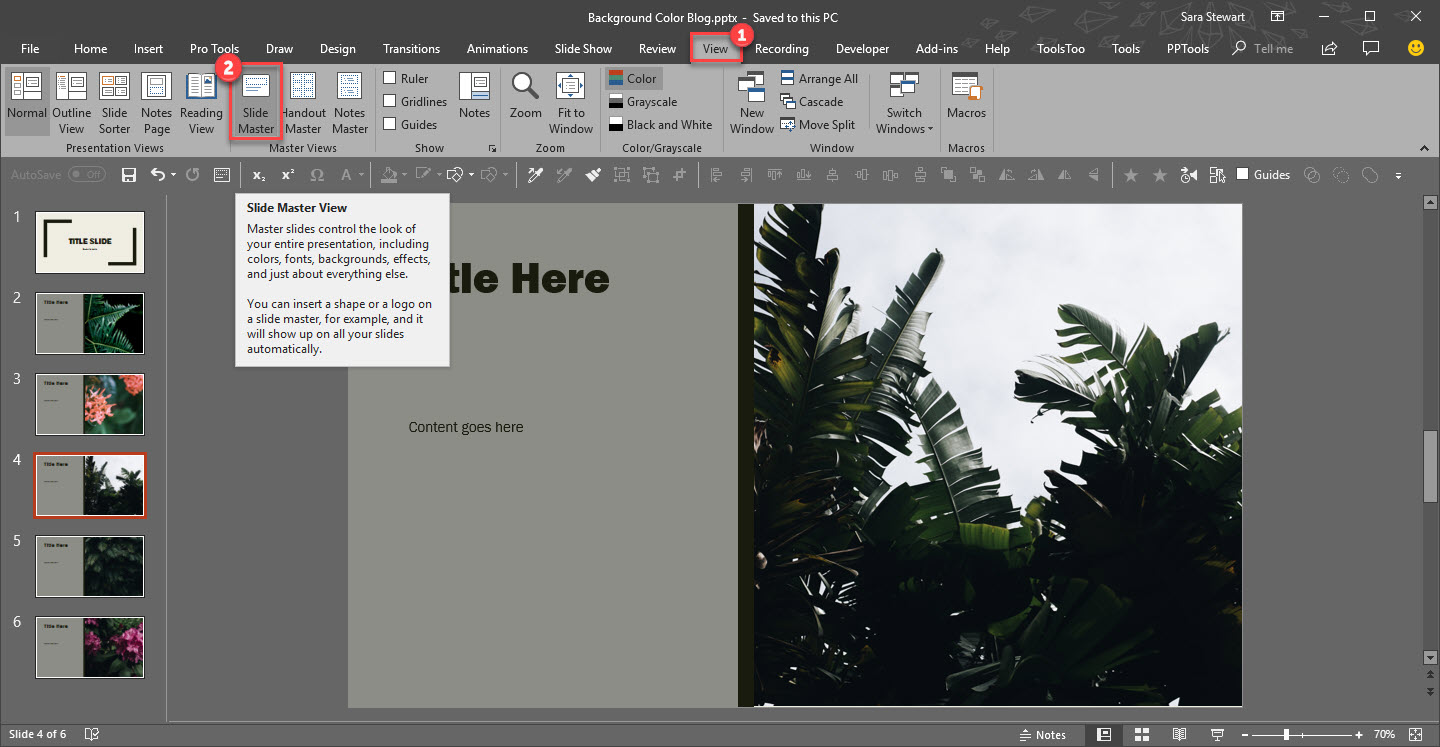
However, if you change the background on this slide, it will not apply to the template. Instead, you need update the background color on the Master slide at the top.
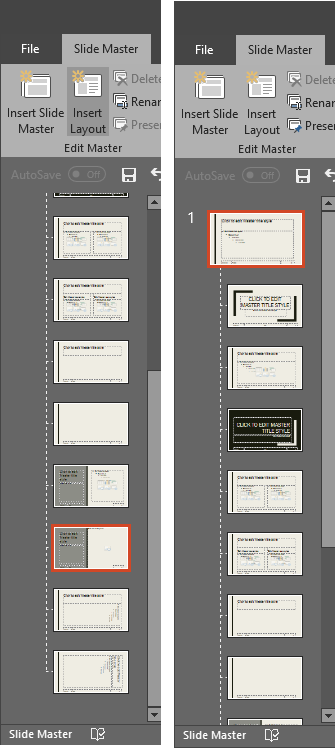
A quick and easy shortcut to achieve this is to simply hold SHIFT + DOUBLE-CLICK on the NORMAL VIEW icon in the lower right bar.

This is will automatically open the master to the top slide where you can quickly update all slide backgrounds.
[KGVID]https://thepowerpointblog.com/wp-content/uploads/2018/10/unnamed-file-3.mp4[/KGVID]
The Presentation Podcast Episode #63 Released Today!
A new episode of The Presentation Podcast with Troy, Nolan, and Sandy is available today! Check out the latest episode, #63- Live From the 2018 Presentation Summit

This episode is a live conversation recorded at the 2018 Presentation Summit in San Diego California. We gathered around a table and just the let conversation flow – so enjoy a fantastic everything presentation conversation among 10 presentation industry experts!

The Presentation Podcast Episode #61 Released Today!
A new episode of The Presentation Podcast with Troy, Nolan, and Sandy is available today! Check out the latest episode, #61 – PowerPoint Shortcuts – Here’s What We Found.
Join a great conversation with Troy, Sandra and Nolan sharing “PowerPoint Shortcuts”, including keyboard shortcuts, right-click tricks, app setup, faster design, better presenting and anything else that helps us get more done quicker, better or professionally.
NXPowerLite Blog (and Troy Chollar Quote)
NXPowerlite is a great app that TLC Creative Services has made use of for several years. The current version, Desktop 8, was the biggest release for new features. I was happily asked to contribute input and ideas as the Neuxpower team was busy strategizing the big release. On a recent Neuxpower blog they talked about the Custom Profiles and to my surprise, I was a part of the blog!
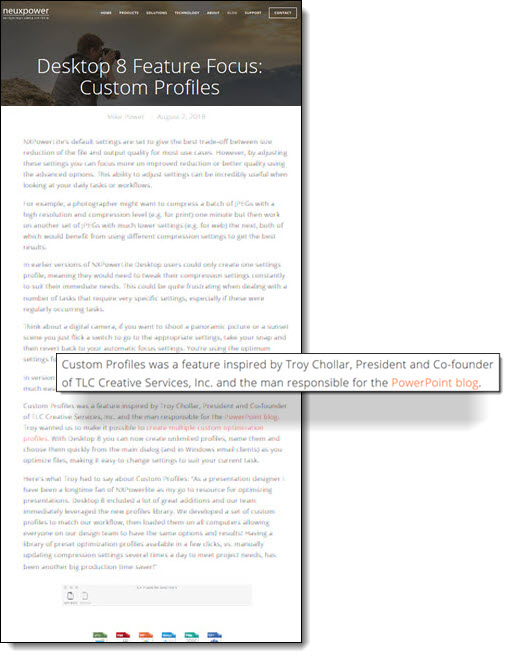
Check out the blog post here.
Troy @ TLC
Intro
Welcome to Fall (Sunday, September 23) and the annual presentation industry gathering (The Presentation Summit, September 23-26 in San Diego, CA)! The PowerPoint Blog is having fun just highlighting 2018 design projects throughout this month.
At the end of the month Lori and I will be at The Presentation Summit. Please stop us and say hello!
Troy @ TLC
Windows 10 Start Menu Icons (Complaining)
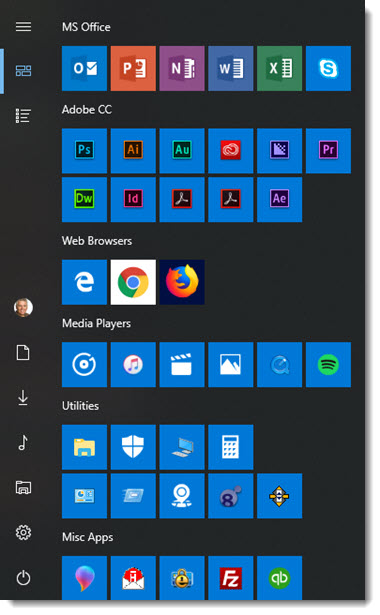
Look at the Microsoft Office Icons – they look great. Okay, I am not commenting on the icons themselves, but the color coding, size and how easy to see and identify.
Now look at the Adobe Creative Cloud icons. All are on the Windows theme color (blue), but small, and there is no difference between Acrobat Distiller and Acrobat Reader…
Other issues are Chrome on the white background, the Hightail app icon has white pixels around it, and Firefox (to me) is the most beautiful of icons I have on my Start Menu.
Troy @ TLC
Windows 10 Minimize Cortana to an Icon
Cortana, like or dislike, it is the search engine for your computer. But Cortana does not need to take up so much of the task bar if you do not want it there.

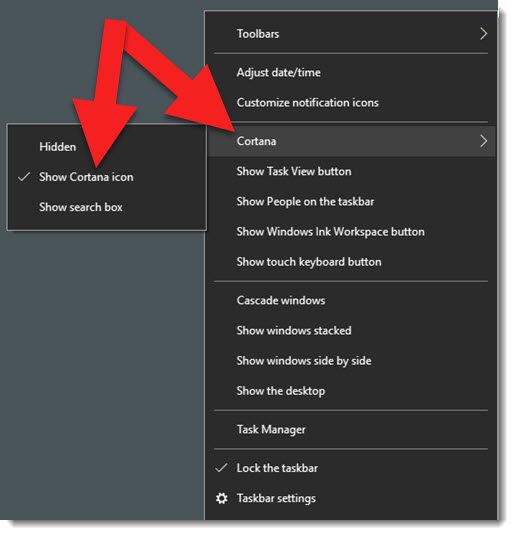
To minimize Cortana to just its icon, right-click the task bar, go to CORTANA and select SHOW CORTANA ICON
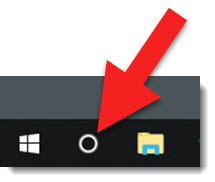
Now the task bar has a nice, simple and small, Cortana icon
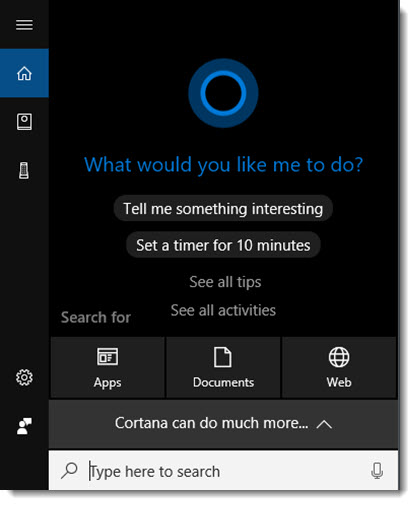
Click the Cortana icon and the Start Menu opens with the Cortana search bar
Troy @ TLC