
Windows 10 Focus Assist
Focus Assist is basically a “Do Not Disturb” mode for your computer. Focus Assist allows you to avoid distracting notifications. I find it most helpful for presenters to keep notifications for email, Skype messaging and other unwanted pop-ups from displaying while presenting. Focus Assist is the new name for an earlier Windows 10 feature previously called “Quiet Hours”.
There are a few ways to access Focus Assist, my preference is through the notifications button in the lower right task bar to access the action center. When the icon is grey, Focus Assist is turned off.
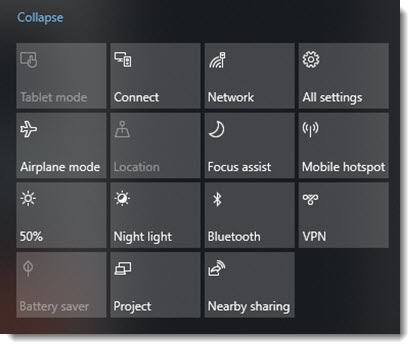
The first click turns on Focus Assist in the Priority Only notifications mode.
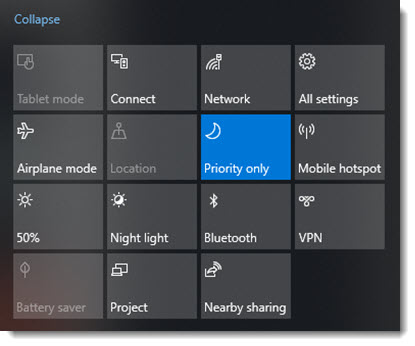
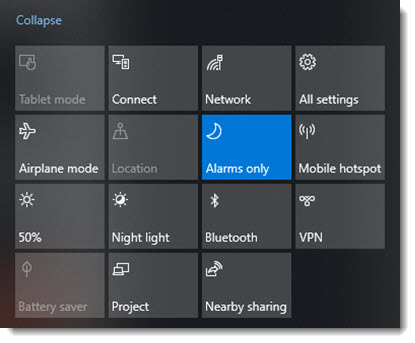
Click again and it toggles Focus Assist to the Alarms Only notification mode.
Right-click the Focus Assist tile any time to open the Windows 10 Settings in the Focus Assist options.
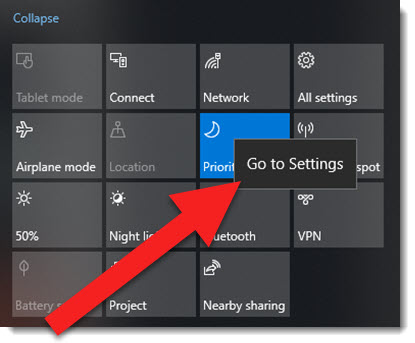
The Focus Assist settings area has a lot of options and access to the customization options.
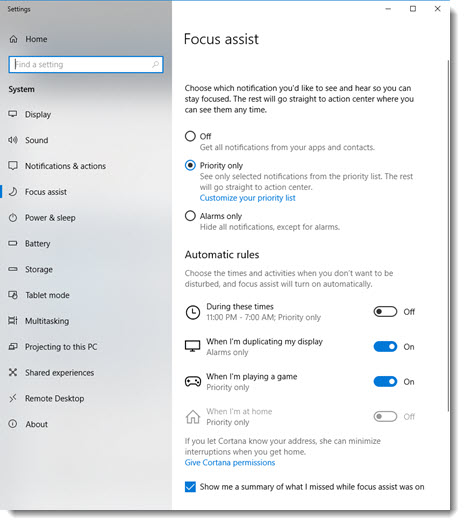
Focus assist has 3 levels, off and 2 on options:
- Off
- Priority only
- Alarms only
In the priority only option, there are options to create custom lists of what is allowed and not allowed. The APPS section is the most important to a presenter. I created a list to basically not let any app interrupt me while presenting (NOTE: unfortunately Focus Assist only can control Microsoft Store apps. I am hoping that Microsoft is able to expand this list anything installed on the computer!)
One of the shortsighted features is the DUPLICATING MY DISPLAY rule. This rule turns on Focus Assist automatically when your display is duplicated, theoretically while you are presenting. But, the rule cannot be modified to work with an extended desktop configuration and presenting with Presenter View.
If you present, or just need ‘do not disturb’ times, look into the features available with Windows 10 new Focus Assist.
Troy @ TLC
Windows 10 Mobile Hot Spot
The ability to turn a Windows 10 computers into a WiFi hotspot by sharing its internet connection, either wired or wireless!, is an amazingly useful feature. It requires some advance setup, then it is always available.
Go to WINDOWS & SETTINGS
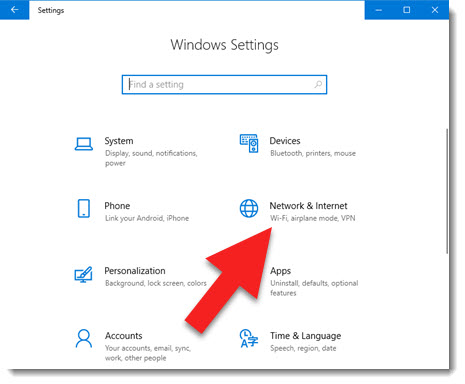
Select NETWORK & INTERNET
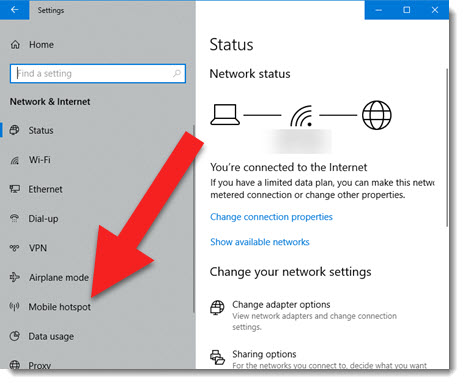
On the left select MOBILE HOTSPOT
TURN ON, confirm Wi-Fi (not Bluetooth) is selected, and click EDIT
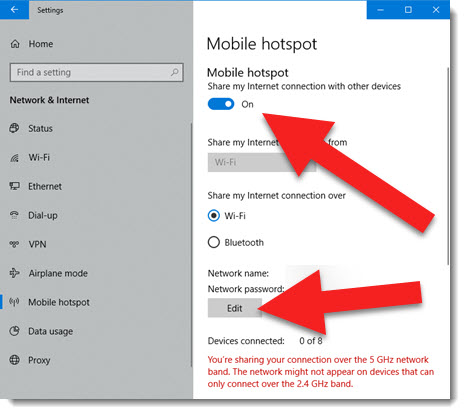
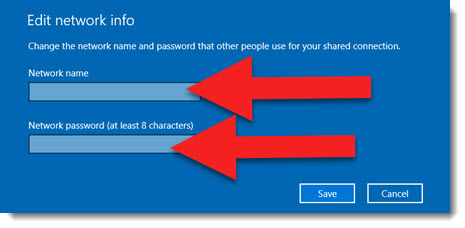
In the Network Info and add a NETWORK NAME (anything you want; Troys WiFi, Secret WiFi Do Not Connect, etc.) and a PASSWORD (something unique, you may share it with others)
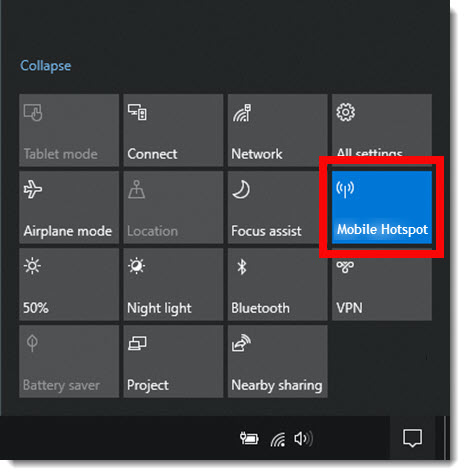
Now the computer is ready to share its internet connection! Click the NOTIFICATIONS icon in the lower right and select MOBILE HOTSPOT
Now on any device (Windows, Mac, phone, tablet, etc.) look for you WiFi SSD and connect!
Troy @ TLC
Windows Additional Clocks
I am based on the U.S. West Coast, or Pacific time zone. But I am travelling to meetings in other states several times each month. One nice feature, which has been in Windows for many versions, is the multiple clocks.
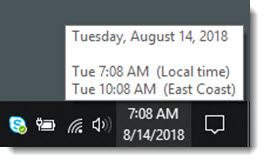
Above the time displayed in the task bar is my local time. Mouse over the time and the pop up shows my local time for this project in New York (or East Coast time zone). Super helpful.
But getting to the setup dialog to add an additional clock is more tedious than in past versions. The seemly obvious would be right-clicking on the clock and selecting ADJUST DATE/TIME, but this leads to a settings dialog that does not access the Additional Clocks settings 🙁
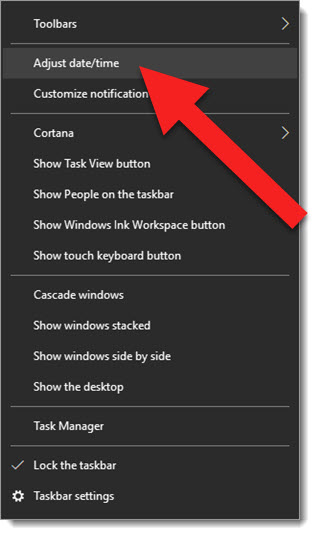
To add, or adjust, an additional clock my process is:
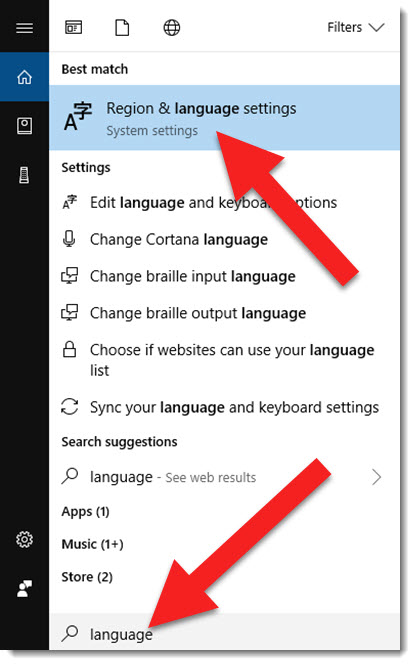
In the Cortana type LANGUAGE (yes, this does not make sense) and choose REGION AND LANGUAGE SETTINGS
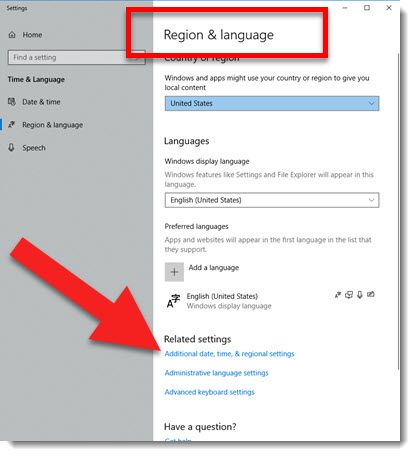
Then select ADDITIONAL DATE, TIME & REGIONAL SETTINGS
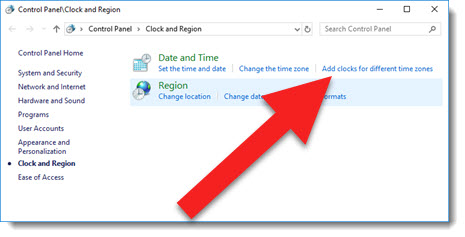
This is the legacy Windows 7 Control Panel dialog (ughhh!), select ADD CLOCKS FOR DIFFERENT TIME ZONES
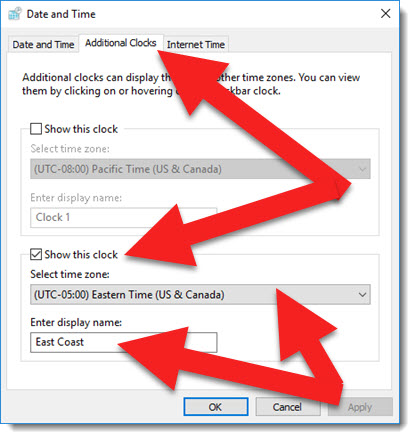
From the ADDITIONAL CLOCKS tab, turn on SHOW THIS CLOCK and select the TIME ZONE and give the clock a name (that will display in the pop up task bar clock)
Done (and that was a lot of effort getting to a buried feature)!
Troy @ TLC
The Presentation Podcast Episode #60 Released Today!
A new episode of The Presentation Podcast is available today! Listen to episode #60 – Do You ARS? (with John Cosgrove of VoiceHive and Ben Anderson).
Audience Response System, or A-R-S, is a great process of involving an audience in a presentation. It is a way for a presenter, a meeting, or even a classroom to get real-time input from the audience, and display everyone’s answers. For our conversation about ARS we are joined by John Cosgrove of VoiceHive and Ben Andersson as meeting ARS specialist. We talk about software we use, ways we added audience interaction, and ideas for presenters to integrate audience interaction into a presentation.
Start a New Email Quickly
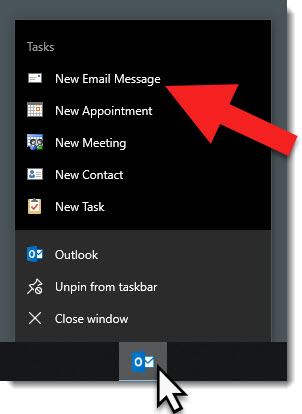
Windows 10 (this may work on other OS versions, I just don’t know as I only use Windows 10 now) I have added Outlook to the task bar. To start a new email I do not switch Outlook, go to the Home tab, find and click the New Email button. I right-click the ever present Outlook icon on the task bar and select NEW EMAIL MESSAGE – done (okay, new blank email ready to be written).
Troy @ TLC
Windows 10 Notification Pane- Use It
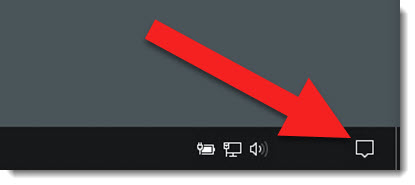
The Windows 10 Notification Pane is often overlooked – and depending on the computer settings, the number of notifications it creates can be annoying and definitely lend to it being ignored (for reference, TLC Creative computers have the majority of notifications turned off!). Click the notifications icon in the lower right of the task bar to view.
The Notification Pane opens (thankfully I have no actual notifications) AND shortcuts to several Windows 10 features. So the real use of the Notification Pane is to easily turn on/off features or open their options.
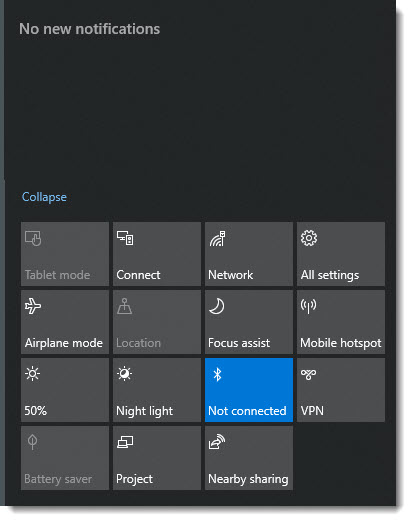
These are the most common used options (by me)
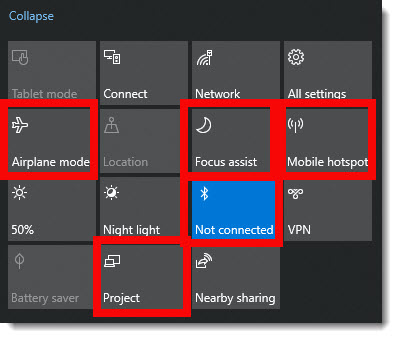
 Airplane mode is just like on your phone, WiFi – Bluetooth – and other features are all turned on or off with a single click. We run Airplane mode note only when flying, but often on our show computers where we do not want anything interfering with that computer displaying presentation graphics to the world.
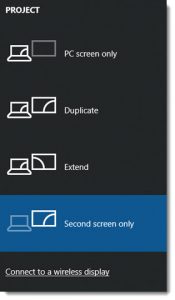
 Project is just another way to open the video output selection pane, it is the same as Windows + P (for Projection).
 Mobile hotspot is one of the best features of Windows 10. Easily share that computers internet with other devices – and the internet connection can be wired or wireless that it shares!
 Focus Assist is new, and it has some great features for presenters. Stay tuned, this feature has its own blog post this month.
 Bluetooth is used a lot, mostly to turn it back on after clicking the Airplane mode button and wanting my Bluetooth mouse back!
Troy @ TLC
Windows 10 Improved Start Menu (Left Icon Column)
The Start Menu is one of the most noticeable changes with Windows 10 vs previous versions. It took a few versions – mostly merging Windows 7 and Windows 8 into a working start menu! Another recent small improvement is good know about as it adds some detailed information that went missing (a common comment I have about the Mac OS is that all makes sense if you know how a Mac works, but starting fresh a number of icons and settings make no sense).
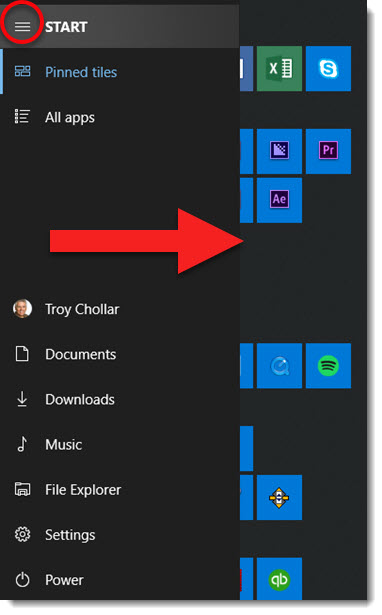
One the start menu, note the far left column is just icons. These are great for keeping the features handy while minimizing space.
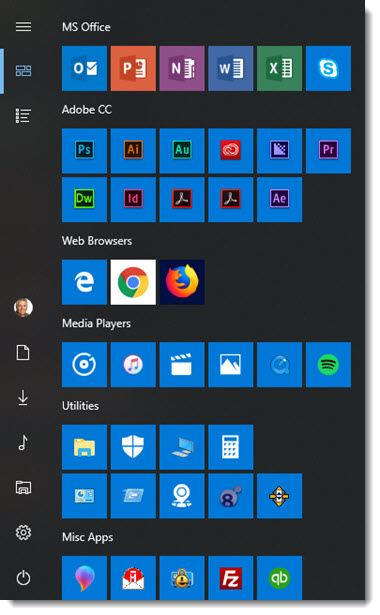
If you are not certain what the icons represent, click the 3-line icon at the top. The left strip expands to show the full names of each feature (see the April 5, 2018 post on customizing what features are in the left strip).
Troy @ TLC