
Add a “Traffic Light” Timer to Speaker Notes Slides!
Speaker Notes have been part of PowerPoint for a loooong time. As a result, we’ve experienced many of the formatting, display, and export limitations that Speaker Notes has – usually during one of the many corporate event projects we handle.
However, limitations aside, Speaker Notes are definitely something in our standard workflow! Whether they be from a teleprompt system, using PowerPoint’s Presenter View, or separate “Notes Slides” (which is what we are going to talk about today), Speaker Notes are a must-use for us.
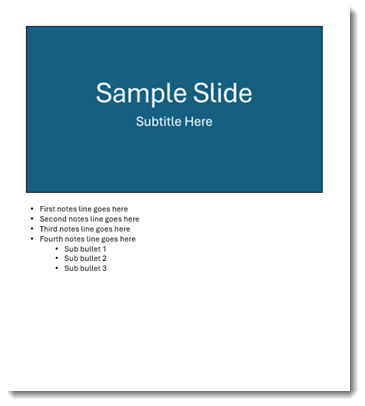
Notes Slides
Lately, we have been asked more often to develop and manage “Notes Slides”. First, let’s describe and define what “Notes Slides” are, as they are a hack to presenting with PowerPoint (the same can be done with Keynote or Google Slides). These are slides that have notes for a presenter to reference, but are not shown to the audience
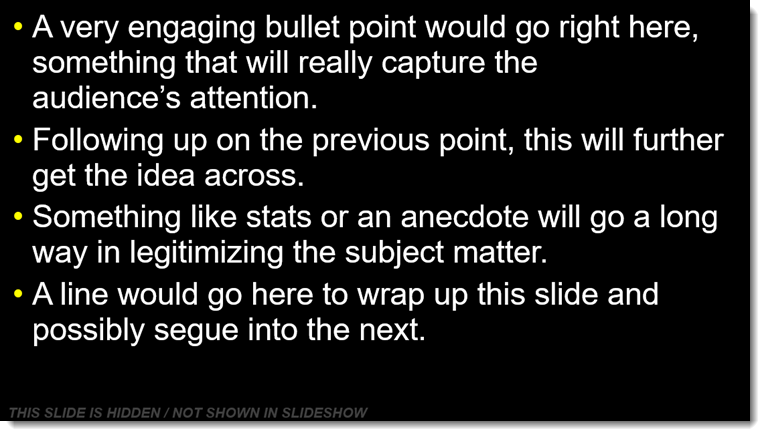
The idea is simple: for every presentation slide, create a parallel slide that has the presenter notes. We are not using a teleprompt system (though always our preference for stage presentations!), and we are not using Presenter View.
For example, on the left is the presentation of 10 slides. On the right is a matched set of 10 “Notes” slides, one notes slide for each presentation slide (and click-for-click aligned to any animations that may be used on the presentation slides, but that’s for another day).
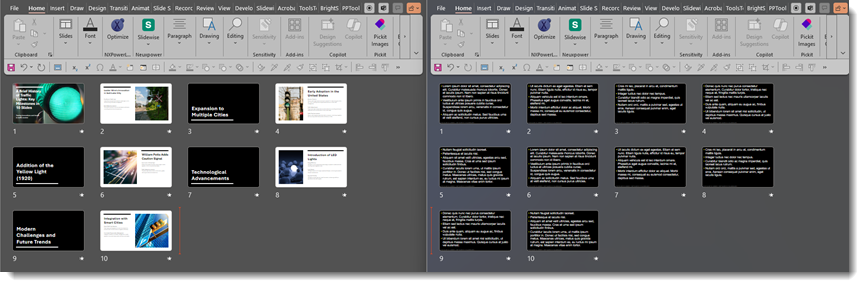
This example is based on a live event with at least 2 confidence monitors, viewable by the presenter from the stage. One confidence monitor shows the slide the audience sees on the screens, and the other confidence monitor shows the “Notes Slide” associated with that audience slide.
Presentation Pace and Timing
Another ask from presenters is to add timestamp notes or other indicators so they can target their pace for specific slides or pace their overall presentation. This is something we can easily do with Notes Slides (hint to Microsoft: this would be another good widget to add to Presenter View!).

Traffic Light and Traffic Bar

A novel and visual solution is to add an animated “traffic light” to each Notes Slides. The idea is that when the traffic light is green, the presenter is on pace and has time for the slide. When it is yellow, the presenter knows they need to wrap up that slide’s content. And when it shows red, it is time for the presenter to go to the next slide.
Here is one way the TLC Creative design team implements a “traffic light bar” in Notes Slides. We basically add a thin, animated PowerPoint rectangle with a gradient from green to yellow to red, positioned either along the top of the slide, the bottom of the slide, or vertically top-to-bottom on the side.

When used in a slideshow, it works just like a stoplight going from green to yellow to red. When animated with the “Wipe” animation, each bar is preset to finish animating at the allotted time for each slide. So, as you click on the Notes Slide, you see green – which means you are on track! When yellow appears, it is a reminder to wrap up. Red signals that it is time to move on to the next slide.
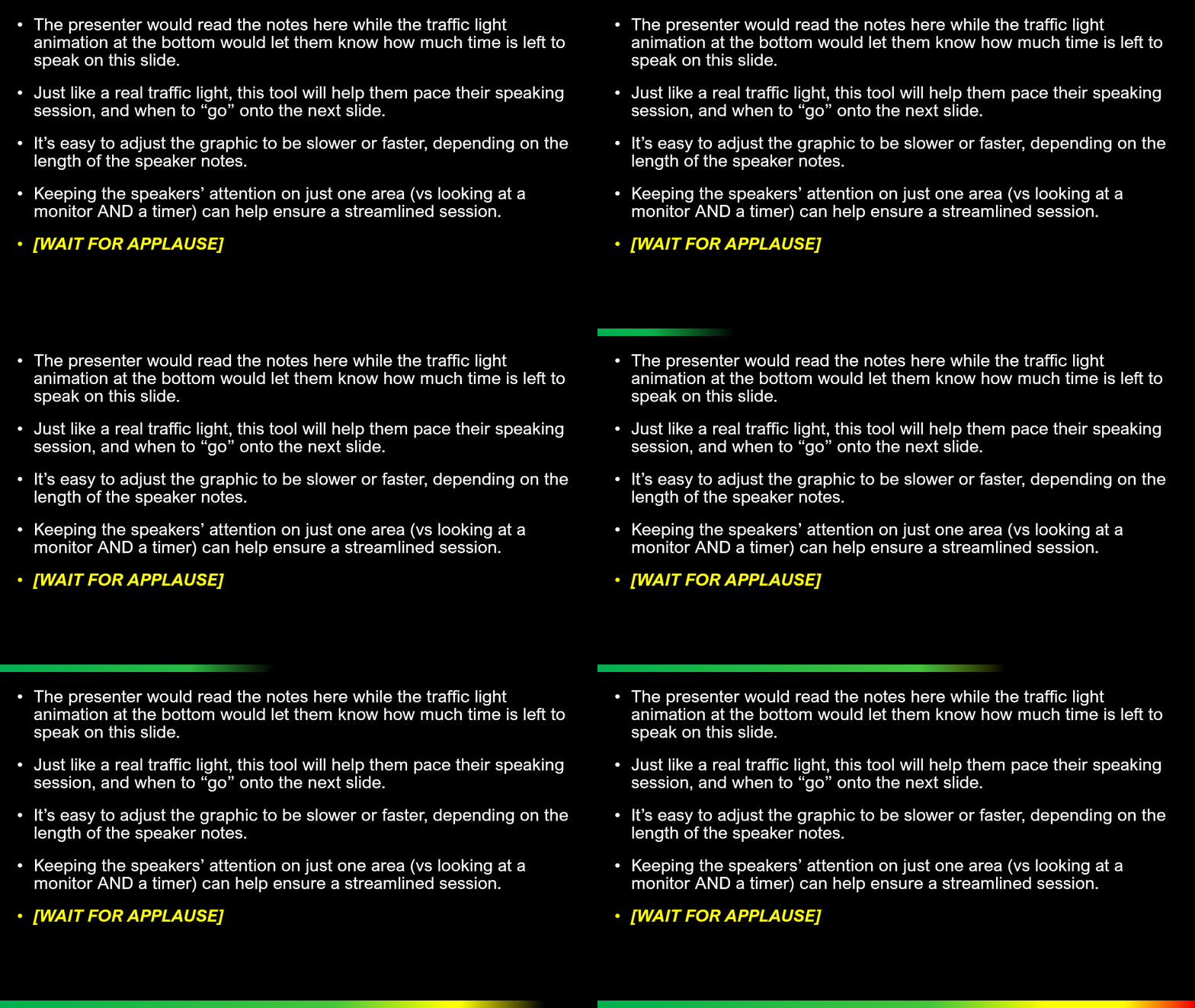
One key benefit is that the traffic light bar timing can be adjusted for each slide. The above example is a 10-second timer: green for the first 7 seconds; yellow from 8-9 seconds; red for the last half-second.
The goal is to make this visual simple and intuitive for presenters to monitor their pacing on each slide – the animating colors are easier to visually process than looking at an actual timer.
The result is less stress on stage, smoother timing, and audiences get the full story without the show running long. This is a small production trick that makes a big difference in live events and is quickly becoming a favorite among the executive teams we work with.
Create Your Own Traffic Light Bar
Creating a “traffic light” bar is simple:
- Add a thin PowerPoint rectangle
- Size it to fit across the top or bottom of the slide
- The goal is to be thin so it does not interfere with the notes, but is clearly visible as well
- Fill the thin rectangle with a gradient
- Right-click the shape
- Select Format Shape
- Go to Shape Options
- Go to Fill
- Select Gradient Fill
- Add gradient stops for the green, yellow, and red sections, keeping the yellow section at the 80-95% area and the red at the very end.
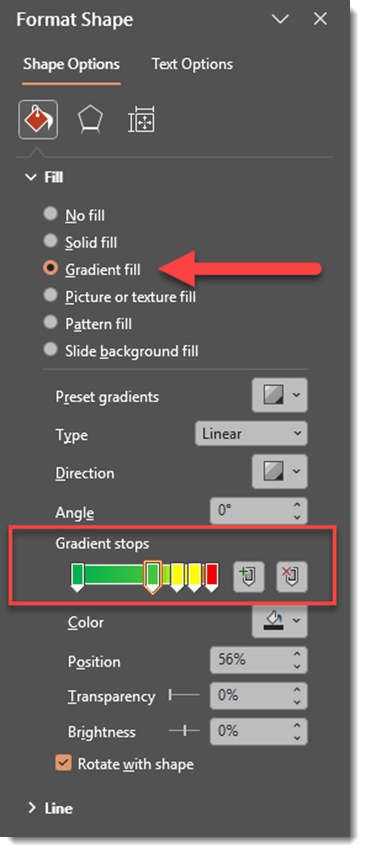
Animate the Traffic Light Bar
- With the shape selected
- Go to the Animations tab
- Choose Wipe, and in the Effect Options, set to Direction from the From Left
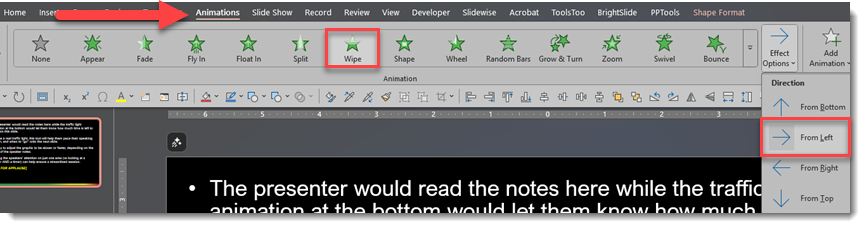
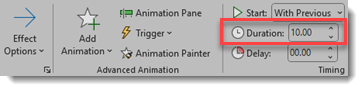
- Set the animation to start With Previous
- Update the animation duration to match the determined speaking time for that slide. For our example further above, the wipe animation duration is 10 seconds.
TIP: Adjust the yellow and red gradient stop positions to adjust when each traffic light color displays.
Happy Presenting
With Notes Slides and a traffic light bar working together, presenters know what to say and exactly how long they have to say it. The setup is quick and easy, and the payoff is a presentation that flows smoothly, stays on time, and delivers a stronger experience for the audience.
-Jake & the TLC Creative design team
A Look Back to Amazing PowerPoint Animations in this Holiday-Themed Post from 2017!
It wouldn’t be the holidays at the TLC Creative studio without holiday themed PowerPoint animations from the design team!
As part of our Look Back series, where we revisit blog posts from the past, this Friday we are looking back at our fun Christmas animation collection from from 2017 – eight years ago! Everyone on the team made their own animation, and then we compiled the slides and exported them as a video. Enjoy – again!
Happy Holidays from all of us at TLC Creative Services!
New Podcast Episode Available! “The Ultimate Holiday Mashup: Snow, Gadgets, PPT Add-ins, Books and Wish Lists!”
New episode of The Presentation Podcast now available!

Hey there, your friendly host with Holiday Cheer from The Presentation Podcast! As we wrap up another fantastic year, I wanted to share some highlights from our latest episode, “The Ultimate Holiday Mashup: Snow, Gadgets, PPT Add-ins, Books and Wish Lists!” This festive episode is packed with tech recommendations, book suggestions, and some heartfelt reflections from myself and amazing co-hosts, Nolan and Sandy. Listen on your favorite podcast app, or at The Presentation Podcast site here.
TLC Creative’s Top 10 of 2025
As 2025 comes to a close, we’ve been reminiscing here at TLC Creative Services about the people, places, and things that have made us smile throughout the year. And because we love our traditions, we decided to turn those smile-worthy moments into our annual Top 10 list!
Things At TLC Creative That Made Us Smile

TLC Creative added Copilot Pro for the entire team. We’re loving the assistance with daily operational tasks, research, some image creation, building Excel formulas, and even travel assistance when we’re on-site.

VXP Meeting developed more custom-coded modules in-house and boosted overall VXP performance. 5K virtual attendees? No problem! And the new website is beautiful and informative!

Across the TLC Creative design team, we travelled to 49 show site projects to work with some amazing clients in some great places! Cities with two or more shows this year were LA and San Diego (of course), Seattle, Orlando (yes, we said hi to Mickey!), Boston, and across the pond in Lisbon (other favorites were Maui, Mexico City, and Amsterdam).
Things PowerPoint Did To Make Us Smile

We can now edit speaker notes text directly in Presenter View…while your presenter is on stage! And now we can discreetly type a message to a presenter, telling them they are out of time – or the CEO is going to join them on stage!

Embedded videos work great – we’ve come so far from those dark times! Not only are videos a great design tool for content or subtle background motion, but they work so well now that when Playback Pro died on a show earlier this year, PowerPoint saved the day by running all videos embedded on slides (Microsoft – we need a “time remaining” countdown!).

Add-ins continue to give us new cool features! Slidewise’s text box autofit settings allow us to instantly remove those pesky “shrink text” settings across all slides – totally geeky and so awesome! And the new Brandin PowerPoint add-in is becoming a huge new favorite for our staff…so much so that we’re sharing it with our clients.
Things We Learned That Made Us Smile

Our own blog, The PowerPoint Blog, is our encyclopedia! We have lots of fun writing about things we’ve discovered or are learning in PowerPoint, but we also use it to look up things we forgot how to do but were documented on the Blog.

AI can be your friend! Yes, we use Copilot to summarize emails in Outlook and compare deck versions to figure out what the client changed, but we are loving other AI tools like Photoshop Generative Fill + Nano Banana, which opens a whole new level of productivity and creativity in designing our clients’ presentations.

Producing a podcast takes a lot of passion, and we’ve had so much fun hosting and inviting so many wonderful guests to talk shop. From presentation coolness, design, AI, teaching and training, discussing software tools and books, to career and business tips, we’ve talked about it all this year on The Presentation Podcast.
But, The #1 Thing That Made Us Smile This Year Is…

We love what we do, and that makes us smile! We love the positive nature of the presentation community we live and work in. We value our clients who trust us with their brands and allow us to inject our creativity throughout their presentations and meetings. And we deeply appreciate our TLC Creative Services team – whether you’re in a supporting role, you design amazing things – including slides, of course! – or you join us for show site adventures. We love living this crazy presentation life with you!
-Lori, Troy, and the team at TLC Creative
A Look Back to a Christmas-Themed PowerPoint Template from Christmases Ago
Our Look Back series is revisiting past blog posts. With Christmas on the horizon, we’re looking back at another fantastic (and free to download and use!) PowerPoint template that a member of our team made eleven years ago, back in 2014!
The template is a 16:9, .pptx file, seasonal, festive, and still perfect for anything Christmas-y this year!
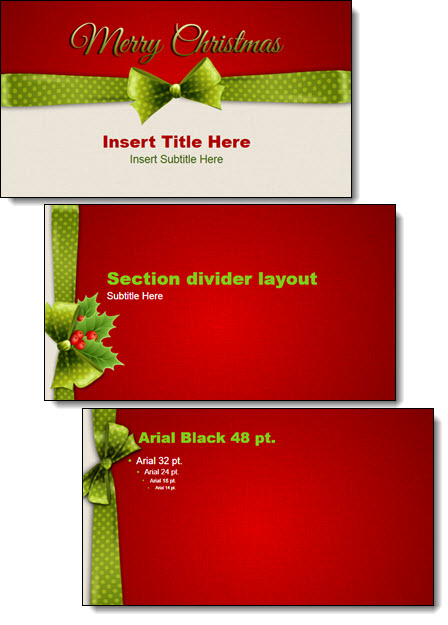
This full-feature template is free to download and use. Search for many other free templates on The PowerPoint Blog. Download this one here!
-Happy Holidays from the TLC Creative Services presentation design team
Use Copilot to Create an Editable PowerPoint Table!

AI tools like Microsoft Copilot are making many everyday workflows faster and smarter. And as a result, the TLC Creative design team has been putting Microsoft 365 Copilot to the test!
This time, we wanted to test a common presentation design task we often have: to see if Copilot can streamline the process of converting an image of a table into an editable PowerPoint table.
Note: We at TLC Creative Services are using the paid Microsoft M365 Copilot subscription, vs. the free Windows M365 Copilot. With the paid subscription Copilot is available within PowerPoint, but for this post, all of the Copilot prompting was done in the M365 Copilot app, not from Copilot inside PowerPoint.
Goal
We started with a simple goal: turn this image of a simple data table into a usable, editable table on a PowerPoint slide.
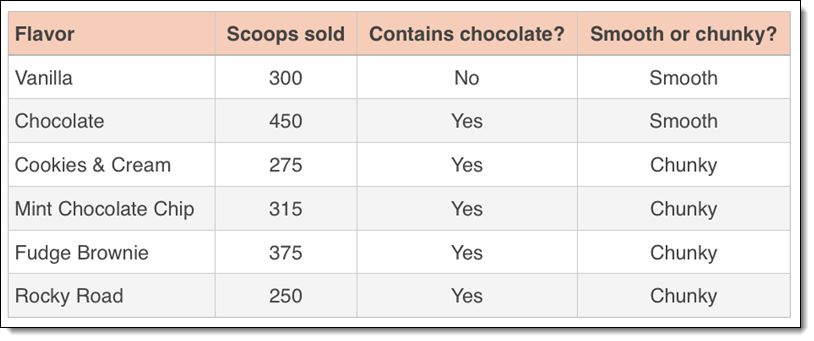
Our Process
- Open M365 Copilot.
- With the paid version of Copilot, the options of “Work” or “Web” are available. We opted to keep the information internal to our organization and used the “Work” option.
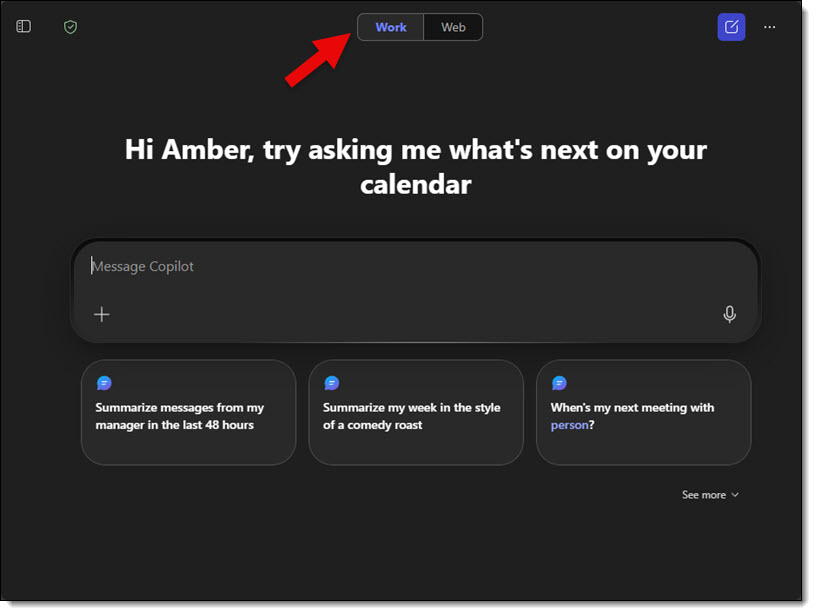
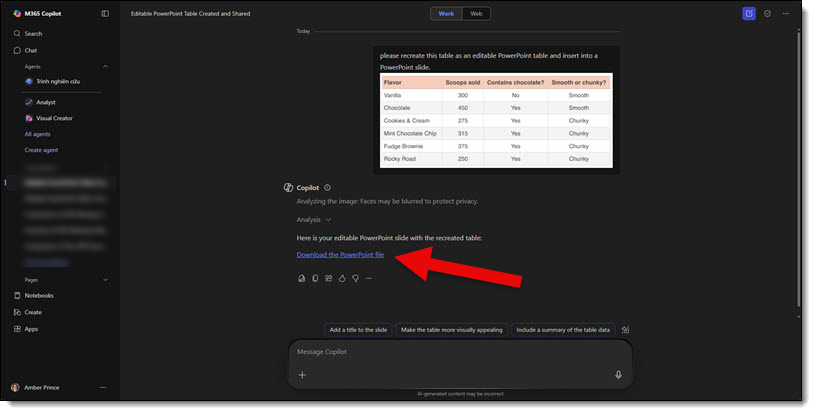
- We used this prompt: “Please recreate this table as an editable PowerPoint table and insert it into a PowerPoint slide.”
Note that we included 2 phrases we felt were important in order to get a workable result: “editable PowerPoint” and “insert into a PowerPoint slide.”
- Then we clicked the “+” icon and the ADD CONTENT option to give Copilot our image of the table.
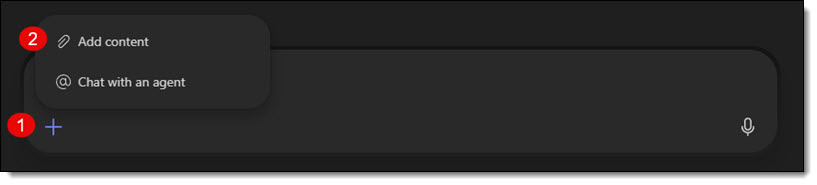
- We then uploaded the image of the data table from our computer.

- Next, we clicked the process button to complete the upload.
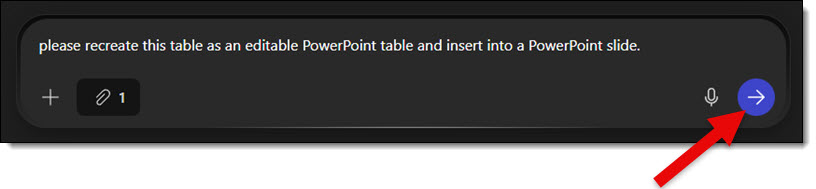
Copilot then analyzed the image and provided a downloadable PowerPoint file.
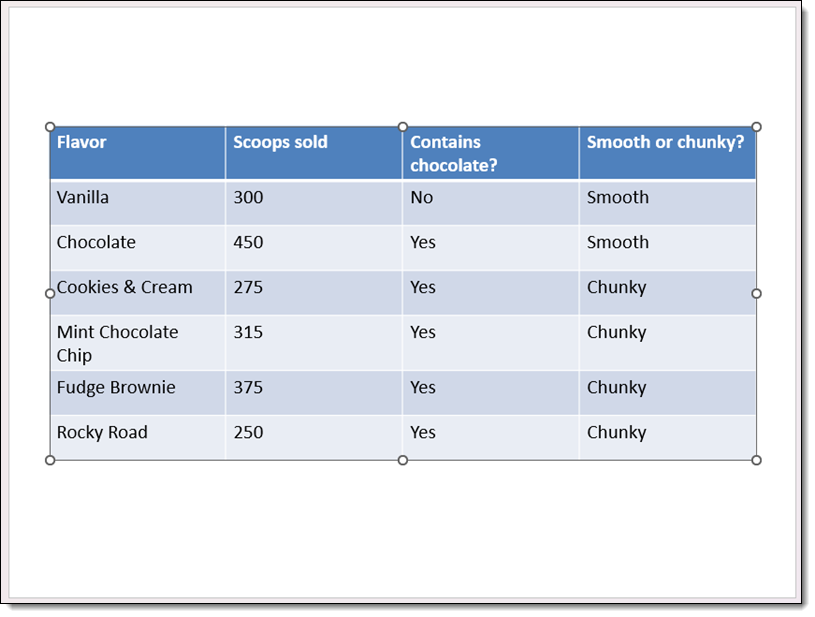
Opening the slide Copilot gave us, it is great to see that the table Copilot generated wasn’t just an image. It is a fully functional table with editable data in each cell! Here is the slide and PowerPoint table – and yes, Copilot gave us a 4×3 aspect ratio slide (weird!).
As expected, we discovered that the prompt verbiage can make a big difference. Testing some alternate prompts didn’t yield editable tables and simply produced an image of the original image, but said image was placed on a slide. And with one prompt, Copilot simply inserted the original image onto a slide – not helpful. But as summed up by one of our design team members, “It was kind of difficult to get Copilot to fail. It almost always produced a slide with an editable table.” And this is a good thing to hear!
Using our same test table image, here are a few prompts that did fail, along with the results:
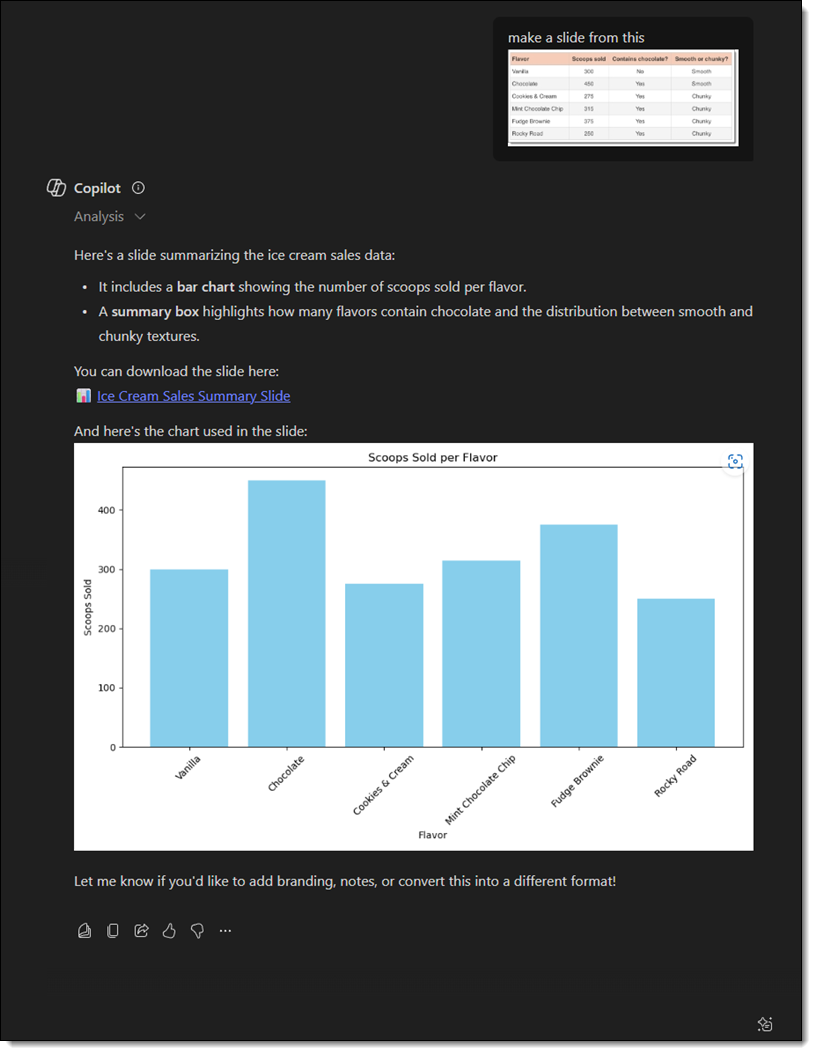
1. “Make a slide from this.” Copilot created a chart using the data and gave a summary – no PPT slide produced.
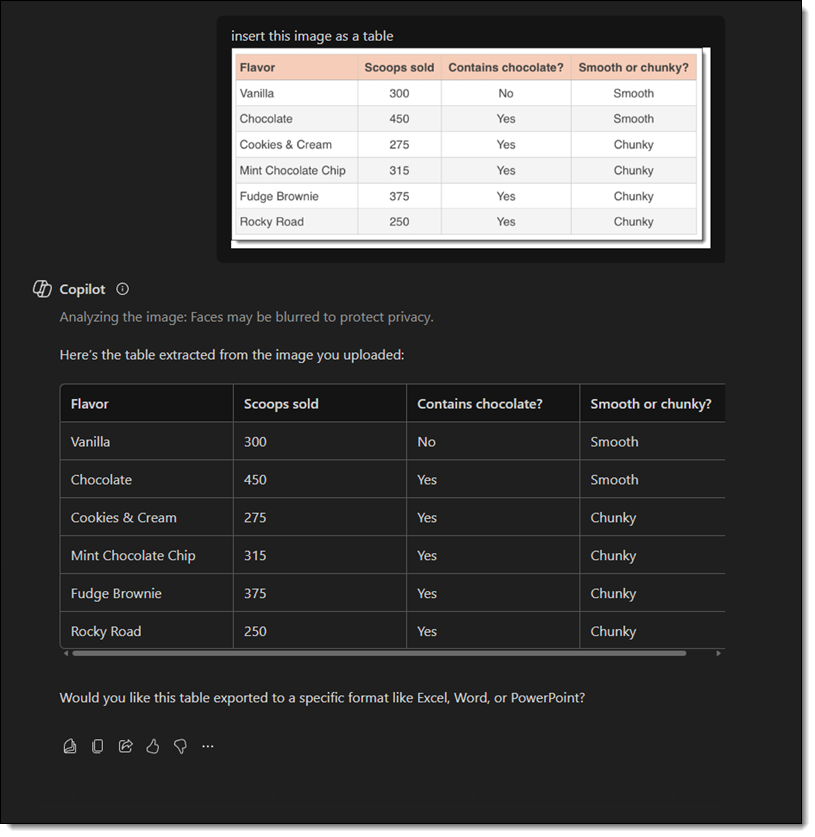
2. “Insert this image as a table.” Copilot created a table, but it was within Copilot itself – no slide produced. The text was able to be copied/pasted, and Copilot did ask if I wanted the table in a specific format, which included PowerPoint.
3. “Create a layout like this one.” Same result as #2 – a table and summary of the table were created in Copilot.
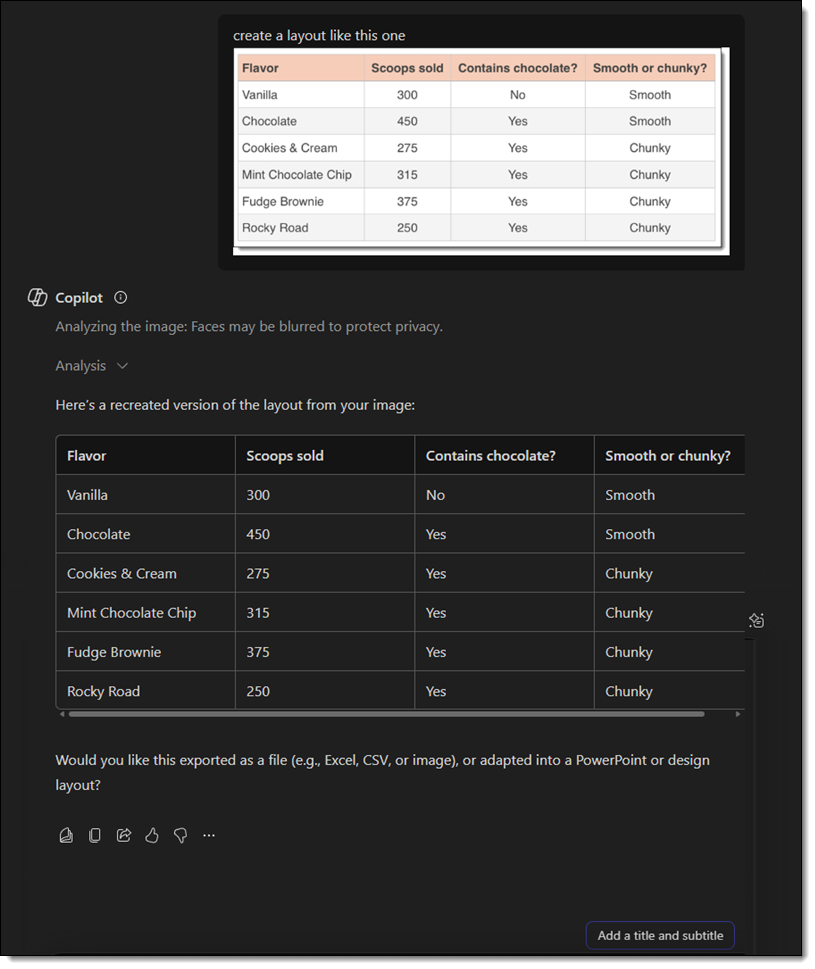
While Copilot won’t always interpret things perfectly, with the right prompt, it can be very helpful in converting a data image into real, editable content, saving a lot of manual effort. It’s simply all about how you phrase your prompt!
-The TLC Creative Design Team
Animating an Instant Camera – Using Barbie Polaroids!

Bringing a Camera to Life with PowerPoint Animation
When one of our favorite brands approached us with a creative request, we knew we were in for a fun challenge! For this project, they wanted a camera animation — complete with a flash and a photo magically “printing” from it.
The goal? Make it feel like the camera was taking a picture — all within PowerPoint. But like most creative adventures, this one had a few interesting twists behind the scenes.
Preparing the Assets for Animation
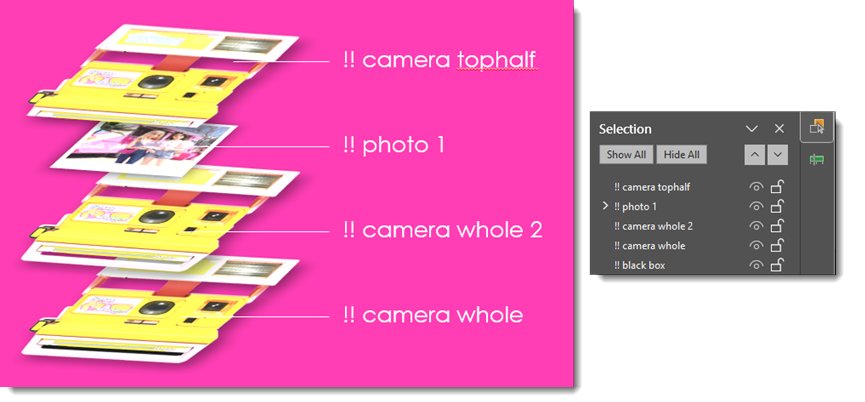
To create the illusion of a flash and photo ejecting from the camera, we needed to gather the image components and, in some cases, make some specific modifications. For the photo to look like it is coming out of the camera, we needed 2 layers of the camera image, with the bottom layer being the full camera and the top layer cropped right to where the photo will spit out.

Making the Magic with Morph
The star of the show? PowerPoint’s Morph transition. We used Morph to animate the photo “printing” out of the camera.
The trick was placing the camera on Slide 1 with a slightly squished photo, hiding under the first camera layer. Then, as the slide animates, the photo comes out of the camera on a motion path, making it appear as if it’s animating out of the camera at the correct angle (this is why we squished the photo).
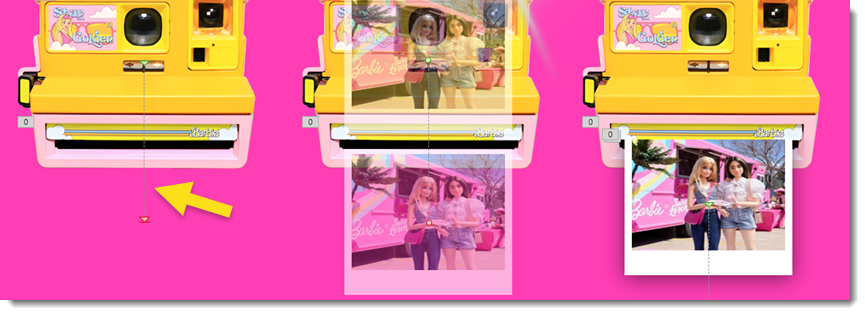
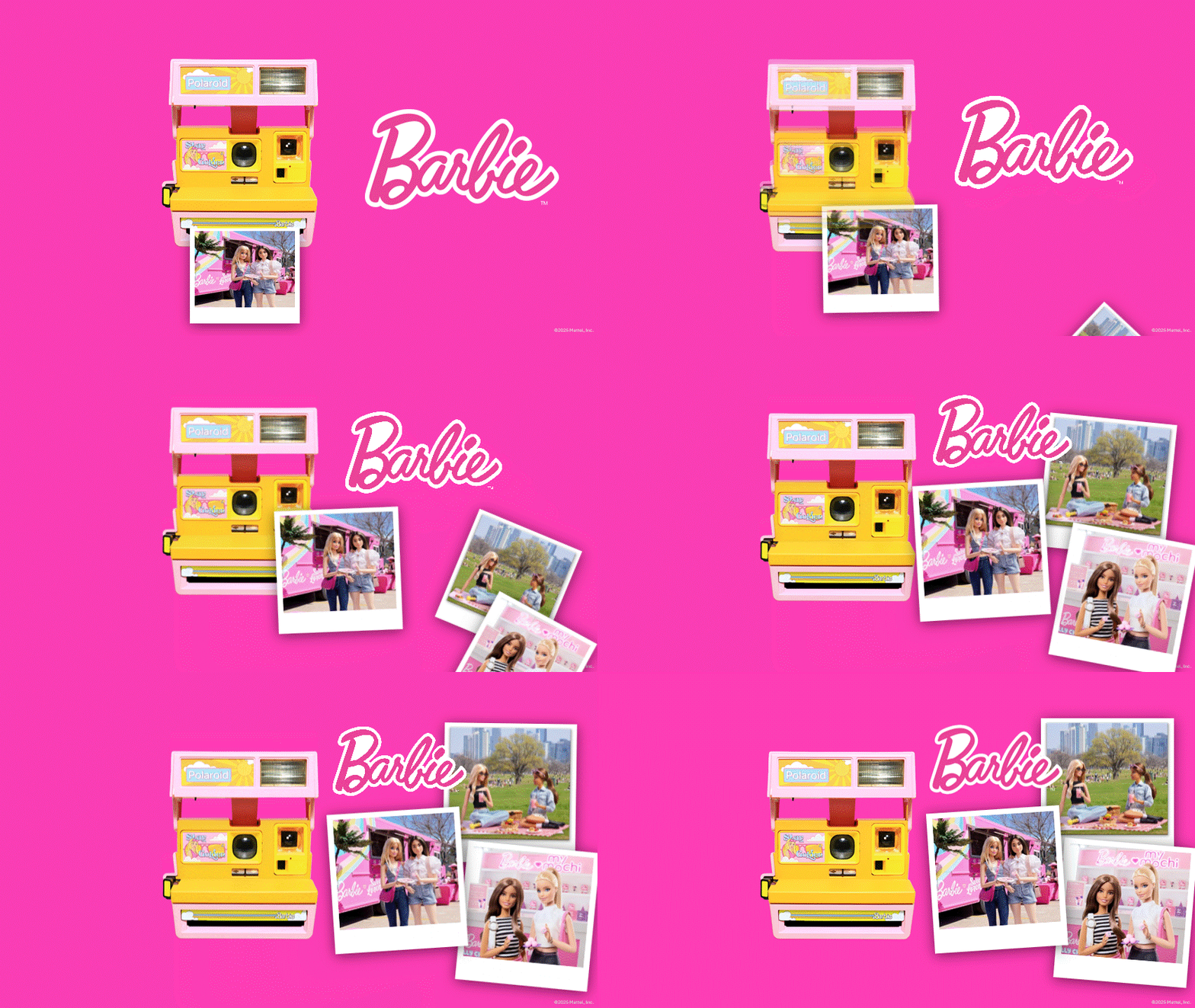
Then on Slide 2, with the photo already visible, we let Morph do the interpolation and stretch the photo to its normal un-squished size as it moves into position with the other two photos joining it. The illusion was smooth and seamless as you see here.
However, this part of the animation was problematic at first – our camera was popping on top of our photo for a brief moment during the morph animation, which clearly looked wrong. With a few extra layers and proper labeling in the selection pane, we essentially added a duplicate camera image underneath the photo and animated it to appear as the other camera layer disappeared.
To further play into this camera moment, we used the flash burst asset created earlier and animated it to quickly appear and then disappear using simple fade-in and disappear-out animations timed to the sequence.
The Final Touch
To tie it all together, we made sure the colors, timing, and movement all aligned with our favorite doll’s playful and stylish brand. The end result? A moment of animated delight that felt right at home in this fabulously fun and pink world.

– Christie and the TLC Creative Services design team