
The Presentation Podcast Episode #47 Released Today!
A new episode of The Presentation Podcast with Troy, Nolan, and Sandy is available today! Check out the latest episode, #47 – Playing with 3D Models in PowerPoint.
Support for 3D model file formats are a new option for PowerPoint. 3D models and 3D Perspective design are different. In this Presentation Podcast conversation, Troy, Nolan and Sandy talk about using 3D Models as PowerPoint slide content and if 3D Models are a novelty, a fad, or a design trend.
A Month of Groundhog Days
Happy Ground Hog Day – February 2nd!

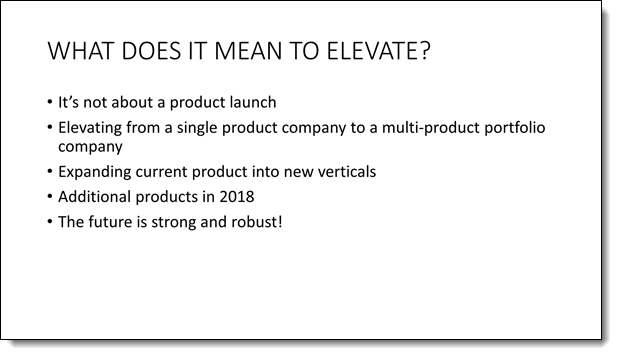
As with the tradition of Ground Hog Day, this month we are taking this (boring) slide and doing a presentation makeover on it every blog post. The goal is to show how the same content can be interpreted into many layouts.
Troy @ TLC
Animating the TLC Logo as a 3D Model in PowerPoint
Just more fun, and a great example of using 3D models as part of the slide content created by Wanda on the TLC Creative presentation design team. This mini-presentation combines custom 3D models of the TLC Creative logo, images and PowerPoint text. With motion created with a combination of Morph and on-slide animations.
[KGVID]https://thepowerpointblog.com/wp-content/uploads/2018/01/unnamed-file-2.mp4[/KGVID]
Troy @ TLC
3D Model As Animated Slide Content
3D Models should be thought of as “standard” design images for the layouts. As example, this fun presentation is a mix of .png images, a 3D model and animation. The 3D model is not obvious it is 3D until its animation.
The animation was created in just 5 slides.
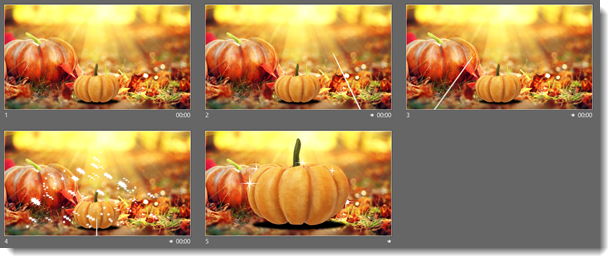
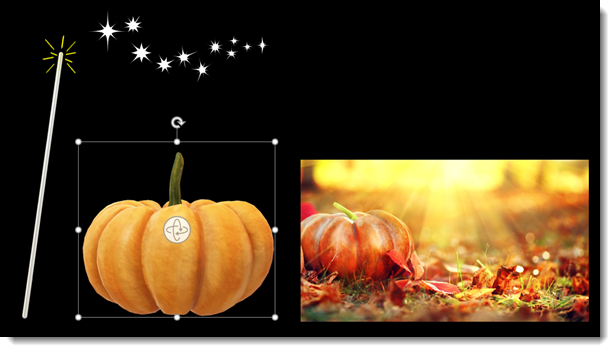
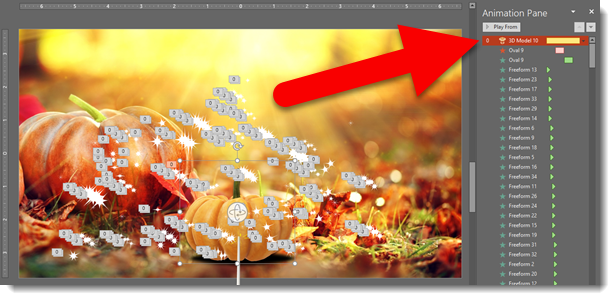
Content was a large background image, a .png image for the fairy wand, a lot of .png sparkle images, and a great 3D model of a pumpkin.
Slides 2-3-4-5 use a morph transition + on-slide animation. Slide 4, with lots of magic sparkles uses a morph transition and over 350 PowerPoint animations to create the effect!
Troy @ TLC
3D Model On-Slide Turntable Animation
Here is a demo of the new 3D Model TURNTABLE animation created by Christie on the TLC Creative design team. The Turntable animation adds a 3D rotation, of a 3D model, that can be once, twice or endless as an on-slide emphasis animation.
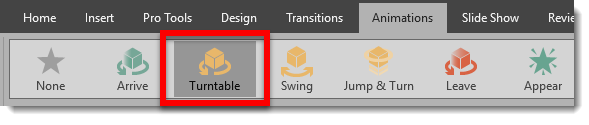
For this demo the Microsoft logo 3D model logo was sourced from Remix 3D.
There are only 2 slides in the demo presentation, each for a specific task.

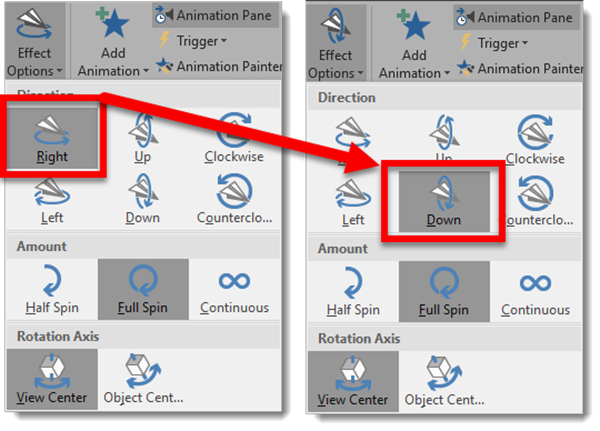
Slide 1 has the TURNTABLE 3D model only animation applied, with a rotation RIGHT and set to continue until end of slide.
[KGVID]https://thepowerpointblog.com/wp-content/uploads/2018/01/unnamed-file-4.mp4[/KGVID]
Each 3D Model animation has a number of options. As example, changing the DIRECTION from the original RIGHT to DOWN. To change the effects of the animations, select the 3D model, click the Effects Options drop down, and the menu shows all available variations for direction, type of rotation and where the rotation axis is.
Now the same slide animation looks like this
[KGVID]https://thepowerpointblog.com/wp-content/uploads/2018/01/unnamed-file-5.mp4[/KGVID]
Slide 2 is how this could be used in a real-world presentation. With slide 1 the logo has a never-ending rotation continue while the presenter introduces the topic. Then with a click to advance to slide 2, a morph transition to seamlessly moves and shrinks the logo to the right side of the screen while presentation content (the bullet list text) enters. And then for fun we used another new 3D model only animation, Jump & Turn, on the Microsoft logo in its new position.
[KGVID]https://thepowerpointblog.com/wp-content/uploads/2018/01/unnamed-file-6.mp4[/KGVID]
Troy @ TLC
On-Slide 3D Model Animation!
There are 5 new animations in PowerPoint! All 5 are for 3D models only, and they provide on-slide animations (vs. using Morph to animate and see different views of a 3D model). I am hopeful that we will see additional new animations as support for 3D models continues to evolve in PowerPoint.
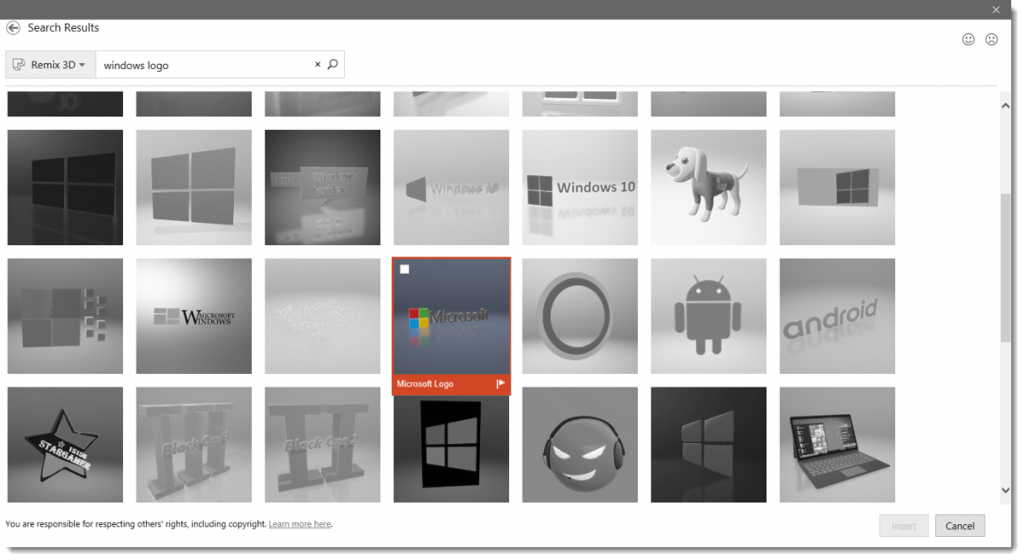
The new animations are found on the Animation tab.

Each animation has a number of Effect Options to adjust the animation action. One option is the click the Effect Options drop-down from the Animation Tab.
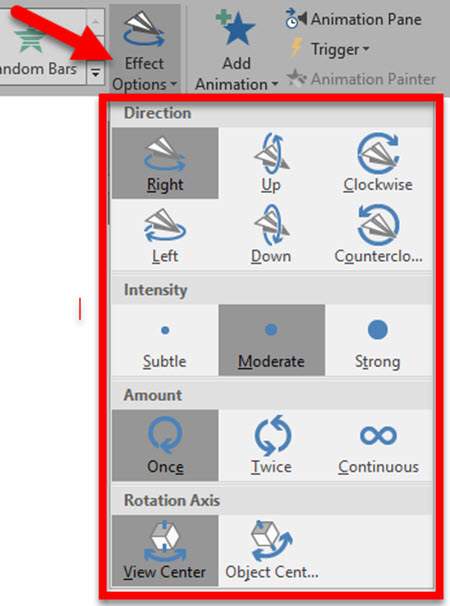
The other option is to view the Animation Pane and right-click the 3D model animation and select Effect Options to open the animation dialog.
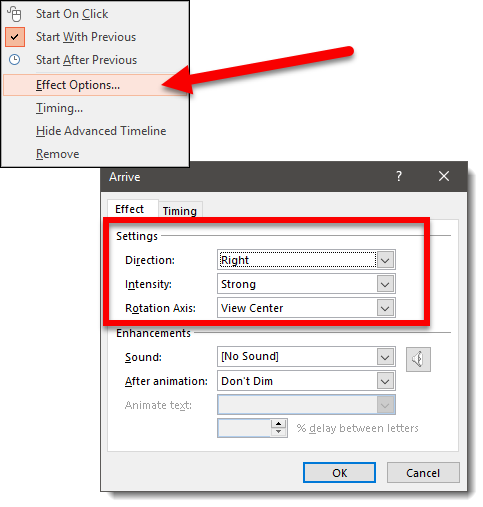
And here are the 5 new 3D Model animations!
My personal hope is that the use of these animations will extend to be able to apply them to anything; photo, shape, text, icons, etc. But for now I am excited to finally see something new happening on the Animation tab!
Troy @ TLC
3D Model Maze Animation
Just experimenting with 3D models and how they can be animated in PowerPoint is exciting and fun for me, because it is new options, new rules, and new visuals. For fun I wanted to create a 3D Virtual Fly Through style animation. Things did not work how I originally intended (we are definitely limited when it comes to moving the camera view inside a 3D model in PowerPoint vs. other 3D specific software). Here is the 3D model of a maze sourced from Remix 3D.
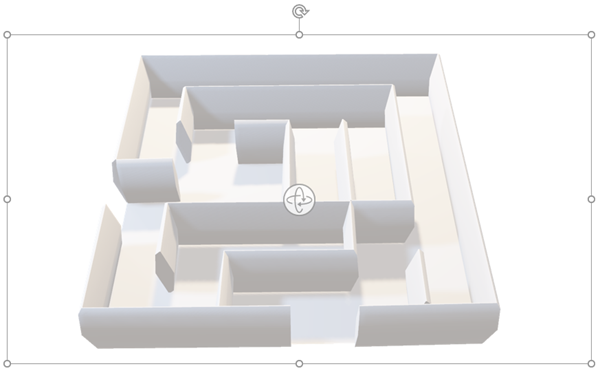
The final presentation is 21 slides, all motion (except the first and last slides) accomplished with repositioning the 3D model, using the 3D View ball, 3D Pan & Zoom and Morph transition.
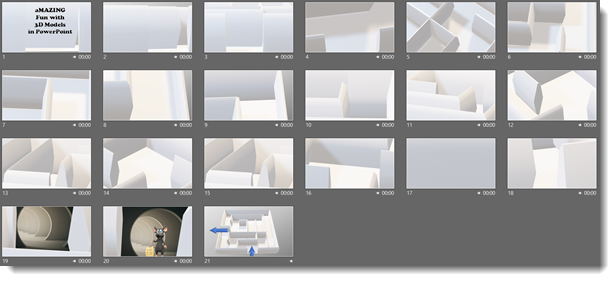
The final result is a simpler, but still amazing (pun intended!) motion graphic.
[KGVID]https://thepowerpointblog.com/wp-content/uploads/2018/01/unnamed-file-3.mp4[/KGVID]
Troy @ TLC