
Microsoft Remix3D for 3D Models
Microsoft is making a big push into 3D and is supporting all users with some new tools. Remix 3D is a Microsoft offering, and uniquely the site has minimal Microsoft branding, and can be used by anyone.

Remix3D has a wide variety of 3D models (and by “wide variety” I mean cheesy cartoon quality to more professional subject matter). Everything on Remix3D is FREE and completely royalty free!
PowerPoint has very recently added the ability to add real 3D models to slides. Here at TLC Creative we feel having support for 3D models in presentations is going to add a great layer of visual styling options! Previously adding a 3D model meant exporting a .png image or movie file of the model. Now we can add the real 3D model, maintaining its 3D attributes.

To use any of the Remix3D.com models in PowerPoint (or Word, or Excel) you can either go direct to the website, login (a Microsoft account is needed, not necessarily your Office365 email), download and insert onto a slide. As example, searching for “Globe” there is a good selection of models to choose from.
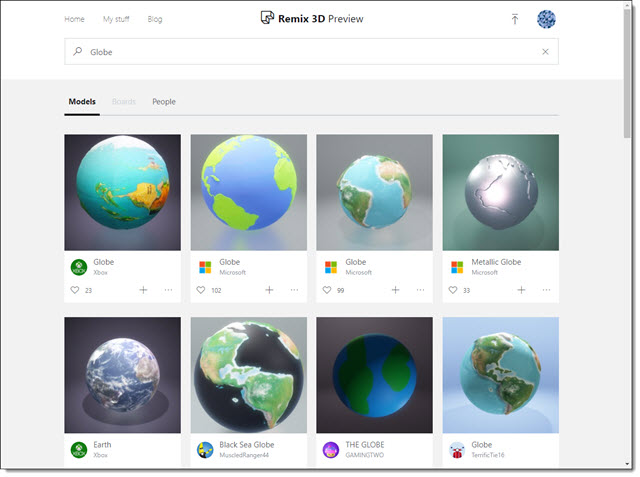
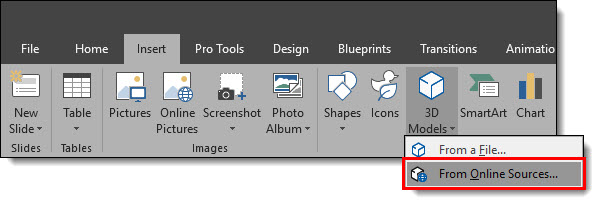
The other option is to search and insert directly in PowerPoint. Remix3D works seamlessly with all Office apps (PowerPoint, Word, Excel), including the new Microsoft Paint 3D application. The integration is impressive. Using Office 365 PowerPoint go to INSERT > 3D MODELS > FROM ONLINE SOURCES.
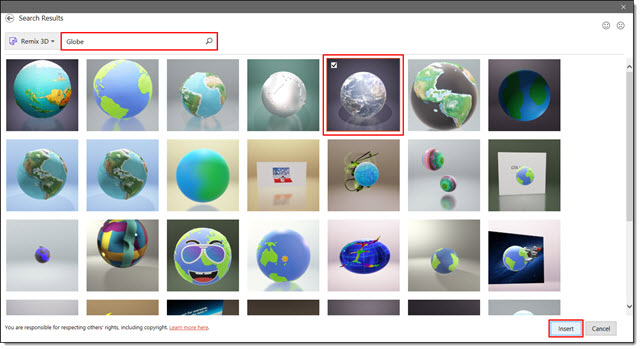
The dialog that opens is a view of Remix3D’s library. Search and find a 3D model and click insert. Here is a search for “Globe” in the PowerPoint direct dialog. All the same models. Find the 3D model you want and click INSERT.
Two notes:
- The background behind the 3D model is not going to be inserted, just the model over the slide background.
- When searching through the website, you can interact with the 3D models to rotated on all axis’ to view. But the PowerPoint direct dialog is only a static image of the 3D model.
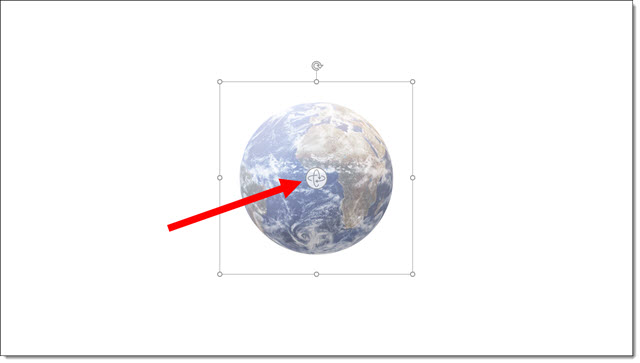
The selected 3D model is placed on the current slide, centered on the slide. 3D models are vector act, so they can be scaled to any size with no quality loss. In addition, 3D models has a new center activation icon that allows it to rotate, zoom and pan the model to the desired view for the presentation.
Throughout this month we are highlighting using 3D models in presentations with the TLC Creative design team’s PowerPoint demos that integrate 3D models.
Troy @ TLC
The Presentation Podcast Episode #45 Released Today!
A new episode of The Presentation Podcast with Troy, Nolan, and Sandy is available today! Check out the latest episode, #45 – Things to Check Before Presenting.
Sandy, Nolan and Troy are presenters themselves, they work with presenters every week, and have experienced many presentation technical issues, this podcast offers a compilation of things every presenter should check before presenting.
Bing and Inline Speed Test!
Happy New Year! Let’s start 2018 with a hack to easily see your internet connection speed.
This is a Bing search engine trick, that does not work in Google or any other search engine (as of today). One of the first things I do when at a hotel or working backstage is to run a speed test to know what my internet connection is (which then lets me estimate how long client downloads will take, how many people I am good to share internet access with, etc.). Speedtest.net, powered by Ookla is the most accurate and reliable speed test I have found. I have their app on my mobile devices and their site bookmarked in my browser.
But things are even easier, if using the Bing search engine (does not matter what browser app; Edge, Chrome, Firefox – desktop or mobile versions). Open a Bing search page:
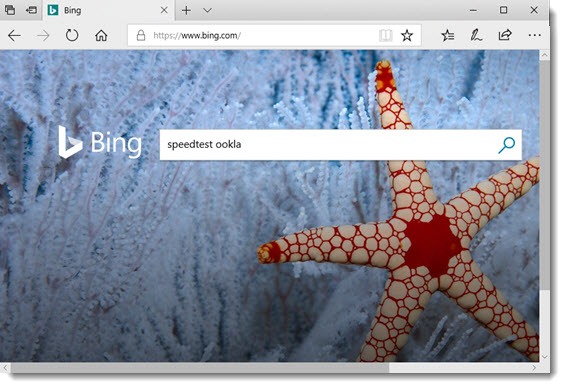
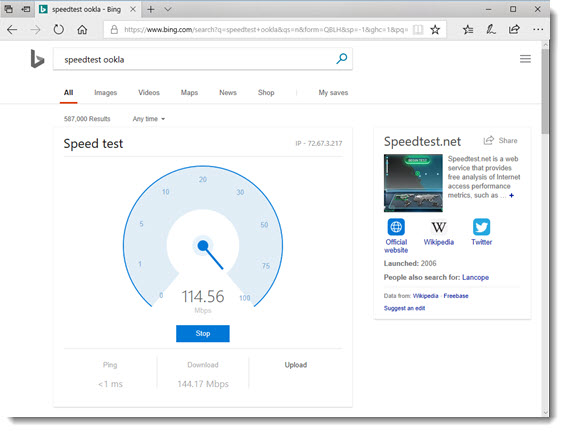
In the search field type “Speedtest ookla” and an inline app is the top search result! Just click start and get current internet connection speed results directly in the search results page.
Troy @ TLC
Christmas Animation Using 3D Model
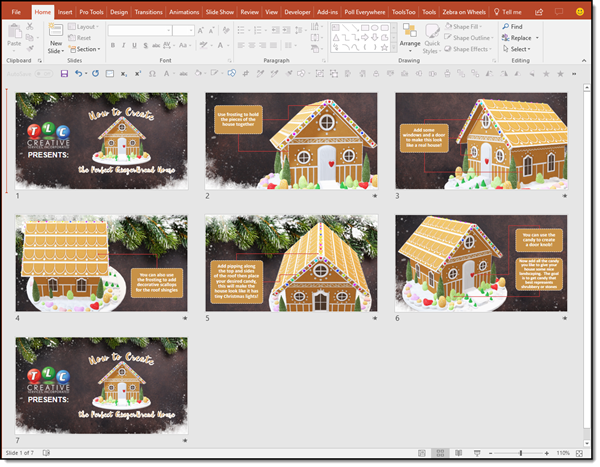
Just having some holiday fun here at TLC Creative. Christie, on the TLC Creative design team, created this fun Christmas Animation using 3D (the Gingerbread house), holiday background image and PowerPoint text & graphics.
[KGVID]https://thepowerpointblog.com/wp-content/uploads/2017/12/unnamed-file-2.mp4[/KGVID]
Using only Morph transitions for the motion, this animation was accomplished in just 7 slides.
Throughout January, The PowerPoint Blog is showcasing all 3D model use in PowerPoint.
Troy @ TLC
TLC Top 10 Moments of 2017
2017 has been a very good year here at TLC Creative Services. Throughout December we did a series on our Facebook page “Top 10 TLC Moments of 2017.” Here is a quick video version counting down all 10 moments!
TLC Christmas PowerPoint Animation 2017!
Our team here at TLC Creative Services hopes everyone has a fantastic Christmas! As with years past, our design team has had some fun with PowerPoint animation for Christmas!
Troy @ TLC
New Year’s Template
2017 is almost over, here is a 2018 New Year’s Template (free!) to get things started for the new year!
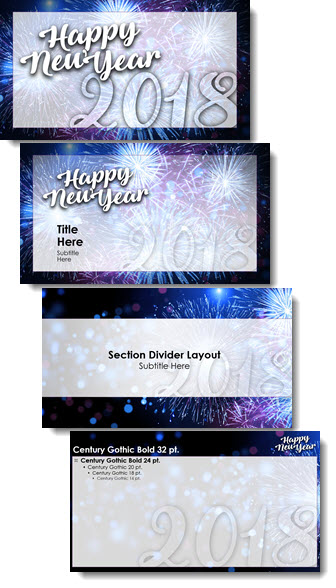
Download free 16×9 PowerPoint template HERE.
Troy @ TLC