
PowerPoint Layer Order Explained
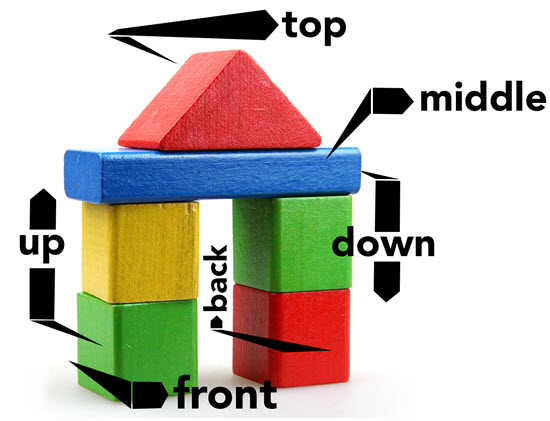
How do you describe what is on top or bottom for slide content?
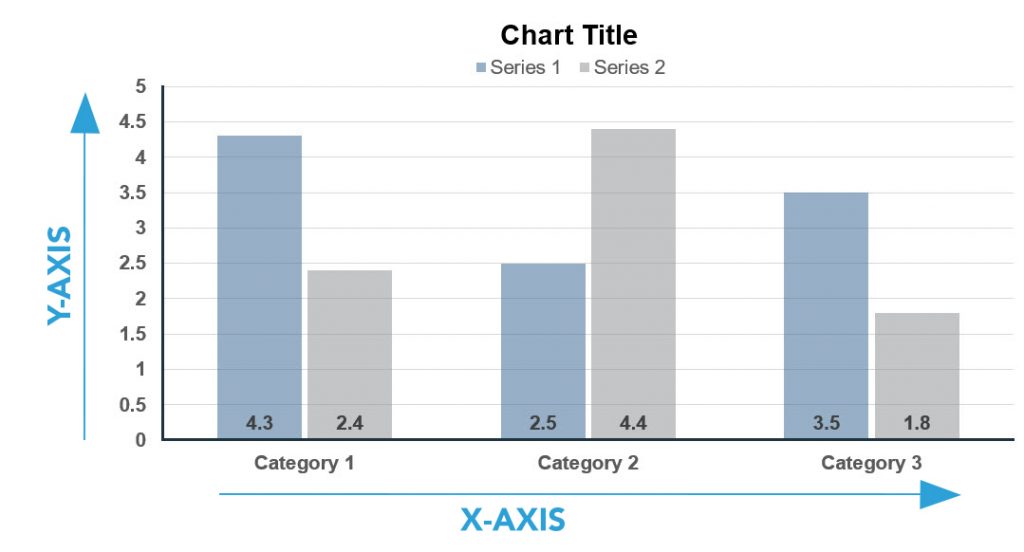
Let’s look at a simple explanation of 2D design. With presentation design, this is very easy to visualize by looking at a chart. A standard bar chart has two axes: left-right (X) and up-down (Y).
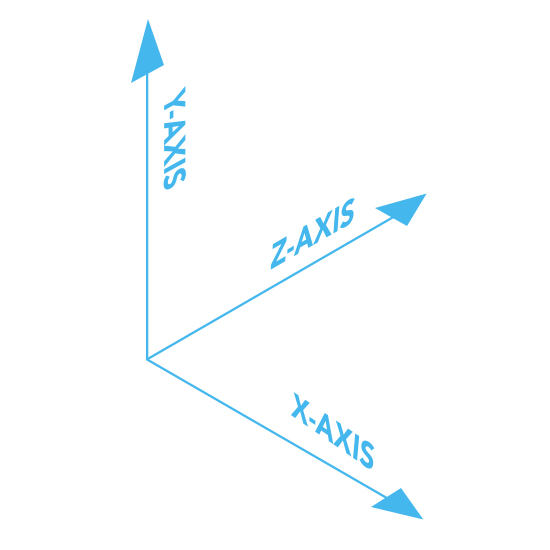
To expand on things, here is a simple explanation of 3D design. In 3D design, there are 3 axes; left-right (X), up-down (Y) and front-back (Z).
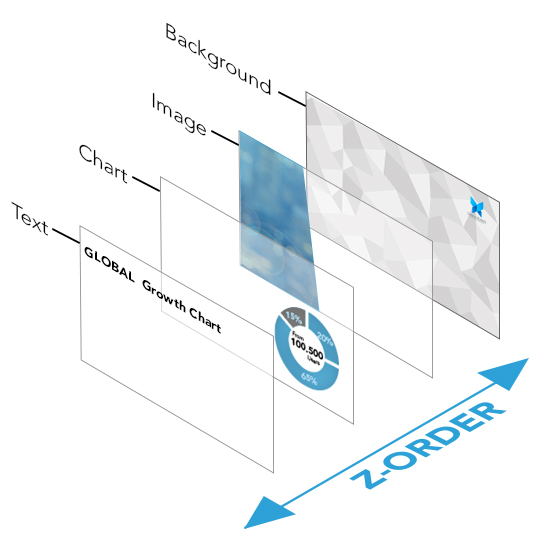
Similarly, PowerPoint slides can have 3 axes for content. Slide content is 2D, which is left-right and up-down. But, it can also be layered on top of each other, which is the Z-axis. So, content that is layered on top of each other is referred to as the “Z Order.” Here is an exploded view of a slide. The Z-order has the text on top, so no other slide content is going to block it – but the text may overlap other content.
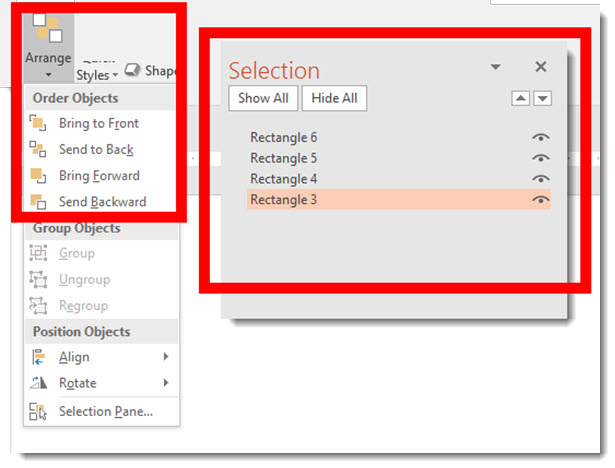
Z-order is adjusted with PowerPoint’s ARRANGE > ORDER OBJECTS tools. These are the “bring to front” and “send to back” buttons. The SELECTION PANE shows all slide objects in their Z-order with items at the top of the list on top and items lower on the list having the other items on top of them.
Note: PowerPoint cannot have objects on the same layer, so as soon as there is 1 object on a slide, something is always layered on top.
-Troy @ TLC
The Presentation Podcast Episode #13 Released Today!
A new episode from The Presentation Podcast with Troy, Nolan, and Sandy is available today! Check out their latest discussion on “Where Do You Get Your Images for Presentations?” and add to your favorite Podcasts on iTunes, Google Play, Stitcher, SoundCloud and more at The Presentation Podcast.

Presentation Guild – Microsoft Webinar Demonstrating Zoom

On August 16, 2016, the Presentation Guild put on this open-to-public webcast with a Microsoft PowerPoint Program Manager demonstrating the app’s newest tool, Zoom. The replay video is now available and the Presentation Guild has posted it on YouTube. Enjoy!
[youtube src=”https://www.youtube.com/embed/RE7Y7IefVy8?rel=0″]
If you are in the presentation field, I definitely encourage you to look into the Presentation Guild’s association and benefits.
-Troy @ TLC
Section Zoom Photo Collage
One last Zoom demo to wrap up the month of August. Many thanks to Wanda, on the TLC design team, for taking my idea and turning it into a great presentation. 
The concept is to create a Section Zoom, then stylize the each thumbnail into a photo collage layout.

Here is the slide deck with sections for each photo gallery. It would be very easy to add photos to sections over time, or by multiple people.
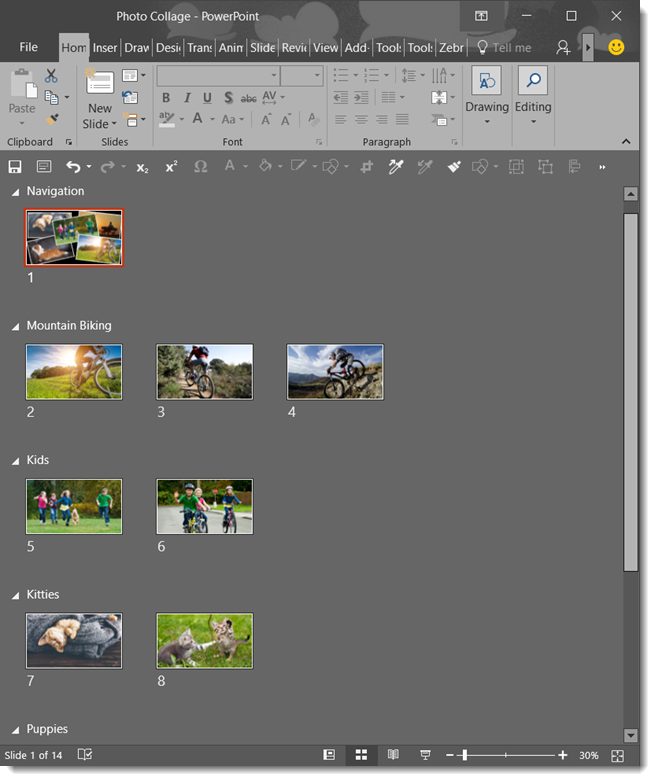
The presentation becomes an interactive digital photo album, and the same concept can easily be applied to touch enabled digital signage! Of course, when you see the layered thumbnail layout in action, it is (painfully) obvious there are some modifications needed to Zoom to make this great option actually usable…
-Troy @ TLC
Inception Effect with Zoom
Impractical – yes. A cool thing you can do in PowerPoint – yes!
Using the Zoom tool, you can create a slide that zooms into itself endlessly – an Inception effect. Here is my single slide presentation. First, I use the Zoom > Insert > Slide Zoom, and then I use the Drag-and-Drop way to make a slide a linked Zoom image (the music is what I hear when I think of an endless Inception loop).
-Troy @ TLC
Zoom Thumbnail Formatting Tips & Tricks
Microsoft released Zoom with a lot of great formatting options and features for linked thumbnails. Here is a list of several tips & tricks we learned working with the Zoom thumbnails.
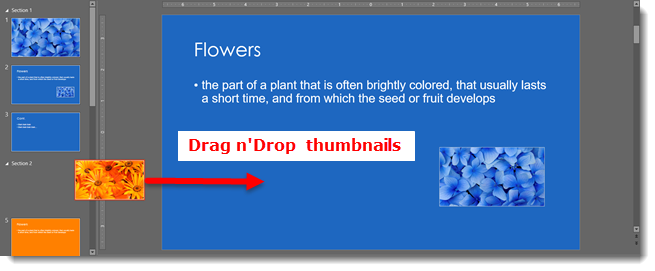
When creating a Slide Zoom (link to a specific slide, not a section), you can drag and drop a slide from the left navigation pane onto any slide!
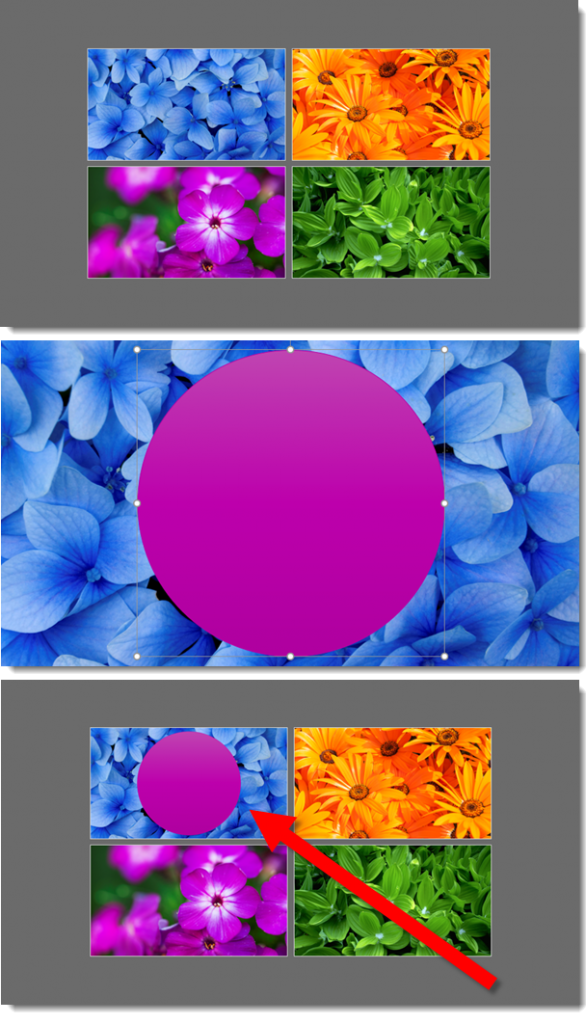
Thumbnails have dynamic live content. For example:
- Create a Summary Zoom
- Update one of the link slides (in this case, add a giant pink circle)
- Navigation slide thumbnail is instantly updated with the new slide content (amazing!)
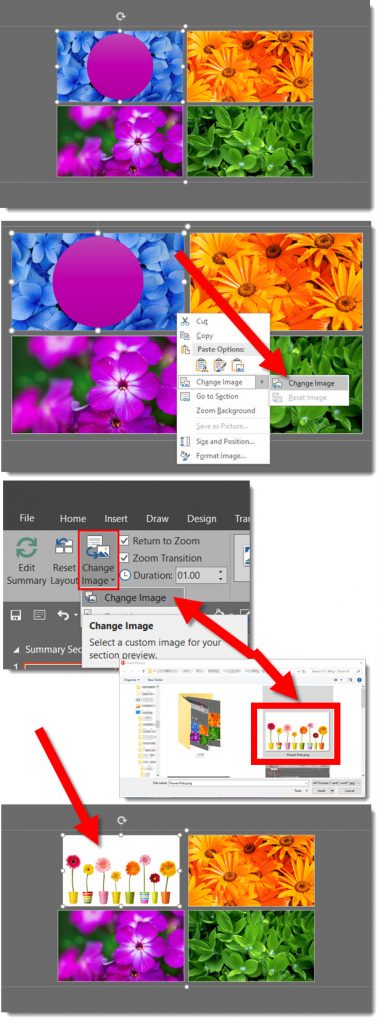
Any Zoom thumbnail can use a different image. Much like a video Poster Frame image, a Zoom thumbnail can be set to any external image.
- Select a thumbnail
- Either right-click thumbnail and select CHANGE IMAGE > CHANGE IMAGE or go to FORMAT > ZOOM OPTIONS > CHANGE IMAGE > CHANGE IMAGE
- In the pop up dialog, select any external image and OK to change thumbnail image
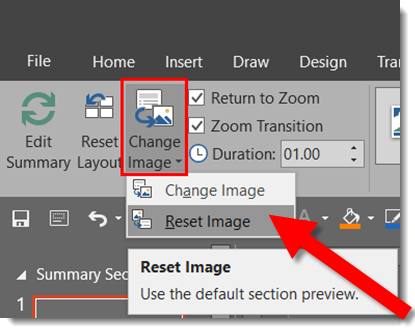
If the custom image is not wanted, it is easy to return the thumbnail to using the slide image. Just right click Zoom thumbnail and select CHANGE IMAGE > RESET IMAGE or go to FORMAT > ZOOM OPTIONS > CHANGE IMAGE > RESET IMAGE.
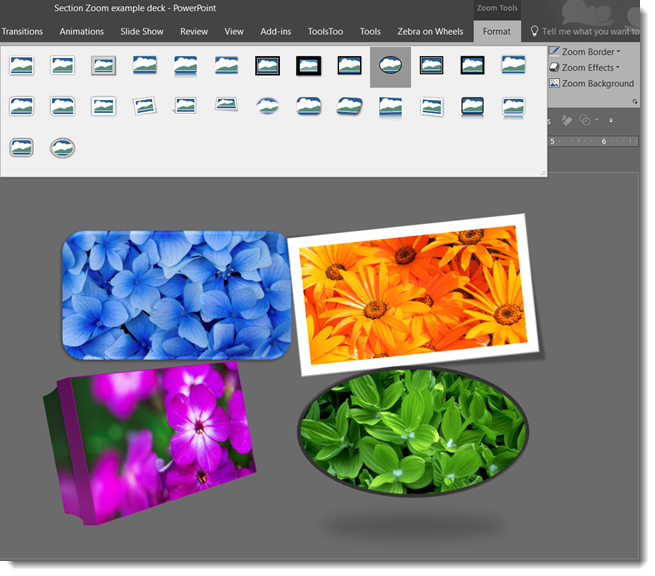
Also, any image styling options, such as drop shadows, outline, bevel, rotate, 3D perspective, etc., can be applied to a thumbnail. Note: 3D perspective is an example of a formatting option that can be applied, but does not always provide a nice transition effect.
Remove Background of thumbnails. This is a great design feature! Using the FORMAT > ZOOM OPTIONS section > ZOOM BACKGROUND and only the content on the slide will remain a part of the thumbnail. All slide master content (background image, logos, etc.) are removed from the thumbnail.
As example, here I have added a .png image of flower pots on the slide (and the flower background is set as the background image).
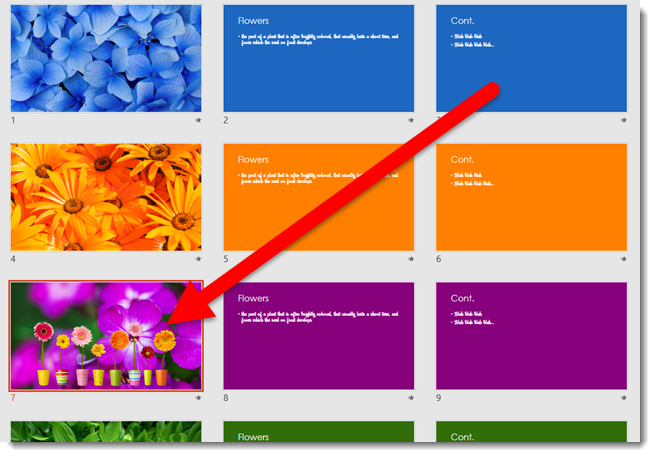
Next I added a SUMMARY ZOOM, which adds a new navigation slide with thumbnail navigation images of each slide selected.
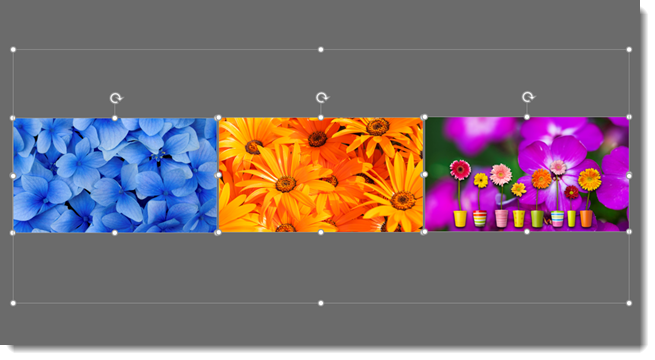
Selecting the right thumbnail and going to FORMAT > ZOOM OPTIONS section > ZOOM BACKGROUND to do an image ‘remove background’ effect.

All content that is on the master layout and/or set background image are removed from the thumbnail and what is left on the navigation slide is a .png with transparent background that has only the content actually on the slide (this is great!!).
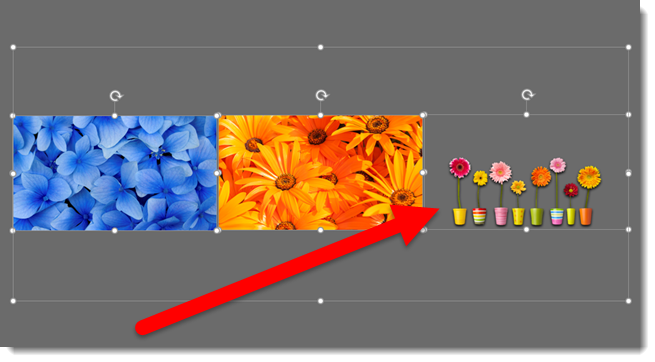
There are a lot of styling options and “hidden” features. Enjoy finding creative ways to develop non-linear presentations using Zoom!
-Troy @ TLC
Create A Summary Zoom
The Summary Zoom feature automates a few things:
- Adds PowerPoint Sections automatically
- Adds a Summary, or Navigation, slide automatically
- Automatically adds slide thumbnail images of slides that are navigation links
Here is how the PowerPoint’s help dialog explains Summary Zoom:
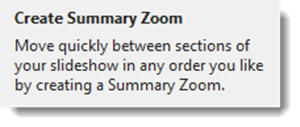
To create a Summary Zoom, go to INSERT > ZOOM > SUMMARY ZOOM
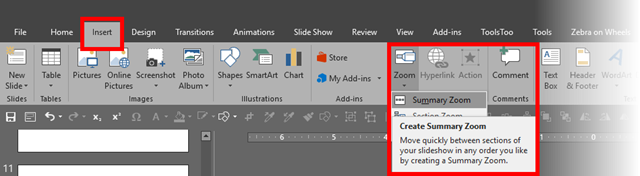
From the pop up Summary Zoom dialog, click each slide that you would like to start a new section and be added to the Summary Zoom slide.
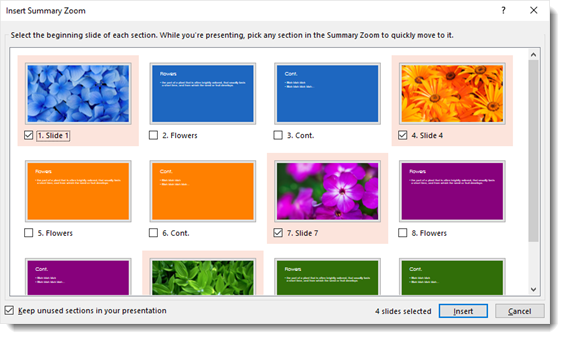
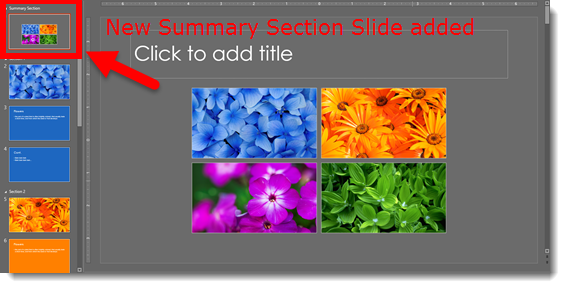
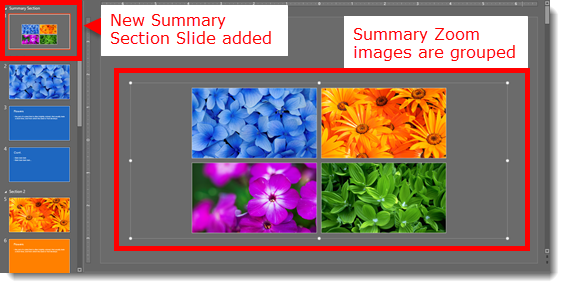
A new “Summary” slide is added to the presentation. The Summary slide has a grouped set of images that are thumbnails of selected slides and have all programming added to make them presentation navigation elements. In addition, each slide that was selected in the Summary Zoom dialog is the start of a new section.
The thumbnail group has some good, and maybe not-so-good, points.
- Each thumbnail image is exactly what is on the slide it links to.
- If you update the slide content, the thumbnail automatically updates (dynamic live content)!
- The thumbnail image shows exactly what is seen on the slide, animated content cannot be taken into account. So if the slide starts blank and then content animates on, the thumbnail will show the animated content. Basically, whatever would print is what will be visible on the thumbnail.
- The images cannot be ungrouped.
- The bounding box for the group is much larger than the thumbnail images.
- Images can be moved, resized, and to a limited degree, stylized, (eg. drop shadow, bevel, reflection, and rotate all work). But Z-order (front to back) cannot be changed. Rearranging and resizing can be tedious within this locked group element.
- When selected, in edit view, each thumbnail displays a link icon showing it has an active link and where it links to! The arrow (that appears to be indicating backwards or return) means the thumbnail has a link to go somewhere. The numbers show Section number and how many slides are in that section.
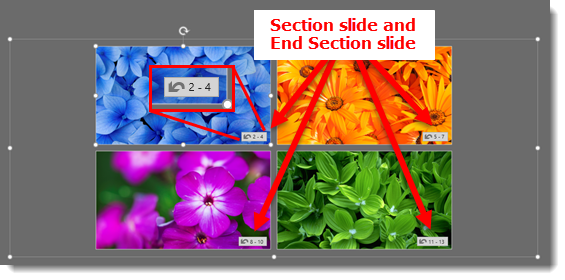
- In addition, the link icon visually shows when a thumbnail does not have an active link by removing the thumbnail image and displaying a broken link icon.

The Summary Zoom is a great new feature. It also introduces some fantastic new tools to PowerPoint (like icon links and dynamic live content updating) that I hope to see expanded into other areas of PowerPoint. Many thanks to Wanda, a TLC staff designer, for developing and testing the demo slide deck used for Summary Zoom. Here is a demo video showing how quickly Summary Zoom and non-linear presenting options can be added to a presentation.
-Troy @ TLC