
Pantone’s 2022 Color of the Year – A Look Back to February 2022
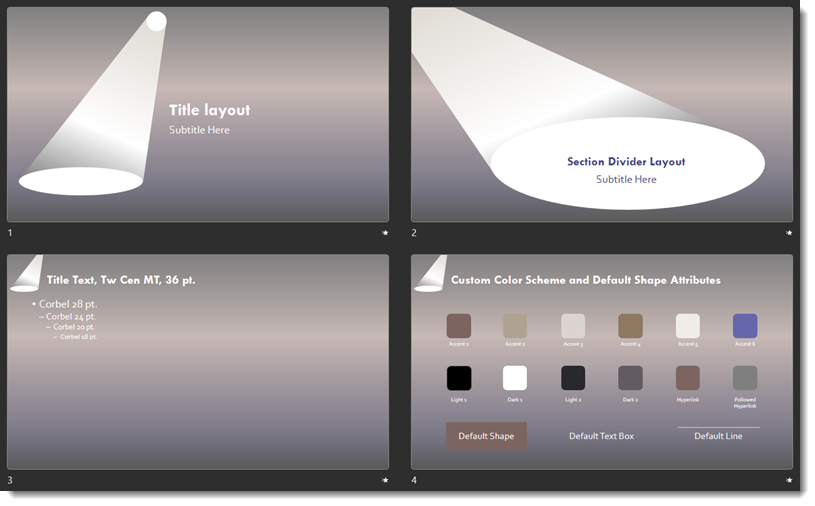
With Pantone having just released their Color of the Year for 2025, the TLC Creative team has decided to look back at our Pantone 2022 Color of the Year tie-ins. Pantone’s 2022 Color of the Year was #17-3938 Very Peri. And the TLC Creative design team created 4 free to use, full-feature PowerPoint templates inspired by the Very Peri color.
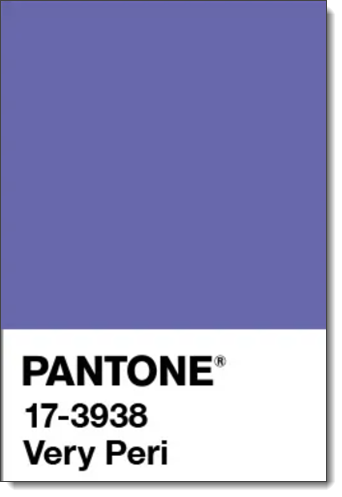
Pantone’s Color of The Year selection process:
- Pantone Color of the Year started in 1999.
- Each year Pantone has a global team of color experts that are not all Pantone employees.
- Colors are recommendations based on anything and everything that influences color; entertainment, travel, lifestyles, etc. and a study of trends, but not a timely fad.
- The process is generally identify, and agree, on a color. Then continue the process to determine the shade of that color.
- Read this article on the Pantone website for more facts and information about the process.
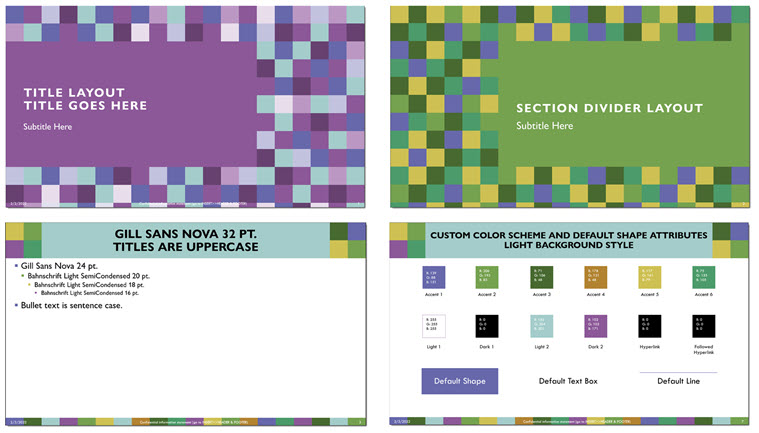
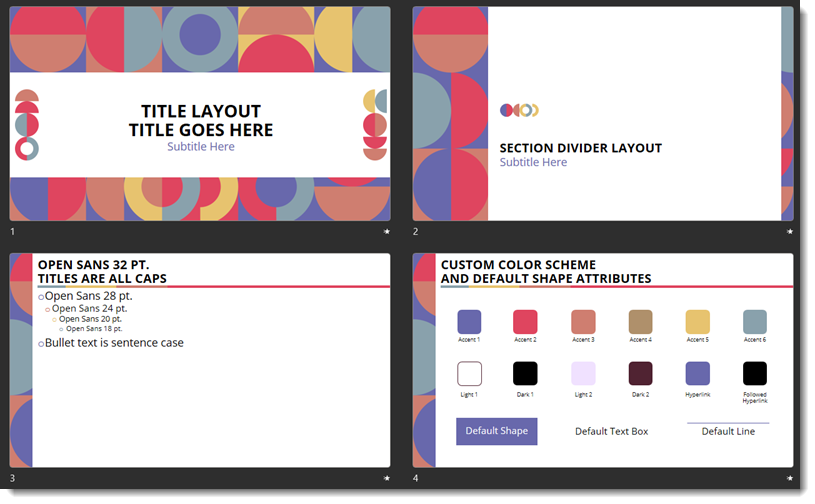
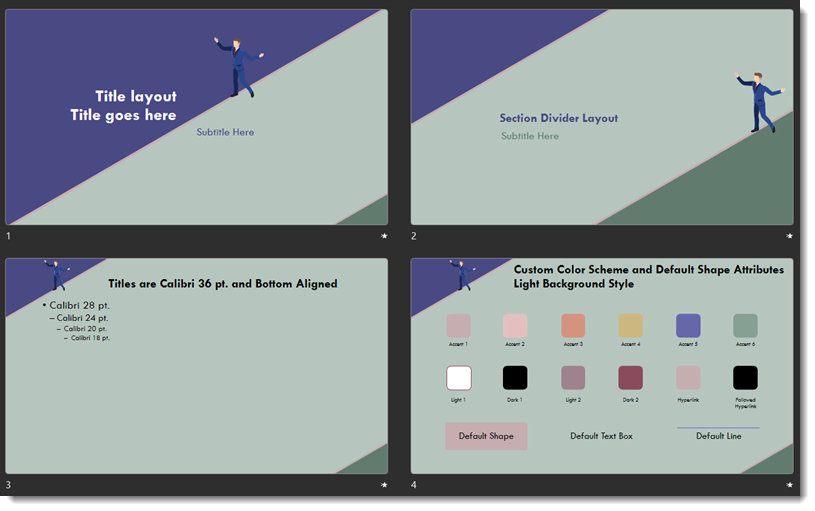
Pantone released a series of color schemes centered on the Very Peri color of the year. The TLC Creative team created 4 PowerPoint templates inspired by the Pantone color schemes. Each is a full-feature PowerPoint template, FREE to download and use!
- From Pantone’s “Wellspring” color scheme, we created this PowerPoint template. The full February 9, 2022 is available. Download the ready to use PowerPoint template HERE.
- From Pantone’s “Amusements” color scheme, we created this PowerPoint template. The full February 21, 2022 post is available. Download the ready to use PowerPoint template HERE
- From Pantone’s “Balancing Act” color scheme, we created this PowerPoint template. The full February 23, 2022 post is available. Download the ready to use PowerPoint template HERE
- From Pantone’s “Star of the Show” color scheme, we created this PowerPoint template. The full February 25, 2022 post is available. Download the ready to use PowerPoint template HERE.
This is from our Look Back series, rediscovering previous blog posts with relevant PowerPoint tips, tricks and examples.
2 FREE PowerPoint Templates – Inspired By the Pantone 2025 Color of the Year
Pantone’s 2025 Color of the Year, Mocha Mousse, is the inspiration for these 2 PowerPoint templates – and both are Free to download and use!
Christie, on the TLC Creative design team, used the Pantone Mocha Mousse color as PowerPoint’s Accent 1 and created a rich color template.

This full feature PowerPoint template has all core styling elements preset – and includes a theme layout, plus three full frame (eg. no placeholders) layout options!

Download the editable PowerPoint file HERE. (2.7 MB, .pptx)
—
Mike on the TLC Creative design team also used the Pantone Mocha Mousse color as PowerPoint’s Accent #1 for a PowerPoint template.

This full feature PowerPoint template has all core styling elements preset – and a master layout picture placeholder is preset for the logo on the Theme and Title layouts (insert either layout, click the picture placeholder to insert your logo).

Download the editable PowerPoint file HERE (2 MB, .pptx)
Free PowerPoint Color Schemes Based on the Pantone 2025 Color of the Year
Pantone’s Color of the Year for 2025 is #17-1230, “Mocha Mousse”.

As an internal design project, Amber on the TLC Creative presentation design team, created a custom color scheme inspired by the Mocha Mousse color. Download this 3 slide sample, with custom PowerPoint color scheme (that can be applied to any PowerPoint file), HERE.


Jake on the TLC Creative presentation design team, created this custom color scheme using the Mocha Mousse color as the inspiration. Download this 3 slide sample, with custom PowerPoint color scheme (that can be applied to any PowerPoint file), HERE.


When Everything is Bold, Nothing is Bold – A Look Back to August 2020
Are you designing a presentation with a lot of text? Not sure how to make your points stand-out? Typography is one of the most important aspects of a slide, and how well its done will determine how well you can communicate your message. We originally posted this in August of 2020, and the same design principles apply today!
One way to grab your viewer’s attention is to utilize a bold font, which is heavier and darker than the regular type. Bold fonts are used for emphasis, but too much bolding can have the exact opposite effect, because when everything is bold – nothing is bold.
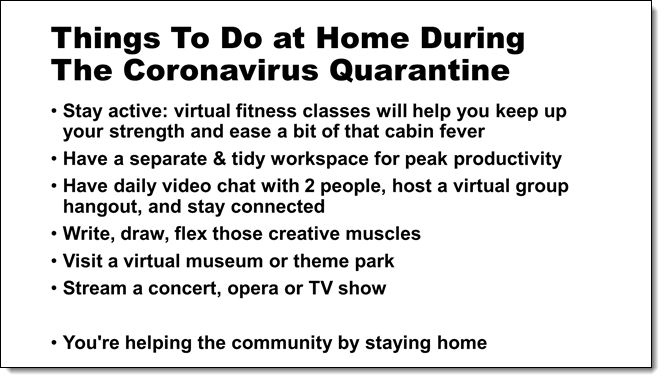
Selective bolding is a design process we use often. Be choosing key words to be bold and standout the viewer can quickly see, and read, what is important.
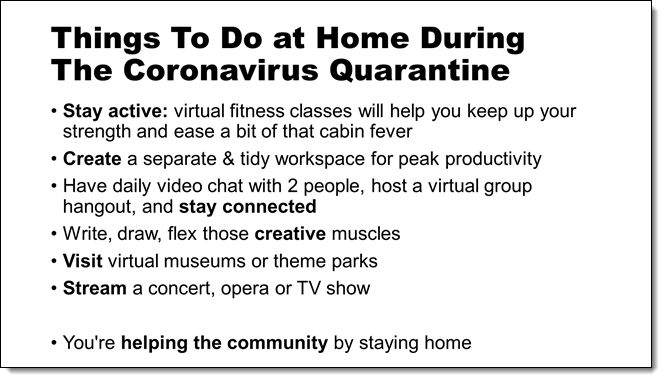
Happy bolding! This is from our Look Back series rediscovering previous blog posts with relevant PowerPoint Tips, Tricks and Examples. Original August 7, 2020 blog post here.
New Podcast Episode Available! “A Journey Through Time: Pro & Tech Tips Only”
New episode of The Presentation Podcast now available!
Welcome to a special episode of the Presentation Podcast, aptly titled “A Journey Through Time: Pro & Tech Tips Only”. In this episode, hosts Troy, Sandy, and Nolan take a journey through their favorite Pro and Tech Tips from past episodes. They share their curated list of apps, presentation formatting tips, and gadgets that have been game-changers for them, and listener favorites. Listen on your favorite podcast app, or at The Presentation Podcast site HERE.
Is your PowerPoint Ruler Turned On…?
It is surprising how some of the PowerPoint formatting tools the TLC Creative design team just takes for granted. As an example, the PowerPoint Ruler.

A default install of PowerPoint (desktop app) has the simple, but important ruler turned off. If you do not see the PowerPoint ruler, do yourself a favor and turn it on! It is only 2 clicks away:

- Go to the VIEW tab
- Check the RULER box
- Done!

Side note: in writing this post, the page name (eg. the “slug”) would not accept. Turns out we did almost the same post (https://thepowerpointblog.com/powerpoint-ruler) 9 years ago!
Something New – “Looking Back”

While planning out our 2025 content calendar, our Social Media Manager noted that The PowerPoint Blog has a really (really) long history of rich PowerPoint content – but much of it is lost in the vastness of posts. The suggestion was to expand The PowerPoint Blog from its current schedule of 2 posts per week, to 3 posts per week. The additional post would resurface older PowerPoint content that is just as relevant today as it was when originally posted.
So… starting today with the first Friday of 2025, The PowerPoint Blog is returning to three posts per week! Each Friday will be part of our “Looking Back” series, where PowerPoint tips, tricks, and examples from previous posts are shared once again.
Troy @ TLC