
It’s A Bright Pink World Full of Animation! – A Look Back to June 2018
What a great look back for our design team! Yes, PowerPoint 7 years ago was capable of great animation and video export – as shown in this project from 2018. For our team, this project is also full of memories, as several of the marketing campaigns are no longer current. But we were there and supporting Barbie!
Sometimes a presentation project is just all about the animation. In this case, we were tasked with developing a 2+ minute motion graphics video to be used as a meeting opener. A short segment is here for preview. We developed all in PowerPoint, and then exported to video with a music track. It is not the tool that creates bad, boring and bland presentations; PowerPoint is just a canvas, and can accomplish wonderful results in the hands of professional design team.
-Troy @ TLC
This is from our Look Back series, rediscovering previous blog posts with relevant PowerPoint tips, tricks and examples. The original post from June 1st, 2018 can be viewed here.
Manage PowerPoint’s Slideshow Popup Controls
If you’ve ever found the popup toolbar distracting while presenting a slideshow in Microsoft PowerPoint, you’re not alone.

Fortunately, PowerPoint offers a setting to disable this feature, providing a cleaner and more focused presentation experience.
- Open PowerPoint
- Go to > FILE > then, select OPTIONS

From the PowerPoint Options dialog box:
- On the left column go to ADVANCED
- On the right, scroll to the SLIDE SHOW section
- Disable SHOW POPUP TOOLBAR

- Click OK to apply the changes
- Done!
Important Notes:
- App-Level Setting: This is an application-wide setting, meaning it applies to all presentations you open or create in PowerPoint. You won’t need to disable the popup toolbar for each presentation individually.
- Accessing Presentation Controls: Even with the popup toolbar disabled, you still have access to all the same presentation controls by simply right-clicking anywhere on the slideshow screen. This brings up a larger overlay menu with all the necessary options, but it’s not persistent and disappears after selecting.


By disabling the popup toolbar, you can deliver a more polished and distraction-free presentation. Should you ever need the toolbar back, you can easily re-enable it by following the same steps and checking the Show Popup Toolbar box again.
Hope this PowerPoint tutorial helped. Enjoy presenting with a cleaner interface!
-Christie @ TLC
Get Credit for Creating a Presentation
GET credit where credit is due.

PowerPoint has file properties that list who created the presentation (really!).

Below is a the step-by-step of where to find the properties field that lists the name. But first, take a look at some of your recent presentations. Mouse over the file. Is your name listed as the Author – of your presentations? When PowerPoint is first setup, it asks for a few details about you, and automates the Authors property to use that name. Two things happen that often results in your name, not being the name listed. IT sets up your computer with a generic User Name, which is what PowerPoint uses for each presentation created. Or you opened a presentation that someone else started, which keeps the original person who started the presentation, listed as the author. So, where do you confirm your name is the name PowerPoint lists as the author for new presentations? Go to File > Options > the General tab > and the “Personalize Your Copy of Microsoft Office” section.
Is your name and initials shown? These settings are used for all presentations created on the computer (assuming Office is signed into the same profile).

But how is an existing presentation updated to your name when another name is already there?
In the presentation go to File > Info > and expand the far right list of properties. There are AUTHOR and a LAST MODIFIED BY fields. If your name is not listed in the AUTHOR field you can click the ADD AN AUTHOR and add yourself.

But, if you want to remove a name and replace with your name, there are a few additional steps. Go to File > Info > Check for Issues. Then Inspect Document > and run by clicking Inspect.

Click REMOVE ALL for the Document Properties and Personal Information and close the dialog.
Note: this action removes the existing Author listed, AND also removes other properties such as comments, Company, Last Modified, and more.

After the properties are clear, just save the file and your name (from the Personalize Your Copy of Microsoft Office fields) will be listed as the Author! Or, if the author field remains empty, click the ADD AN AUTHOR option to select your name.
There it is. How the mysterious “Author” name is added to presentations, and how you can manage who is listed as the author of your presentation!
Troy @ TLC
Moving An Object Seamlessly With Multiple Motion Paths – A Look Back to February 2011
Animations always add a bit of extra flair to PowerPoint presentations, and using motion paths can help you create unique, custom animations. In today’s presentation design, the Morph transition is the way to accomplish motion. For this Friday’s looking back post is a tutorial from 2011 on PowerPoint motion paths, because sometimes the Morph transition is not able to accomplish the needed motion. The how-to still holds up today – though we’ve added some updated images to give the post a facelift!
Motion path animations are a great feature, but using them beyond basic functions can be confusing. For example, here is the slide from an earlier timeline sample of ours:
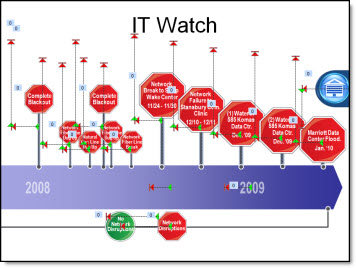
The animation effect was great, and the design of it relied on a lot of motion paths. This is a quick step-by-step example of moving an object to two positions with motion paths.
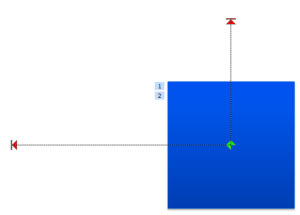
1. The blue box is the object to move. First to area “1” and then to area “2.”
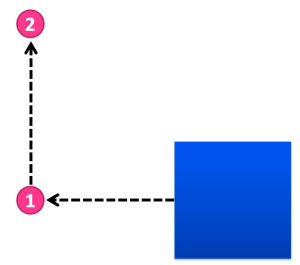
2. Moving to area “1” is easy. Select the box and add a Motion Path to the left.
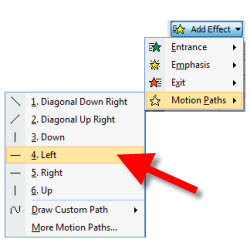
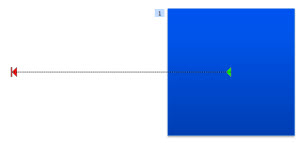
3. To move to area “2” is a bit more involved. First, add a Motion Path up. Note: It is added to the existing position. During slide show the box will move to the left, then jump back to the original location and move up – not the seamless effect wanted.
4. Select the “up” motion path. Note: You must be in the Animation tab to view motion paths and select them. Then, click and drag it over so it’s green start is exactly aligned with the first motion paths red end.
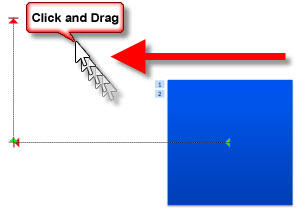
5. Done. Now, the box will seamlessly move to area “1” and then up to area “2.”

Download presentation with this sample animation (17K). Note: if your browser changes downloaded file to”.zip” rename to “.pptx”.
– Troy @ TLC
This is from our Look Back series, rediscovering previous blog posts with relevant PowerPoint tips, tricks and examples. The original post from February 4th, 2011 can be viewed here.
New Podcast Episode Available! Episode 216, “Does the Storytelling Animation design trend apply to us in the presentation design space?”
New episode of The Presentation Podcast now available!
“Does the Storytelling Animation design trend apply to us in the presentation design space?” In the latest episode of The Presentation Podcast, Troy, Sandy, Nolan, and Lori delve into the evolving role of animation in presentation design – particularly within PowerPoint. They explore how storytelling animation is becoming a significant trend in many aspects of graphic design and discuss how animation can be effectively incorporated into presentations to support the message. Listen on your favorite podcast app, or at The Presentation Podcast site here.
PowerPoint Animation Using Image Crop
Previously we discussed how to cover sections of an image to achieve animation as different sections in this post from February 12th. The issue that we learned was that by covering the sections with white boxes, that this would be more difficult to see while reviewing in slide sorter. The solution was to animate the images as separate elements. But how did we crop the image into 3 sections? Let’s review how.
Insert the Image:
- Click on the “Insert” tab in the ribbon.
- Choose “Pictures” or “Online Pictures” to insert an image from your computer or from the web.
- Select the image and click “Insert”.

Once we have the original image, now we can split it into 3 sections.
Duplicate:
We now need to duplicate the image 2 more times. This will come in handy to have 3 images in the same position so the cropping sections will look seamless. There are a few ways to duplicate the easiest is selecting the image and PC: ctrl + c then ctrl v Mac: cmd + c > cmd + v.
Let’s crop the first image then we will duplicate this process for the other 2 shapes. Here is a trick to map out the sections on how we are going to crop them.
- Create a shape that’s the same height as the image

- Next is duplicate the shape 2 more times.
- Align the 3rd shape the right of the image > then used “Distribute Horizontally” in the ribbon tool, to evenly space out the 3 shapes equally across the image.

Now we have a clear guide on where to crop each section.
Crop:
- Click on the first image to select it.
- Go to the “Picture Format” tab that appears when the image is selected.
- In the “Size” group, click on “Crop”.
- Position your mouse over the cropping handles
(the black squares around the image).
- Drag the cropping handles inward to crop the image to the first section you want. You can adjust the cropping by dragging the handles until you’re satisfied with the section.
- Click outside the image to apply the crop.

Repeat for the Other Images:
- Click on the second image to select it.
- Follow the same steps to crop it into the 2nd and 3rd section you want.
- Remove the 3 orange shapes as those are no longer needed as guides.

Now we have 3 sections of the one image that we can animate individually

Christie @ TLC
FREE Valentine’s Day PowerPoint Template – A Look Back to February 2016
It’s Valentine’s Day today! And it’s also Friday, which means it’s time for another Look Back post.
This week, we’re looking back at free template we developed for Valentine’s Day a full nine(!) years ago. Everyone at TLC Creative Services wants you to have a wonderful Valentine’s Day this weekend! For your valentine (class, office announcements, etc.), here is a professional, full featured PowerPoint template to download and use – for Free!
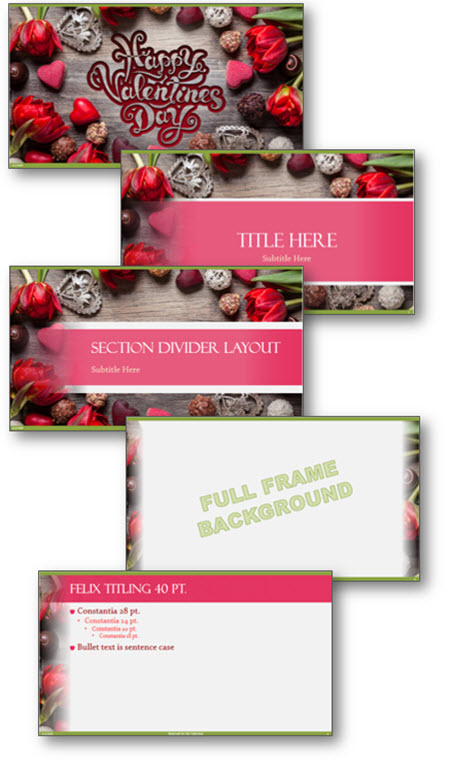
Download with this link: Valentines_2016 (1.8MB)
This is from our Look Back series, rediscovering previous blog posts with relevant PowerPoint tips, tricks and examples. The original post from February 8th, 2016 can be viewed here.