
What You Do Not Know – Advanced Image Cropping
PowerPoint’s Image Crop tool is fantastic. Combine it with Crop to Aspect! Get the full tip at The Presentation Podcast, episode 192.
What You Do Not Know – Starting a PowerPoint Presentation

Start a PowerPoint presentation from the the app or from the keyboard. Here is a quick audio takeaway from the conversation. Listen to the full conversation at The Presentation Podcast, episode 192.
Troy and Lori on The Presentation Podcast!
You Don’t Know, What You Do Not Know. The conversation this episode is Troy and Lori of TLC Creative talking about features and processes for PowerPoint design and presenting that are not intuitive to know are available, and therefore many people, professional presentation designers included, do not know they exist. Join the conversation here.

Slidewise has a FREE Version Now!
Starting with Slidewise version 2.1 there is a FREE version – and you should have it!

The free version is a feature-limited version of Slidewise. But the features it does include are invaluable (paying for all of the features is better)!
Basically, free-Slidewise is going to allow you to inspect a presentation, but not have access to the tools that automate fixing presentation issues.
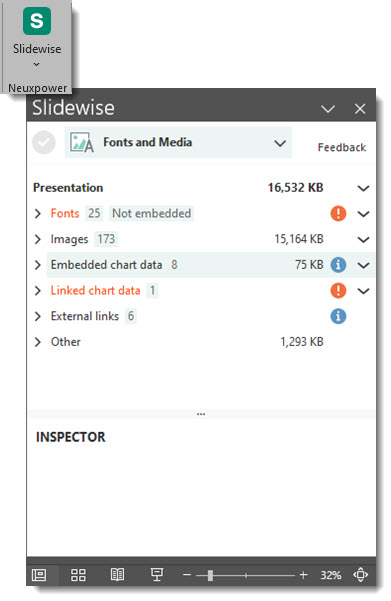
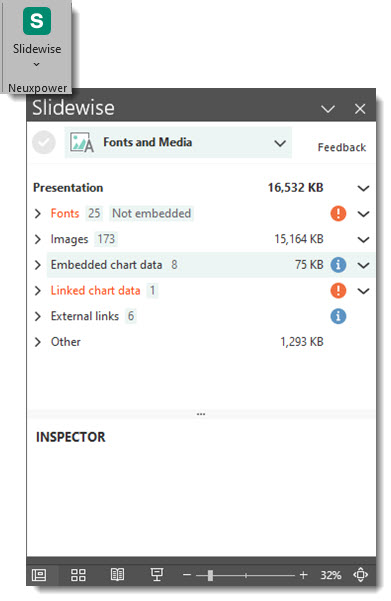
As example, Slidewise shows there are are 25 fonts in this slide deck (ugh!) and several are not Microsoft fonts, because they are not embedded. The free version provides this super helpful information. The paid version enables tools to quickly update fonts throughout the deck (which is amazing!).
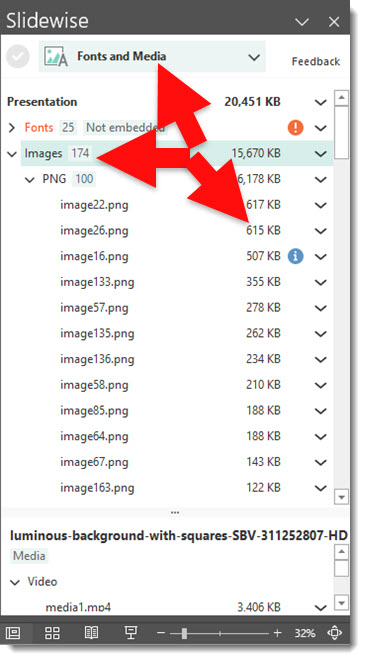
Another example is Slidewise Free shows a list of all images in the presentation – and displays the image file size of each image. This is super helpful in finding oversize images that are making the presentation file large. Slidewise Free keeps the ability to select an image from the list and jump to that slide, with that image selected (try it, it is fantastic!). But some of the image management tools are not available.
Two notes:
- Slidewise is currently a Windows PowerPoint add-in. No Mac PowerPoint option available.
- Just download the trial version and after the trial period ends it automatically goes to the free mode.
Checkout Slidewise at the developer website here.
Troy @ TLC
New Tools in Slidewise 2.1!
Slidewise 2.1 has released! Version 2.0 was released in October 2024 and added an amazing set of new tools (color audit, find cropped images, improved way to see assigned layouts and update the layout assigned to slides, and more). Now, only 3 months after having access to version 2.0, version 2.1 has been released!
Open a presentation and click the Slidewise button on the HOME tab to get an amazing audit of the slides.
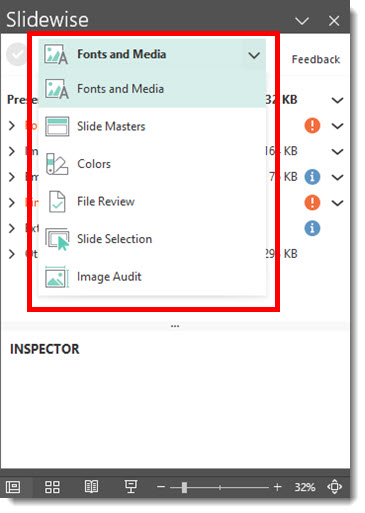
Version 2.1 replaces the row of icons to select Slidewise tools with a dropdown menu. I particularly like this navigation improvement for 2 reasons; first, if the PowerPoint action pane was too narrow, not all of the icons displayed. And second, I was constantly spending time mousing over and waiting for the tooltip to display to remind me what icon led to what tool – in the drop down menu the tool names are instantly there (yay!)
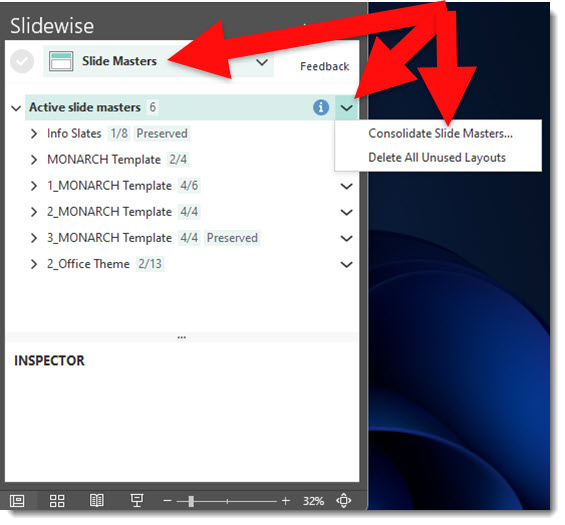
The ability to audit what slides use what Master Slide, and what Master Layout has been a huge time saver in presentation clean up. The Consolidate Masters feature has gotten better!
- First note, this feature is still hard to find, so I feel a lot of people miss it (and it is awesome!). Go to the SLIDE MASTERS tool. Click the down arrow on any master slide listed and select CONSOLIDATE MASTERS from the fly out menu
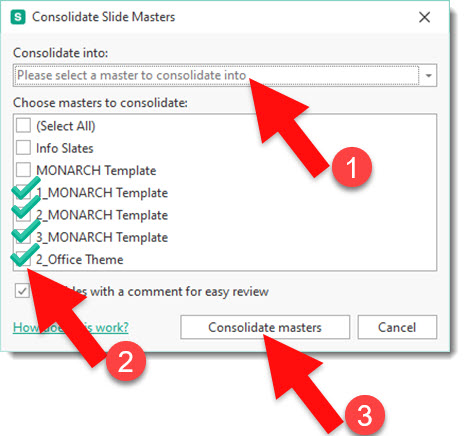
- This is the updated Consolidate Masters dialog. The big improvement are the checkboxes next to each master. (1) select the Slide Master you want to move other slides too. (2) check mark 1 or more (yay!) of the “bad” Slide Masters. (3) click CONSOLIDATE MASTERS and all of the slides assigned to the “bad” Slide Masters are instantly moved to the selected “good” Slide Master (double yay!!).
- Note: if the “good” Slide Master does not have a Master Layout of the same name, PowerPoint will create new/Frankenstein layouts for those slides, but everything is consolidated to the Slide Master selected.
- Note: if the “good” Slide Master does not have a Master Layout of the same name, PowerPoint will create new/Frankenstein layouts for those slides, but everything is consolidated to the Slide Master selected.
The last Slidewise tool I am covering in this blog post is the IMAGE AUDIT and the addition of a CROPPED images audit.
- The first note is I think a lot of people miss the true Image Audit tool and features, because when Slidewise opens the default view is the FONTS AND MEDIA tab, which has an IMAGES section that provides a lot of great info and options.
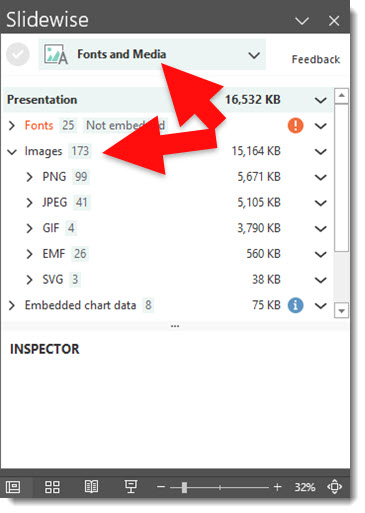
- But the IMAGE AUDIT tab offers even more! For me, the Image Audit is turned off when going to the tab (not sure why(
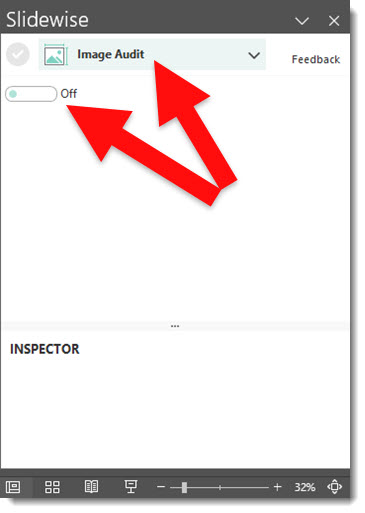
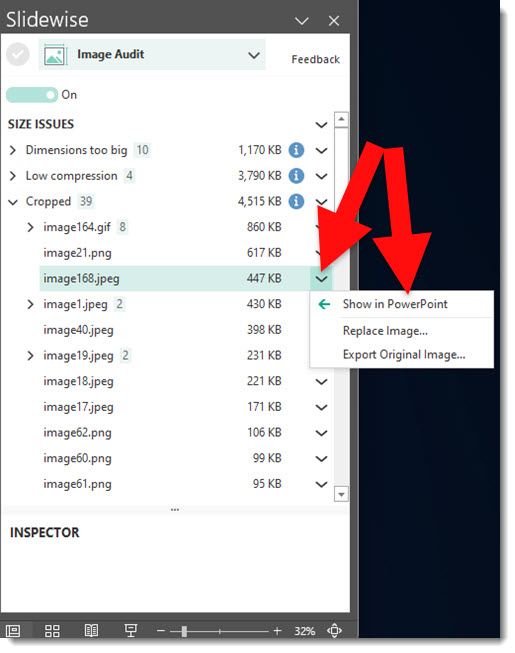
- Turn ON the Image Audit and a number of amazing options are available to inspect, and correct, by image size – compression – quality – and more.
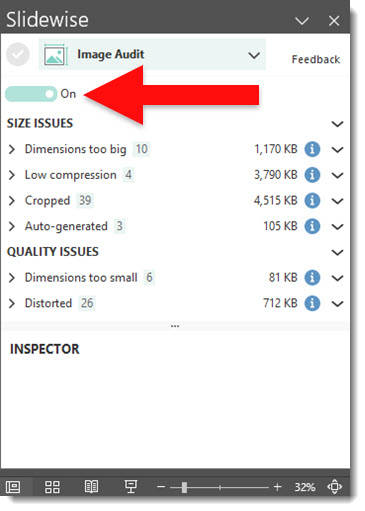
- Version 2.1 adds to the list of options, a CROPPED image audit. Expand and see a list of every image that has a PowerPoint crop applied.
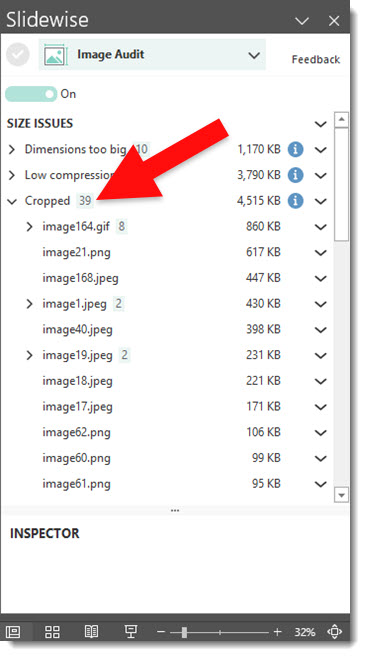
- Click the down arrow next to any image and from the fly out menu click SHOW IN POWERPOINT to go directly to that slide and have that image selected.
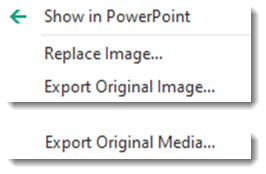
Bonus: I am not 100% certain this is new in v2.1. I may have been added in v2.0, but it is new to me, all images and videos have an option to EXPORT ORIGINAL IMAGE/MEDIA now, which is another great addition to an already amazing productivity set of tools!
Check out the Slidewise PowerPoint add-in here.
Troy @ TLC
ToolsToo Updates (some cool new features!)
ToolsToo released v10 of the PowerPoint add-in suite in January 2022. There was a sprinkling of updates through 2022. Fast forward to 2024 and v11 of the ToolsToo productivity suite has been released!

Here are my top 3 new tools from my initial few weeks running the new version.
1. AUTOFIT TEXT TO SHAPE
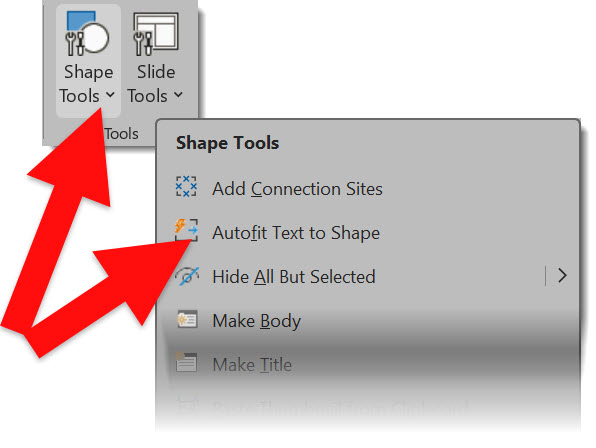
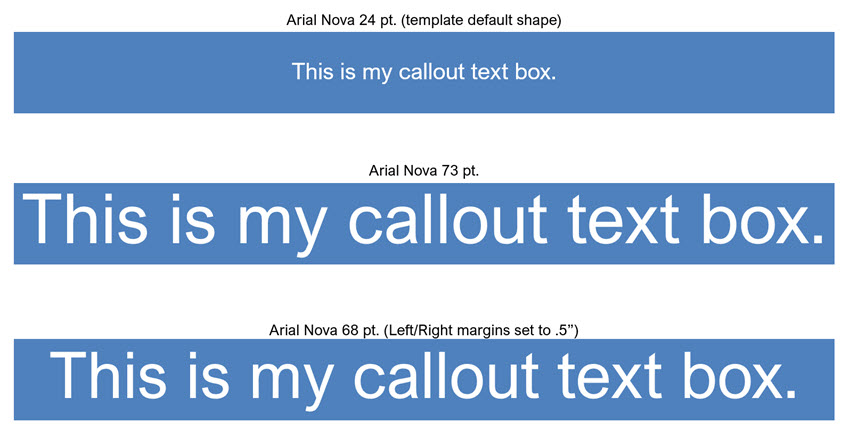
Here is this one-click formatting tool in use. The top bar is the template default font and font size – too small for the callout bar. Select the text box and go to ToolsToo > Shape Tools > Autofit Text to Shape and the font is instantly sized to fit the bar.
This is not a dynamic sizing. resize the bar and text does not automatically change size (which is the way I prefer text boxes to behave). On the bottom image I updated the text margins and reapplied the Toolstoo text sizing. Easy – fast – reliable!
2. MAKE SAME CROP
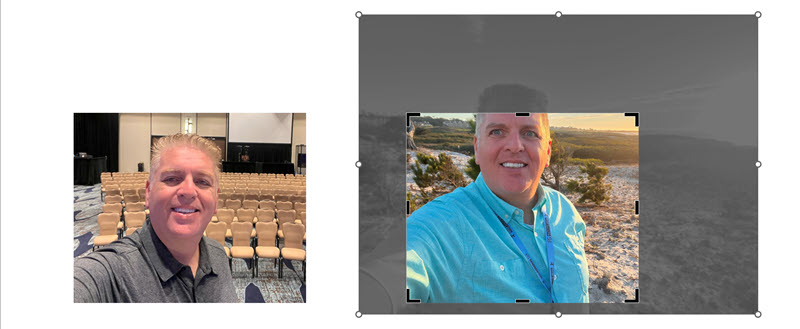
This is like Make Same Size, which easily one of the most helpful add-in tools to PowerPoint!, with the crop tool. As example, here are two images I added to a slide.
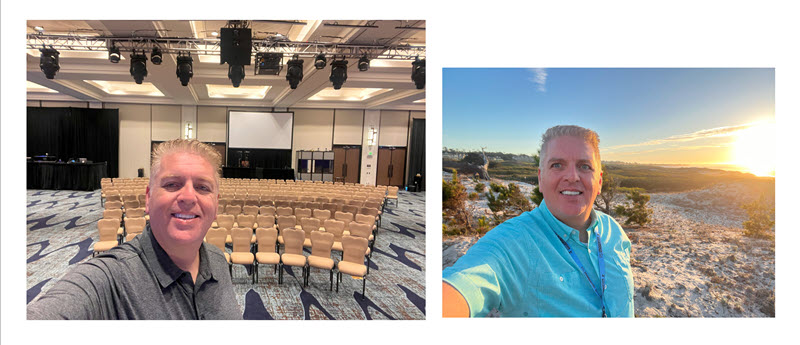
I cropped the left image.
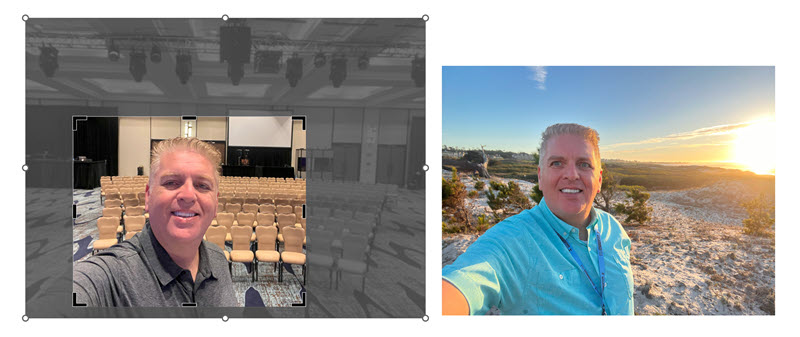
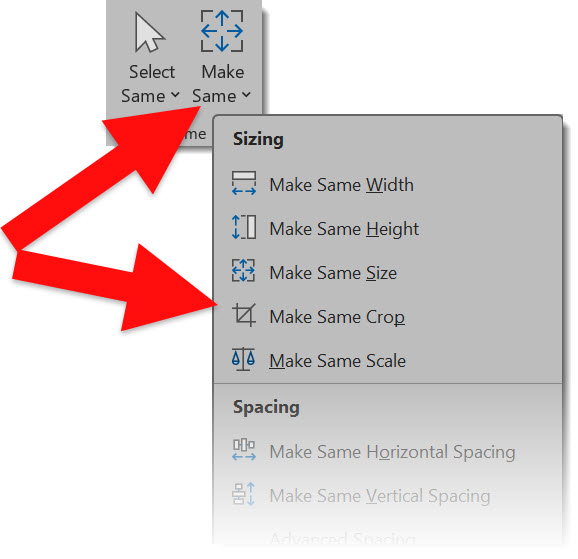
To make the right image match, I used the ToolsToo Make Same Crop. Select the left/cropped image, then the right image > ToolsToo > Make Same > Make Same Crop
The right image is one-click cropped!
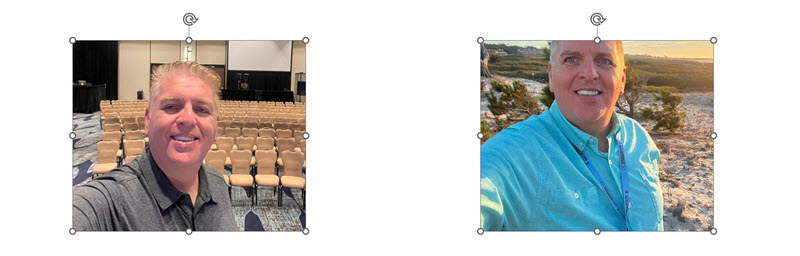
I do not know the algorithm being applied behind the scenes, but I am impressed that the crop is not just center-center of image, but appears to take into account the content! Just fine tune the image in the crop to be sized and positioned as needed.
3. Select Same Size
This is one of those tools you never thought of, or needed – until it was given to you and now I’m addicted to using it!
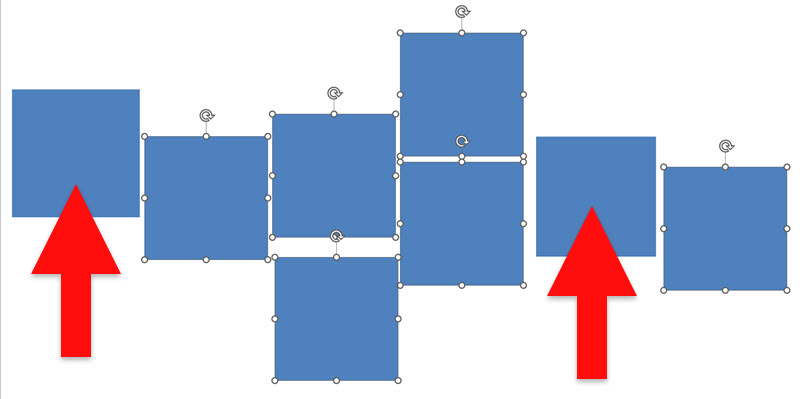
Question – which of these shapes are not the same size? (no scrolling down to see the answer )

Select all of the shapes, go to ToolsToo > Select Same > Select Same Size
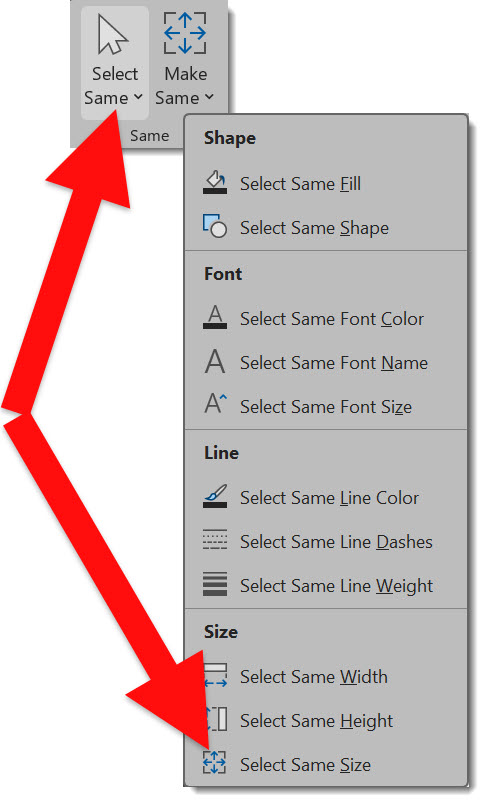
The first shape selected is the reference for sizing, I selected shape #2 from left. And ToolsToo did not select the 2 of the shapes – they do not match the others!
ToolsToo is one of the best values at ~$20 USD for an amazing set of productivity tools. Version 11 is another great addition to the presentation designer tools. Details at the ToolsToo website here.
Troy @ TLC
New Podcast Episode! What Does ChatGPT Say a Professional Presentation Designer Skill Set Is?
Ready for something exciting!? Listen to Troy, Sandy and Nolan ask ChatGPT “What skills do I need to prepare to be a professional PowerPoint presentation designer?” and dissect the reply. Join the conversation and hear how good, or bad, ChatGPT is about defining our job!