powerpoint

PowerPoint Leprechaun Animation (How To)

If you did not download the FREE 16×9 St. Patrick’s themed widescreen PowerPoint template on Friday, you missed the great Leprechaun flipping a coin animated title slide!

Here is Amber’s description and tutorial on creating the animation:

The animation is the leprechaun coming onto the slide and flipping a coin into the pot of gold. The elements used to create the effect are:
– Leprechaun with no hand on left
– Hand of leprechaun
– Gold coin
– Sparkle
– Pot of gold
– Grass and shamrocks for scenery
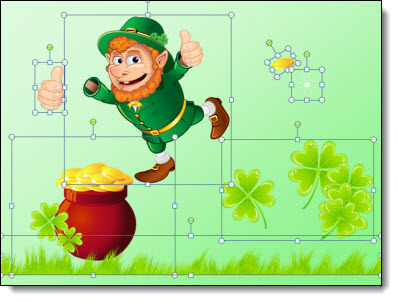
1. It’s always helpful to name your pictures in the selection pane before animating. (HOME tab > ARRANGE > Selection Pane). The names carry through to the animation pane, which is super helpful in knowing which picture you’re adding animation to. I’ve arranged my elements to have the grass on top, and the leprechaun in between the pot of gold and shamrocks.
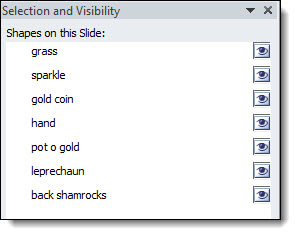
2. Select the leprechaun, his hand, and the coin. Arrange them on the slide, I have him so he is peeking out right next to the pot of gold.
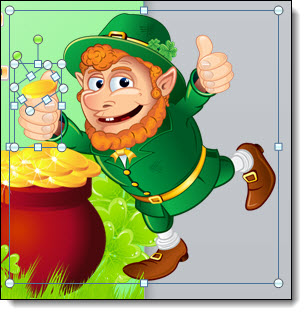
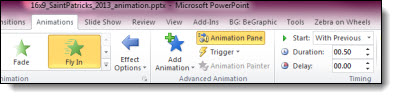
3. In the animation pane, apply ENTRANCE > FLY IN > FROM RIGHT > WITH PREVIOUS > .50 second duration.
4. Now that the leprechaun flies in, next we need to make his hand move in a flipping motion. The animation we are going to apply is spin, which spins from the middle of the picture. This won’t work with the bounding box the way it is currently. We need the hand to swivel from the base, not the middle of his fingers. Select the hand, and go to FORMAT > CROP. Pull the cropping edge down so the middle of the image will be the base of the hand. Now the bounding box is extended, filled with empty pixels in our PNG image.
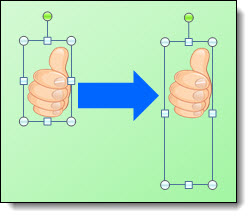
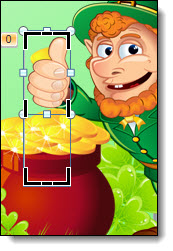
5. With the hand selected, apply the EMPHASIS > SPIN > AFTER PREVIOUS > .25 second duration.
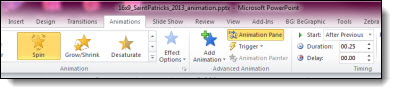
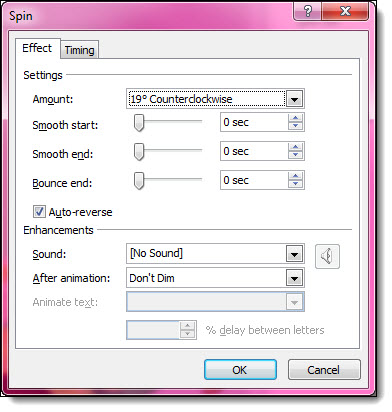
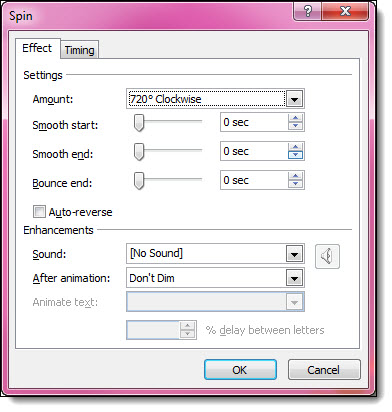
6. Right click on the animation in the animation pane and open the Effect Options. We want the spin to be a small angle, and come back to original position. Under amount, enter custom 19° Counterclockwise and check the Auto-reverse box. Now the hand is making a coin flip motion.
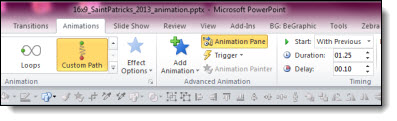
7. For the coin flip, we need to add a motion path. Select the coin, click the ADD ANIMATION button and apply CUSTOM PATH under the Motion Path section in the animation pane. WITH PREVIOUS > 1.25 sec duration > .10 second delay. Draw a loopy sort of path that goes up and end ends at the top of the pot of gold. You can always make fine adjustments by selecting the path, right click, edit points.
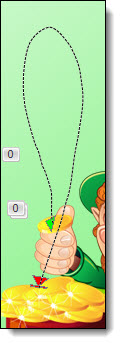
8. Coins spin when they flip, so we need to select the coin, hit ADD ANIMATION > EMPHASIS EFFECTS > SPIN > WITH PREVIOUS > 1.0 sec duration > .40 sec delay.

9. Right click the SPIN animation and click EFFECT OPTIONS. Under amount select TWO SPINS. Make sure this animation ends at the same time the custom motion path animation ends. We don’t want the coin to continue spinning once it lands in the pot of gold.
10. Now the leprechaun comes in and flips the coin into the bucket. The last element is the sparkle. Position the sparkle so it will be on the coin once it is in the bucket. Under animation pane apply ENTRANCE EFFECTS > ZOOM > OBJECT CENTER > AFTER PREVIOUS > .50 sec duration.
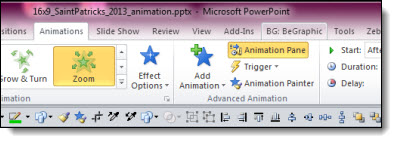
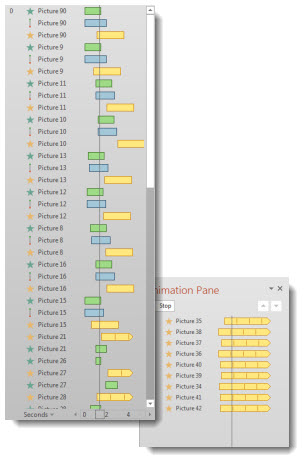
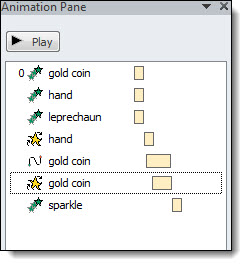
11. Your animation is complete! Here is what the animation pane should look like:
Download the PowerPoint template, which has this animation on the Title Master Layout here 1.8MB

– Troy, and Amber, @ TLC
By |2016-08-16T08:41:08-07:00March 18th, 2013|Tutorial|

St. Patrick’s Day 16×9 Template

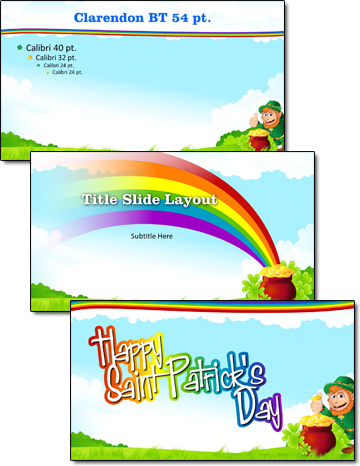
Have a great St. Patrick’s Day this weekend! We are ending the week with a free widescreen, 16×9 St. Patrick’s Day themed PowerPoint template created by Amber here at TLC Creative Services.

Developed as a native .pptx format (PPT 2007, 2010, 2013), in 16×9 aspect ratio. Download here 1.8MB.

– Troy @ TLC

By |2016-08-16T08:41:31-07:00March 15th, 2013|Templates/Assets|

Creating a PowerPoint Shamrock

Working with PowerPoint shapes, the shape merge and edit points tools, and some gradient fills, 3D and other effects, Kristen, a TLC Creative Services designer, created this PowerPoint shamrock.
[youtube src=”https://www.youtube.com/embed/DDtBgQCodDI?rel=0″]

Download the final slide here 200KB

– Troy @ TLC

By |2016-08-16T08:41:53-07:00March 13th, 2013|Resource/Misc|

St. Patrick’s Day Themed PowerPoint Template

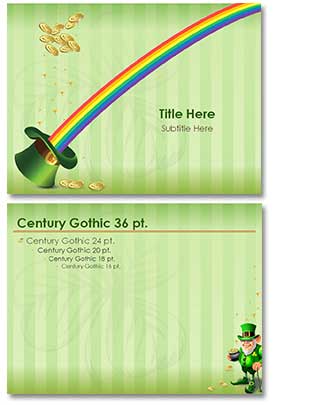
This week, we are celebrating St. Patrick’s Day! And starting with a free St. Patrick’s Day themed PowerPoint template created by Jennifer here at TLC Creative Services.

Developed as a native .pptx format (PPT 2007, 2010, 2013), in 4×3 aspect ratio. It also features animated title and content slides.

[youtube src=”https://www.youtube.com/embed/sQT-0b-RZqY?rel=0″]

Download here 800KB

– Troy @ TLC

By |2016-08-16T08:42:16-07:00March 11th, 2013|Templates/Assets|

PowerPoint Video Slides/Templates By TLC Creative Services (Free!)

At the beginning of last year, Microsoft posted a series of PowerPoint 2013 slides and templates that TLC Creative Services, Inc. developed (for Microsoft Office.com). These were the items referenced in the previous blog post that many emailed and asked about.

There are a lot of templates and sample slides available at Office.com. Just go here and search in the Templates and then PowerPoint.

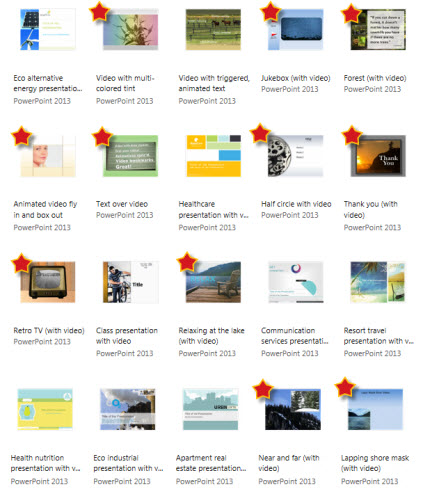
Here is a direct link to PowerPoint slides and videos with templates, many were created here at TLC Creative Services, and all are free to download and use!

– Troy @ TLC

By |2016-08-16T08:42:56-07:00March 6th, 2013|Resource/Misc, Templates/Assets|

Why NOT to Use “Play Video Full Screen”

PowerPoint 2013 is now available, and multimedia has gotten even better with it, which I will cover in future posts. But one video feature that has been with PowerPoint at least since PPT 2000 is “Play Full Screen.”

When a video is inserted, one of the options is to make the video scale to fill the screen (VIDEO TOOLS >> PLAYBACK tab >> VIDEO OPTIONS section >> PLAY FULL SCREEN).

I do not recommend using this feature for a number of reasons:
– The video “pops” to full screen, which is not in line with today’s presentations full of smooth animations.
– Low resolution videos will look even lower resolution when stretched to full screen.
– If there is content on top of the video (z order is possible in PPT 2010 and above), the content is covered by the video.
– The video scales to the maximum height or width and use black bars on the top or sides (letterbox or pillar box) if video is not same aspect ratio as the screen aspect ratio (not a bad thing, but may not be desired).
– If the presentation is distributed, it is a very confusing option and may result in unexpected issues (ie. person adds text below the video, but when played it is covered).
– I have experienced this feature cause playback/animation issues.
– Last, I do not see it accomplish anything that cannot be done while developing slides or through animation.

– Troy @ TLC

By |2016-08-16T08:44:30-07:00February 25th, 2013|Tutorial|

PowerPoint 2013’s Updated Slide Sorter

There are a number of visual enhancements to PowerPoint 2013. Some I like, some not as much… One I really like is a small update to the slide sorter when reordering slides.

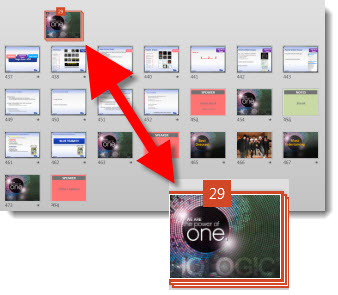
Now, when a group of slides are selected, they minimize to a small stack icon (here I have grouped 29 slides displayed as a single icon). This is a small update, but it makes it much easier to move large sets of slides and quickly see where the slides need to move to.

– Troy @ TLC

By |2016-08-16T08:45:49-07:00February 11th, 2013|PowerPoint|

PowerPoint 2013 Has Arrived!

Office 2013 was officially released last week. And as you can see, I have replaced PowerPoint 2010 and running PowerPoint 2013. Hopefully as a help, here are the most repeated questions I have been answering.

Do I need Windows 8 to use Office 2013?
No, Office 2013 will install and run on Windows XP, Windows 7 and Windows 8.

How confident are you in switching to PowerPoint 2013?
While I have been using Office 2013, and specifically PowerPoint 2013 for many months under the my NDA with Microsoft, I have experienced very few crashes or issues using the beta software. Now that is officially released, I had no problem instantly updating most of our computers to Office 2013.

Is there a lot of learning to use PowerPoint 2013?
If you have used PPT 2007 or 2010, it is very similar. The largest change to become familiar with is the new ‘Metro’ User Interface graphics – everything is still there, but with new icons. Many dialogs are now action panes vs. pop up boxes. And things like “Export” for certain Save As options is new. So there is some looking for the feature, but easy to do/find.

Can I use my custom QAT (Quick Access Toolbar)?
Yes! The QAT is the same on every designers computer and show computer and without it we are lost. From PPT 2007 and 2010, the QAT settings can be exported and then imported into PPT 2013.

In August, I did a full month of posts highlighting many of the new features in PPT 2013 (click here for the August blog summary).

– Troy @ TLC

By |2016-08-16T08:48:10-07:00February 4th, 2013|PowerPoint|

Typography and PowerPoint

Typography:
– From the Greek words ôýðïò and ãñáöÞ
– ôýðïò (typos) = form
– ãñáöÞ (graphe) = writing

Typography is the art and technique of arranging type in order to make language visible.

The arrangement of type involves the selection of typefaces, point size, line length, leading, adjusting the spaces between groups of letters and adjusting the space between pairs of letters. In modern times, typography has been put into motion—in film, television and online broadcasts—to add emotion to mass communication.

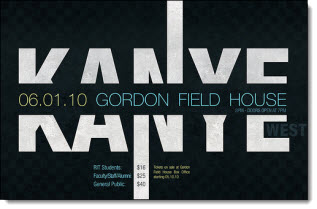
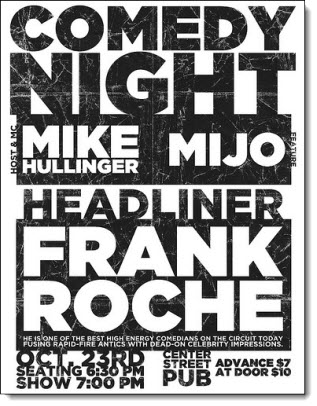
For example, here are some typography layouts we like:

The same theory can be used for PowerPoint – typography should be visually engaging for the audience. You’re communicating a message, so use your type to enhance your message. Not only does it make your presentation more interesting, engaging typography helps communicate the message to the viewer.

Note: Bullet lists are not styling.

Here are some examples of presentation slides where TLC Creative Services took “traditional” slides and applied typography styling (nothing too “designer” but enough to enhance the layout and create an easy to read message for the audience):

– Troy @ TLC

By |2016-08-16T08:48:58-07:00January 18th, 2013|Resource/Misc|

Downloading YouTube Videos For A Presentation

PowerPoint has a feature to run videos direct from YouTube. The feature works well, but it requires an internet connection, enough bandwidth, having the presentation computer online, and a number of other potential issues.

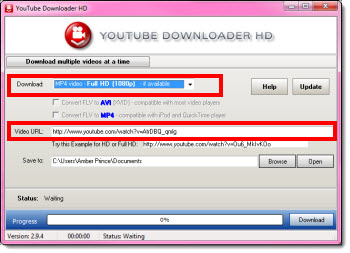
To minmize potential issues, running all videos direct from the computer and as embedded elements is a good best practice. YouTube Downloader HD is a free tool to download videos from YouTube and save to your computer. It enables you to download high quality, high definition, and full HD videos from YouTube. The software is available with an installer or as a standalone exe file.

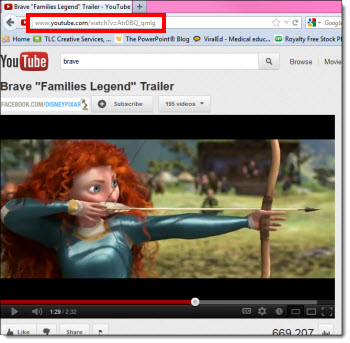
Downloading is easy. Go to the video you wish to download on YouTube. Copy the address of the video.

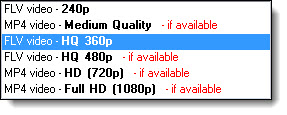
Open the YouTube Downloader HD software, and paste the video’s address into the Video URL field. In the Download dropdown menu, select the type and quality of the video.

Then select the best format and size for the presentation. TLC Creative Services opts for .mp4 and the largest size (1080p or 720p).

Then click download.

– Troy @ TLC

By |2016-08-16T08:49:25-07:00January 16th, 2013|Tutorial|
Go to Top