powerpoint

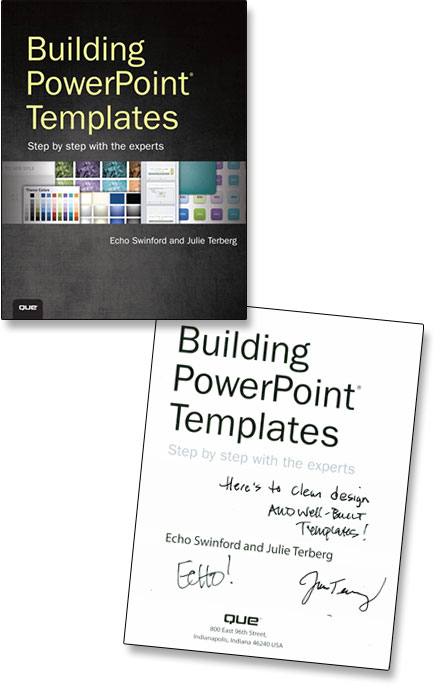
It Takes A Lot to Develop A “Real” PowerPoint Template – This Is The Best Resource Available To Know How To Do It!

“Building PowerPoint Templates – step by step with the experts” is one of the best resources available for anyone that creates PowerPoint templates (based on PPT 2007/2010). Outside of a small group of professional designers, and some of the developers at Microsoft, it would be difficult to find this information condensed into a single place. The authors are good friends, Microsoft MVPs for PowerPoint and two designers that I trust to know the real how-to’s, and why, of developing PowerPoint templates.

It can be found here at Amazon.com.

– Troy @ TLC

By |2016-08-16T08:50:35-07:00January 7th, 2013|Resource/Misc|

Merry Christmas Eve with a Free Christmas PowerPoint Template!

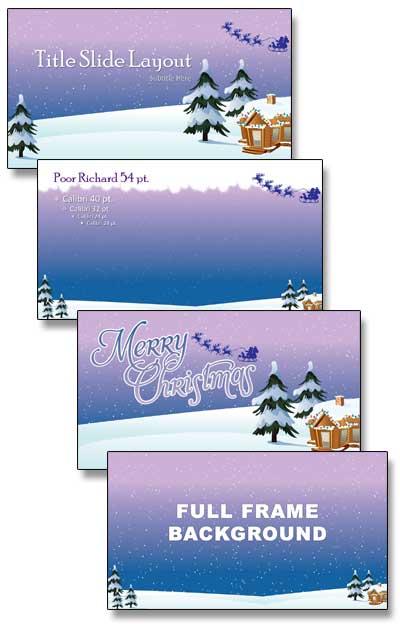
At Christmas, the spirit of the season – and a lot of the fun, is giving. TLC Creative Services has this great Holiday themed template for everyone to have and use – FREE!!

Many thanks to TLC Creative Services designer Amber, who developed this template!

Template is developed in PPT 2010 and 16×9 (wide screen) aspect ratio. Download here.

– Troy @ TLC

By |2016-08-16T08:53:10-07:00December 24th, 2012|Portfolio, Templates/Assets|

Microsoft Security Update Causes Fonts Not to Display in PowerPoint

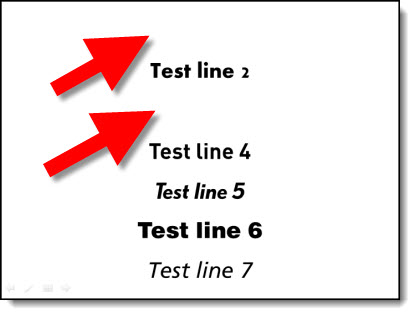
I was contacted by another presentation designer yesterday about a really bad presentation issue he experienced after installing Microsoft updates (thanks Don!). Then, a number of other users started posting their issues on MS Answers.com. This is a big deal for many presentation designers!

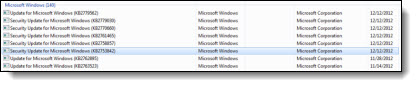
ISSUE: After installing Microsoft Security Update KB2753842, PowerPoint is unable to display certain fonts.

FONTS AFFECTED: OTF, Open Type Fonts. Microsoft ships TT (True Type) fonts, so all standard Microsoft fonts are unaffected.

WHAT HAPPENS: PowerPoint behaves normal and in edit view, all fonts display fine. When run as a slide show, all Open Type Fonts (OTF) do not display.

FIX:
– Remove Microsoft Security Update KB2753842
– To Remove:
Start >> Control Panel >> Unistall a Program >> View Installed Updates(link on left) >> scroll to Microsoft Windows section >> search for “Security Update for Microsoft Windows (KB2753842)” >> right click >> select Uninstall >> say “Yes” to confirmation >> restart computer

Update 12/20/12: MS has confirmed “An updated security patch has been released at 10:00am today, fully tested this week by Office teams.” So PPT is once again safe to use.

Update 12/17/12: Earlier note that the update has been pulled is not completely accurate. The update has been ‘pulled’ from the auto install status, but still shows up in the optional installs. If you see it in the optional installs, see note below on how to hide update.

Update 12/16/12: This issue is much larger than only affecting OTF fonts. In PowerPoint and Word (2010), several TTF fonts (you can test with Myriad Pro) will also disappear is any formatting (shadow, outline, bevel, etc.) is applied. This text will actually disappear in the edit view, as well as in slide show. Plus the KB update creates similiar issues in several other applications (Flash, Corel Draw, etc.).

Update 12/15/12: Microsoft has a KB information article on the issues caused by installing KB2753842 here.

Update 12/14/12: Microsoft has confirmed that it has pulled the update and working on a fix. So if you have not installed, it should not show up. If you uninstall, it will not be an option to install again. And if you are in an enterprise environment with automatic group policy updates, it will not reinstall again the next day.

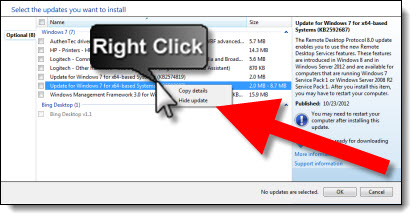
Update 12/14/12:  If the update KB2753842 has not installed, but is pending (ie. downloaded automatically, but not automatically installed), it will not show up in the above Uninstall a Program instructions. Launch WINDOWS UPDATE >> view available updates >> if KB2753842 is listed >> Right-click >> select HIDE UPDATE.

– Troy @ TLC

By |2016-08-16T08:54:26-07:00December 13th, 2012|Tutorial|

Template Concepts To Final

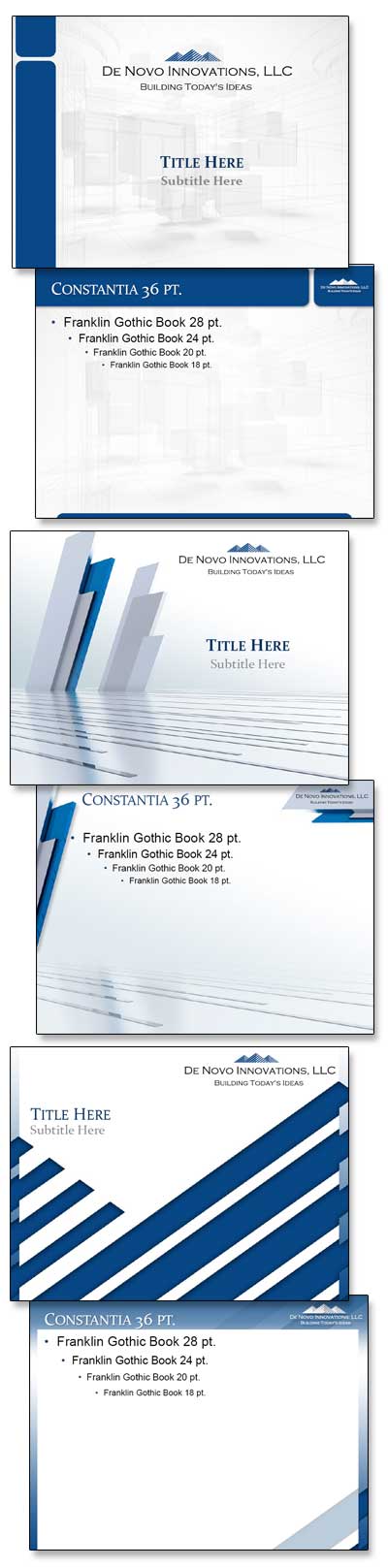
TLC Creative Services develops a lot of PowerPoint templates each year. Most templates begin with developing a series of concepts which are refined to meet each client/project needs. Here is an example of a recent project and 3 initial concepts developed (client chose the top option with some revision requests).

– Troy @ TLC

By |2016-08-16T08:57:06-07:00November 19th, 2012|Portfolio|

Veterans Day Salute By TLC

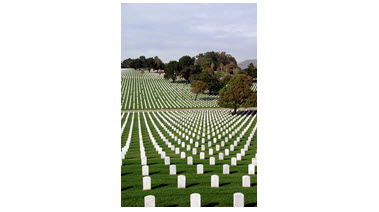
As a salute to everyone in the U.S. military for everything you do, and sacrifice – here is a tribute created in PowerPoint:

1. Great video loop from videoblocks.com

2. Image from istockphoto

3. Same image after some development work in Photoshop and saved as a .png with transparency

4. Image from istockphoto

5. Same image after resizing and development work in Photoshop, saved as a .png with transparency

Assemble all in PowerPoint 2010, animate and export as a video
[youtube src=”https://youtube.com/embed/heUG1f5yBKg?rel=0″]

Troy @ TLC

By |2016-08-16T08:57:59-07:00November 14th, 2012|Personal, Portfolio|

Template Inspired By Logo

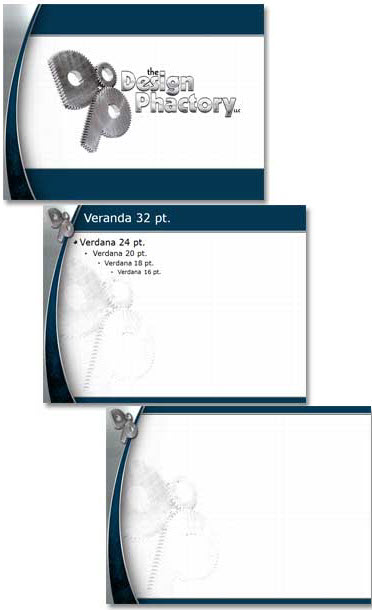
TLC Creative Services has the opportunity to work on PowerPoint templates for companies in many industries, events, brands and shows. The diversity makes the design interesting for us and this template was for a small niche company with a distinct logo. In addition to assuring all template options were customized (font size-color-style, line spacing, custom bullets, custom color scheme, etc.), we focus on designs that create a coordinated look. I really like the visual beauty of this template that Jennifer worked on.

– Troy @ TLC

By |2016-08-16T08:59:00-07:00November 8th, 2012|Portfolio|

PowerPoint + Photoshop = Visually Dynamic Slides

For a recent project, the presenter described the first mover advantage of Kodak when they developed the first digital camera (and then the fate of not acting on that advantage). Rather than a bullet list of facts, dates and details, we provided a 3 slide sequence to visually support the presenter.

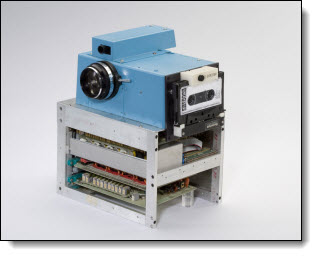
After developing the slide concept, the first task was researching and finding a high enough resolution image of the first Kodak digital camera (and the “camera” is pretty cool):

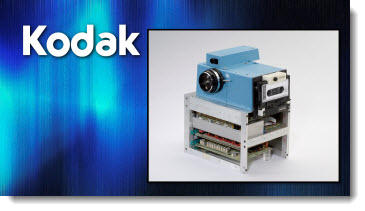
Using the image as is, we could have developed a slide like this: Insert .jpg, add outline and drop shadow, insert company logo (as a scalable .emf vector graphic of course).

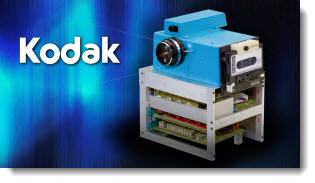
Instead, we spent 40 minutes in Photoshop dropping out the background and saving out the optimized .png image with transparency. The inserted image has a PowerPoint drop shadow a some gradient accent lines emerging from the camera lens.

The result is a great image that works with any template background and visually pops.

– Troy @ TLC

By |2016-08-16T08:59:34-07:00November 5th, 2012|Portfolio|

PowerPoint’s Image Reset Tool

How do you remove styling (drop shadow, bevel, shape, cropping, etc.) that has been applied to an image? – IMAGE REST.

1. Insert image on slide.

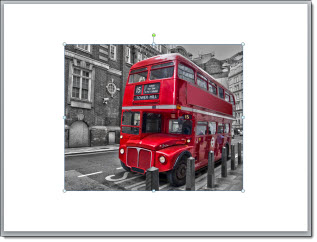
2. Resize image to fit slide, format and crop.

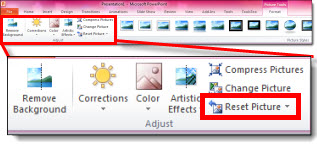
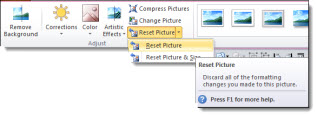
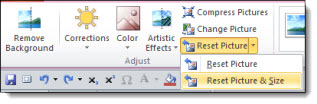
3. With the image selected, under the Format tab on the ribbon, there is the Reset Picture button with 2 options: Reset Picture or Reset Picture and Size.

4. Reset picture will remove all formatting done to the image – but the size and cropping will be left.

5. Reset Picture and Size will remove all formatting, cropping, and sizing and revert the image back to the original.

– Troy @ TLC

By |2016-08-16T09:01:38-07:00October 24th, 2012|Tutorial|
Go to Top