powerpoint

Will PowerPoint Play This Video?

Video in PowerPoint has been growing fast over the past 4 years. The number of people experiencing video issues has surprisingly not grown a tremendous amount too. In just the past few years, the number of variables that need to align for a video to successfully play in PowerPoint have also grown.

With so many video related questions filling my in box and seen on the forums, we have created a reference chart that provides quick answers on if a video should play with the computer setup. It also makes it easy to identify the key attributes for your computer setup that should be included in any troubleshooting request.

So what are the variables? For a video to play on a slide is a combination of the Operating System, installed CoDecs, version of PowerPoint, and video format used. Cross referencing each of these variables is tedious, confusing and difficult to find all in one place.
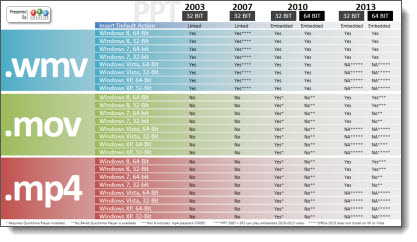
To remedy a lot headaches and wasted time, I am very happy to finally provide a download link to the “PPT-OS-and Video Format reference chart” (and the designers here at TLC Creative Services that have been gathering and testing each of the variables over the past 2 months are very happy too!).

Download the PDF here.

Side note: Attendees to my webinar on “Video in Powerpoint” at yesterday’s Outstanding Presentations Workshop were the first to see and be able to download this, and I walked through all of the information in the reference chart – just a benefit of attendance!

– Troy @ TLC
By |2021-05-12T13:18:34-07:00September 11th, 2013|Resource/Misc|

Do I have MSI or CTR Installed?

The previous post defined the two Microsoft install methods. But determining if your install of PowerPoint 2013 is from an MSI (full standalone installer) or CTR (streaming download installer) is not easy to determine. Microsoft has not given its end users any useful information in determining this. Here is one method that will tell you.

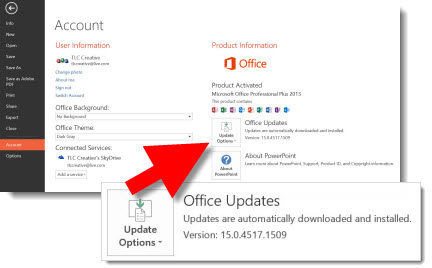
Open PowerPoint 2013.
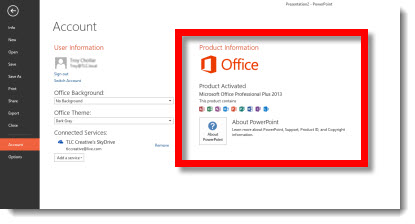
Go to FILE >> ACCOUNT.
In the far right pane under PRODUCT INFORMATION.

If the computer has a CTR install, there will be an UPDATES option.

If the computer has an MSI install, the UPDATES option is not available.

At this point, that is the only easy to access information piece within the application that I have found (thanks Glenna!) that indicates which version is being run. And lets not get into which Service Packs and Updates are installed! Office 2013 has taken away all of the familiar information to help troubleshoot issues…

For more info on CTR and MSI, the PPTFAQ has this page with a great overview and links to more details.

– Troy @ TLC

By |2016-08-10T10:20:51-07:00August 30th, 2013|Resource/Misc|

PowerPoint 2013 Selection Pane – Drag and Drop!

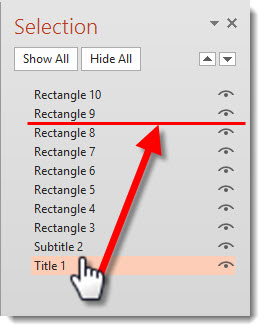
PowerPoint 2007 introduced the much needed Selection Pane feature. PowerPoint 2013 has added another much needed feature to the Selection Pane – drag and drop to reorder!

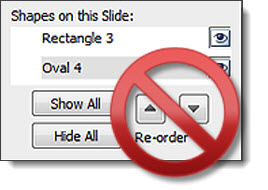
The repeated clicking the up/down arrows to move objects to the front or back (z order) is happily now updated with the ability to select, drag, reposition (yay!).

– Troy @ TLC

By |2016-08-10T10:24:39-07:00August 19th, 2013|Personal|

Does PowerPoint Know I Need a Font?

There are dozens, actually 1,000s, of ways to display your ABC’s. Font styles are created to display each letter in unique ways. Microsoft supplies a set of fonts with Office. Adobe supplies many fonts with the Creative Suite (now Creative Cloud) software packages. And there are many ways to download and add custom fonts to your computer.

If you use a custom font in a presentation, and that custom font is not installed on the computer that is viewing the presentation, a font default – or substitution – is used. We cannot control which font is used as the default and we cannot guarantee what the slide will look like with the default font in use.

PowerPoint has a few tools to help with this situation. The tools are not extensive, and definitely do not do enough to aid us users in identifying font issues and resolving font issues.

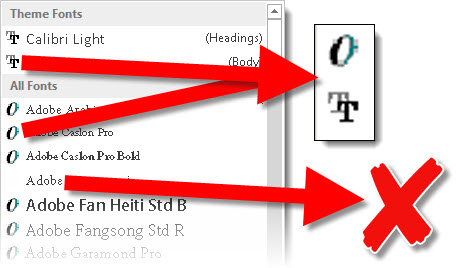
The first step is to identify if PowerPoint is using fonts on the computer or substituting fonts. The tool is very simple, and simplistic. Select a text box, then on the home tab click the font selection drop down. In this menu, each font has 1 of 3 icon options to the left of the font name.

1. The Open Type icon is a large stylized “O.”
2. The True Type icon is two letter “T”s overlapping.
3. NO ICON, just blank space, lets you know PowerPoint recognizes a font is needed, but it is not installed on this computer. When there is no icon, PowerPoint is substituting that font with a default font (of its choice).

– Troy @ TLC

By |2016-08-10T10:28:04-07:00July 22nd, 2013|Resource/Misc, Tutorial|

PowerPoint Animation Jitters Update

This is a quick (and great!) update to last week’s post “Stop PowerPoint from Getting the Animation Jitters!

The incredibly talented coder, Chirag, quickly put together (in his words) “a very simple and small utility… that toggles the (regedit) setting when you execute it. When it states that sprite clipping is disabled, you get smooth animations. Ensure that PowerPoint is not running when you execute this utility.”

I have not tested, partly because I have manually updated all computers at TLC with the registry update. Download the free utility – https://www.officeoneonline.com/download/SpriteClipping.exe (61KB).

– Troy @ TLC

By |2016-08-10T10:29:11-07:00July 17th, 2013|Resource/Misc, Templates/Assets|

Help – Cannot Move/Delete/Rename/etc. PowerPoint File!

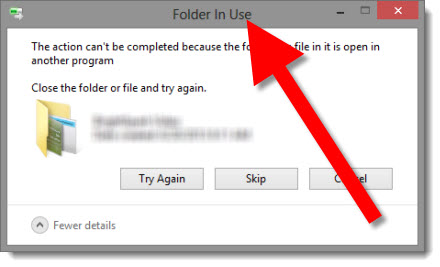
Have you encountered this error dialog:

In this case, I was moving a project folder. I had just finished editing a presentation, closed the file and PowerPoint. But I was unable to move the entire folder. Frustration!

Often, PowerPoint is still open as a background application even though it has been closed. Why – I do not know, but it definitely causes lots of user frustration.

Solution:
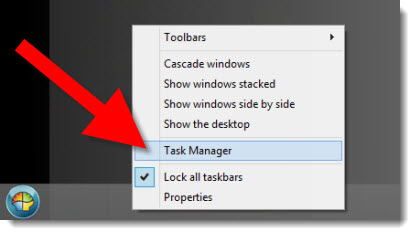
1. Right-click on the bottom task bar and select TASK MANAGER

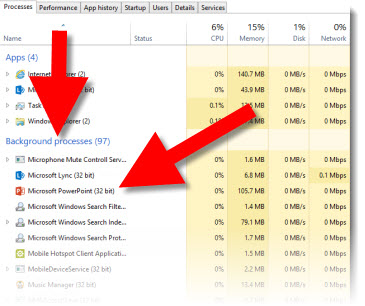
2. Scroll down, past the active Apps into the BACKGROUND PROCESSES and look for MICROSOFT POWERPOINT (it will be the same name with all versions of PPT).

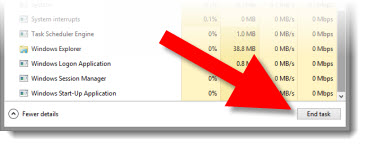
3. Select it and click END TASK.

4. Now click TRY AGAIN on the error dialog and all should do as you wanted (move, delete, rename, etc.).

– Troy @ TLC

By |2016-08-10T10:29:42-07:00July 15th, 2013|Tutorial|

Stop PowerPoint from Getting the Animation Jitters!

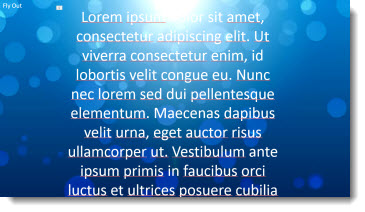
Long scrolling animations worked great back in PPT 2003. But with the new .xml format (.pptx) came a new render engine for animations and it caused these same animations to stutter and “jitter” as they played.

You can fix these with a registry edit (Note: the registry controls the computer and in general mistakes in here can be very bad).

First, download this test file and run (download here, 3.7MB). Take note of how smooth, or jittery, the text animation is.

Close PowerPoint.

To update a computers PowerPoint settings:

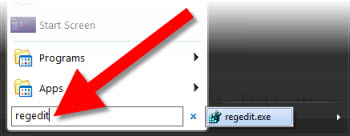
1. Start >> search bar “regedit”

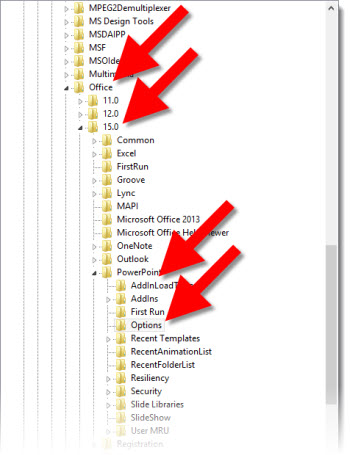
2. Go to Hkey Current User>>Software>>Microsoft>>Office>>15.0>>PowerPoint>>Options
– Note: This is the path for PPT 2013. For PPT 2010, it will be “12.0” vs. 15.0.

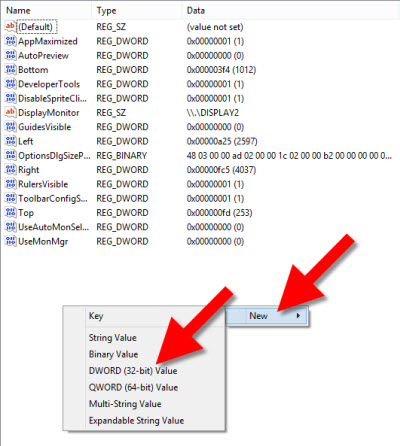
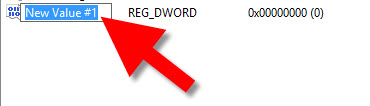
3. In the right section, right-click and select NEW >> DWORD (32-BIT) VALUE

4. Name it “DisableSpriteClipping”

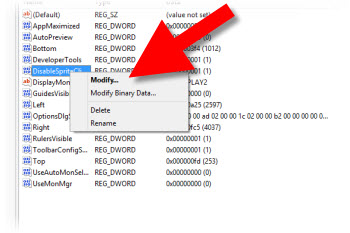
5. Find the new entry and right-click and select MODIFY

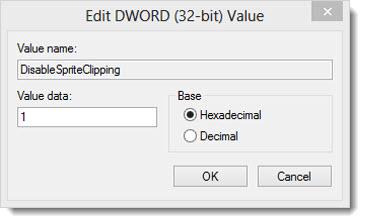
6. In the VALUE DATA box, enter “1” (BASE can be Hex or Dec) and click OK

Start PPT and run the test file again. Take note of how smooth, or jittery, the text animation is.

Many thanks to Steve Rindsberg of PPTools for making me aware of Microsoft’s Chris Maloney’s shared bit of coding that works wonders for anyone fearful of animation jitters!

– Troy @ TLC

By |2016-08-10T10:31:29-07:00July 8th, 2013|Resource/Misc, Software/Add-Ins, Tutorial|

PowerPoint Outline – inside/outside/middle ???

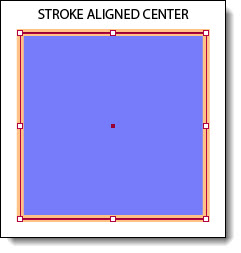
A stroke and an outline are the same thing, but called different things based on the program being used. It is a line around the perimeter. The line can be any color, even a gradient of colors and any width. But PowerPoint has a flaw in its outline/stroke feature:

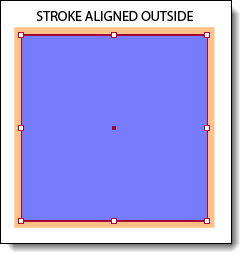
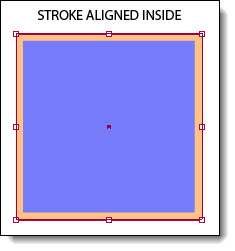
When you apply strokes to shapes in Illustrator or Photoshop, you have the option to align the stroke to the outside, inside, or center of the shape:

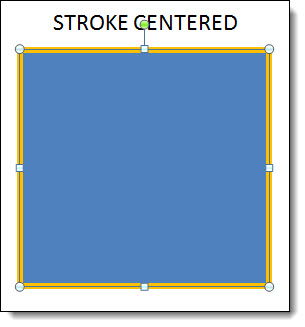
In PowerPoint, the stroke is automatically applied to the center of a PowerPoint, or vector, shape:

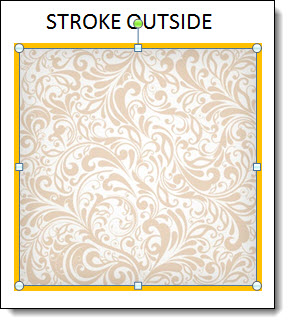
However, with inserted images, the stroke gets applied to the outside:

And for text, the stroke is applied to the center:

This makes it difficult if you are trying to align shapes with images, the strokes don’t align even if they are the same weight simply because PPT aligns to the edge of the shape/image and now the same size elements with the same width stroke are different sizes, because on one the stroke makes the shape wider than the other. With the text, the actual text starts to disappear (above example is the base text and then a 10pt stroke applied – which almost completely eliminates the black text). There is not a solution for PowerPoint as of PPT 2013, but we can hope for user control over the placement (inside-outside-center) by the designer to improve PowerPoint.

– Troy @ TLC

By |2016-08-10T10:33:55-07:00June 24th, 2013|Resource/Misc, Templates/Assets|

Google’s “Template”

A lot of our design is developing PowerPoint templates. Often, we are working within a corporate style guide that directs the colors, font and overall styling, and the biggest effort is effectively setting up PowerPoint to adhere to those guidelines in presentation design. On other projects, we are creating the look and a style guide through the template options selected.

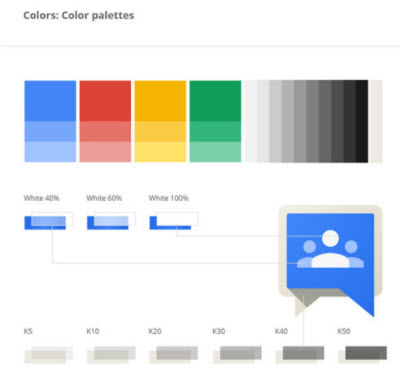
I found this online overview of Google’s brand style guide, which is very interesting, has some great before and after design items and goes to show that every company should have visual branding rules (aka a style guide).

Full article and style guide samples is here.

– Troy @ TLC

By |2016-08-10T10:38:17-07:00June 14th, 2013|Personal|

Widescreen Presentations – Size Matters

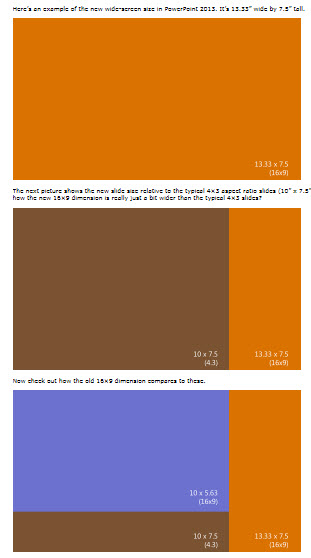
PowerPoint 2013 has updated itself to use widescreen presentations as its default (which I believe is good). And the PAGE SETUP has changed as well. The aspect ratio is the same (16:9). My friend, and Microsoft PowerPoint MVP, Echo Swinford has a great description of the page setup change here.

– Troy @ TLC

By |2016-08-10T10:44:08-07:00March 20th, 2013|Tutorial|
Go to Top