powerpoint

Review: PowerPoint To Go Free Templates

PowerPoint To Go (PPT-to-go.de) is a company based in Germany and offers a collection of PowerPoint templates that are free. The main categories are maps and nice looking 3D shapes in colorful layouts.
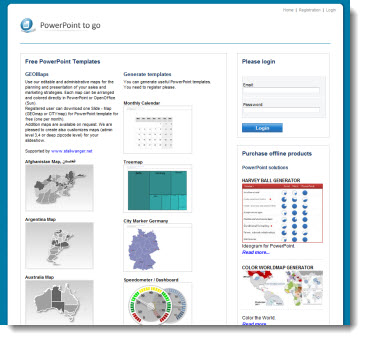
Unfortunately, we were not too impressed with the site. To access the free templates you must go through a registration process – for 1 template per month. While registering, the site timed out twice with a fatal error on the server being reported. It took four log in attempts before successfully accessing the downloads page. So the online experience was far from smooth.

The template downloaded is a .ppt (PPT 2003) and on our systems it opened with a corrupt file warning.

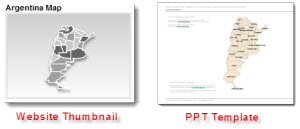
The thumbnail image on the download page was very different (and visually better) than the actual slide:
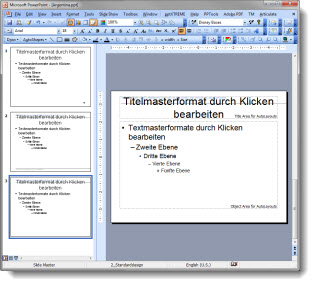
I had expected to see a full PowerPoint template with all of the master slide formatting preset. There is minimal template formatting in place and it is actually more jumbled than the MS default (and uses the German language dictionary).
Many of the thumbnails look great and I would recommend using just the content (map, 3D pyramid, etc.) by importing into your template and not using the PowerPoint to Go file as a template.

– Troy @ TLC

By |2016-08-16T09:53:03-07:00September 30th, 2011|Personal, Resource/Misc, Templates/Assets|

How Do I Get An Embedded Video Out of a Presentation?

PowerPoint 2010 has increased the multimedia capabilities in many great ways. One question I receive a lot is where is the video (it is embedded inside the .pptx file) and how can it be accessed as a stand alone file?

Here is one process for getting to the actual video files that are embedded in a PPT 2010 file.

1. Locate the presentation file in Windows Explorer and make a duplicate of it (we are going to “break” it).

2. Change the file name from .pptx to .zip

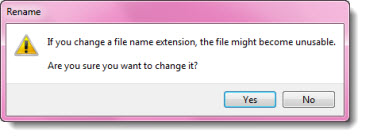
3. When you change the file extension you will get this warning dialog – click “Yes.”

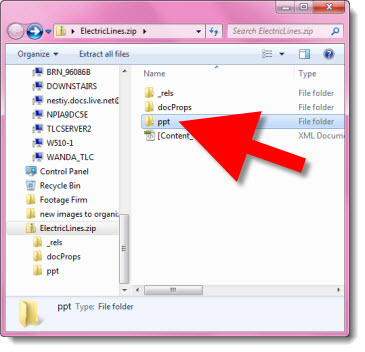
4. Double click to open the new .zip file.

5. Go into the “PPT” folder.

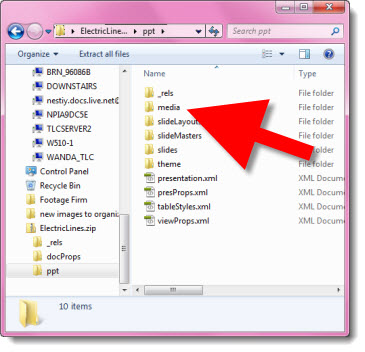
6. Go into the “Media” folder.

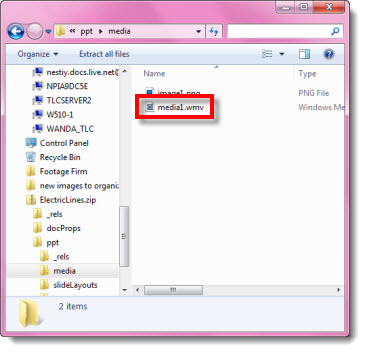
7. Copy any of the video files (.wmv, .avi. .mov, etc.) from here to a folder on your computer.

8. Done!

– Troy @ TLC

By |2016-08-16T09:54:03-07:00September 26th, 2011|Tutorial|

Website Mockup in PowerPoint

Some projects are perfect for PowerPoint even if they have nothing to do with a presentation. As example, I have completed dozens of website mockups for the sales team at TurnTo. Using a combination of SnagIt, Photoshop, and PowerPoint I can quickly develop an animated mockup of a webpage experience that provides an example of how the TurnTo technology could be implemented on a website.
[youtube src=”https://www.youtube.com/embed/PEbDbBjE72U?rel=0″]
This video shows a PowerPoint presentation that is a mockup of a demo webpage – all with no HTML/CSS coding. Just one example of using PowerPoint outside of the presentation world and allowing me to work smarter and providing faster and more economical results for clients.

– Troy @ TLC

By |2016-08-16T10:02:06-07:00July 21st, 2011|Portfolio|

TLC Sample Presentation

[youtube src=”https://www.youtube.com/embed/AtGcUZI3WL8?rel=0″]

All was developed in PowerPoint: animation, transitions and music syncing; then, exported to video using the PPT 2010 Create a Video feature.

– Troy @ TLC

By |2016-08-16T10:02:23-07:00July 19th, 2011|Portfolio|

TLC PPT w/ Video Slide Used By Microsoft

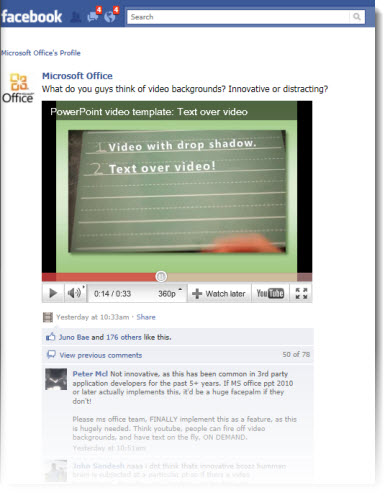
Seeing your work displayed to the world is always pretty great. In this case, it has also brought in hundreds of comments on a recent Facebook post by Microsoft.

From a recent project for Microsoft, here is one of the video “templates” I created to demonstrate the video capabilities of PPT 2010.

The Facebook post is here.

In reading the comments, I was surprised at the number of people requesting content-over-video be added as a feature. Maybe some additional advertising and market awareness campaigns are needed. Content-over-video is available in PPT 2010, works great, and the video being commented on was developed in PPT 2010.

– Troy @ TLC

By |2016-08-16T10:16:31-07:00May 9th, 2011|Personal, Portfolio|

PPT 2003 Corruptions Errors After April 2011 Updates?

I know the developers at Microsoft have a big job. I know they create updates to help all users. I also know they do a lot of testing before anything is released (almost too much testing as it slows down their release cycle by months and years…). I know the focus is on the newer PowerPoint format, but I still have PPT 2003 (and PPT 2010) installed on all computers here.

A small small security update on Tuesday, April 12, 2011 has brought countless users to a stop as it looks at okay content as a potential threat – offers no options to override its action – and only allows presentations to be opened in a useless state – arghhh!

Here is the fix:

1. Close all applications.

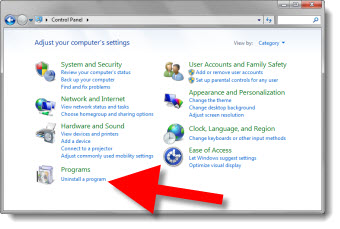
2. Open the control panel (START >> CONTROL PANEL)

3. Select UNINSTALL A PROGRAM

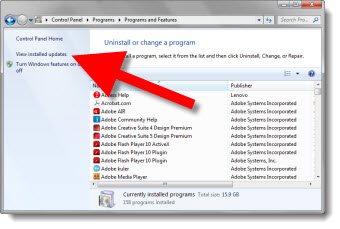
4. Select VIEW INSTALLED UPDATES

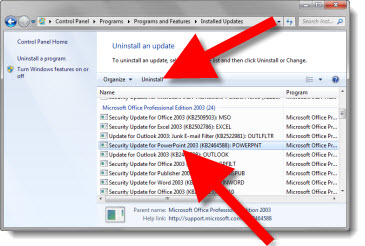
5. Scroll down list and select SECURITY UPDATE FOR POWERPOINT 2003 (KB2464588) POWERPOINT

6. Select UNINSTALL

7. Follow any prompts to confirm. When done, open any PPT 2003 presentation as normal with no need to restart computer.

– Troy @ TLC

By |2016-08-16T10:19:20-07:00April 18th, 2011|Tutorial|

Use Windows 7 Presentation Setting Before Every Presentation

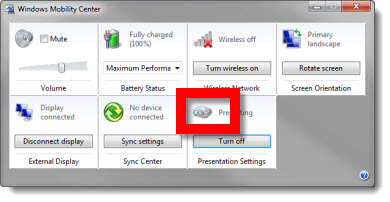
If you present with PowerPoint and use Windows 7, you need to be familiar with the PRESENTATION SETTINGS option. To access, open the MOBILITY CENTER (see 03/22/11 post) by clicking the Windows + X keys. Then click projector icon.

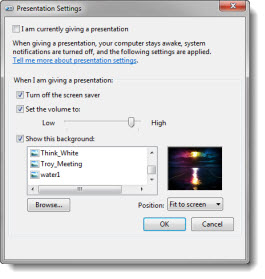
In the PRESENTATION SETTINGS dialog in the “WHEN I AM GIVING A PRESENTATION” section be sure:

1. The TURN OFF THE SCREEN SAVER option is active.
2. The SET VOLUME option is active (I set volume to 90%). This option overrides the mute control.
3. I size the event theme graphic to the monitor resolution and set that image as the desktop background when presenting. For that “just in case” situation, so if all fails the audience sees something related to the event (I have seen kids, puppies, girlfriends, vacation pictures, etc. show up on screen – all not good options).

Note: At the top the I AM CURRENTLY GIVING A PRESENTATION option is also turned on and off through the Mobility Center.
– Troy @ TLC

By |2016-08-16T10:23:25-07:00March 24th, 2011|Resource/Misc, Tutorial|

Open PhotoShop File as Flat Composite

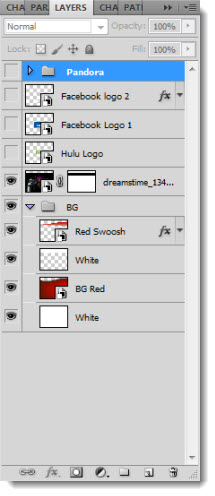
Unfortunately, in general, Microsoft does not work well with layered Photoshop (.psd) files. This includes Windows Explorer previewing them or PowerPoint being able to insert them. I do a lot of work in Photoshop, so I have a lot of Photoshop files for each presentation project. Sometimes, it is a time trap waiting for Photoshop to open the files just to identify if it is a needed file for the presentation. This is especially true when I receive 1-2-30GB files from a graphic department. It takes even a fast computer some time to process a 30GB file with upwards of 50 layers.

Here is a quick way to open, view and identify what those large files are.

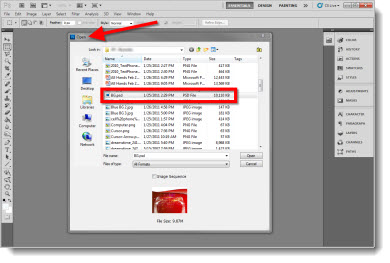
1. In Photoshop, go to FILE>>OPEN and select the .psd file

2. If the OPEN button is clicked, the full file opens, including all of the layers

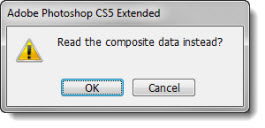
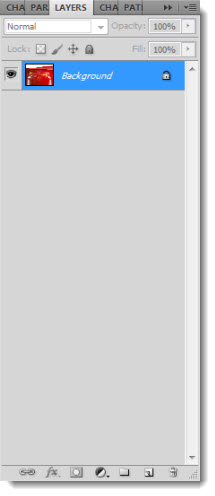
3. But if the SHIFT and ALT keys are held down, then the OPEN button the file opens as a flattened composite image

The advantage is the file, any size, opens instantly. The disadvantage is if layers are turned off they are not visible. I generally create a small .jpg with the same file name for easy reference in Windows explorer.

– Troy @ TLC

By |2016-08-16T10:24:25-07:00March 16th, 2011|Tutorial|

Is the “Compress” Animation Gone in PPT 2010?

PPT 2003 and 2007 gave us the “compress” entrance animation, which I have used lots. In PPT 2010, it is mysteriously missing from the animation options. But is it really gone?

To get it back, here is one solution:
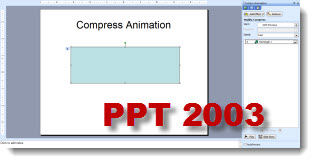
Create a single slide presentation in PPT 2003 or 2007 that has a single shape with the Compress animation (or download one below). Here is mine from PPT 2003:

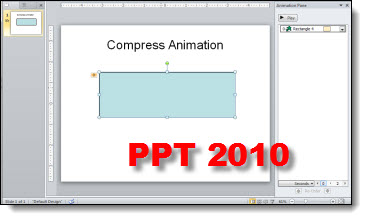
Open the slide in PPT 2010:

Interestingly, when you select the animated shape and go to the Animation tab, it shows the Compress animation!

Use the Animation Painter to pickup the Compress animation from the sample shape and apply to any element in your presentation.

Download Compress animation slide here.

– Troy @ TLC

By |2016-08-16T10:28:49-07:00February 14th, 2011|Tutorial|
Go to Top