powerpoint

Customize The PPT Auto Lorem Ipsum Text

But wait, there’s more!

In addition to the secret code shown in the previous post, you can add parameters to control how many paragraphs of sample text – and how many lines per paragraph.

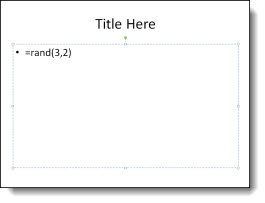
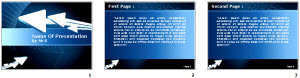
Here is my sample slide, I have have added the parameters to insert 3 paragraphs of 2 lines each with “=rand(3,2)“.

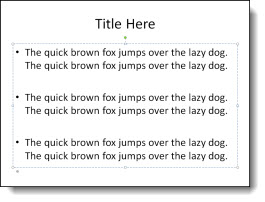
Just click the enter key and it turns into this (3 paragraphs of 2 lines each):

– Troy @ TLC

By |2016-08-16T11:05:27-07:00September 18th, 2010|Tutorial|

Auto Lorem Ipsum Text

This is a cool and useful trick that has been in PowerPoint for a few versions. It is good for creating quick sample slides. Basically there is a bit of hidden code in PowerPoint that you can activate by typing “=rand()“.

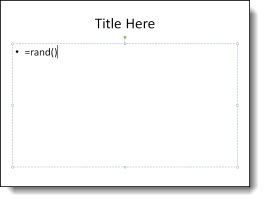
Here is my sample slide (default PPT template) and I have typed the ‘secret’ coding.

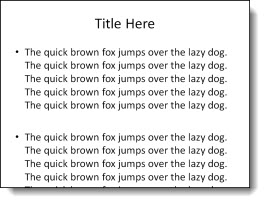
Then press enter and it fills the text box (and beyond) with “The quick brown fox…” text.

– Troy @ TLC

By |2016-08-16T11:05:42-07:00September 16th, 2010|Tutorial|

Free PowerPoint Files.com Review

The Free PowerPoint Files website is a collection of PowerPoint templates. It looks to be a companion site to the “PowerPoint Styles” website I reviewed back in June offering the same template designs. Free PowerPoint Files offers several hundred PowerPoint templates that are image based with stock images for the background and text placeholders formatted to coordinate with the background image.

The templates are all the legacy .ppt format. But they are free. What you download is a nice background image, but not a very functional template. The images used for the template backgrounds are very modern and work well for templates. When I opened the template I downloaded it looked good from the thumbnail view with multiple layouts and PowerPoint placeholders positioned well on the background image.

But the Title slide (viewed in edit view, not master slide view) showed a single text box vs. separate text boxes for the title and subtitle text, which have different formatting. And the background was a placed .jpg (eg. not from a preset master slide).

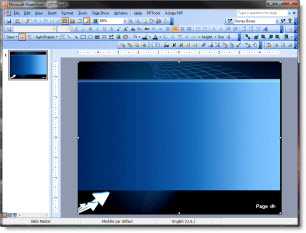
The Master Slides revealed no formatting, just a placed .jpg for the background. No text placeholders, named master, title slide master, etc.

If you are familiar with the basics of setting up templates with default placeholders, color scheme and transitions the PowerPoint Styles templates offer nice backgrounds to start with.

– Troy @ TLC

By |2016-08-16T11:06:16-07:00September 12th, 2010|Resource/Misc|

Apply “Sharpen” to Images

PPT 2010 has lots of great Photoshop-like effects built into the application. This post is highlighting the SHARPEN AND SOFTEN filter in a real-world situation.

Here is my original image.

Here is the effects applied to stylize the image (rounded corners, bevel, reflection, etc.). All looks great, but look at the face – it is not as crisp and defined.

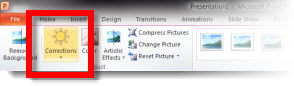
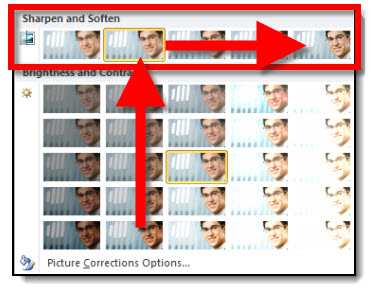
With the image selected go to FORMAT >> ADJUST section >> CORRECTIONS

Looking at the top row is the SHARPEN AND SOFTEN quick options. The highlighted box shows what is currently applied to the image. I am going to click and apply the far right option which is a much greater sharpen filter.

Here is the same image, same stylizing effects, but with the greater sharpen filter setting. The bevel is there, the reflection is there and the face is super crisp.

– Troy @ TLC

By |2016-08-16T11:06:32-07:00September 10th, 2010|Tutorial|

“Where Did I Save That Presentation?”

“Where did I save that presentation?” is something I say or hear daily. In PPT 2010 there is a great addition to the ‘Recent Documents’ feature.

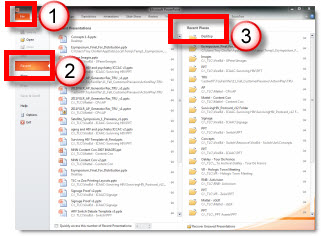
Go to FILE >> RECENT >> RECENT PLACES

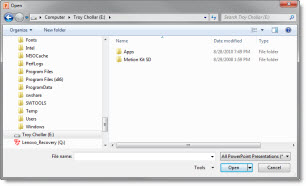
The right column shows the folder location of the past 20 saved presentations. Click any of the locations and a OPEN dialog lets you pick any presentation in that folder.

– Troy @ TLC

By |2016-08-16T11:07:37-07:00September 1st, 2010|Tutorial|

Comping The Theme In PPT

We handle the ‘total package’ for lots of campaigns, which includes the website, brochures, flyers, postcards, signage, PowerPoint template and presentations, name badges, web banners/ads and any element that needs to be designed to assure a consistent visual theme. But each of these projects begins with developing the theme graphic.

For this specific project I was given the general thought of the program (the official title was still be determined). This was a medical speaking series on the topic of “evaluating the traditional/accepted/old therapies and looking toward the future and integrating new therapies into the standard protocols”.

My first step was doing keyword searches in a number of online photo sites to come up with visual ideas.

From there I merged my notes down to a series of concepts – simple 1-2 sentence descriptions.

Then I downloaded comp images, did some very basic positioning and editing to create a series of slides like this:

The goal is to provide the client with words and visuals to see which resonates with their vision for the program so the real design phase can begin with a direction.

Here are the 7 concepts provided for this specific project:

1. “From Little to Big” – switch from the accepted space to a new enviroment.

2. “From Empty to Full” – Move from half full to plentiful.

3. “From Status Quo to New” – move from the crowded/accepted to fresh space.

4. “See and Understand” – What is seen/accepted can transform into more.

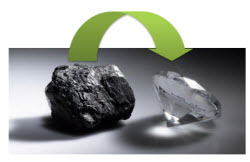
5. “Out of the Old” – From coal comes the true treasure, diamonds.

6. “Becoming Superman” – Regular guy Clark Kent needs to transform to be seen as a superhero.

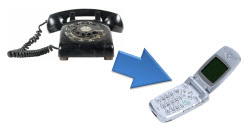
7. “Advancing Technology” – Move from outdated to modern for faster, better, more efficient.

From this simple storyboard of theme concepts evolved a full multicomponent design project that carried consistent visual message, color scheme and styling to all elements.

– Troy @ TLC

By |2016-08-16T11:09:25-07:00August 30th, 2010|Portfolio|

Why Does My Add-in Not Install With 64-bit Office?

Following the previous post, this is another confusing issue I am hearing a lot. Here is the scenario:

– Super cool new 64-bit operating system computer
– Install the latest and greatest MS Office 64-bit
– Attempt to install favorite PowerPoint add-ins and nothing works….

Add-ins need to be written/coded to work specifically with the 64-bit version of PowerPoint. At this moment there are very few add-ins that have 64-bit versions. So, if you are running the 64-bit version of PowerPoint, do not plan on using any add-ins.

This of course will change over time as the add-in developers have opportunity to create 64-bit versions of the existing 32-bit versions (and I am waiting just like you for this to happen!).

– Troy @ TLC

By |2016-08-16T11:10:32-07:00August 28th, 2010|Resource/Misc, Software/Add-Ins|

“The PowerPoint Balancing Act”

This recent article caught my attention and the author stays on track with solid advice about presenting AND using PowerPoint. You can read the full article at Bloomberg Businessweek here.

It may be perceived as a harsh statment, but I believe the best point is the 2nd to last paragraph:
“PowerPoint is a convenient whipping horse for failed presentations. Yes, the program—and others like it… allow for the creation of elaborate (slides). A plethora of material is not the problem. The fault for a poor presentation lies not with the technology, but with the presenter.”

– Troy @ TLC

By |2016-08-16T11:13:46-07:00August 16th, 2010|Resource/Misc|

Set Movie To Mute

Sometimes a movie has sound, but you don’t want it. There are lots of reasons; video of a surgery and you don’t want the audience to hear ‘Uh-oh’ in the background, a screen capture video and the application sound FX are distracting, or any number of other reasons.

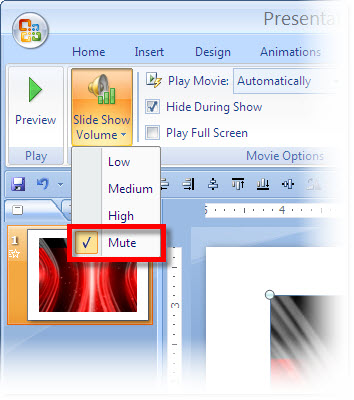
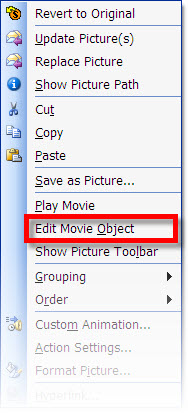
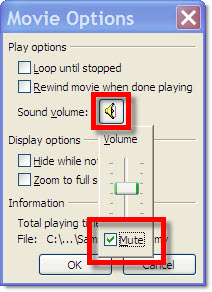
From within PPT you can set a movie to play muted.

PPT 2003:
1. Select movie

2. Right-click and choose EDIT MOVIE OBJECT

3. Click speaker icon and click MUTE

PPT 2007:
1. Select movie

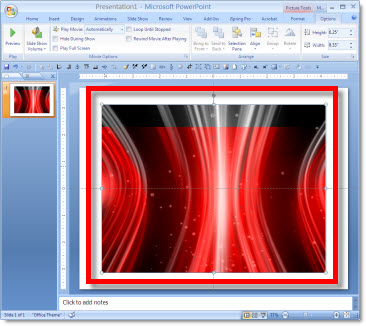
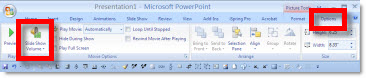
2. Go to OPTIONS tab and click the speaker icon

3. Select MUTE

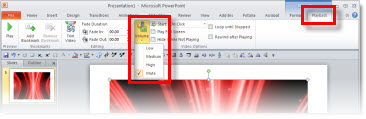
PPT 2010:
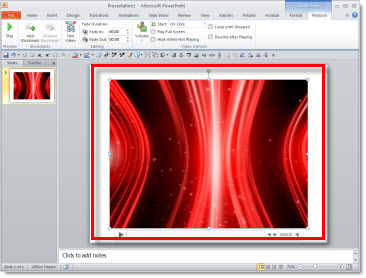
1. Select movie

2. Go to PLAYBACK tab, click the speaker icon, select MUTE

– Troy @ TLC
By |2016-08-16T11:15:12-07:00August 10th, 2010|Tutorial|

Automatically Advance To Next Slide When Movie is Done

You have a great opening movie for your presentation. But at the end of the movie the slide shows black (last frame of movie) until you advance to the next slide. This is the last thing you want to think about as you prepare to present.

The solution is fairly easy; it is just not a movie option so you may be looking in the wrong place.

Here is my sample slide with the opening movie.

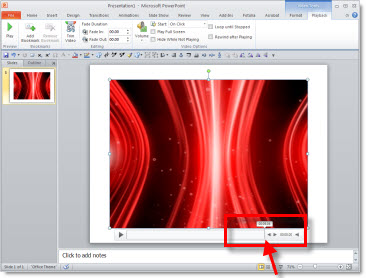
Select the movie and roll over the playback bar (see Aug. 6 post) to see how long the movie is. On my sample slide the movie is 00:08.12 seconds long.

Go to the TRANSITIONS tab.

Add a time that is shorter than the movie to the AFTER box (I used 3 seconds)

That’s it. To automatically advance to next slide after the movie plays the slide transition just needs to be a shorter time than video. In the sample I set the automatic slide advance to 00:03:00 seconds, but the video is 00:08.12 seconds. The slide will not advance until the video is done (even though it is longer than 3 seocnds).

– Troy @ TLC
By |2016-08-16T11:15:44-07:00August 8th, 2010|Tutorial|
Go to Top