powerpoint

PPTXtreme Add-ins and Windows 7 with PPT 2010

I am a huge fan of the PPTXtreme PowerPoint add-ins. They make much of my development time up to 5X more efficient and in some cases make the impractical, practical.
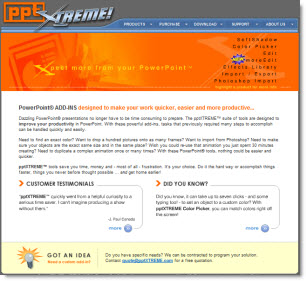
With PPT 2007 a few of the add-ins lost functionality. Namely ‘Color Picker’ and ‘Photoshop Import’ (which is one of those HUGE time saver add-ins for me).

Now with my new computers running Windows 7 and PPT 2010 I have the sad reality that none of the PPTXtreme add-ins function… I did some experimenting to try and find a solution like I did with Vista (where I installed outside the ‘Programs’ folder and then manually added permissions). The bad news is nothing, for me, got these add-ins functioning.

The good news is, it is not entirely PPT 2010 that is the conflict. Here is PPT 2010 opening and a selection of the PPTXtreme Add-ins loading – and working.
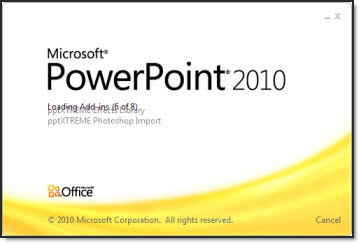
In this case it is PPT 2010 installed on a Windows XP Pro OS. My install tricks for Vista have no effect in Windows 7, so the sad reality is Windows 7 + PPT 2010 leaves PPTXtreme unavailable.

I have talked with the PPTXtreme developer and fingers crossed that there may be a round of development going into the add-ins as soon as this summer to update compatability (which would hopefully mean a fall time release).

Stay tuned for a hopeful update later this year.

– Troy @ TLC

By |2016-08-16T11:34:17-07:00May 24th, 2010|Software/Add-Ins|

Move Your Custom QAT To Any PPT 2010 Machine

In PPT 2007 the QAT (Quick Access Toolbar) was the only customization option for the ribbon. In PPT 2010 the ability to customize the ribbons has been added, but the QAT is still the best resource for having always needed tools always available.

Here is my QAT, which I detailed in this post.

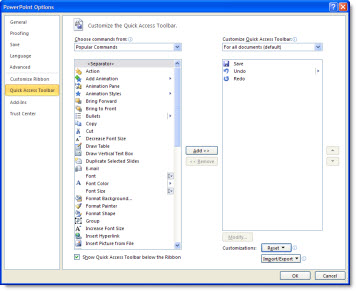
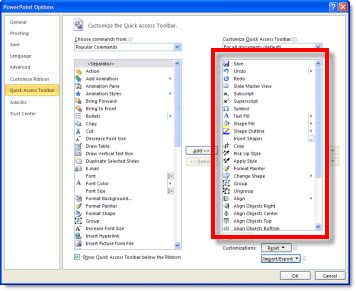
PPT 2010 adds a new feature to the QAT setup. Here is the QAT dialog in the Options area.

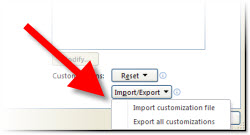
In the lower right is a new Import/Export option.

If you have customized your QAT, use the Export option to save a data file with all of your customization options. This can be used to setup your QAT on another computer or if something happens to your current computer you can quickly get your familiar work enviroment back.

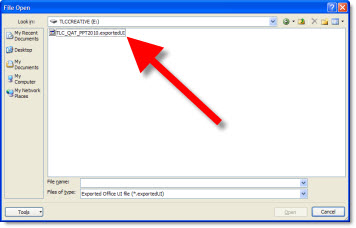
If you have a QAT data file, click ‘Import Customization File’ and go find the data file.

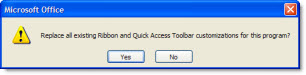
You will see a warning dialog that existing toolbar setup will be overwritten – say ‘Yes’ to install the new QAT.

Now the QAT column will show all of the tools/buttons added (compare to first dialog image above that showed default 4 tools).

Last, if you would like to setup your QAT with the tools I have, my QAT toolbar data file can be downloaded here (850K).

– Troy @ TLC

By |2016-08-16T11:35:30-07:00May 18th, 2010|Resource/Misc, Tutorial|

Where Are The File Properties in PPT 2010?

While much of the interface is the same as PPT 2007, some items are new – especially in the Backoffice area.

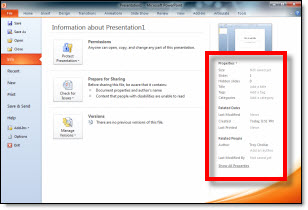
To view the file properties:
File >> Info >> Right side

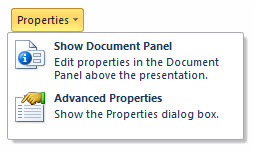
To edit the File Properties there are 2 options, both accessible by clicking ‘Properties’ to open a drop down menu.

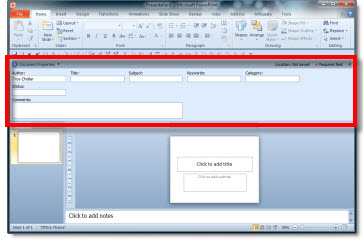
‘Show Document Panel’ opens the file properties under the ribbon.

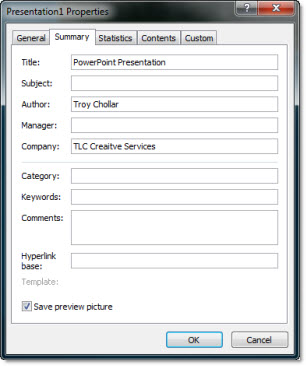
‘Advanced Properties’ opens the traditional dialog and offers a few additional properties.

If you are looking for the File Properties in PPT 2007, go to this blog post.

– Troy @ TLC

By |2016-08-16T11:36:15-07:00May 14th, 2010|Tutorial|

PPT 2010 – Is My Video Going To Be Embedded or Linked?

Inserting a video with PowerPoint 2010 starts the same as PPT 2007. Insert >> Video >> Video From File.

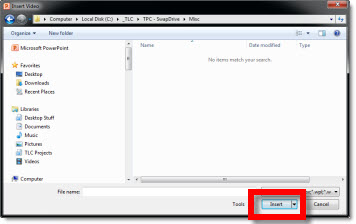
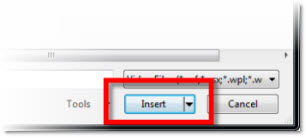
And we still get the same dialog window to choose the video to insert. But the drop down menu is now very important.

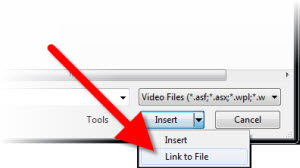
If ‘Insert’ is selected the video will be embedded.

If ‘Link to File’ is selected it will be linked to an external file.

Note: find and select video first, then use the Link dropdown because selecting the dropdown is the same as clicking it.

– Troy @ TLC

By |2016-08-16T11:36:34-07:00May 12th, 2010|Tutorial|

Animation Pane is Smart Enough To Disappear

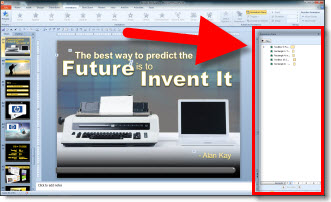
With PPT 2010 the animation has a new trick. When editing a slide the Animation Pane can be opened in its standard right-side position.

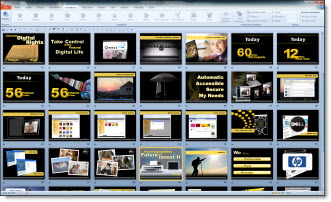
But when switching to Slide Sorter view it automatically closes.

It is a minor thing, but the animation pane is of no use in slide sorter view. In all early versions it remained open/visible just taking up screen realestate. And when you go back to editing a slide it appears open again until you close it.

– Troy @ TLC

By |2016-08-16T11:36:55-07:00May 10th, 2010|Software/Add-Ins|

3D Metalic Text Style (Update)

Earlier this month I showed an example of PowerPoint 3D metallic text I stylized for a presentation. Recently Matthew T. added a Bronze color to the mix and sent it back to me.

First, thanks Matthew for sharing your efforts! The updated slide can be downloaded here.

Second, for the awards show I created the effect for there was only Gold and Silver awards. So Bronze is perfect – just not needed when I created…

– Troy @ TLC

By |2016-08-16T11:37:53-07:00May 2nd, 2010|Portfolio|

Defending PPT – Easy When This is the Sample Slide

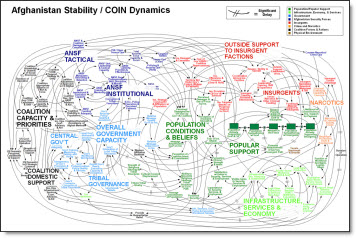
Recent headlines quote Army Gen. Stanley McChrystal, who heads U.S. and NATO forces in Afghanistan, criticizing PowerPoint presentations for creating “the illusion of understanding and the illusion of control. Some problems in the world are not bullet-izable.” When I looked a bit further I found this is the slide being referenced as not providing clear information.

hmmm…… I think action should be taken – and it has nothing to do with PowerPoint as an application, but against the company that decided this was worthy of being included in a presentation.

The offending “slide” was sourced from MSNBC. And I am confident it was not created in PPT, but by another application and imported as a graphic. Last, here is a really good webpage with a lot of people’s comments in defense of PPT. Among my favorites are:

This tool is highly misused and abused by presenters, secretaries and supposed PowerPoint ‘experts.’

It’s not the tool on the computer, it’s the tool AT the computer

I think a good strategy is to drop old PowerPoint slides from military briefings behind enemy lines. This should really confuse them…”

– Troy @ TLC

By |2016-08-16T11:38:31-07:00April 30th, 2010|Resource/Misc|

PPT 2010 and Addins

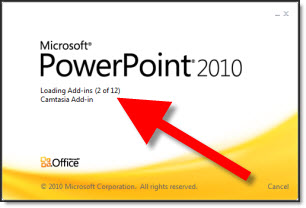
After installing Office 2010 one of the items I noticed is at launch it lists the add-ins being loaded (previous versions did not display this information).

This is most noticeable the first time the application is launched as each addin is recognized and setup. Subsequent launches go much faster, which is very good.

– Troy @ TLC

By |2016-08-16T11:40:18-07:00April 26th, 2010|Software/Add-Ins|

3D Metallic Text Style

For a recent presentation I decided to develop this text in PPT using the text style options (vs. creating in Photoshop using preset filters). The result was liked by client and being able to edit text quickly within the presentation vs. adjusting in Photoshop and updating image was great.

Download sample slide here.

– Troy @ TLC

By |2016-08-16T11:47:08-07:00April 19th, 2010|Portfolio|
Go to Top