The PowerPoint® Blog

I work with PowerPoint on a daily basis and I am very honored to be a Microsoft PowerPoint MVP. We have a talented team of presentation designers at TLC Creative Services and ThePowerPointBlog is our area to highlight PowerPoint tips, tricks, examples and tutorials. Enjoy! Troy Chollar

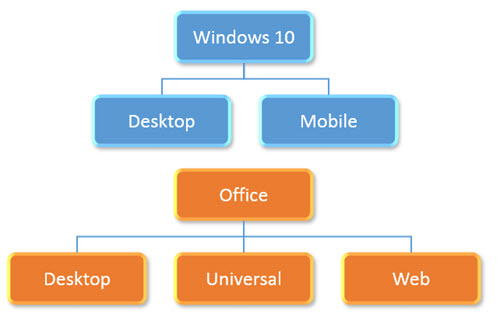
Windows 10 Desktop & Mobile, PowerPoint Desktop, Universal & Web Explained

Many thanks to Peter at Microsoft for helping clear up the confusion I was having on what the various editions of Windows and Office options and versions are now apart of the ecosystem. Here is my recap:
Win10-Office-Explained

Windows 10:

– Windows 10 is available in 2 editions; Desktop and Mobile (and really several other versions for Hololens, IoT devices, etc. – but we are only concerned with the 2 that can run Office apps).

– Windows 10 desktop is for Intel-based computers and can run Office Win32 apps and the new Universal apps.

– Windows 10 Mobile is for ARM-based mobile devices (phones and tablets) and can only run Universal apps.

Office Desktop:

– Desktop apps are the traditional “full” application and only run on full power (Intel) computer devices.

– Desktop apps are available in 32-bit and 64-bit versions.

– Desktop apps can install 3rd party add-ins.

– Desktop apps can run in a window of any size (or multiple side-by-side).

– Desktop apps are named just the app name; PowerPoint, Word, Excel, etc.

Office Universal:

– Universal apps are a new build option.

– Universal apps can be installed on both the Windows 10 Desktop and Windows Mobile operating systems.

– Universal apps are available through the Windows Store, as individual apps (there is no single install that includes all Office apps).

– Universal apps run in full screen mode only (eg. the application fills the entire screen, so no task bar or other apps until it is minimized or closed).

– Universal apps (this is a confusing point) are named different depending on where they are installed:

  • On Windows 10 Desktop, they have “mobile” in the app name; PowerPoint Mobile, Word Mobile, Excel Mobile, etc.
  • On Windows 10 Mobile they have just the app name; PowerPoint, Word, Excel, etc.

Office Web:

– Web apps are separate from Desktop and Universal apps.

– Web apps do not require installation, which allows them to work on both desktop and mobile devices.

– Web apps use HTML/CSS/JavaScript browser-based coding hosted on Microsoft servers.


The main recap is that today there are a lot more options available than in the past. The good news is, virtually every computing device and platform is covered for Office/PowerPoint. The bad news is that every option has slightly different capabilities and limitations. Things are filled with different frustrations today, and tomorrow we will have different frustrations – but solving those frustrations for our wonderful clients is what keeps us busy!

– Troy @ TLC
By |2016-08-10T08:58:55-07:00August 31st, 2015|Resource/Misc|

PowerPoint 2016 (for Windows)

office2016

Microsoft has a lot of new versions of apps released or in beta. The new Office 2016 (for Windows, not to be confused with the recently released Mac version) is getting close. The PowerPoint team at Microsoft has put together a blog post that lists off most of the updates to the 2016 version.

Take a look at what is coming our soon here.

– Troy @ TLC

By |2016-08-10T08:59:38-07:00August 26th, 2015|Resource/Misc|

The Presentation Summit 2015 – see you there!

In just over a month from now the (unofficial) annual conference for the presentation industry is going to be happening in New Orleans. I look forward to seeing you there!

PresentationSummit-1

Website: www.betterpresenting.com/summit

 Who: 200 attendees, 20 presenters, 14 PPT MVPs, “PowerPoint” people from Microsoft, and representatives from many industry companies

When: September 27-30

Where: The Astor Crowne Plaza, New Orleans, LA

Discount Code: Add NOLA15 to the Client Code filed for a $75 registration discount (there were only 20ish seats left when I talked with the conference organizer earlier this week)

What is Troy Doing There:

  • I attended the very first Presentation Summit, and have been a presenter at every one since (minus 1 – and that was New Orleans!)
  • My first priority is spending time with my fellow PowerPoint MVPs.
  • My second priority is putting on 2 fantastic sessions: (1) The Great PowerPoint vs. Keynote Clickoff. (2) Alignment & Balance – Designing for your audience with intention. The schedule for this year’s conference looks great, and there are going to be a lot of difficult choices – I am just saying, these two sessions will be fantastic!
  • My third priority is enjoying time talking with anyone about anything! (okay – related to computers, presentation design, running a design studio, and my favorite restaurants in New Orleans)
  • And my beautiful and talented wife and business partner, Lori, will be there too!

– Troy @ TLC

By |2016-08-10T08:59:58-07:00August 21st, 2015|Personal, Resource/Misc|

How to Prevent Resize Slide From Erasing Formatting (part 3)

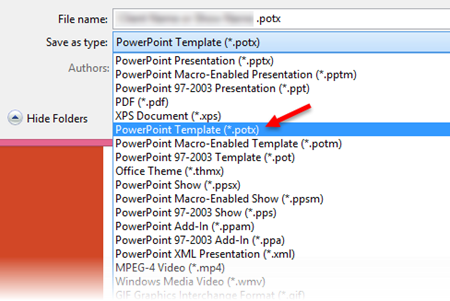
The solution we use at TLC Creative Services is to remove the variant. The simple answer is to save the presentation as a PowerPoint template (.potx) which creates a file with no variants. Here is a quick step-by-step process:

1. Go to File>> Save As >> POTX from drop down list

  • Save to the desktop (this is a temporary file you will delete)
  • Use a file name that is applicable to the template
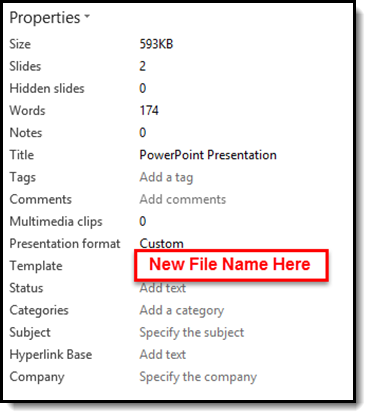
  • Note 1: The file name will be seen in the file properties
  • Note 2: A .potx is a PowerPoint template and it cannot contain slides, so doing this is going to DELETE all slides (which will be added back in a few steps)

SlideResize-8

2. Open the new .potx file and look at the file properties

  • Creating a .POTX removes the Default Theme ID
  • The TEMPLATE property will now list the .POTX file name
  • Note: When you open a .potx, it automatically creates a .pptx presentation file.

SlideResize-12

3. Go to FILE > SAVE AS > POWERPOINT PRESENTATION (.pptx) from the drop down list

  • Opening a .potx automatically creates a .pptx presentation file
  • Open file is most likely named “Presentation1.pptx”
  • Save presentation with a new file name – Best Practice: Name same as original file name + version # (eg. _v2)

4. Go to DESIGN tab > VARIANTS section

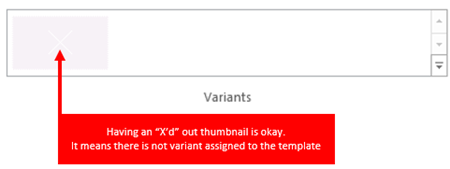
  • The presentation now has no VARIANTS

SlideResize-13

7. Add slides from original presentation to the new, no variant, presentation and save file

8. Delete the temporary .potx and the original presentation

9. Use the Resize option without losing template formatting!


– Troy @ TLC

By |2016-08-10T09:00:17-07:00August 19th, 2015|Tutorial|

Why Resize Slide Erases All Formatting (part 2)

The previous post showed how template formatting is often stripped out of a presentation when it is resized.

SlideResize-1      SlideResize-9

So here is my simple, non-tech description of what is happening inside PowerPoint (Note: If you really want details on templates and themes, I highly recommend Echo Swinford and Julie Terberg’s excellent book: Building PowerPoint Templates Step by Step with the Experts).

The resize “bug by design” will only happen with presentations and templates developed in PowerPoint 2013 and above.  Files created in PPT 2007 and 2010, even if edited in 2013, do not have the resize issue because those versions of PowerPoint do not have the troublemaking feature. With PowerPoint 2013, a new option for templates was added, VARIANTS. Variants will eventually be a great feature, but currently they are not really used and the “Super Theme Templates” they open the door to create are so difficult to develop, I only know a few designers in the world who really understand them and are willing to tackle them (and I am not one of them).

Variants, which you see in the Ribbon on the Design Tab, are basically template styling options.

SlideResize-5

When resizing slides, PowerPoint needs to use a variant. If there is not a custom variant already there from a Theme, PowerPoint reapplies the Microsoft Default Theme. The default theme, called “Office Theme,” is what you get when opening a new blank presentation (boring, white, no stylized formatting).

SlideResize-10

When the default theme, and its variants, are applied, all formatting to the master slide and layouts are replaced with this “default” setup. What this means is nicely designed slides lose their existing template styling attributes. See the previous post for a downloadable sample slide you can test and see formatting stripped.

Here are 2 ways I do a quick check to see if a provided file is going to have an issue if it needs to be resized:

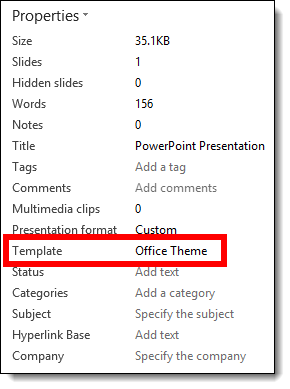
1. Go to FILE > PROPERTIES > expand to see all properties > TEMPLATE

– If the TEMPLATE property is BLANK or has “OFFICE THEME,” I know it is almost 100% certain to have formatting issues if resized

SlideResize-6

2. Or I look at the DESGIN tab >> VARIANTS section and see what variants are available (Note: If there are no variant thumbnails, that is covered in part 3, and it is okay)

SlideResize-11

The next post, part 3, is a step-by-step solution to avoid PowerPoint adversely affecting slides when resized.

– Troy @ TLC

By |2016-06-16T14:07:02-07:00August 17th, 2015|Tutorial|

Resize Slide Erases All Formatting! (part 1)

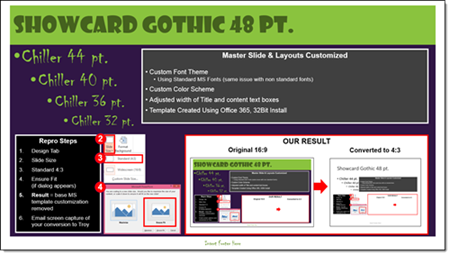
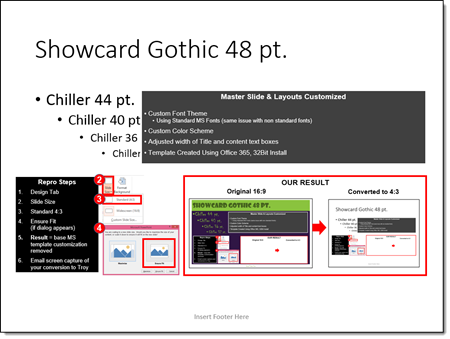
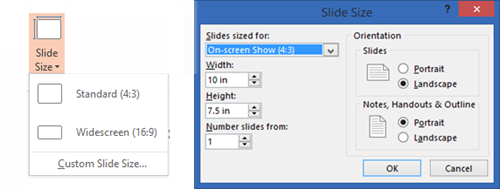
Here is the scenario: you have a 16×9 presentation that needs to be changed to 4×3. Easy! PowerPoint has a great feature to change the aspect ratio (via Page Setup) and it keeps everything proportional (eg. circles stay round) and adjusts the position of everything to fit the new slide layout – but things don’t go as smoothly as planned.

1. Here is your 16×9 slide (download this PowerPoint 2013 Resize Test Slide):

SlideResize-1

2. Go to DESIGN > SLIDE SIZE > STANDARD 4×3

Resize14

3. Here is the disaster you get when converting to 4×3

SlideResize-9

Note: This problem is not the size selected (4×3), it happens when going from any size to another size. And this is not a bug, but by design (I really like how Echo Swinford  describes this as “a bug by design”). What you end up with is:

– Correct page size – yay!

– Custom background – gone

– Custom fonts – gone

– Custom color scheme – gone

– Any template customization – gone

Part 2 and 3 of this series detail what is happening behind the scenes in PowerPoint and a (fairly) simple step-by-step solution.


– Troy @ TLC

By |2016-06-16T14:09:24-07:00August 14th, 2015|Tutorial|

Permanently Delete a File with Eraser

Here at TLC, our team works hand in hand with companies dealing with all sorts of information. One week, you may find us setting up show computers for a large event for a pharma company, and the next week, onsite running presentations for an executive of an auto corporation. Our computers are always operated by internal staff, but it is imperative to secure information.

Eraser 1

Dropping files into the Recycle Bin is not really deleting them – it is only the operating system removing the reference of the files from the system table. Every file is really there until another file is saved over it. Eraser permanently overwrites files with patterns of data that completely prevents file recovery. So, whether you want to securely erase financial records, passwords and/or security data, Eraser is a free, easy to use program that makes files gone for good. Eraser can be found here (go to the download link at top of page – do not use any of the adware download buttons!).

eraser logo

– Troy @ TLC

By |2016-08-10T09:01:02-07:00August 10th, 2015|Software/Add-Ins|

Introducing Office UserVoice!

UserVoice-1

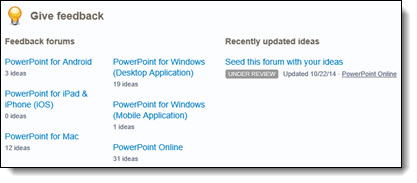
Microsoft is (finally) taking the input of its user more seriously, and not just their large enterprise customers (where the lead IS contact was the input person) and the MVP teams. This is for their entire user base! Microsoft has partnered with an external company to “engage with customers about new features and ideas.” UserVoice is something I am very excited about.
UserVoice-2

  • Covers all platforms: Windows (Desktop & Mobile), Mac, iOS, Android, and the Web
  • Separate pages for each Office app: PowerPoint, Excel, Word, Outlook, OneNote, Sway
  • Goal is to gather end user input (that’s you and me!) on features we see as needed in an Office app. Microsoft, from what I have been told, is going to have this data be a factor in determining what they need to focus on.
  • Vote for the ideas you like. This is a big part of the data that Microsoft will be receiving – “how many people agree with this being a needed feature?” NOTE: Each user only gets 10 votes!
  • UserVoice is not a forum for tech support. Its purpose is hearing what people want to see. This is great for me to see as Microsoft continues to move toward a constant app evolution and roll out of new and improved features vs. new version every 2+ years.

UserVoice-3

Bookmark and make entries when you have a great idea (or major frustration in the middle of project about what would make life better!). Here are links to each app:

PowerPoint

Excel

Word

Outlook

OneNote

[br]

– Troy @ TLC

By |2016-08-10T09:01:38-07:00July 30th, 2015|Resource/Misc|

What Computer Should I Get – My opinion on specs

[text]All the way in 2006, I posted about computer specs and my recommendations (read it here). 9 years later, those specs are comical by today’s standards. Of the 20+ computers here, not one is in line with those dated specifications – none are that wimpy.[/text]

laptop

[text]Here is an updated list of specs I look for in new design computers. Note: This is all about Windows computers, Macs are a separate conversation. One thing remains the same since 2006, “Get the biggest, fastest, and most powerful.”[/text]

[text]I need to also highlight that the computer specs are only 1 part of the solution, and they are the easy part. The other part of having a full graphics computer is setup and software. We invest hours into setting up every computer and even more time into the almost continuous process of configuring new updates, drivers, software and settings.[/text]

  • Intel i7 CPU or 2.2 GHz (i5 is perfect, but the i7 configurations generally include everything else on the list, where the i5 is often the budget configuration and lacks other needed specs)
  • 16-32 GB of RAM
  • 1-4 GB of Video RAM (There is a vast in performance between in shared vs. dedicated memory GPUs. Dedicated memory and separate processing are mandatory, which is NVidia or ATI GPUs)
  • 1920×1080 local monitor resolution (minimum)
  • USB 3.0 (+ data thunderbolt is a great option)
  • DVI or mini-display port (Thunderbolt) are my preference. HDMI is lower on my preferences; but that is due to interfacing with showsite equipment, which most will not have to worry about
  • 1 GB Ethernet port (adaptors are not what you want to deal with on a work station setup
  • SSD hard drive

[text]Will this be my recommendations next year, or in 5 years? Doubtful. I am already holding off purchasing additional computers while waiting for USB-C, wider (Windows) adoption of Thunderbolt data, new generation of CPUs and more.[/text]
[br]
– Troy @ TLC

By |2016-08-10T09:02:20-07:00July 28th, 2015|Resource/Misc|
Go to Top