The PowerPoint® Blog

I work with PowerPoint on a daily basis and I am very honored to be a Microsoft PowerPoint MVP. We have a talented team of presentation designers at TLC Creative Services and ThePowerPointBlog is our area to highlight PowerPoint tips, tricks, examples and tutorials. Enjoy! Troy Chollar

Rotate Objects with Keyboard

There are many ways to do the same task in PowerPoint, and all Microsoft Office applications. Rotating objects is one that many find difficult and tedious when using the rotate anchor. Using keyboard shortcuts to rotate an object (or several objects at the same time) is an amazing shortcut to know about!

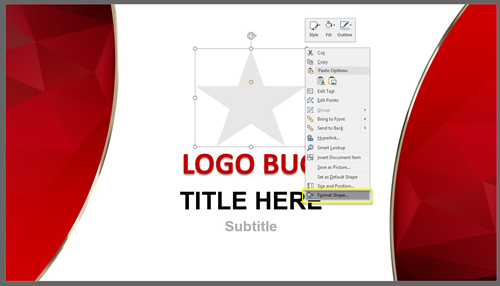
Select any shape

Rotating Objects with Keyboard 1

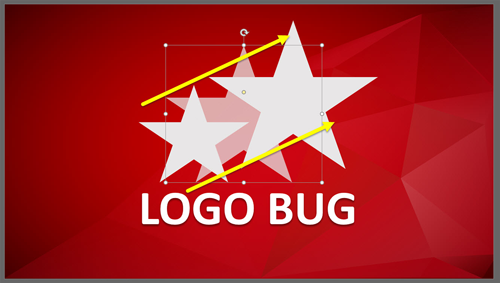
Use the keyboard to rotate the shape to the right with ALT + RIGHT ARROW. Hold the ALT key down and click the right arrow as many times as needed to get the rotation desired.

Rotating Objects with Keyboard 2

Rotating Objects with Keyboard 3

This is pretty much intuitive at this point, but ALT + LEFT ARROW will rotate the selected object(s) to the left. To go from the above rotation to the below rotation it was hold the ALT key and click the left arrow twice

Rotating Objects with Keyboard 4

Rotating Objects with Keyboard 5

Happy rotating!

Troy @ TLC


By |2018-05-31T18:02:29-07:00June 6th, 2018|Tutorial|

The Presentation Podcast Episode #55 Released Today!

A new episode of The Presentation Podcast with Troy, Nolan, and Sandy is available today! Check out the latest episode, #55 – Let’s Talk PowerPoint Templates (a Virtual Discussion).

PowerPoint Templates have lots of setup, design, distribution and end-use considerations. For this episode we have a virtual conversation with a number of presentation design experts volunteering their expertise and recommendations on everything PowerPoint templates.

By |2018-06-01T07:38:45-07:00June 5th, 2018|Resource/Misc|

Morph Any Shape to Another Shape While Creating A Presentation – Change Shape

Using existing assets is almost always faster than creating something new, or worse, creating something, again, and again, and again. Everyone should know of PowerPoints CHANGE SHAPE feature! For example, we have created a rectangle with a custom gradient. Now styling is going to be rounded rectangles. Easy, just do this: 

Select the rectangle.

Change Shape 1

Under the Drawing Tools > Format Tab, click Edit Shape > Change Shape > Rounded Rectangle.


Change Shape 2


The rectangle will now be converted to a rounded rectangle. Done!

Change Shape 3


Repeat to convert all the already formatted, positioned and animated rectangles throughout the presentation to the updated rounded rectangle styling in minutes. Or, leverage that wonderful custom gradient by morphing the rounded rectangle to an arrow, or any other shape in the Change Shape library. 

Change Shape 4

Tip: All TLC Creative design computers have the Change Shape drop down menu on our QAT for even quicker design and formatting.

Troy @ TLC
By |2018-05-31T18:03:20-07:00June 4th, 2018|Tutorial|

It’s A Bright Pink World Full of Animation!

Sometimes a presentation project is just all about the animation. In this case we were tasked with developing a 2+ minute motion graphics video to be used as a meeting opener, a short segment is here for preview. We developed the video all in PowerPoint, exported to video with a music track. It is not the tool that creates bad, boring and bland presentations – PowerPoint is just a canvas, and can accomplish wonderful results in the hands of professional design team.


Troy @ TLC
By |2025-01-02T13:59:38-08:00June 1st, 2018|Portfolio, PowerPoint|

User Navigation Demo Using Animation

This is a unique project: it’s not a true slide presentation, but a presentation demonstrating potential user navigation flow within a theoretical app. Because this is setup to be presented, we developed a 16×9 version of the app, used oversize icons and simplified much of the content so the audience has large, easy to track content. It was a presentation, but not a presentation of slides, but the content was revised to be the same size (aspect ratio) as slides… got it?

Here is the final motion graphic styling, all developed using PowerPoint.

[KGVID]https://thepowerpointblog.com/wp-content/uploads/2018/05/unnamed-file-3.mp4[/KGVID]

For reference, the above video is from 7 slides:

user navigation

There is a combination of on-slide animation and Morph transition to achieve all motion graphic effects:

user navigation

Troy @ TLC

By |2019-10-30T05:59:17-07:00May 28th, 2018|PowerPoint|

Social Media Landscape

Sometimes animation has become too easy. For example, during a recent project, it took longer for the animation request to be explained than to develop. Two slides, move logos, crop and let morph do everything for us with these social media landscape slides.

[KGVID]https://thepowerpointblog.com/wp-content/uploads/2018/05/unnamed-file-1.mp4[/KGVID]

Troy @ TLC


By |2019-10-30T05:58:43-07:00May 25th, 2018|PowerPoint|

Map Pin Locations

Here is some more animation fun from another presentation project. The goal of this slide was to show national coverage (from the original 3 locations). The talking points were not specific to the locations, but on the positive corporate office growth. We knew there was time for a subtle animation of the map pin locations that filled some of the talk.

[KGVID]https://thepowerpointblog.com/wp-content/uploads/2018/05/unnamed-file-4.mp4[/KGVID]

The animation pane shows every line of text and every map marker, which were set in a 9 second animation.

map pin locations

Troy @ TLC

By |2019-10-30T05:59:55-07:00May 23rd, 2018|PowerPoint|

Nice Bar Chart

Often we create our own charts, not from the charting engine, but from shapes, text, and graphics. Of course, this is for highly visual presentations that we know are not going to rely on charts with data and can be adjusted for use in other presentations. So, this is as much about animation as slide content styling. Before the animation example, I want to show the design for the nice bar chart. Each bar is comprised of 4 graphic elements: red box with text top aligned, grey box with text bottom aligned, grey outline (no fill box), and a black line.

 nice bar chart

Here are the animated bar charts (sample video has 2 slides with visual bar charts, client content removed, and for example here only).

[KGVID]https://thepowerpointblog.com/wp-content/uploads/2018/05/unnamed-file-5.mp4[/KGVID]

Troy @ TLC

By |2019-10-30T06:00:52-07:00May 21st, 2018|PowerPoint|

Carousel Motion Effect

Using the same slides as the previous Morph transition, this version of the Carousel Motion Effect uses big bold photos, and includes a nice PowerPoint reflection styling.

[KGVID]https://thepowerpointblog.com/wp-content/uploads/2018/05/unnamed-file.mp4[/KGVID]

The animation in the video was completed on 7 slides, with no animation pane “animation.” Also included in the animation effect was the progress bar – equally easy to setup and animate with Morph.

Carousel Motion Effect


Troy @ TLC

By |2019-10-28T10:02:59-07:00May 18th, 2018|PowerPoint|
Go to Top